Help Center

Add a Google Calendar booking page to your card

Paste your Google Calendar booking page link or embed code into a Book a call block so visitors can book time with you from your card.

Google Calendar booking pages need no connection. Copy the link or the website embed code from Google Calendar, paste it into a Book a call block, and visitors book with you from your card. Bookings stay in Google Calendar.

Use this guide when

you already take appointments with a Google Calendar booking page and want visitors to book from your card.

Before you start

  • Every Zapped plan can add a Google Calendar booking page, including Free.
  • Any Google account can create a booking page. Some booking page features need a paid Google Workspace or Google One plan.
  • Bookings made on a Google booking page stay in Google Calendar. They do not appear in your Zapped Inbox.

Steps

  1. In Google Calendar, choose Create, then Appointment schedule. Give it a title, a length and the hours you are free, then choose Save.
  2. Under Booking pages in the Google Calendar sidebar, choose your booking page, then Copy link. You can also copy the website embed code from the share options; either one works.
  3. In Zapped, open the card you want to use, choose Add block, then Book a call.
  4. Paste the link or the whole embed code into Booking link. Zapped keeps only the booking page address from an embed code, and turns a short calendar.app.google link into the full booking page address.
  5. Pick how visitors book in Open as, choose Update, then Publish so the live card shows the block.
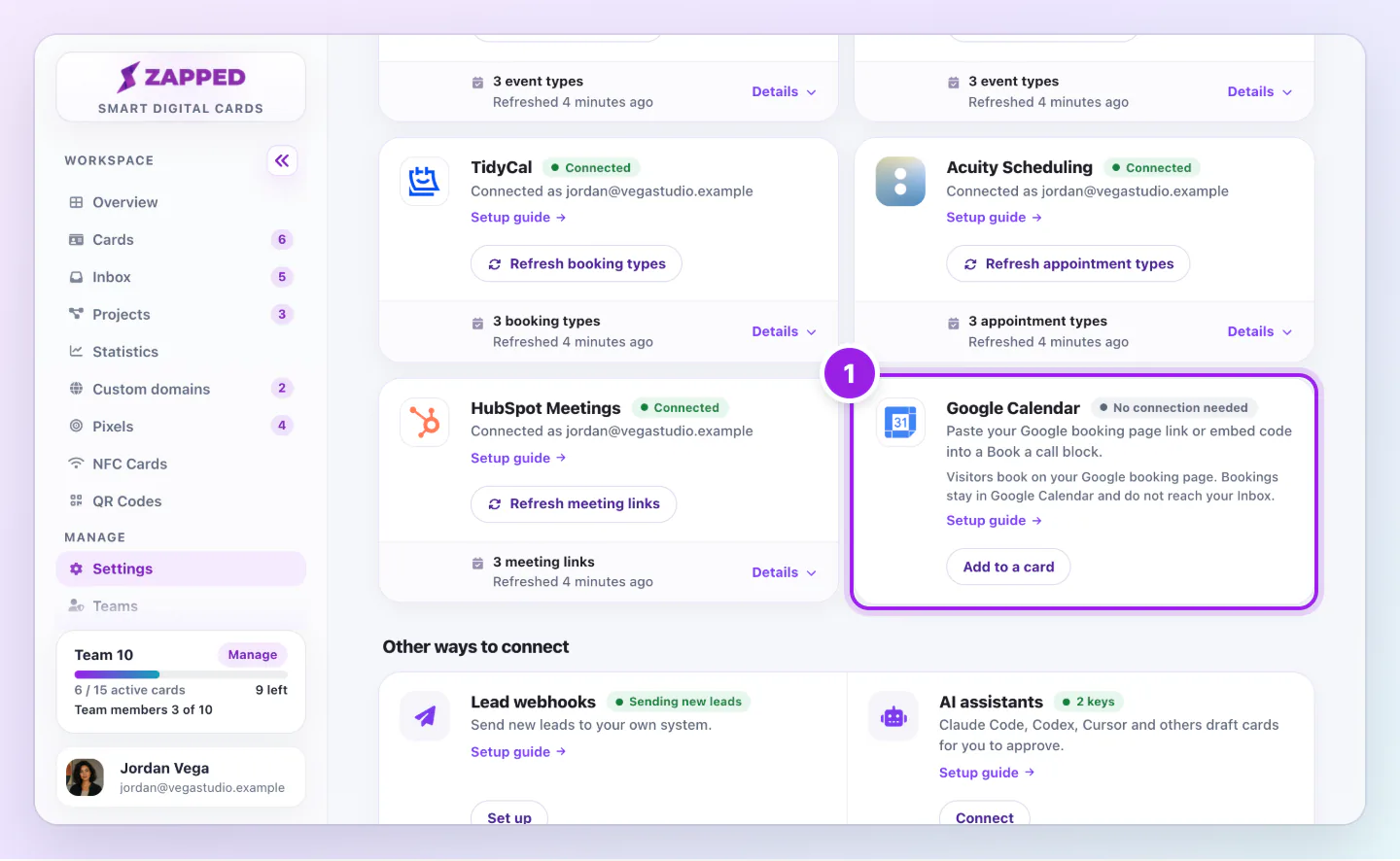
Scheduling page with the Google Calendar card marked, showing No connection needed, an Add to a card button and a Setup guide link.
  1. Google Calendar needs no connection. Setup guide opens this guide.
Google Calendar sits under Scheduling with No connection needed, because you only paste your booking page into a Book a call block.

Zapped never connects to your Google account. It only stores the booking page address you paste.

Choose how visitors book

The Open as setting on the Book a call block decides what visitors see on your card.

  • Booking page inside the card: Your Google booking page opens in a panel on top of the card, so the visitor picks a time and books without leaving it.
  • Link to the booking page: The button opens your Google booking page in a new tab.

Where bookings appear

Google Calendar adds each booking to your calendar and emails you and the visitor, as it always does. Zapped does not receive Google bookings, so they do not appear in your Inbox. To get booked meetings in your Inbox, use a scheduler Zapped connects to, such as Calendly or Cal.com.

Good ways to use this

  • Give the booking page a clear title, such as 30 minute intro call, because visitors see it at the top of the page.
  • Add a Google Meet link or a location to the appointment schedule, so every booking says where you meet.
  • Open your card on a phone after publishing and book a test time to see what visitors see.

Common questions

Do I need to connect Google?

No. Paste the booking page link or embed code. Zapped never asks for access to your Google account.

Which link should I paste?

Either one. The short link from Copy link and the website embed code both work. Zapped turns them into your full booking page address.

Will Google bookings show in my Zapped Inbox?

No. They stay in Google Calendar. Calendly, Cal.com, TidyCal, Acuity Scheduling and HubSpot Meetings can send booked meetings to your Inbox.

If something looks wrong

  • If the block says the link is not a booking page, copy the link again from Booking pages in Google Calendar. A link to your whole calendar or to one event is not a booking page.
  • If the booking page does not open inside the card, choose Open in a new tab in the panel, then check that the booking page is still saved in Google Calendar.
  • If visitors see no free times, check the hours and the booking window on your appointment schedule in Google Calendar.

Was this guide helpful?

Still have questions? Contact support and we'll help you out.