Help Center

Send your setup details

Walk through the setup form, add your team list and submit.

After you buy a setup, you fill in a short form. Each step saves as you go, and you can edit your answers until we start building.

Use this guide when

Your order says Waiting for your details.

Before you start

  • Have your logo, brand colors, contact details and, for a team, your team list.

Steps

  1. Open Settings, Plan and billing, Setup orders, and choose Send your details.
  2. Work through the steps. Team and Business: Your brand, Your people, How your cards look, Your cards. Solo and Email Signature: About you, Your brand, How your card looks, Your card and signature.
  3. For a team, choose Add here, Paste a list or Upload a file. Use Download the team list template.
  4. On Review and submit, add anything marked Missing, then choose Submit my details.
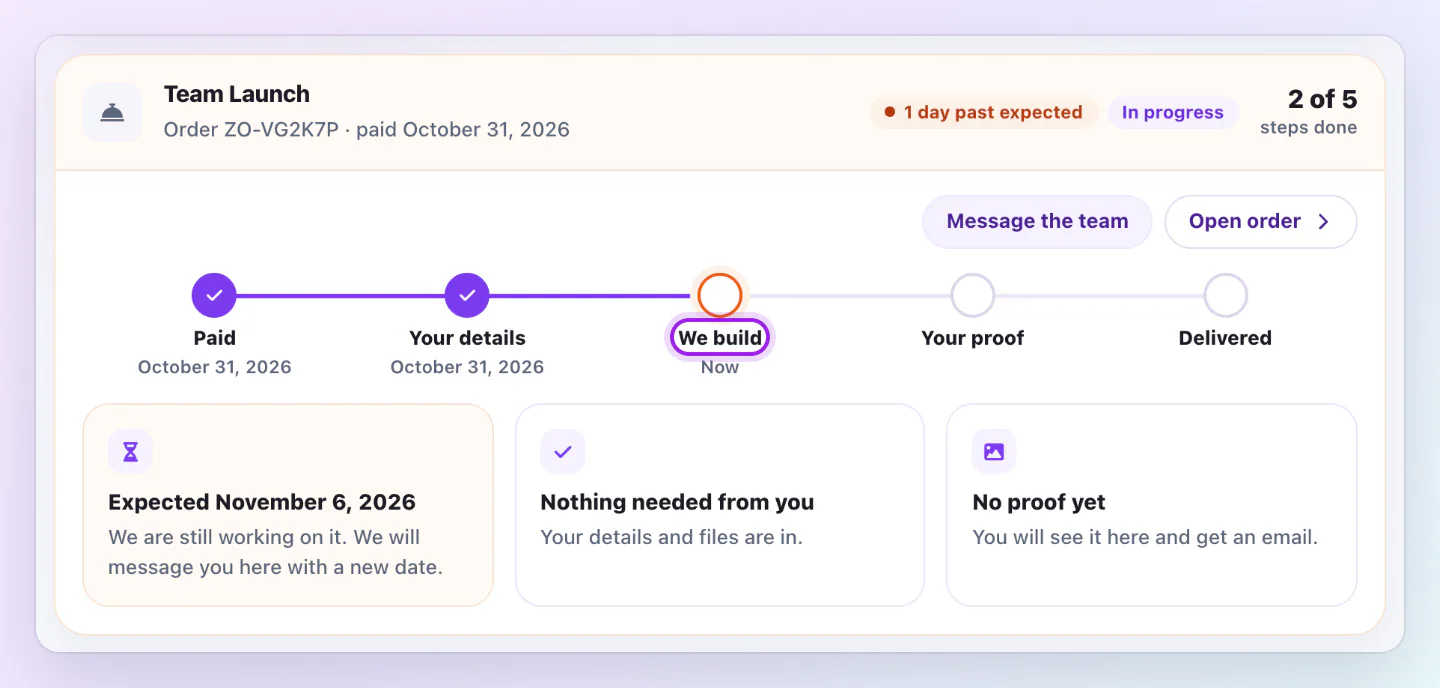
Team Launch order timeline with Paid and Your details done, We build as the current step, then Your proof and Delivered still to come.
The timeline on each order shows what is done, what we are doing now and what comes next.

Finish later emails you a link. After you submit, choose Edit my details and Send updated details to change them before we start.

Files and limits

Logos take PNG, JPG, WEBP or SVG. Files can be up to 10 MB. Most fields allow 20 files, with a usual total of 40 per order. Team headshots have a larger allowance based on your plan, and the order total rises to fit them. A team file can have up to 1000 rows and 2 MB.

If you do not have something

Tick I do not have it where offered, or Skip what we do not have yet to let us use placeholders. Paste your website and we use it for your logo and colors.

Invite your team

The review step lists people to invite. We send invitations when your cards are ready.

Good ways to use this

  • Submit soon after ordering.

Common questions

Can I change answers after submitting?

Yes until we start building.

If something looks wrong

  • If Submit is blocked, check items marked Missing.

Was this guide helpful?

Still have questions? Contact support and we'll help you out.