Help Center

If a payment fails or your card is about to expire

What Zapped emails you, how to update your card, and what happens to your plan while a payment is unpaid.

When a payment does not go through, Zapped tells you by email and on the Plan page. Most of the time you fix it by updating your card.

Use this guide when

You got an email about a failed payment, your bank asked you to confirm a payment, or your card expires soon.

Before you start

  • Only the account owner can see and fix billing. Switch to your Personal workspace first.

Steps

  1. Open the email and choose Update your payment card, or open Settings, then Plan and billing, then Plan.
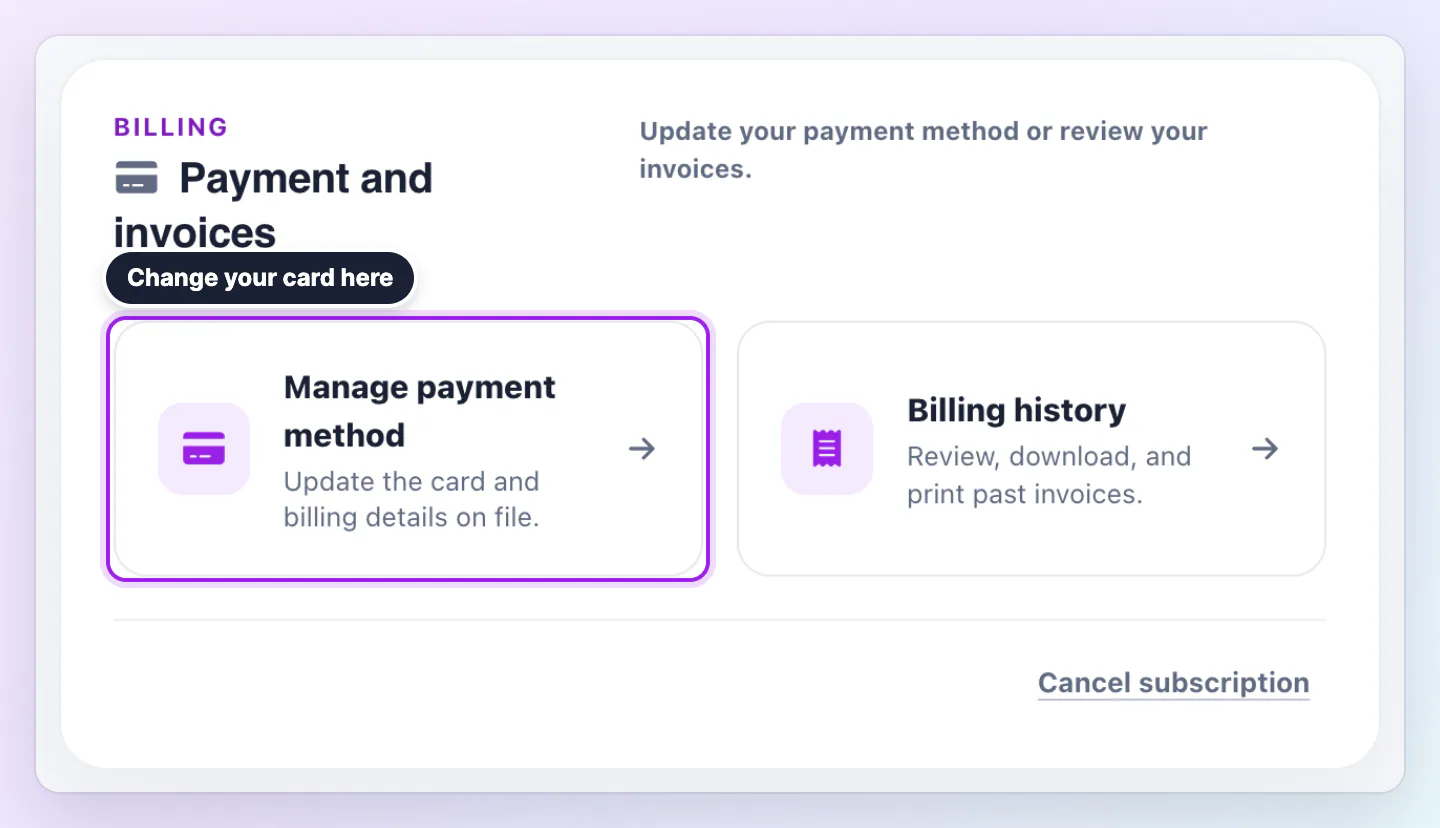
  2. In the Payment and invoices panel, choose Manage payment method. It opens a secure page where you change the card and billing details.
  3. Save the new card and come back to the Plan page. The status Payment needed stays until the payment is confirmed, and paid features return after a successful payment.
Payment and invoices panel on the Plan page with Manage payment method highlighted beside the Billing history link.
Manage payment method opens the page where you change your card and billing details.

A failed renewal keeps your paid features for 12 hours after the paid period ends. After that your account moves to Free, or back to the plan page if you must choose a plan, and your plan returns when a payment goes through. The Plan page shows the date you can still restore it.

What happens when a payment fails

Stripe tries the card again a few times over about three weeks. We email you when you need to act. If the payment is still unpaid after that, Stripe cancels the subscription, we void the open invoice so nobody can pay it and get nothing, and we email you that your plan has ended and that you owe nothing.

  • First charge after a trial: Paid access ends when the trial ends, with no grace hours. The email reads Your plan is paused and has a Pay the invoice button.
  • A renewal: The email reads We could not charge your card and tells you the date to update your card to keep your plan without a break.
  • After you cancelled: If your final renewal is declined, your plan ends at once and nothing is retried. You get one email that your plan has ended, and no request to update your card.

When your bank asks you to confirm

Some banks need you to approve a payment. The Plan page then shows Your bank needs you to confirm this payment with a Confirm payment button, and we email Confirm your Zapped payment. To use another card instead, choose Manage payment method. Stripe may also send its own confirmation message.

When your card is about to expire

About a month before it expires, we email Your Zapped payment card expires on the date, with an Update my payment card button. It covers plans that are active or in a trial.

Ahead of a yearly renewal

Ahead of a yearly renewal we email Your plan renews on the date and the amount we will charge your saved card. You do not need to do anything to keep your plan. To change or cancel, or to update your card, open the Plan page before that date.

Good ways to use this

  • Update your card as soon as the expiry email arrives.
  • Keep your account email current so these messages reach you.
  • Use a card with room for your plan, and keep the same card for setup charges.

Common questions

Will I lose my cards?

No. Your cards and content stay saved while a payment is unpaid.

Who gets these emails?

The account owner. Team members never see billing.

Where are my past payments?

Under Settings, then Plan and billing, then Payments. Billing history opens the same list.

If something looks wrong

  • If you do not see Manage payment method, use the button in the email, or write to us from the Help widget and we will help.
  • If the Plan page still says Payment needed after you updated the card, wait a few minutes and refresh. Paid features return once the payment is confirmed.
  • If you did not get any email, check spam and make sure your account email is right under Settings, Profile.

Was this guide helpful?

Still have questions? Contact support and we'll help you out.