Help Center

Show open times and receive appointments with Acuity Scheduling

Show Acuity Scheduling open times on your card and get booked appointments in your Inbox, which needs Acuity's Premium plan.

Acuity opens its API only to accounts on its Premium plan, so live open times on the card and appointments in your Inbox need Premium. On every other Acuity plan, a Book a call block still works as a link to your scheduling page or as the scheduling page inside your card, with no connection at all.

Use this guide when

you use Acuity Scheduling and want visitors to book from your card, see your next open times at a glance, or keep booked appointments next to your other leads.

Before you start

  • Solo, Team and Business plans include connected schedulers, and so do earlier Starter and Professional plans. The Free plan can still add a booking link, but it cannot connect Acuity.
  • Only the account owner can connect or disconnect Acuity. Work in your Personal workspace.
  • Connecting needs an Acuity account on the Premium plan. Acuity refuses the connection on its trial and lower plans.

Steps

  1. In Acuity, open Integrations and find the API section. Copy your user ID and your API key.
  2. Open Settings, choose Integrations, then Scheduling.
  3. On the Acuity Scheduling card, paste them into Acuity user ID and Acuity API key, then choose Connect with API key. The card then says Connected and lists your appointment types.
  4. Open the card you want to use, choose Add block, then Book a call. Paste your Acuity scheduling link and choose Create.
  5. Open the new block, pick your appointment type under Acuity appointment type, choose an option under Open as, then choose Update and publish the card.
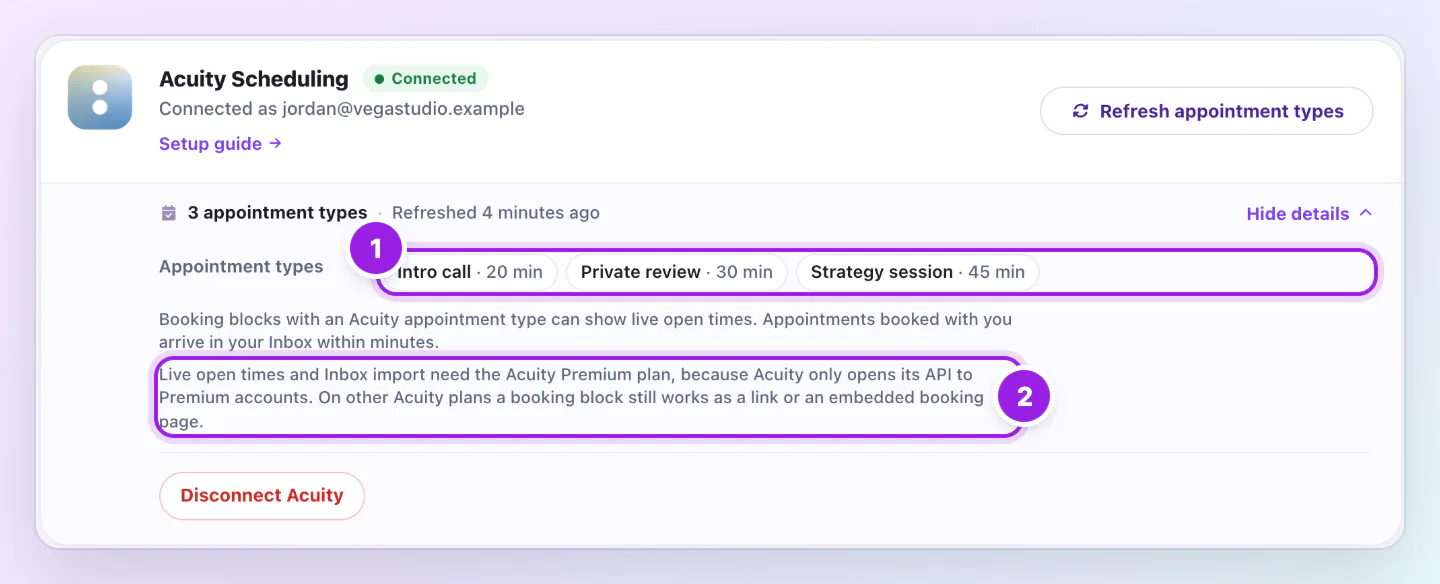
Acuity Scheduling card, connected, with the Refresh appointment types button and the opened details showing three appointment types and the Premium plan note.
  1. Your Acuity appointment types. Pick one of these in a Book a call block.
  2. Live open times and Inbox import need Acuity's Premium plan. The link and the embedded booking page work on every Acuity plan.
Once Acuity is connected, its card lists your appointment types under Details, with the reminder that live open times and Inbox import need Acuity's Premium plan.

Zapped stores your user ID and API key encrypted and only reads your appointment types, open times and appointments. It never changes anything in Acuity, and Acuity still sends its usual confirmation emails.

Use Acuity without Premium

Skip the connection. Add a Book a call block with your Acuity scheduling link and choose Link to the booking page or Booking page inside the card under Open as. Visitors book on your Acuity page as usual.

Without a connection, appointments do not appear in your Inbox and the card cannot show open times, so keep an eye on new appointments in Acuity.

Choose how visitors book

The Open as setting on the Book a call block decides what visitors see on your card.

  • Open times on the card: The card lists your next free times for the appointment type. A visitor picks one and your Acuity scheduling page opens to finish booking. This needs a connected Premium Acuity account.
  • Booking page inside the card: Your Acuity scheduling page opens in a panel on top of the card, so the visitor never leaves it. This works on every Acuity plan.
  • Link to the booking page: The button opens your Acuity scheduling page in a new tab. This works on every Acuity plan.

What visitors see

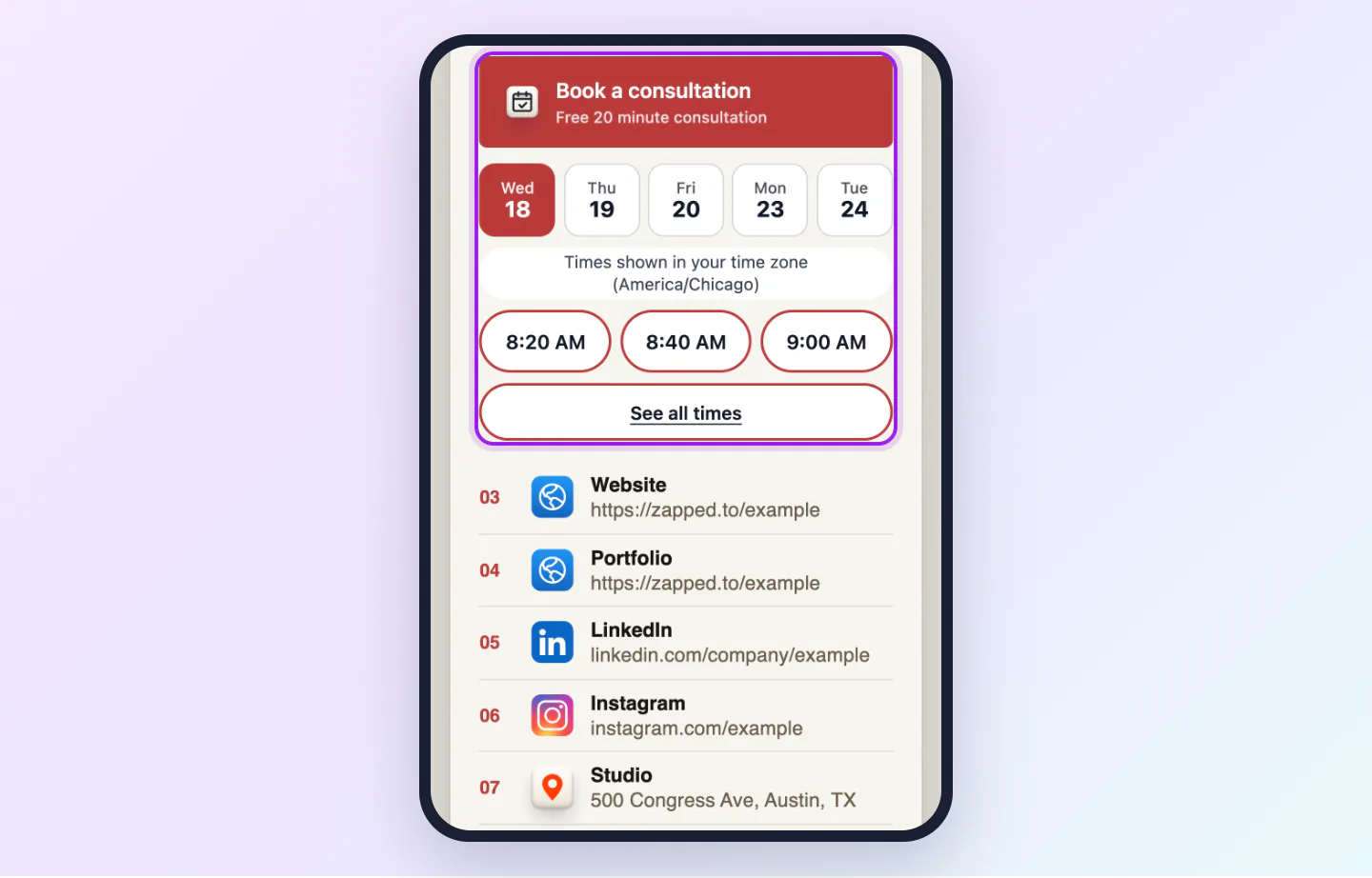
With open times on the card, visitors pick a day, then a time, shown in their own time zone. See all times opens your full Acuity scheduling page.

Some themes show booking as a plain link. If the block settings say so, choose a theme that supports open times, or keep the link option.

A published card on a phone with a Book a consultation block showing days, open times and a See all times link.
With a Premium Acuity account connected, visitors pick a day and a time on the card, then finish booking on your Acuity page.

Where booked appointments appear

Once Acuity is connected, every appointment booked with you appears in your Inbox with the appointment type, the time and Booked through Acuity Scheduling, usually within a few minutes. Open it to see the booking status and to use Reschedule or Cancel meeting, which open the appointment in Acuity. Join meeting appears when the appointment has a video link. You get the same new lead notification as for a form.

If the appointment is cancelled, it shows Cancelled, returns to unread, and a New appointment moves to Closed. History shows Meeting cancelled. If the time changes in Acuity, the appointment in your Inbox shows the new time and a note records the change.

Refresh or disconnect

After you add or change an appointment type in Acuity, choose Refresh appointment types on the Scheduling page so it appears in the block settings.

Choose Disconnect Acuity to remove the connection. Booking blocks keep their link and the embedded scheduling page, but open times stop and new appointments stop reaching your Inbox. Appointments already in your Inbox stay there. To fully revoke access, also reset the API key in Acuity.

Good ways to use this

  • On a plan without API access, use Booking page inside the card, so visitors book without leaving your card.
  • Name appointment types clearly in Acuity, such as 15 minute consultation, because the name appears in your Inbox.
  • Add a short line under the block label, such as Free 15 minute consultation, to tell visitors what they are booking.

Common questions

Why does Acuity need the Premium plan?

Acuity opens its API only to Premium accounts. Live open times and Inbox import use that API, while the link and the embedded scheduling page do not.

What happens if I move off Premium later?

Acuity stops accepting the connection and the Scheduling page shows Acuity needs to be reconnected. Booking blocks keep working as links and embeds.

Can a team member connect Acuity for me?

No. Only the account owner can connect or disconnect it. Team members with Inbox access see the appointments booked from the cards they can open.

If something looks wrong

  • If Acuity refuses your details, check the user ID and the API key, and that your Acuity plan is Premium. The link and the embed keep working without it.
  • If Zapped says the user ID does not look right, copy the number shown next to the API key in Acuity.
  • If Acuity needs to be reconnected appears, the API key may have changed or your plan may no longer include API access. Paste the current details and choose Reconnect with new details.
  • If an appointment type is missing from the block settings, create it in Acuity, then choose Refresh appointment types.
  • If the scheduling page cannot load inside the card, visitors can choose Open in a new tab and book there.

Was this guide helpful?

Still have questions? Contact support and we'll help you out.