Why did my numbers change after switching workspaces?
Dashboard metrics reflect the workspace currently shown in the switcher. Personal and shared workspaces have separate resources.
 Help Center
Use the Dashboard to see card activity, setup guidance, and the next useful action.
The Dashboard gives you a quick view of the active workspace, card activity, and useful next steps.
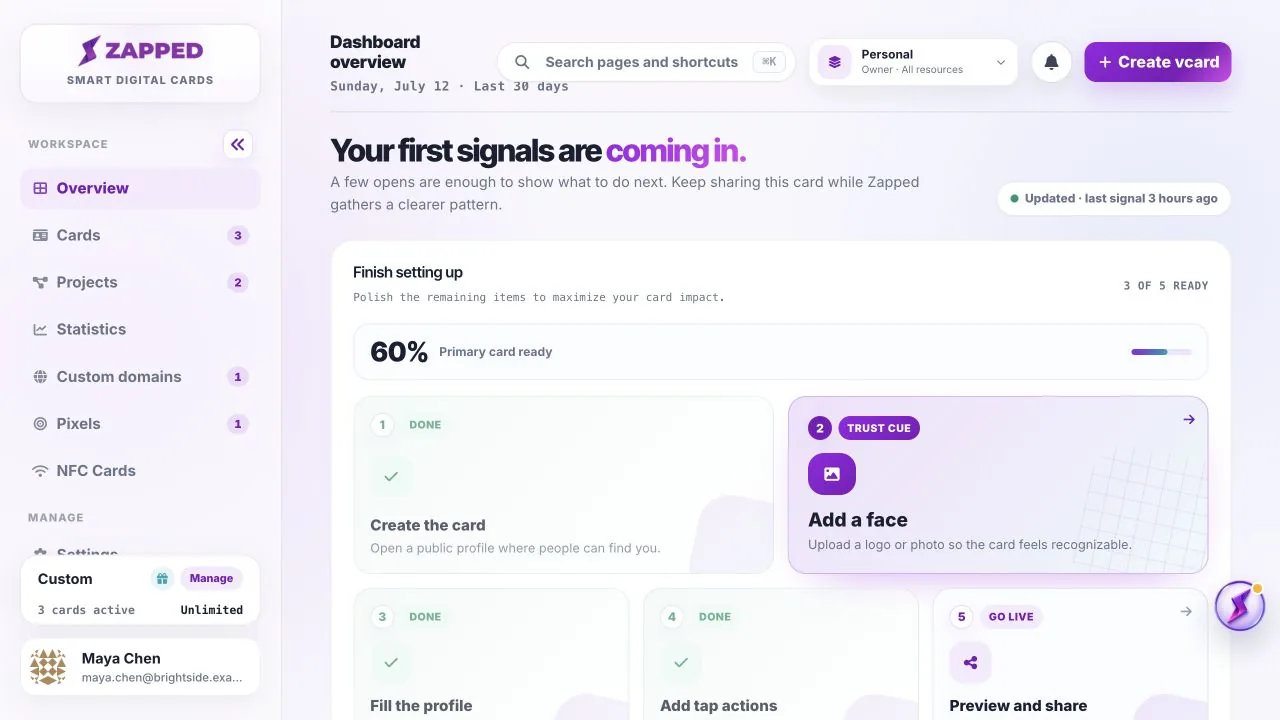
Dashboard metrics reflect the workspace currently shown in the switcher. Personal and shared workspaces have separate resources.
New cards or cards with limited sharing may not have enough visitor activity yet. Share the card and check again later.
Was this guide helpful?