Can I stop a publication after approving?
Yes. Revoking the tool's key on the API keys page stops it publishing, because publication needs a working key as well as your approval.
 Help Center
Check every change an integration prepared and approve the exact versions you want published.
When a tool prepares profile drafts for you, nothing goes live until you approve it on the review page. An approval records your decision, and the tool publishes the version you approved when its key has the publish permission. The page lists every change with its new value, shows a live preview and lets you decide profile by profile.
A tool asked you to review drafts, or you opened a review from a notification or a card badge.
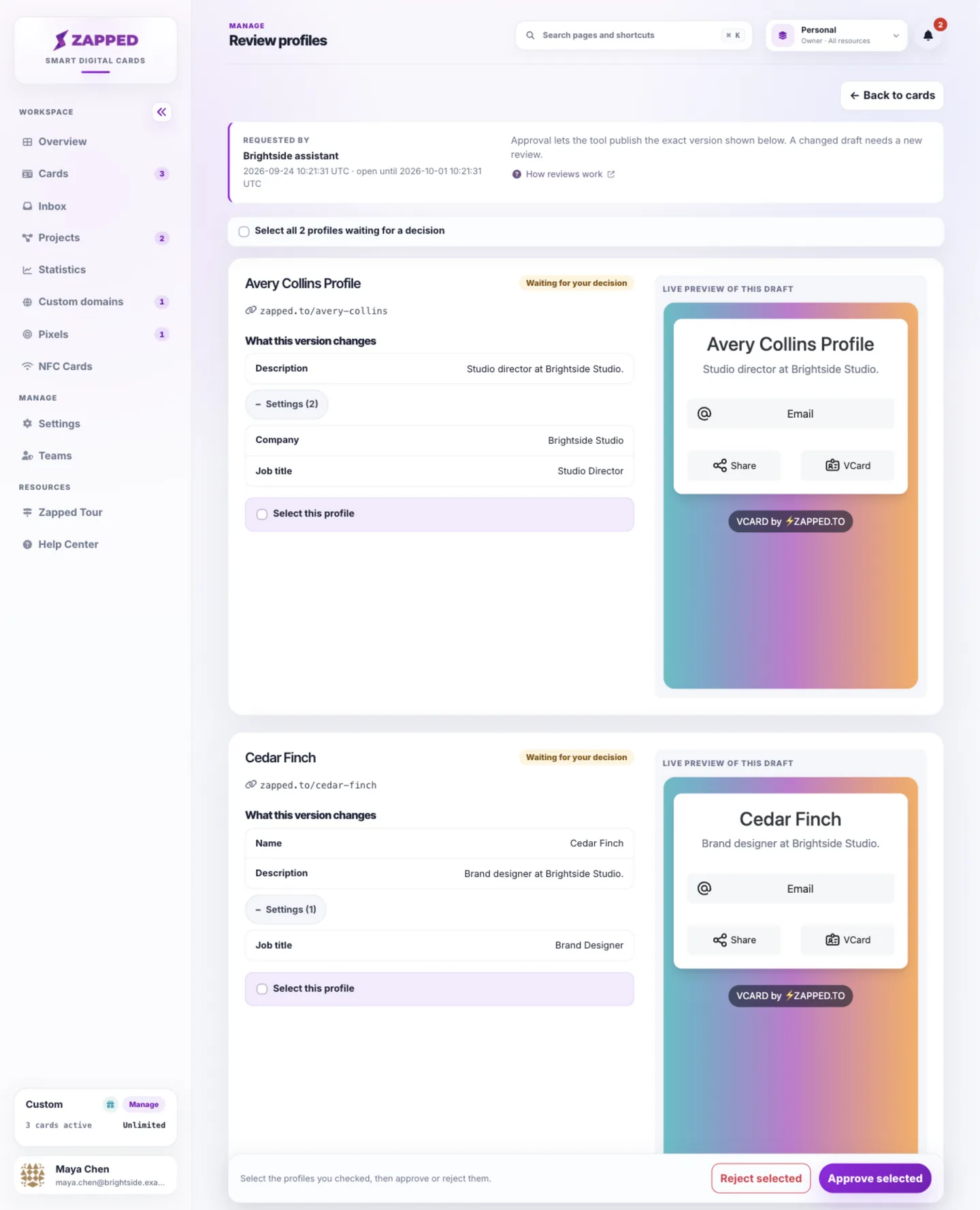
Approval lets the tool publish the exact version shown on the page, when its key carries the publish permission. If the draft changes before the tool publishes, that approval can no longer be used.
On a new profile, values that add custom code, tracking pixels, a custom domain, branding removal or a main card on a domain are flagged.
On an existing profile, changes to its address, domain, tracking pixels, code, branding, search visibility, directory listing, on or off status, or main card status are flagged.
The tool can publish exactly the version you approved, and only if its key carries Publish cards you approved. A key without that permission can still prepare drafts and ask you to review them, and you publish the profile yourself from its editor.
If the draft changes first, the profile shows Changed since the request and needs a new review. If a review expires before you decide, the tool needs to request a new one.
A rejection records your decision and stops the version from being published. The tool can read that you rejected it, but no reason or comment travels with the decision, so tell the tool what to change outside Zapped, where you already talk to it.
A rejected profile is not changed and not published. The tool can prepare a corrected draft and ask you to review it again.
An import you run yourself on the Import profiles from CSV page does not ask for a review. You checked every row in the preview, so the rows you applied become private drafts that you publish from the editor when they are ready.
An import a tool sends through the API creates the same private drafts. To publish them, the tool asks you to review the exact drafts it prepared, and this page shows the key that asked together with the request time.
Both kinds of import end in the same place. Nothing is public until a version is approved and published, and a draft that changes after your approval needs a new review.
A review item is always in one of these states:
Professional includes the developer API, managed-profile API and MCP connections for AI assistants. Starter includes CSV profile import in the dashboard, but not API or MCP access. Custom plans keep their agreed permissions. If access is temporarily paused, the API keys page shows a pause notice; upgrading does not remove a site-wide pause.
Yes. Revoking the tool's key on the API keys page stops it publishing, because publication needs a working key as well as your approval.
No. Approval records your decision; the tool must then send a separate publish request with Publish cards you approved. You can also publish from the editor. If the draft changes or the approval expires before publication, the tool needs a fresh review.
Send it a message where you normally work with it. A rejection records your decision, and no reason travels with it.
The draft was edited after the review was requested, so the version listed can no longer be approved. Ask the tool to request a new review.
Was this guide helpful?