How many Flexible QR codes can I have?
On paid plans, as many as your plan has cards. The Free plan has none: it has the Main QR code of every card. Codes that are turned off count too; deleting a code frees a place. Main QR codes do not count.
 Help Center
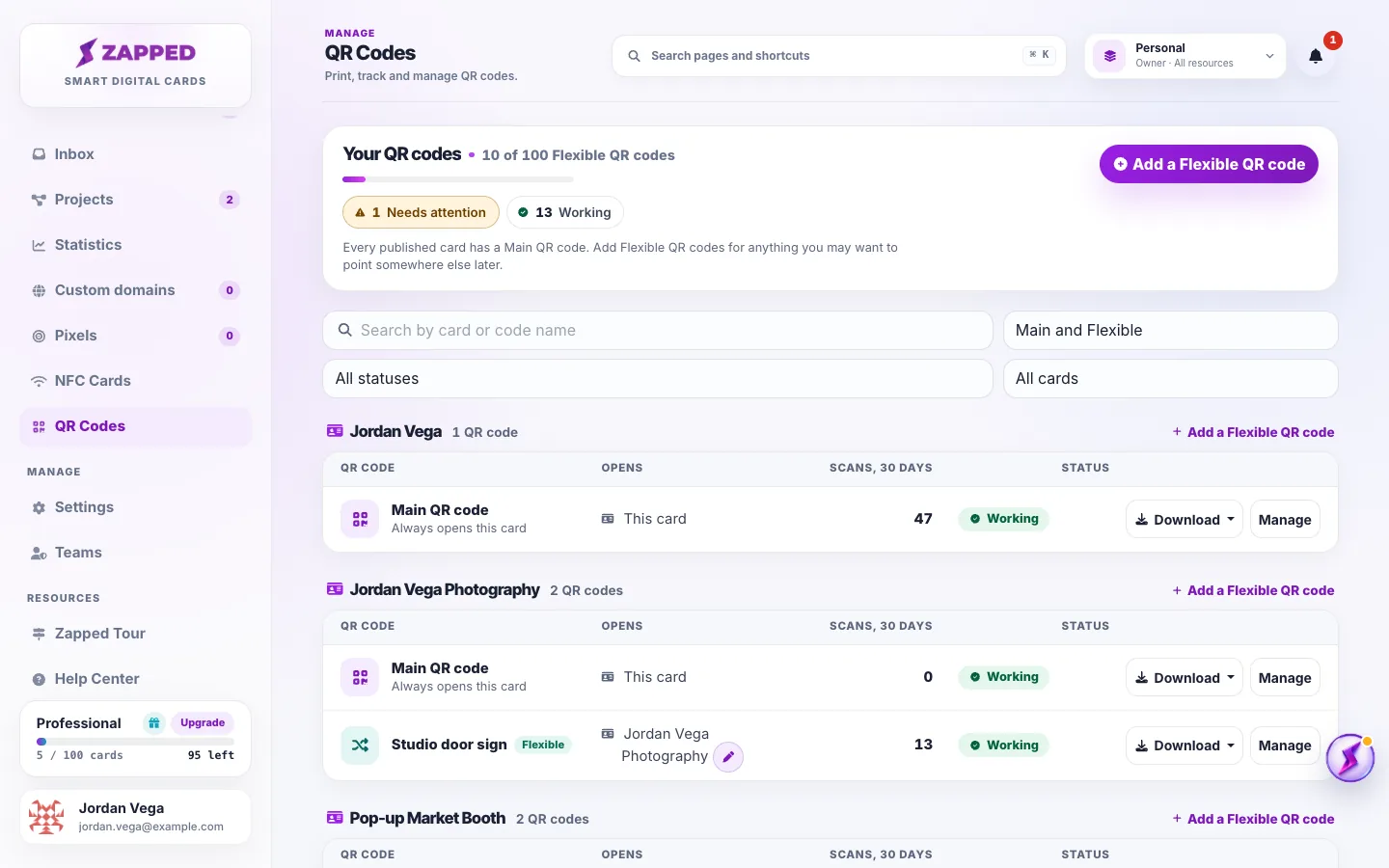
Every published card has a Main QR code, and on paid plans you can add Flexible QR codes up to your plan's card count. Choose which one to print, print it well, and change or turn it off later.
Zapped gives every published card a Main QR code that always opens that card. You can also add Flexible QR codes. They belong to your account, open any of your cards or a website, and can be changed after they are printed. You find all of them in QR Codes in the left menu.
You want to print a QR code, choose between the Main QR code and a Flexible QR code, or change or turn off a code you already printed.
The printed address inside a QR code never changes. Renaming a card, changing its address or moving it to a custom domain does not break a code you already printed.
The Main QR code is made for you when a card is published. It always opens that card, and what it opens cannot be changed. It is also the code in the card's share window.
Flexible QR codes come with paid plans and belong to your account, not to one card. Each one can open any of your published cards, or a website on plans that include website destinations, and you can change it any time. Your plan includes as many Flexible QR codes as it has cards.
When a code is turned off, scans show a page that says This QR code is not active. It explains that the person who shared it may have turned it off or replaced it. It shows nothing about you, your card or your plan.
Turning off a Main QR code does not take the card itself offline. People can still open the card from its address and its other codes. Scans also show this page while a Flexible QR code needs a destination, or while the card it opens is unpublished or turned off.
When you delete a card, its Main QR code is deleted with it. Flexible QR codes that opened the card need attention: they are listed under Needs a destination, scans show the not active page, and you choose where each one opens. A Flexible QR code that used the card as its backup keeps its website and loses its backup card.
When you delete a single card, the workspace owner, or an Admin with access to all resources, can choose another card for everything that used it. Flexible QR codes and NFC cards then open that card. If a Flexible QR code place is free, the deleted card's Main QR code becomes a Flexible QR code that opens the chosen card, so printed copies keep working. The dialog says which will happen before you confirm.
A card that is moved to another account works the same way: its Main QR code is deleted, and your Flexible QR codes that opened it need a destination.
Everyone who can view a card can see and download its Main QR code and the Flexible QR codes that open it. Changing codes depends on your role. NFC cards and QR codes on a team has the full list.
On paid plans, as many as your plan has cards. The Free plan has none: it has the Main QR code of every card. Codes that are turned off count too; deleting a code frees a place. Main QR codes do not count.
No. The printed address stays the same, so the copies you already printed open the new choice right away.
No. A Main QR code belongs to its card. You can turn it off, and it is deleted with the card.
A scan is a visit that came through the code. Link previews and bots are left out.
Each NFC card also has its own QR code. It opens what that NFC card opens and stops working when the NFC card is turned off, lost or deleted. Its scans count with that NFC card.
Was this guide helpful?