What size should my logo be?
There is no exact size. Upload at least 240 × 240 pixels, ideally 1000 pixels or more on the longest side, or an SVG file. Wide and square logos both work. Choose Fit logo to keep a wide wordmark in full.
 Help Center
Upload the images that make your card recognizable, frame them, and choose which one your theme leads with.
Your card can show a profile photo, a brand logo and a cover image. Each one has its own slot in the editor, and a framing window lets you position it before anything goes live. Themes use different combinations of these images, so not every theme shows all three.
You want to add or replace your photo, logo or header image, check what sizes and file types work, or fix an image that looks cropped, blurry or hard to see.
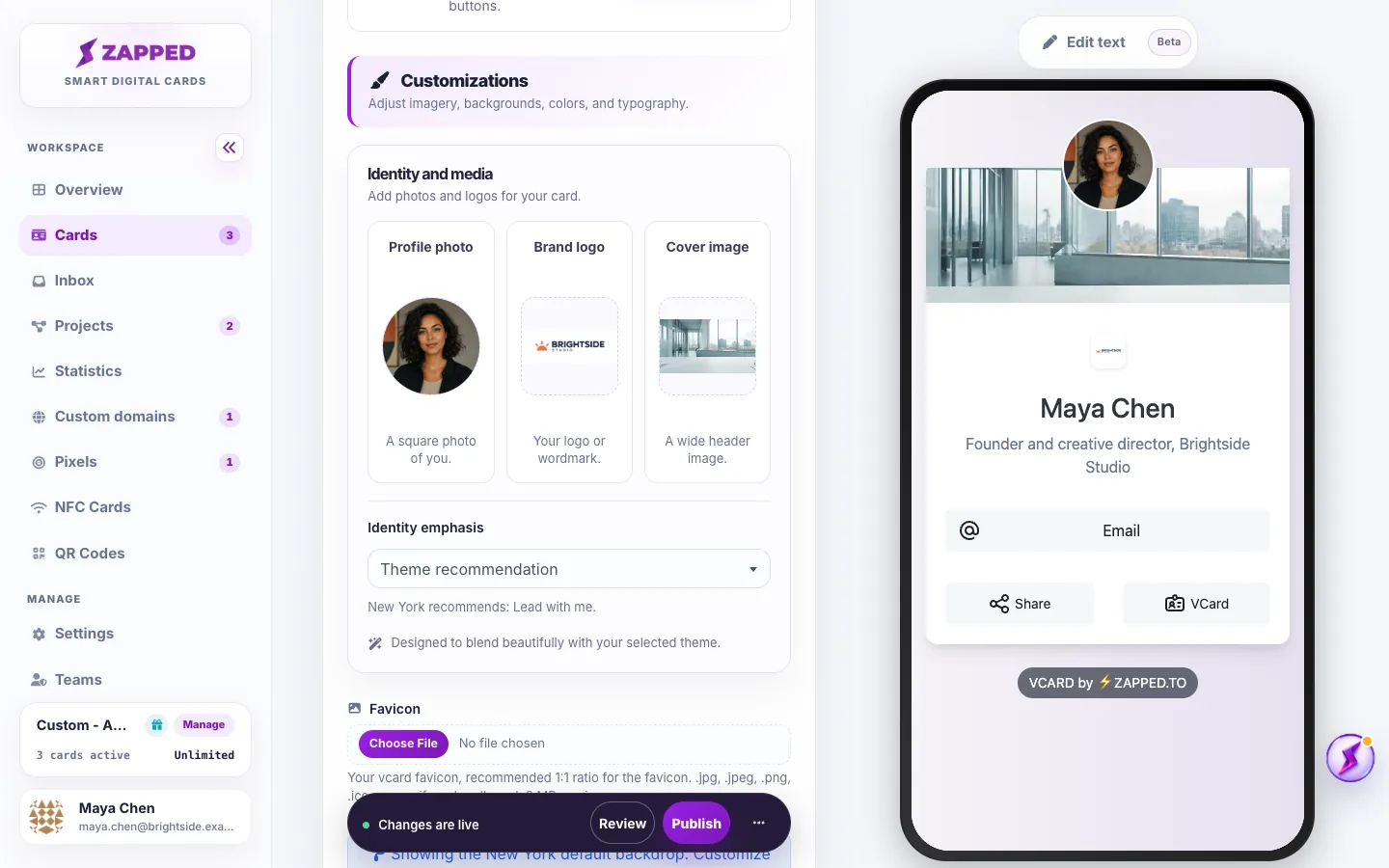
New images stay in your private draft until you choose Publish. Removing an image that is already live also waits for Publish, so you can choose Undo removal if you change your mind.
There is no single required size. Each slot has a minimum, an upload limit and a largest size it keeps. Very large images are scaled down for you before upload, so you do not need to resize them first.
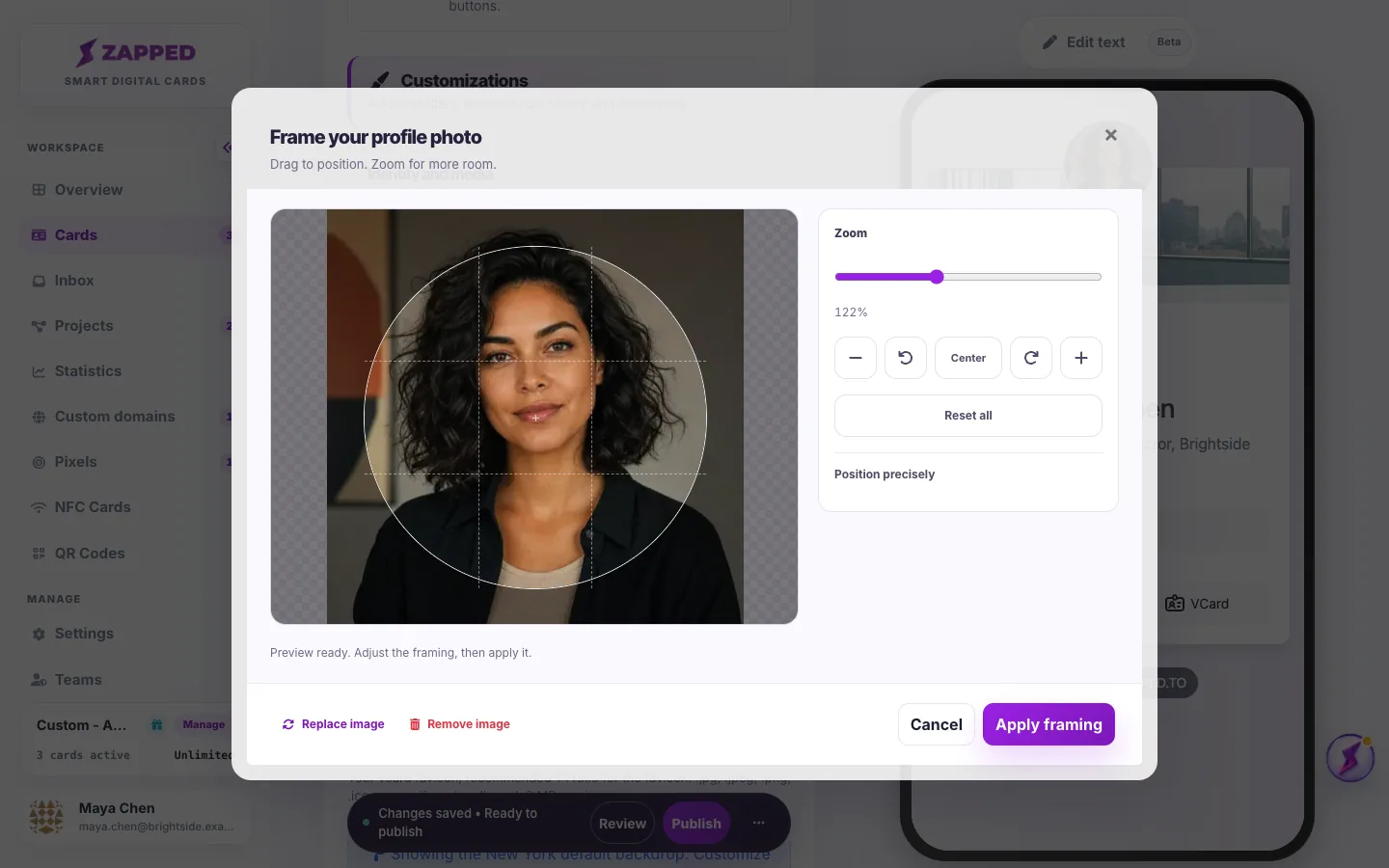
The circle shows what will be visible. Drag the image to position your face, then use the Zoom slider or the plus and minus buttons for a closer crop. The rotate buttons turn the image in quarter turns, Center puts it back in the middle, and Reset all undoes every change.
Zoom stops at the sharpest safe crop, so the photo never looks blurry. If you cannot zoom in far enough, upload a larger photo.
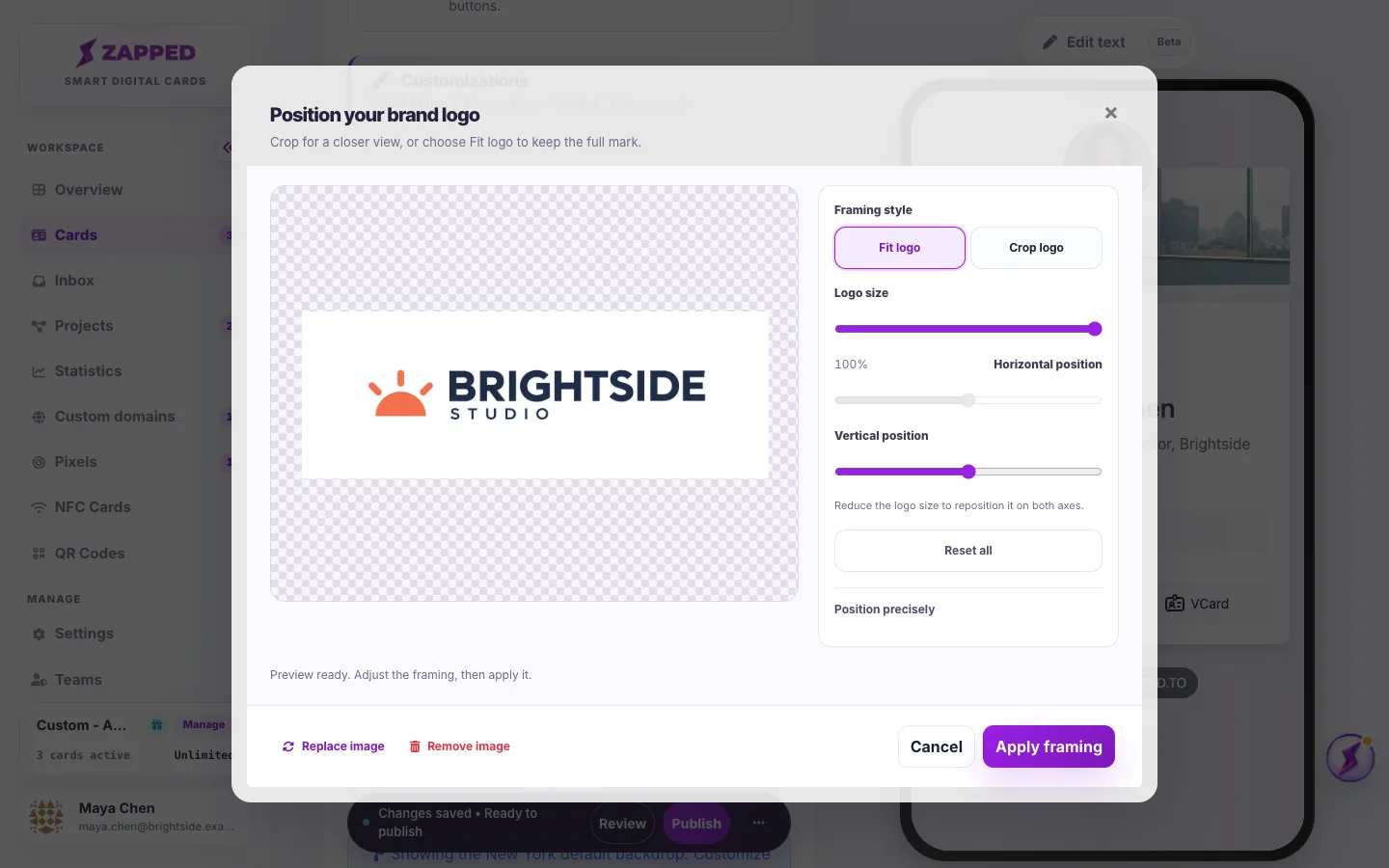
Fit logo keeps your whole mark visible. Use it for wordmarks and wide logos. Logo size makes the mark smaller inside its frame, and once it is smaller you can move it with Horizontal position and Vertical position.
Crop logo lets you draw a closer crop, for example to use only the symbol from a larger logo. Use the handles on the crop box and the Zoom controls to choose the area.
The checkered area in the preview is transparent. If your logo file has a white or colored background, that background shows on the card as a box around the mark.
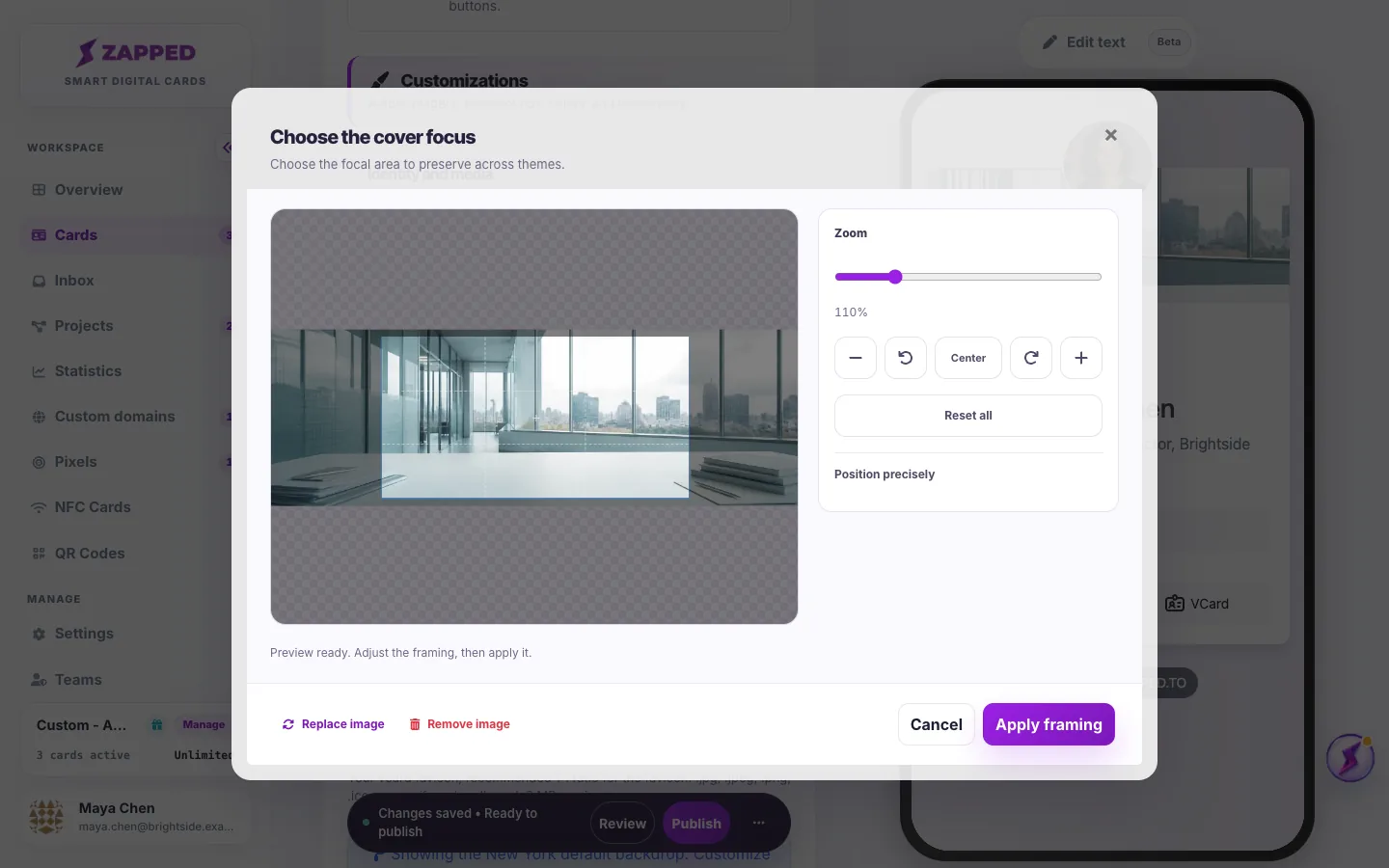
Themes show the cover in different shapes, so you choose the focal area instead of one exact crop. Move the frame over the part of the image that matters most and zoom if needed. Themes keep that area in view.
Avoid text or important details near the edges of a cover image, because some layouts show less of it on a phone.
Your card keeps all three images, but each theme decides which ones it shows and where. Switching themes can change which images visitors see, so check the preview after choosing a new theme.
When a theme shows one main image, Identity emphasis chooses which: Theme recommendation, Lead with me or Lead with my brand. If the image you choose is missing, the theme uses the other one.
A slot marked Not used here or Saved for later keeps your image, but the current theme does not show it. It appears again if you switch to a theme that uses it, so there is no need to upload it twice.
Logos are often shown small. A square or compact version of your mark stays readable in a small badge, while a long wordmark can become hard to read.
A logo with a transparent background blends into the theme, but the theme colors show through it. A dark logo on a dark theme, or a light logo on a light theme, can almost disappear.
After you apply the framing, check the phone preview. If your logo is hard to see, upload a version with a solid background or a version in a contrasting color.
Cards created before these slots existed may show an Original logo above them. It is used until you add a profile photo or brand logo. To stop using it, add your images in the new slots, or tick its remove box and publish.
There is no exact size. Upload at least 240 × 240 pixels, ideally 1000 pixels or more on the longest side, or an SVG file. Wide and square logos both work. Choose Fit logo to keep a wide wordmark in full.
Zoom stops at the sharpest safe crop for your image, so your card never shows a blurry photo. Upload a larger image to get more room.
No. Images larger than the slot keeps are scaled down for you. Files must still be under the upload limit, 5 MB for photos and logos and 8 MB for covers.
Many themes do not use a cover image, and some show only your photo or only your logo. Your images are kept, so switching back to a theme that uses them shows them again.
Was this guide helpful?