Help Center

See where you are signed in and sign out other devices

Check your sessions, sign one out, or sign out everywhere else.

The Security tab lists the browsers and devices signed in to your account so you can end any you do not recognize.

Use this guide when

You used a shared computer or saw something you do not recognize.

Steps

  1. Open Settings and choose Security.
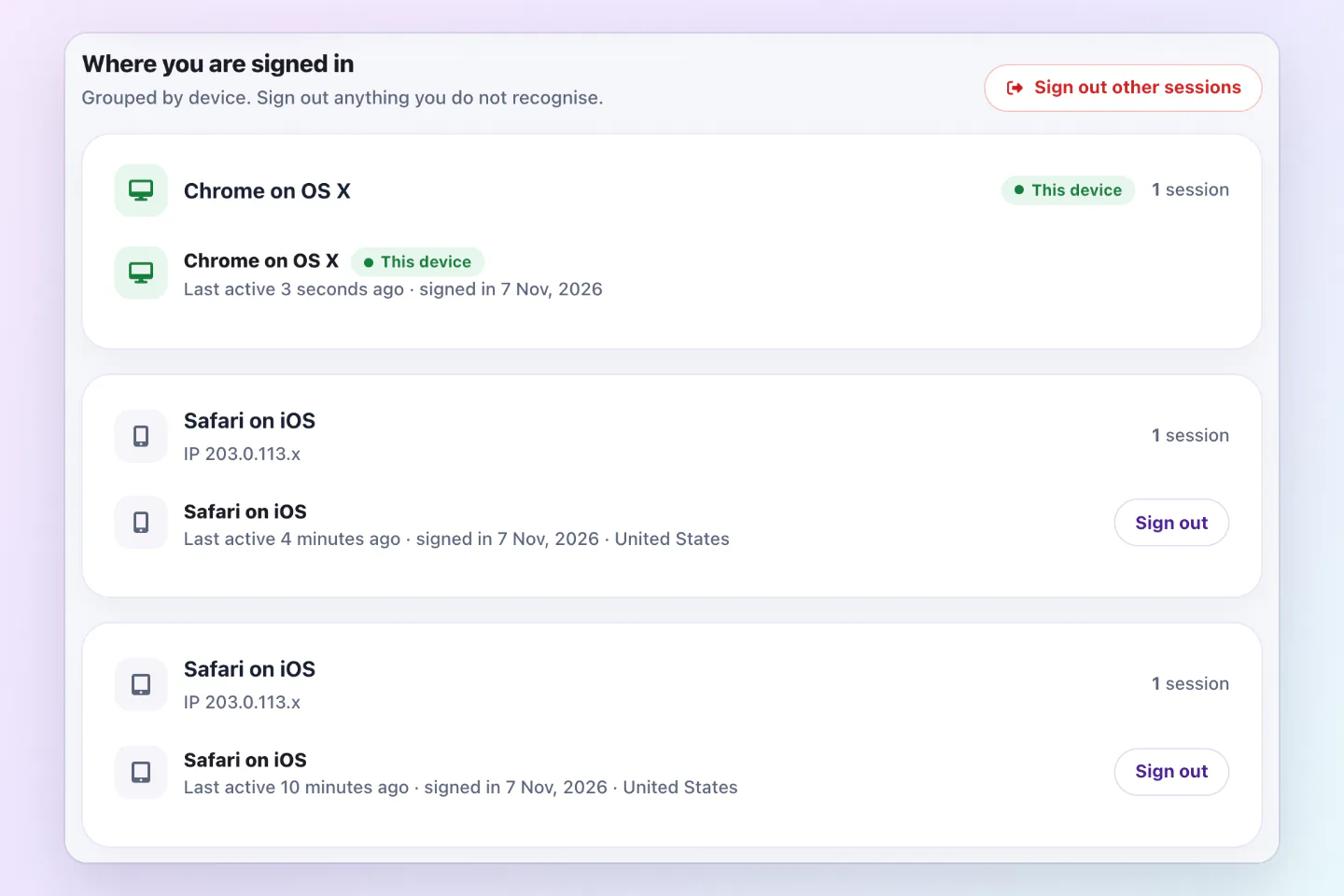
  2. Find Where you are signed in. Sessions are grouped by device, with a This device pill and Remembered for browsers that stay signed in.
  3. Choose Sign out next to anything you do not recognize.
  4. To end all others, choose Sign out other sessions.
Where you are signed in section listing this computer and two iOS devices, with a Sign out button on the other devices.
Each device you are signed in on has its own row, and Sign out ends that session.

Signing out other sessions also turns off your API keys. Create new keys afterward.

Long lists

After four sessions, View all sessions opens the rest and Show fewer sessions folds them.

Good ways to use this

  • Check after using a borrowed device.

Common questions

Is this device signed out?

No. This device stays signed in.

If something looks wrong

  • If you see a sign in you do not recognize, change your password and turn on two factor.

Was this guide helpful?

Still have questions? Contact support and we'll help you out.