Do block changes go live immediately?
They save in your draft. Publish when you are ready for visitors to see them.
 Help Center
Add actions, content and a lead form to help visitors take the next step.
Each block adds a specific action or piece of content. Choose a small set that makes the next step clear to visitors.
You want to add actions, content and a lead form to help visitors take the next step.
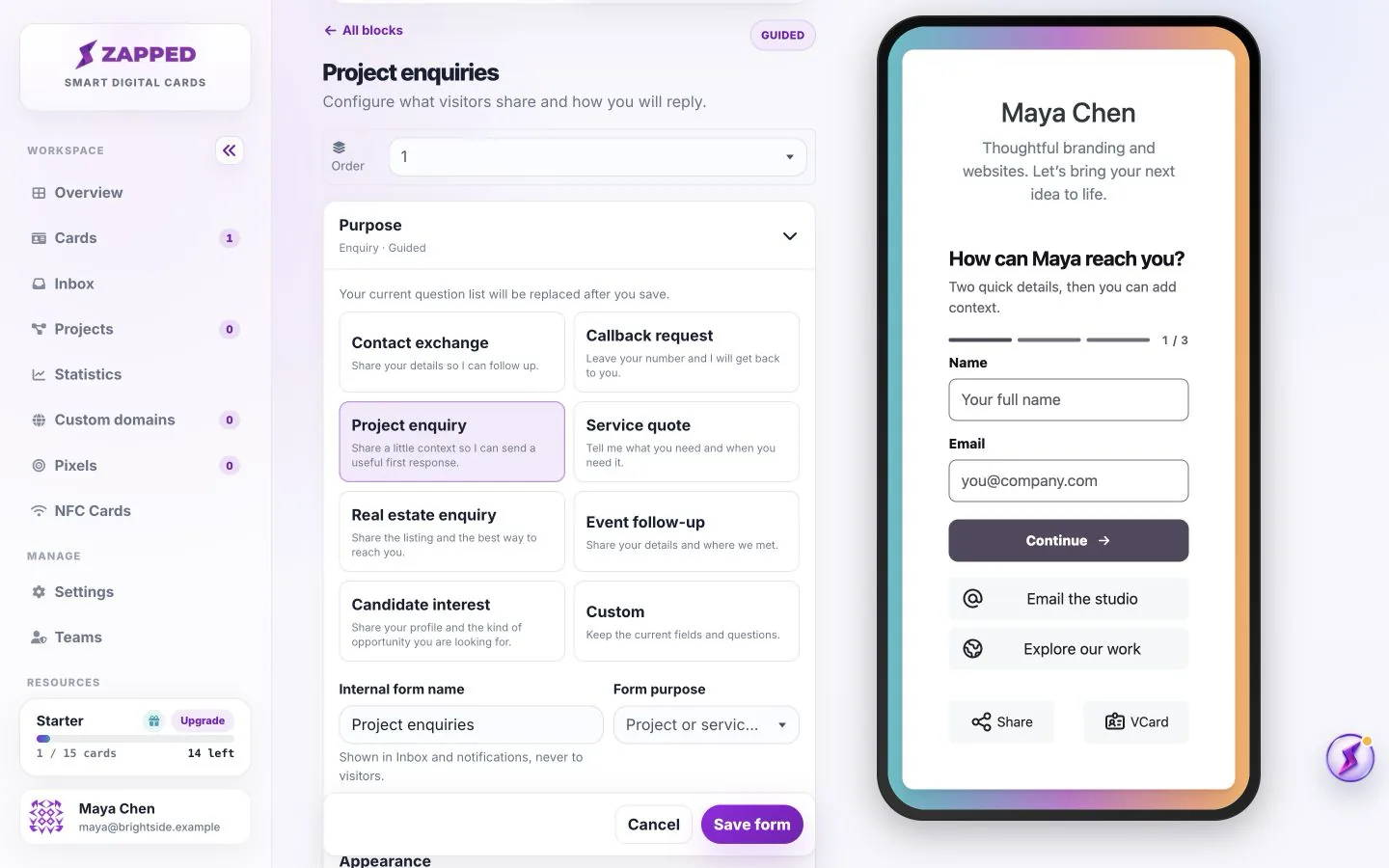
Blocks count toward the account plan allowance. Put your most useful actions first.
Use a link block to send visitors to an existing website or booking page. Use a Lead Form to collect their details in Zapped. Adding a link to an external form does not automatically create an Inbox lead.
Keep the most useful action near the top. After adding, reordering or disabling a block, inspect the preview and publish the draft. A disabled block can be kept for later without presenting it to visitors.
They save in your draft. Publish when you are ready for visitors to see them.
Add a Lead form block and check submissions in Inbox after publishing.
Was this guide helpful?