Does editing a question change older answers?
No. Each submission retains the question wording and answers captured at the time.
 Help Center
Ask useful questions while keeping your form short enough to finish on a phone.
You want to ask useful questions while keeping your form short enough to finish on a phone.
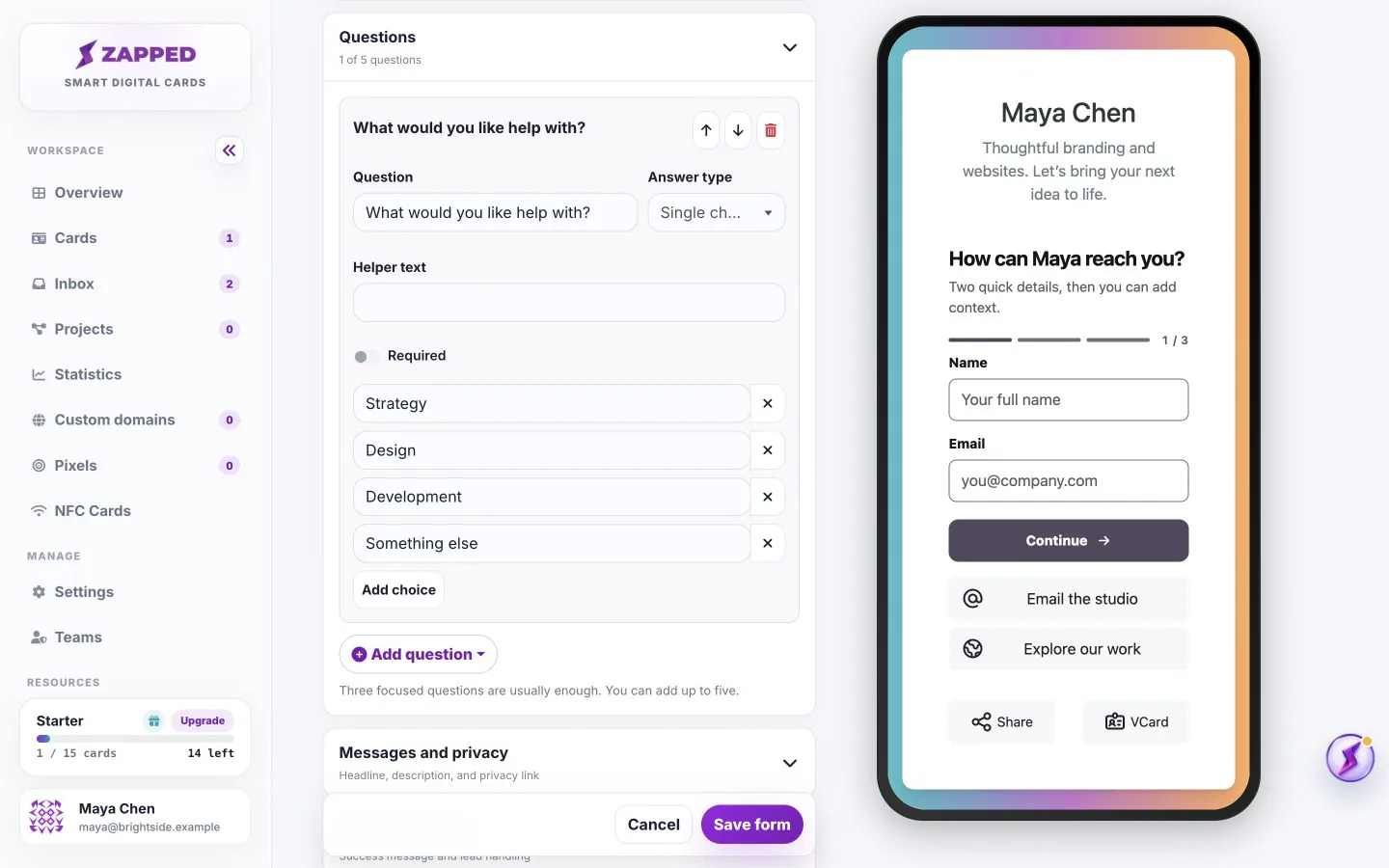
Start with the smallest amount of information you need for a useful reply.
Short answer fits a brief response such as where you met. Long answer gives room for a project description. Single choice lets someone choose one option; Multiple choice allows more than one. Date collects a calendar date and Link collects a web address.
You can add up to five questions. Single choice and Multiple choice each need two to eight options. Use labels visitors can answer without knowing your internal terminology.
Enabled makes a field visible; Required means a visitor must complete it. Name, company and message do not replace the requirement for an email or phone reply channel.
Quick forms have no extra questions and fewer than four enabled fields. Adding questions or enabling four or more fields switches to Guided. This is determined by the form contents, not by the template name.
Messages and privacy controls the headline, Public description and Business privacy policy URL. These are visitor-facing, unlike Internal form name. If you enable marketing opt-in, visitors can make that separate choice and it is recorded with the lead.
After submission lets you choose the Success message and whether the form is shown. Email alerts go to the workspace owner; authorized members use Inbox. Submitting a form does not automatically subscribe someone to an external mailing tool.
Use this form for contact and qualification. It has no attachment question type. Do not ask visitors to place passwords or sensitive documents in free-text answers.
No. Each submission retains the question wording and answers captured at the time.
At least one of those fields must be enabled and required so there is a way to respond.
Was this guide helpful?