Does autosave make changes public?
No. A saved draft and a published card are separate. Visitors continue to see the published version until you Publish.
 Help Center
Make changes privately, check the preview and publish when your card is ready.
Draft saving protects your work while Publish controls what visitors see. Direct text editing is another way to change that same draft.
You want to make changes privately, check the preview and publish when your card is ready.
Unfinished text is recovered in the same browser tab when possible. It is not a replacement for a successful draft save. If saving fails, keep the tab open and retry.
Typing updates the preview so you can judge line breaks and spacing. A preview change alone is not proof that the draft has saved. Wait for the saved status before leaving the page.
Selecting another editable text area keeps a valid edit and moves the editor to that field. Done finishes editing. Cancel restores the current unfinished edit, not every change made to the card. Invalid text must be corrected before switching.
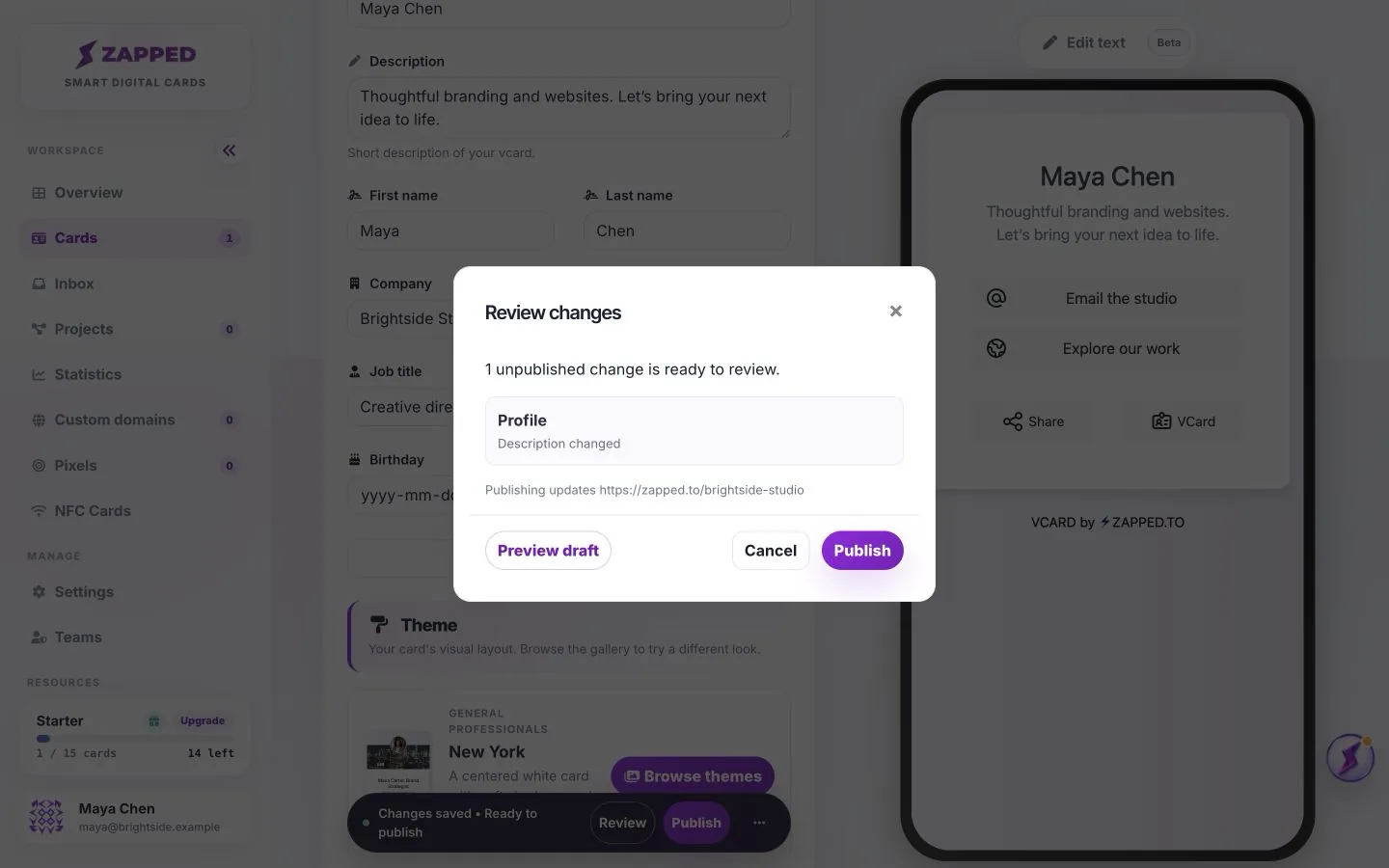
Review lists changes waiting to go live. Preview draft lets you inspect the pending card. Publish updates the public card, so it is the final step even after the editor says the draft is saved.
Unfinished text can be recovered after refresh in the same browser tab. Do not rely on that recovery across devices, a closed tab, or cleared browser storage. A successfully saved draft is the durable checkpoint.
If another tab changes the same draft, do not overwrite it blindly. Keep a copy of text you want to preserve, load the latest draft when prompted, and reapply the intended change before publishing.
Drafts that an integration or an AI assistant prepared show Review requested in the Cards list. The tool has asked you to approve its exact changes before anything goes live.
Approve them on the review page instead of publishing from the editor, so the tool can publish the exact version you approved. The guide Review and approve profiles an integration prepared explains that page.
No. A saved draft and a published card are separate. Visitors continue to see the published version until you Publish.
No. Cancel applies to the current unfinished text edit. Previously saved draft changes remain.
Was this guide helpful?