Help Center

Check your activity log

See sign ins and other important changes to your account, newest first, and export them.

The Activity log is a record of what happened on your account, such as sign ins, refused sign ins and account changes. It helps you spot anything you did not do.

Use this guide when

you want to check recent sign ins, confirm a change was made, or look into something that seems wrong.

Steps

  1. Open Settings, choose Security, then Activity log.
  2. Read the log by day, newest first. Each day shows its count of events.
  3. Choose View all on a day to see every event from it.
  4. Use Filters to narrow the log by type, IP, operating system, browser, device, country or date.
  5. Use Export to save the log, when your plan includes that format.

If something looks wrong, change your password and sign out other sessions on the Security tab.

What you will see

The log lists sign ins, refused sign ins, password resets, email changes, preference changes and other important account events, each with its device and location details.

Dates and times use the timezone on your Profile tab.

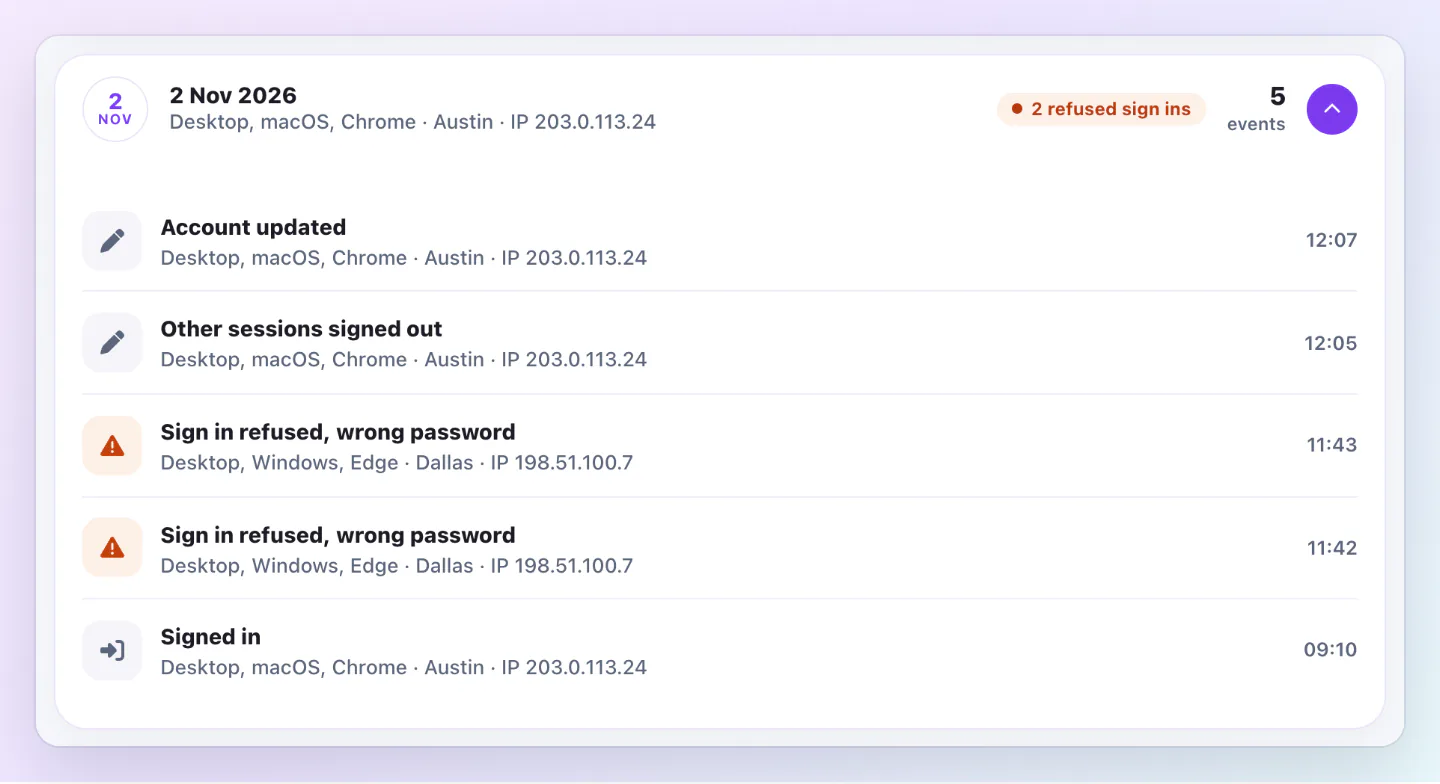
One day open in the Activity log, listing a sign in, two refused sign ins from Dallas, other sessions signed out and an account update.
Open a day to read each event, with refused sign ins marked so they stand out.

Good ways to use this

  • Look through the log after you use a shared computer.
  • Compare a refused sign in with your own activity before you worry. A mistyped password shows up too.
  • Export the log if you need a record for your own files.

Common questions

Does the log show what my team members did?

It shows events on your own account. For what happened to an NFC card, open its History on the Settings tab.

Can I remove an entry?

No. The log is a record, so entries cannot be edited or removed.

If something looks wrong

  • If the log looks empty, clear your filters and check the date range.
  • If Export is greyed out, your plan does not include that format.
  • If you see a sign in that was not you, change your password, sign out other sessions and turn on two factor.

Was this guide helpful?

Still have questions? Contact support and we'll help you out.