Does appearance change the information collected?
No. Contact details and Questions control the information. Appearance controls presentation.
 Help Center
Match the form to your card and choose how much visitors see before they interact.
You want to match the form to your card and choose how much visitors see before they interact.
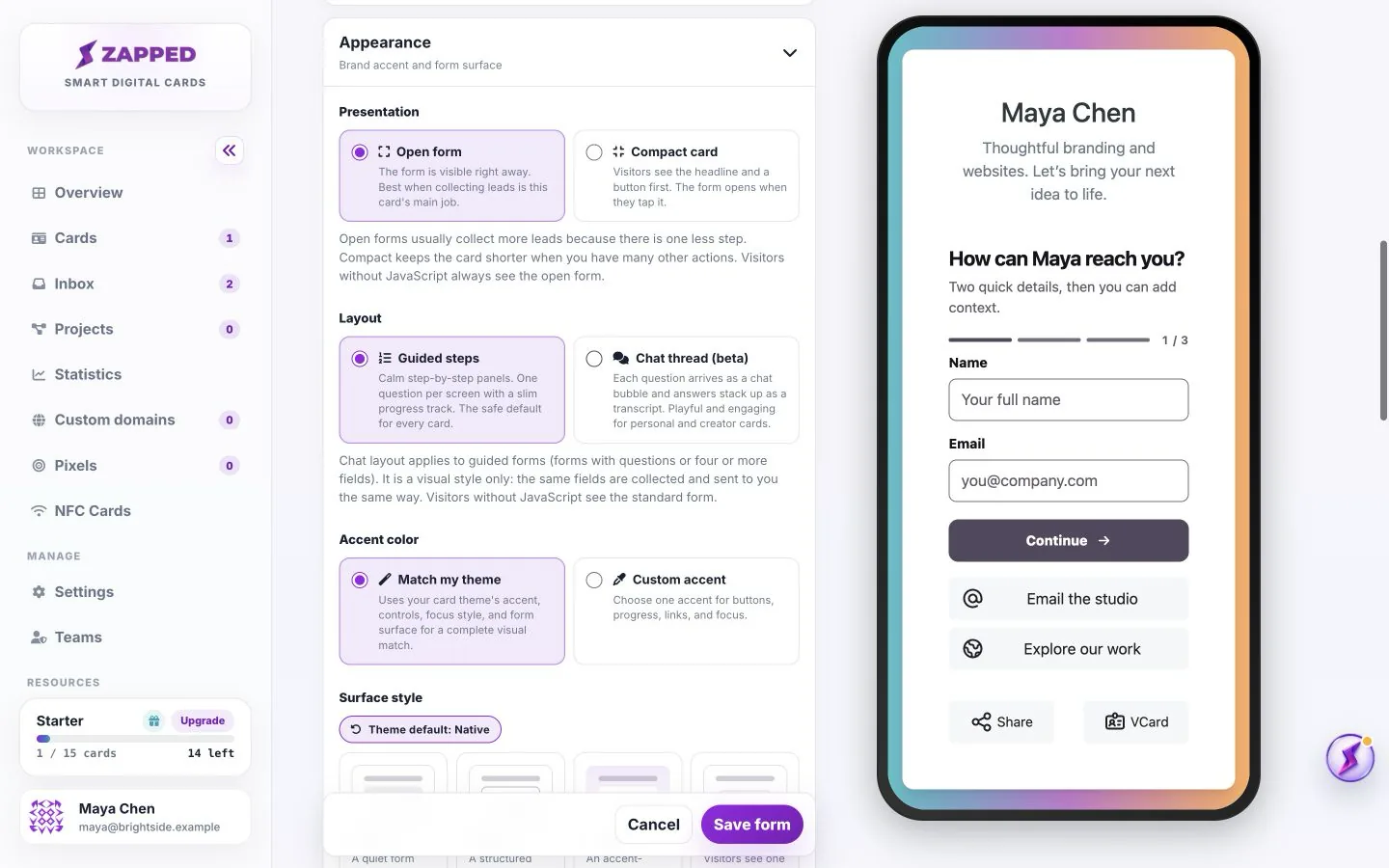
Start with the smallest amount of information you need for a useful reply.
Open form displays the fields immediately. Choose it when collecting leads is the card’s main job. Compact card starts with a headline and button, then opens the form on tap. It can shorten a card containing many other actions.
CTA-first is the compact presentation option, not a different set of questions. Visitors without JavaScript see an open form.
Guided steps presents a focused sequence with progress. Chat thread (beta) presents the same guided questions as chat bubbles with a transcript of the answers. It does not connect visitors to a live person or chatbot.
Chat applies only to Guided forms, which have additional questions or at least four enabled fields. A short Quick form stays quick even if Chat is selected. Both layouts collect the same answers and send them to the same Inbox.
Match my theme follows the card design. Custom accent changes the emphasis used for buttons, progress and focus while the form keeps readable text and inputs.
Native uses subtle separators. Control gives the fields a structured surface. Editorial adds an accent-tinted surface. Reset to theme restores the theme’s intended treatment; check presentation afterward because some themes prefer a compact form.
No. Contact details and Questions control the information. Appearance controls presentation.
When the form follows the theme, it inherits that theme’s visual treatment. Preview the form after changing themes.
Was this guide helpful?