Help Center

Make a Flexible QR code

On paid plans, add a QR code you can point somewhere else after it is printed: one of your cards, or a website with a backup card on plans that include website destinations.

A Flexible QR code belongs to your account, not to one card. Print it once, and change what it opens whenever you like. The printed copies follow right away.

Use this guide when

You are printing a code on something that may need to open something new later, such as a poster, a sign or packaging.

Before you start

  • At least one published card.
  • A paid plan. Paid plans include as many Flexible QR codes as they have cards, and you need a place that is not in use. On the Free plan, Add a Flexible QR code shows how to upgrade.

Steps

  1. Open QR Codes from the left menu and choose Add a Flexible QR code.
  2. Give it a name you will recognize, such as where it will be printed.
  3. Choose what it opens: A card, or on plans that include website destinations A website with a Backup card. Choose Add Flexible QR code.
  4. Choose Download PNG or Download SVG and print it at least 2 cm (0.8 in) wide, with its white border.
  5. To change it later, choose Change in the list, or open the code and use What it opens. Choose Save, check what it opens now and what it will open, and choose Save change.
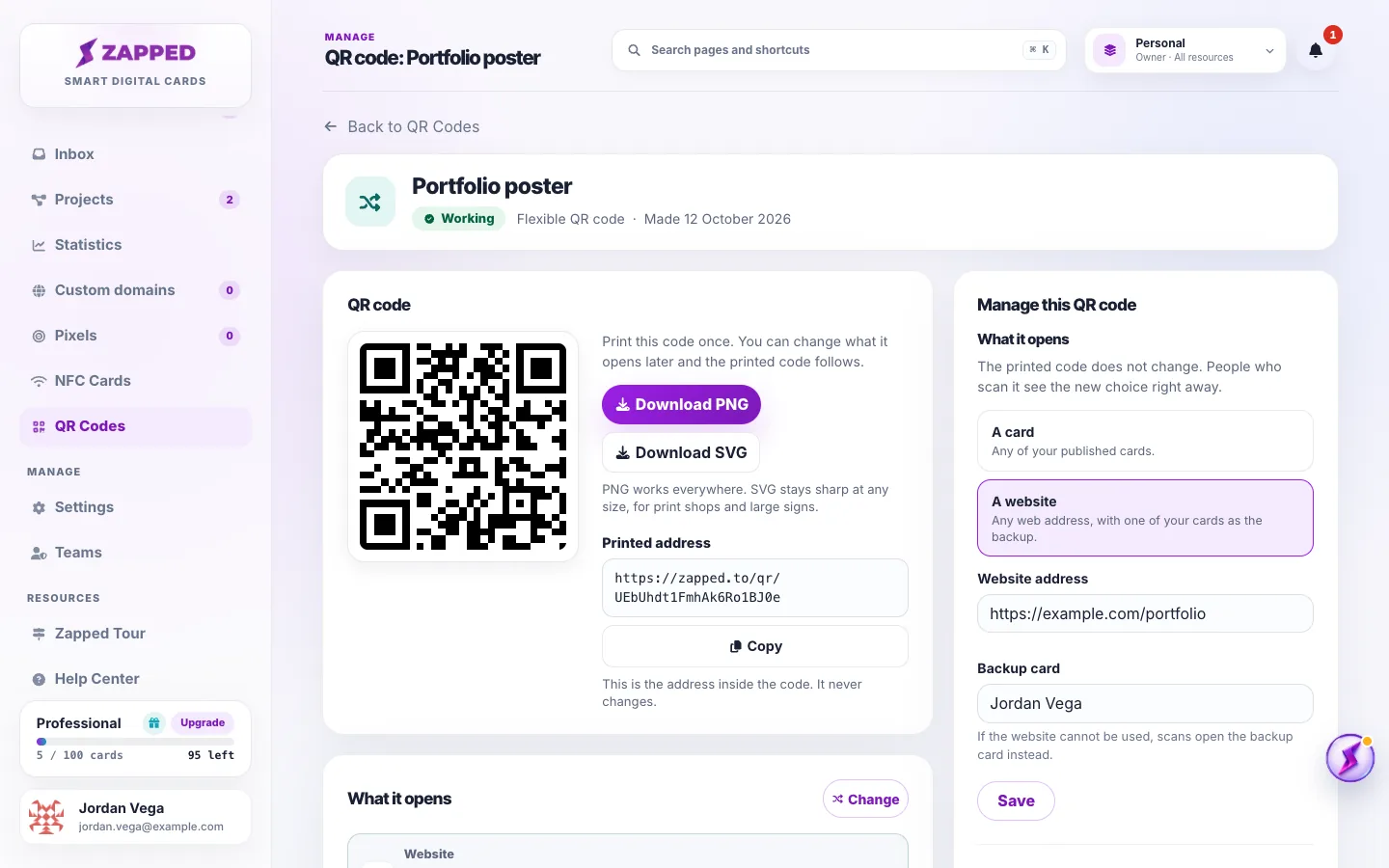
Fictional Flexible QR code page named Portfolio poster, with the code preview, Download PNG and Download SVG, the printed address, the website it opens with its backup card, and the code actions.
A Flexible QR code page. The printed address under the code never changes.

Changing what a Flexible QR code opens never needs a reprint. Printed copies open the new choice on the next scan.

Website codes and their backup card

A Flexible QR code that opens a website has a backup card. If the website cannot be used, for example after a plan change or because it was flagged as unsafe, scans open the backup card instead.

Saving the contact right away

A Flexible QR code that opens a card can skip the card page and save the contact straight away. Save the contact right away explains when that works.

Your Flexible QR code limit

Paid plans include as many Flexible QR codes as they have cards. The counter at the top of QR Codes shows how many you use. Turned off codes count. Deleting a code frees a place. Main QR codes do not count.

Good ways to use this

  • Name each code after where it is printed, such as Studio door sign.
  • Send the SVG file to print shops and keep the PNG for documents and slides.
  • Use Open what this code opens to check it from your desk. It does not count as a scan.

Common questions

Do I need to reprint after a change?

No. The printed address stays the same.

Can I make Flexible QR codes on the Free plan?

No. Flexible QR codes come with paid plans. The Free plan has the Main QR code of every card, which always opens that card.

What happens if I delete the card it opens?

Unless you chose another card when you deleted it, the code needs a destination, and scans show a not active page until you choose where it opens.

If something looks wrong

  • On the Free plan, upgrade to add Flexible QR codes. If a paid plan has reached its limit, upgrade or delete a code you no longer need. Deleting a code stops its printed copies from working.
  • If you cannot change what a code opens, your role does not allow it. Ask the workspace owner.
  • If a code says Opens its backup card, the website cannot be used right now. Open the code to see why.

Was this guide helpful?

Still have questions? Contact support and we'll help you out.