Do I need to lock my card?
No. Most people never lock. Your card works the same either way.
 Help Center
Locking stops anyone from rewriting your NFC card. It is optional and permanent, so lock only after a successful test.
A locked NFC card can never be written again, by you or anyone else. Most people never need it, because you can change where a card opens at any time without writing it. Locking makes sense for cards handed out in public, where someone might try to rewrite them.
Your card passed its test and you want to make sure nobody can change what is stored on it.
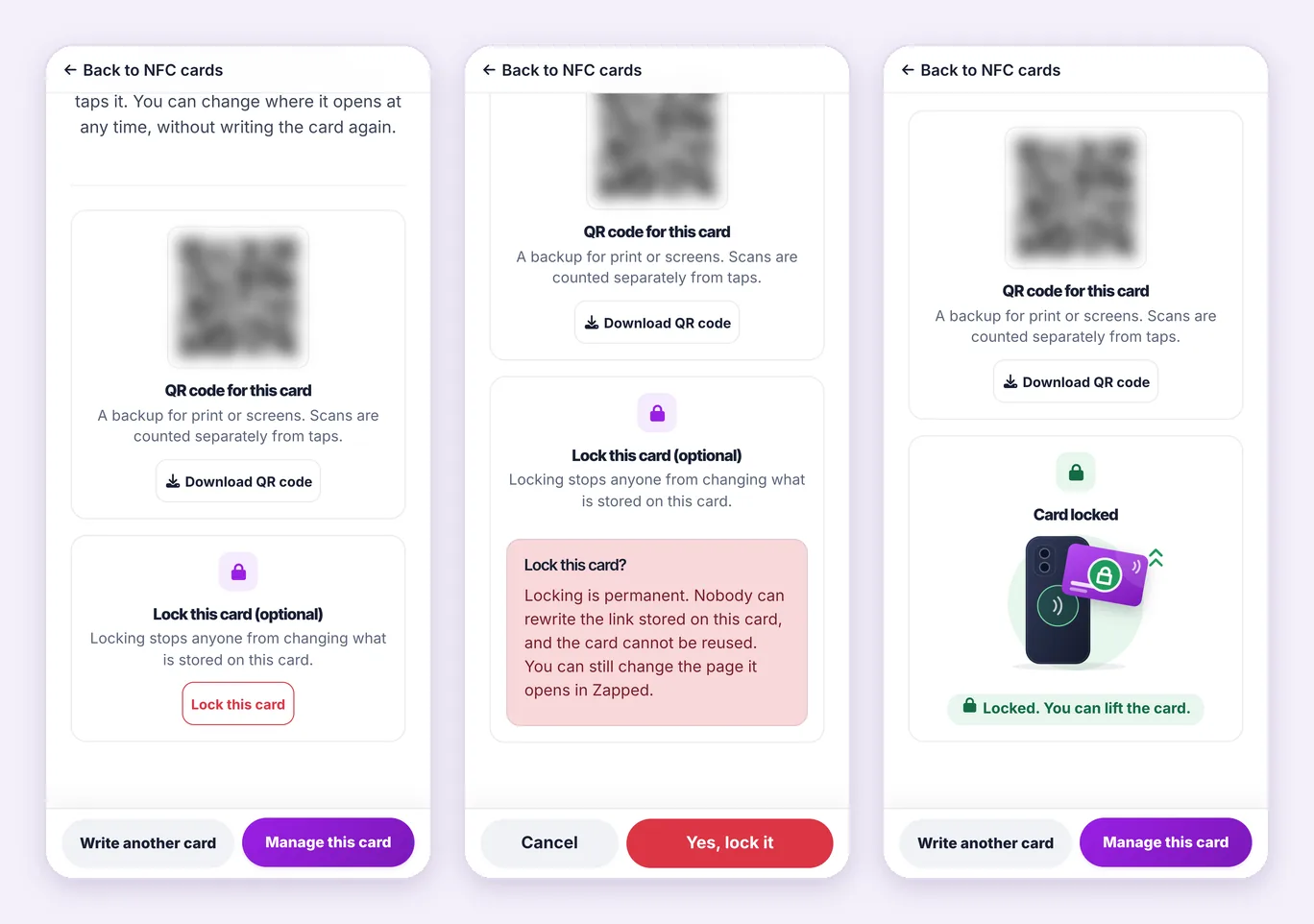
Locking cannot be undone. A locked card still opens your link, and you can still change where it opens in Zapped. You just can never write the card again.
Locking makes the chip read only. Nobody can rewrite or erase the link on it, and the card cannot be reused for anything else.
Locking does not change what a tap opens. That is decided in Zapped, so you can still use Where it opens, turn the card off, or mark it as lost.
Zapped locks only the card you tested. If the card holds a different link, or more than this link, it says This is not the card you tested.
Some cards report a new identifier on every tap, or do not support locking. Zapped then says the card cannot be locked. It still works, and stays rewritable.
Laptops and iPhones cannot lock a card from the setup page. Use Chrome on Android, or NFC Tools on an iPhone.
If a locked card goes missing, mark it as lost. Taps then show a not active message. If you find it again, I found it brings it back turned off, with the same link, so it works again without writing it once you turn it on.
A replacement needs a new card, because a locked card can never hold a new link.
No. Most people never lock. Your card works the same either way.
No. Locking is permanent.
No. Where a card opens is set in Zapped, so you can change it at any time.
Was this guide helpful?