Can I change my answers after I submit?
Yes, until we start building. After that, send anything else as a message.
 Help Center
Where to find a setup order, how the details form works, how to review a proof, ask for changes and download your files.
After you buy a setup, your order page shows where it stands, what we need from you and what comes next. This guide walks from the first form to the final files.
You bought a setup and want to send your details, check progress, review a proof or ask for changes.
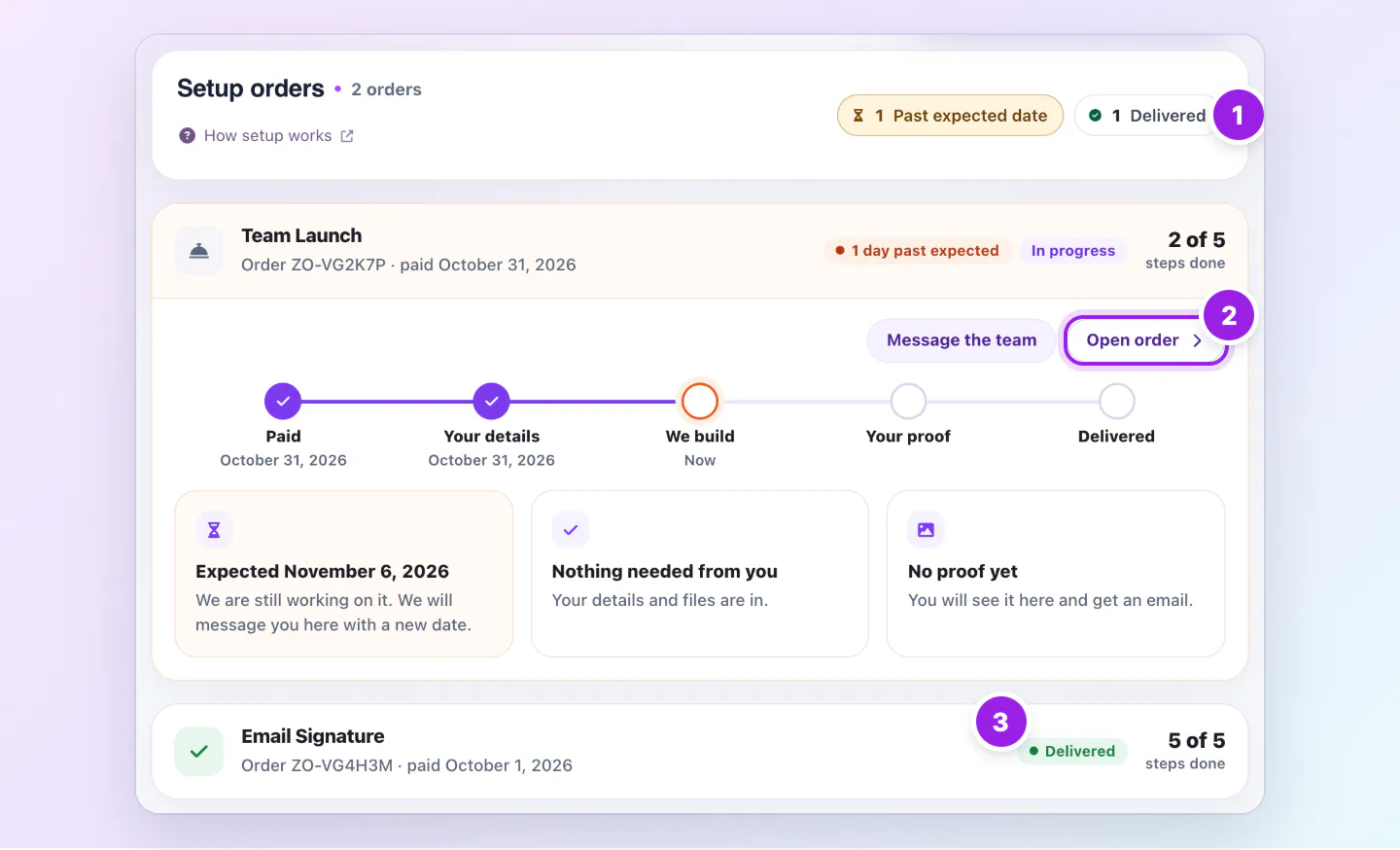
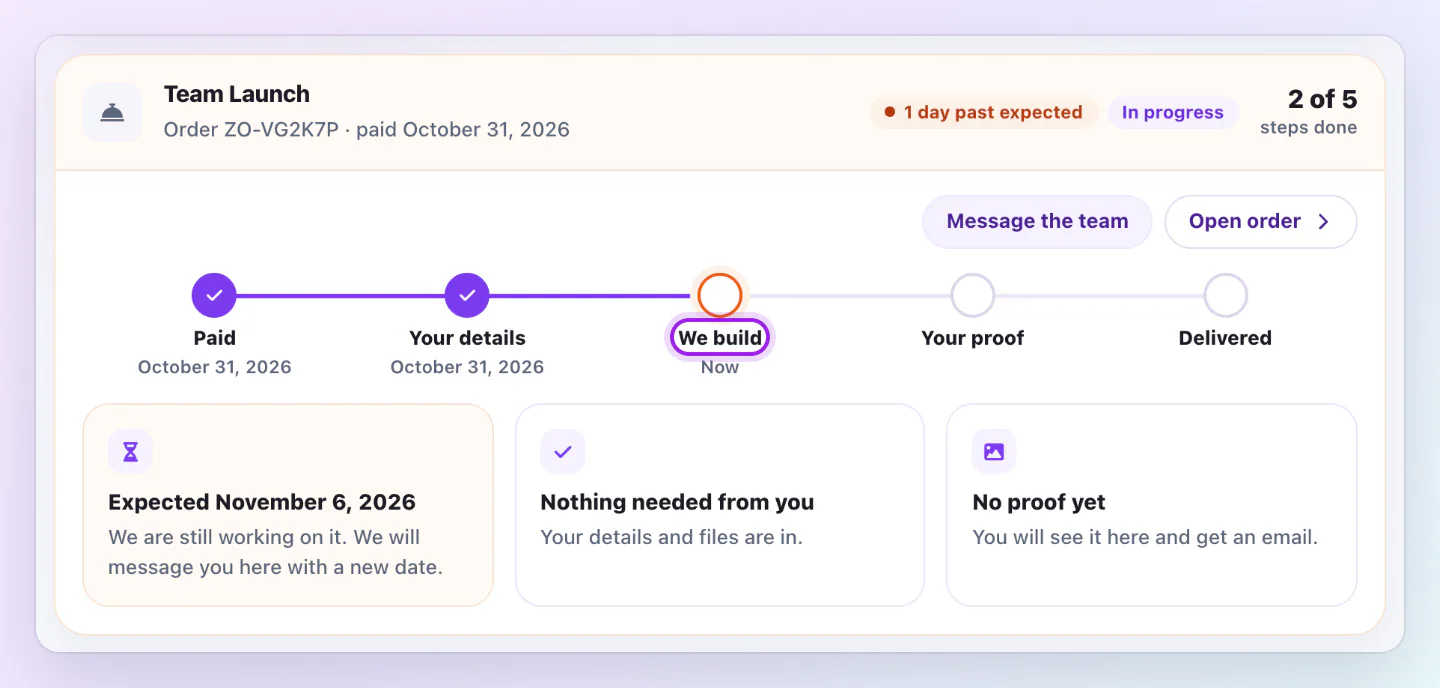
You can edit your details until we start building. Choose Edit my details, change what you need, and choose Send updated details. We keep working from the version you last sent until then.
The stepper reads Paid, Your details, We build, Your proof and Delivered, with a Now marker on the current step.
A team setup walks through Your brand, Your people, How your cards look and Your cards, then Review and submit. A Solo or Email Signature setup walks through About you, Your brand, How your card looks and Your card and signature, then review. Required answers carry a Required pill.
Paste your website and we use it for your logo, colors and details. Logos take PNG, JPG, WEBP or SVG. Photos and files can be up to 10 MB each.
For a team, add people in the form, paste a list or upload a file, and use Download the team list template for the columns. A file can have up to 1000 rows. Tick Skip what we do not have yet to let us use placeholders.
The proof page shows Your proof, vN with the date we sent it and a pill such as Round 1 of 2 included. To approve, tick I checked the names, spelling and phone numbers and choose Approve and prepare my files.
To ask for changes, tick what needs fixing, such as Spelling, Phone number, Photo, Colors, Layout or Something else, describe the change in Your changes and choose Send my changes. Put every change in one request, because each request uses a round.
Two rounds of changes are included in every setup. If you use both, send your request anyway and we confirm with you before we start. Changes you send before the first draft are free. After it, they use a round. Nothing is approved until you approve it, and we send reminders if a proof waits.
Use Message to the Zapped team on the order page to write to us. You can attach PNG, JPG, WebP or PDF files up to 25 MB each. Our replies arrive by email, as a bell notice and on the page, with a New updates badge on Overview.
On Team Launch and Business Launch, the message thread stays open for 30 days of small fixes after delivery. After that, contact us any time.
On a team setup, the review step lists the people who will get a card in Invite your team. We send the invitations when your cards are ready, so everyone lands on a finished card. They join as editors with access to their own card.
The files and answers you sent us are deleted 90 days after your order is delivered or closed, and the page shows the date. The files we made for you stay as long as you have your Zapped account.
A new buyer sees a full setup page on Overview with the next step. An account whose card already has 20 or more views and taps keeps its normal numbers and sees a small strip with View order or the next action.
Yes, until we start building. After that, send anything else as a message.
Yes, while the setup refund window is open. Choose Ask for a refund on the order page.
Nothing is approved until you approve it. We send reminders and may check in.
No. Setup orders are owner only.
Was this guide helpful?