Help Center

Writing an NFC card from an iPhone

Write your NFC card in one tap with NFC Helper from Safari or Chrome, or use NFC Tools, then test it.

iPhone browsers cannot write NFC cards on their own, so Zapped hands your card link to a free app. NFC Helper does it in one tap from Safari or Chrome. NFC Tools works as a fallback from any browser.

Use this guide when

You are setting up an NFC card with an iPhone, or the NFC Helper button does not work for you.

Before you start

  • An iPhone XS or newer.
  • A writable NFC card that stores a web link, such as NTAG213, NTAG215 or NTAG216.
  • The NFC card added in NFC Cards. Open its setup page on the iPhone: choose Continue setup, scan the QR code shown on your laptop, or open a setup link you emailed to yourself.

Steps

  1. Open the setup page on your iPhone in Safari or Chrome.
  2. If NFC Helper is not on your iPhone yet, choose Get NFC Helper. It is free on the App Store.
  3. Choose Write with NFC Helper. NFC Helper opens with your card link already filled in.
  4. Hold the top of your iPhone against the card until the app confirms. NFC Helper then brings you back to the setup page, and Zapped moves on to the test.
  5. If the page did not move on, go back to the setup page and choose I wrote it.
  6. Test the card. Tap it with any phone, including this iPhone. When Zapped sees the tap it asks Did your card open? Choose Yes, it works. On the last step, choose Manage this card to see the card, or Write another card to set up the next one.
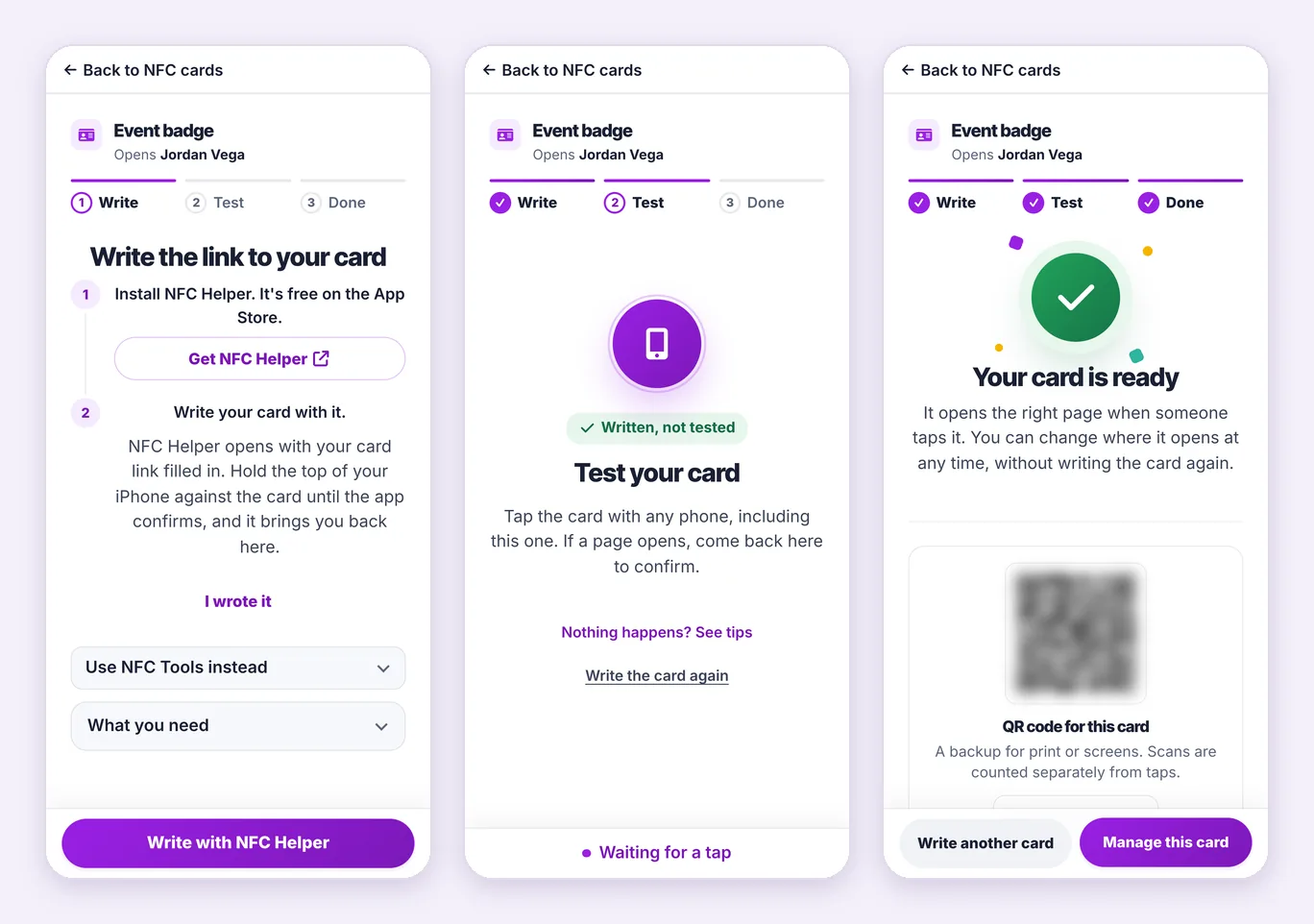
Fictional setup of an NFC card named Event badge on an iPhone, in three screens: the Write step with Write with NFC Helper, the Test step waiting for a tap, and Your card is ready with Manage this card.
Write with NFC Helper, test the tap, and the card is ready.

Write with NFC Helper works in Safari and in Chrome. The browser inside another app, such as a mail or social app, may not open NFC Helper. Open the page in Safari or Chrome, or use NFC Tools.

Use NFC Tools instead

On the setup page, open Use NFC Tools instead and choose Copy card link.

In NFC Tools, tap Write, then Add a record, then URL / URI, and paste your card link. If the box already shows https:// at the start, use Copy without https:// in Zapped instead, so the address does not start with https:// twice.

Tap OK, then Write, and hold the top of your iPhone against the card until the app confirms. Back in Zapped, choose I wrote it, then test the card.

Writing the same card again

If you write the card again later, with either app, choose I wrote it again on the setup page. The test then starts over, so you know the card still opens the right page.

Locking a card from an iPhone

Locking is optional and cannot be undone. Zapped cannot lock a card from an iPhone, but NFC Tools can, from its Other tab. Then choose I locked it on the setup page. Lock an NFC card explains when locking makes sense.

Good ways to use this

  • Keep the setup page open while you write, so NFC Helper can bring you straight back.
  • Take off a thick phone case before writing.
  • Test with an Android phone too if the people you meet use both.

Common questions

Why can my iPhone browser not write the card itself?

iPhone browsers cannot write NFC cards. NFC Helper and NFC Tools are apps that can, so Zapped gives them your card link.

Are NFC Helper and NFC Tools made by Zapped?

No. They are free apps from other developers. Zapped only passes them your card link.

Do I have to write the card again if I change where it opens?

No. The card holds its Zapped card link, so you can change where it opens at any time without writing it again.

If something looks wrong

  • If nothing opens when you choose Write with NFC Helper, get NFC Helper from the App Store and choose the button again.
  • If the page says the button may not work in this app, open the setup page in Safari or Chrome, or use NFC Tools.
  • If the app cannot write the card, the card may be locked or not writable. Try a different card.
  • If the card opens a broken address that starts with https://https://, write it again using Copy without https://.
  • If the test sees no tap, close Wallet and the Camera app, keep the iPhone unlocked, and tap again with the top of the phone.

Was this guide helpful?

Still have questions? Contact support and we'll help you out.