Can a card be written again after a failed write?
Yes, unless it is locked. A failed write leaves the card ready to try again.
 Help Center
What to do when the setup page says NFC is blocked or off, does not see your card, or finds something already on it.
Most setup problems come from the phone's settings or from how the card is held. The setup page tells you what went wrong and what to try. This guide explains each message.
The setup page shows a warning while you write or test an NFC card.
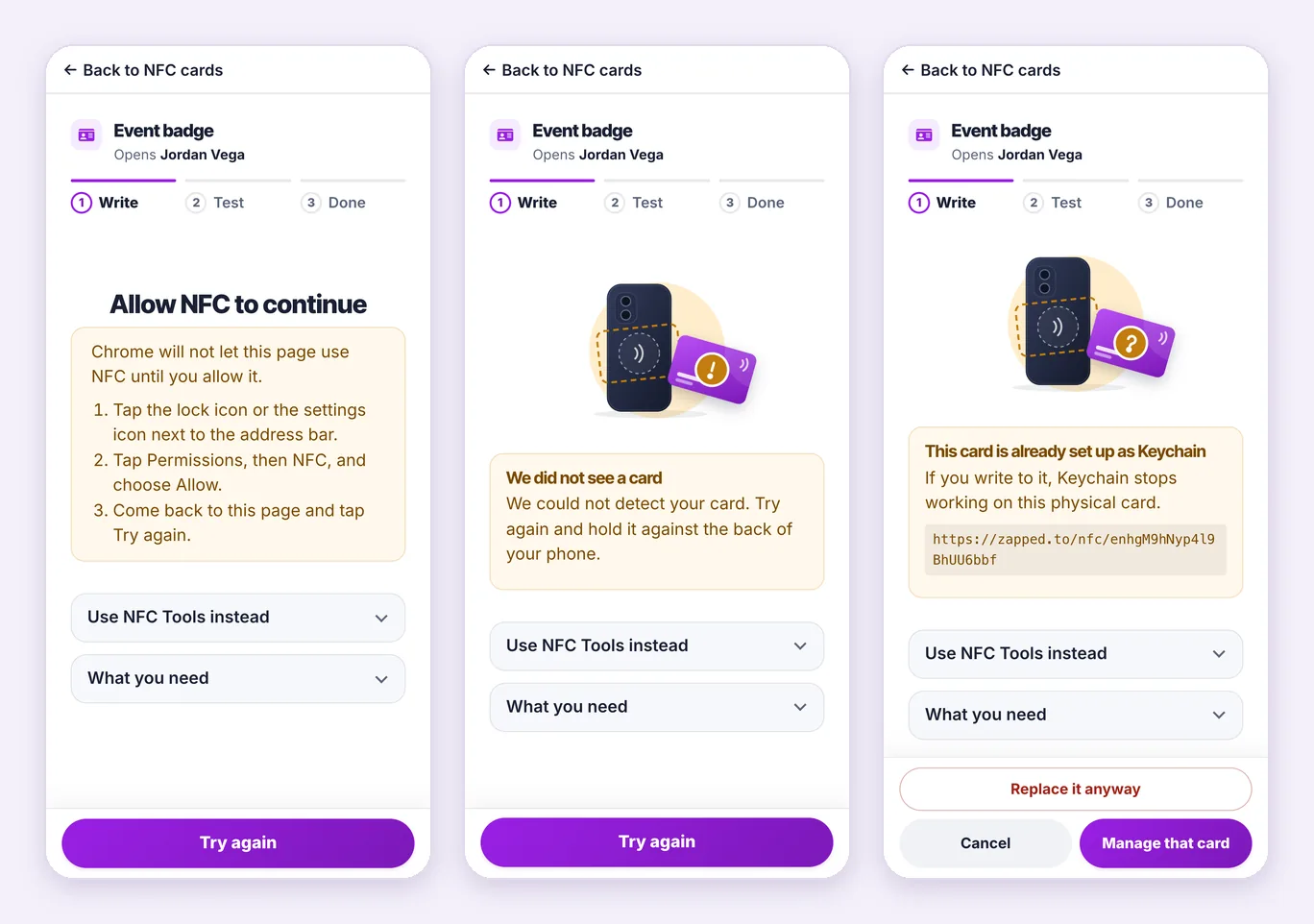
When Zapped writes the card in Chrome on Android, it never replaces what is on a card without asking you first.
Chrome blocked NFC for Zapped, usually because Block was chosen when it asked. Tap the lock icon or the settings icon next to the address bar, tap Permissions, then NFC, and choose Allow. Come back to the page and tap Try again.
Switch NFC on in your phone settings. On most Android phones, open Settings, search for NFC and switch it on. On Samsung phones it is under Connections, NFC and contactless payments. If the phone has no NFC, use another phone, or open the setup page on an iPhone.
The page waited 30 seconds and no card came close enough. Tap Try again and hold the card flat against the back of the phone, near the top. On some phones the NFC reader sits in the middle, so move the card slowly until the page reacts.
The card moved, or the screen turned off, before writing finished. Keep the page open and the screen on, hold the card still, and try again.
This card is locked or cannot be written and The link was not saved on the card usually mean the seller locked the card, or the chip is too small. Phones cannot write this card means the chip is a type phones cannot write. Use a different card, such as an NTAG213, NTAG215 or NTAG216 card. Choose NFC cards that work lists what to buy.
Replace what is on this card? shows what the card opens now. Choose Replace it to write your link instead, or Cancel to keep it.
This card is already set up as followed by a name means the card holds another of your Zapped NFC cards. If you write it, that other card stops working on this physical card. Choose Manage that card to look at it first, or Replace it anyway.
After writing, Zapped reads the card back. If it holds something else, the card moved too early. Choose Write again and keep the card still until the page says you can lift it.
Unlock the phone you tap with and keep its screen on. On newer Android phones, a notification may ask to open the link, so tap it. On an iPhone, close Wallet and the Camera app first. Choose Nothing happens? See tips on the Test step for more.
Yes, unless it is locked. A failed write leaves the card ready to try again.
Only on this physical card. The other NFC card stays in your list, and you can write its link to a new card.
Was this guide helpful?