Do I need an app on Android?
No. Chrome on Android writes the card itself. NFC Tools is there if you prefer an app.
 Help Center
Write your NFC card in one tap with Chrome on Android, check that it holds your link, and test it.
Chrome on Android can write NFC cards by itself, so you do not need an app. Zapped writes the card's own link, reads it back to check it, and then helps you test the first tap.
You are setting up an NFC card with an Android phone.
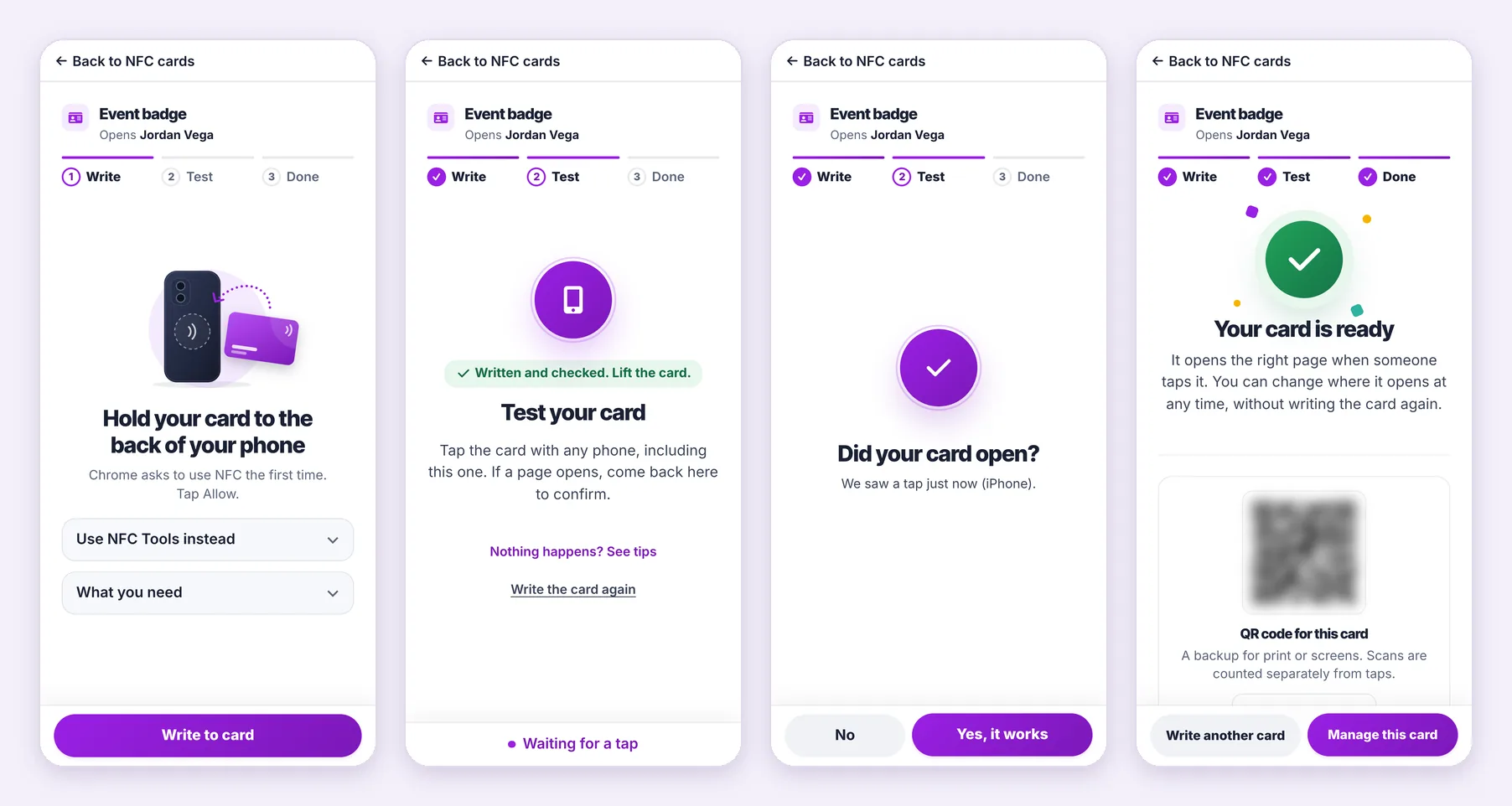
Zapped never replaces what is on a card without asking you first, and it never writes your card's own address. It writes the card link Zapped made for this NFC card.
Chrome on Android is the browser that can write NFC cards. Samsung Internet, Firefox and other browsers cannot. A setup link from your laptop offers Open in Chrome in those browsers. Otherwise, copy the page address and open it in Chrome.
If you would rather use an app, open Use NFC Tools instead on the setup page. It shows your card link and how to write it with the NFC Tools app. Then choose I wrote it in Zapped.
If Block was chosen when Chrome asked, the setup page shows Allow NFC to continue. Tap the lock icon or the settings icon next to the address bar, tap Permissions, then NFC, and choose Allow. Come back to the page and tap Try again.
A card that moves while it is written can end up with only part of the link. Zapped reads the card again right after writing, so you know it holds your link before you lift it. If it does not, the page says so and you write it again.
No. Chrome on Android writes the card itself. NFC Tools is there if you prefer an app.
Usually near the top of the back. On some phones it is in the middle, so move the card slowly until the page reacts.
Yes, unless it is locked. If you write it again later, choose I wrote it again on the setup page so the test starts over.
Was this guide helpful?