Do I pay less if I turn cards off?
Not by itself. It frees a live spot. To pay less, move to a smaller plan.
 Help Center
How to switch a card on or off, what visitors see, and how live cards differ from the total cards you can store.
A card that is published and switched on is a live card. Turning a card off hides it from visitors and frees its live spot. The card stays saved.
You want to hide a card for a while, free a live spot for someone new, or you hit a card limit message.
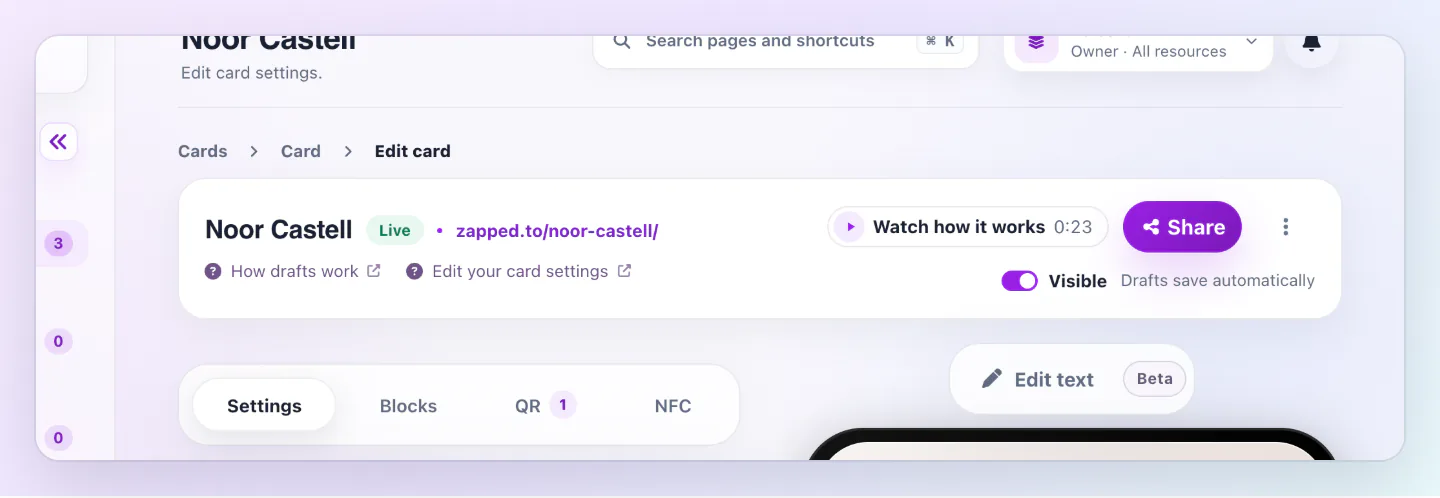
Turned off cards and drafts you have never published do not use your live card allowance. A separate limit applies to all the cards you store, drafts and turned off cards included.
A turned off card cannot be opened. A direct link shows a page that is not available, and a QR code or NFC tap says the code or card is not active. A banner in your editor reminds you that changes you publish stay hidden until you turn the card on.
Your plan sets how many live cards you can have, and you can store up to three times that, at least 10 and at most 1,000 cards. Drafts and turned off cards count toward stored cards. Here are the numbers for the common sizes.
If you see All active cards in your plan are in use, turn off a card to add another, or move to a bigger plan. If you see that your account has reached the most cards your plan can keep, delete cards you no longer need to add another. After a move to a smaller plan, every card stays saved and editable, and you can add another live card once you are within the limit. Team members who cannot create cards are told to ask the workspace owner.
A new card shows a Draft badge until its first publish and saves automatically. A draft has no live link or QR code, and it cannot be turned on or off. Publishing keeps the on or off state the card has.
Not by itself. It frees a live spot. To pay less, move to a smaller plan.
Yes. The card keeps its address when you turn it back on.
Was this guide helpful?