Help Center

Which card is this?

Find out which of your NFC cards you are holding, then open it, test it or change where it opens.

Written NFC cards look alike. Which card is this? on the NFC Cards page tells you which of your cards you are holding, so you can manage the right one.

Use this guide when

You have several NFC cards, stickers or keychains and are not sure which one is in your hand.

Before you start

  • The button appears on NFC Cards once you have at least one NFC card.
  • An Android phone with Chrome reads the card directly. On an iPhone or a laptop, you tap the card on any phone instead.

Steps

  1. Open NFC Cards and choose Which card is this?
  2. Android with Chrome: hold the card against the back of your phone. Zapped reads it and shows its name with Manage this card. A card that is written but not tested yet also offers Test it now.
  3. iPhone or laptop: Zapped shows Tap the card on your phone now and watches for a tap on your cards. Tap the card with any phone until its page opens. Zapped shows which card it was, with Open card and Show in list.
  4. Tap more cards while Zapped is still watching to add them. The newest tap is listed first. Choose Done when you are finished.
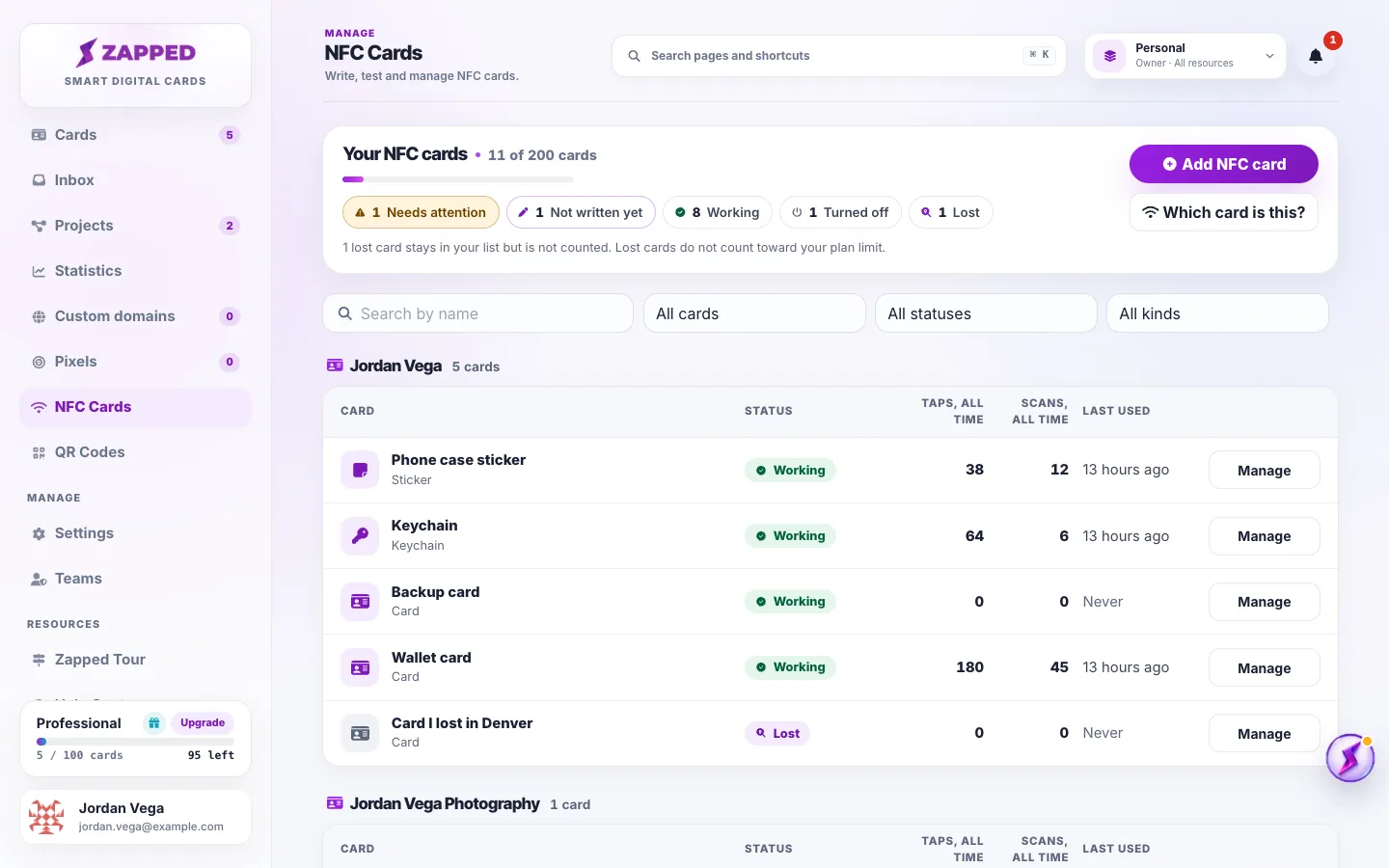
Fictional NFC Cards page with the Which card is this? button under Add NFC card, above a list of named cards and their status.
Which card is this? sits under Add NFC card on the NFC Cards page.

A tap you make while Zapped is watching opens the card like any other tap, and it counts in that card's stats. Reading a card with Android Chrome does not open it.

What the answers mean

Zapped only names cards from the workspace you are in.

  • This is: The card belongs to you, and its name follows.
  • This is not one of your Zapped cards: The card holds something else, such as a link from another company or a card from another account.
  • This tag is blank: Nothing is written on it yet. Add a card in Zapped, then write it from your phone.
  • No tap yet: Zapped stops watching after two minutes. Check that the card has been written, then try again.

Good ways to use this

  • Give each card a name you will recognize, such as the person, the event or where the sticker is.
  • Check a card with Which card is this? before you mark it as lost or replace it.

Common questions

Does it change the card?

No. It only reads the card, or watches for a tap. Nothing is written.

Can it find cards that belong to my team members?

It names cards you can see in the workspace you are in.

Why do I not see the button?

It appears once the workspace has at least one NFC card.

If something looks wrong

  • If Zapped says NFC is blocked for this site, allow NFC for Zapped in your browser settings and try again.
  • If it asks you to switch NFC on, turn on NFC in your phone settings and try again.
  • If it could not read the card, hold it steady against the back of your phone and try again.
  • If a tap shows up but the card is not in the list, choose Show in list or clear the filters.
  • If it says We could not check for taps, reload the page and try again.

Was this guide helpful?

Still have questions? Contact support and we'll help you out.