
Help Center
How to invite and manage team members
Owners can invite teammates, choose a role, and limit access to all resources, selected projects, or selected cards.
Owners can invite teammates, choose a simple role, and limit access to all resources, selected projects, or selected cards.
Use this guide when you want someone to help manage company cards without giving them your owner login. If you need to find Teams first, start with How to access Teams. If you are not sure which role or scope to choose, open Team roles and access scopes explained.
Before you start
- Create the team first from Teams, or go straight to Create team.
- Decide what the teammate needs to do, such as edit cards, review analytics, or help manage a project.
- If you want to use selected project access, open Projects, create the project, and place the right cards inside it first.
Invite a teammate
- Open Teams from the dashboard.
- Choose Manage on the team you own, or open My teams to review all owner teams.
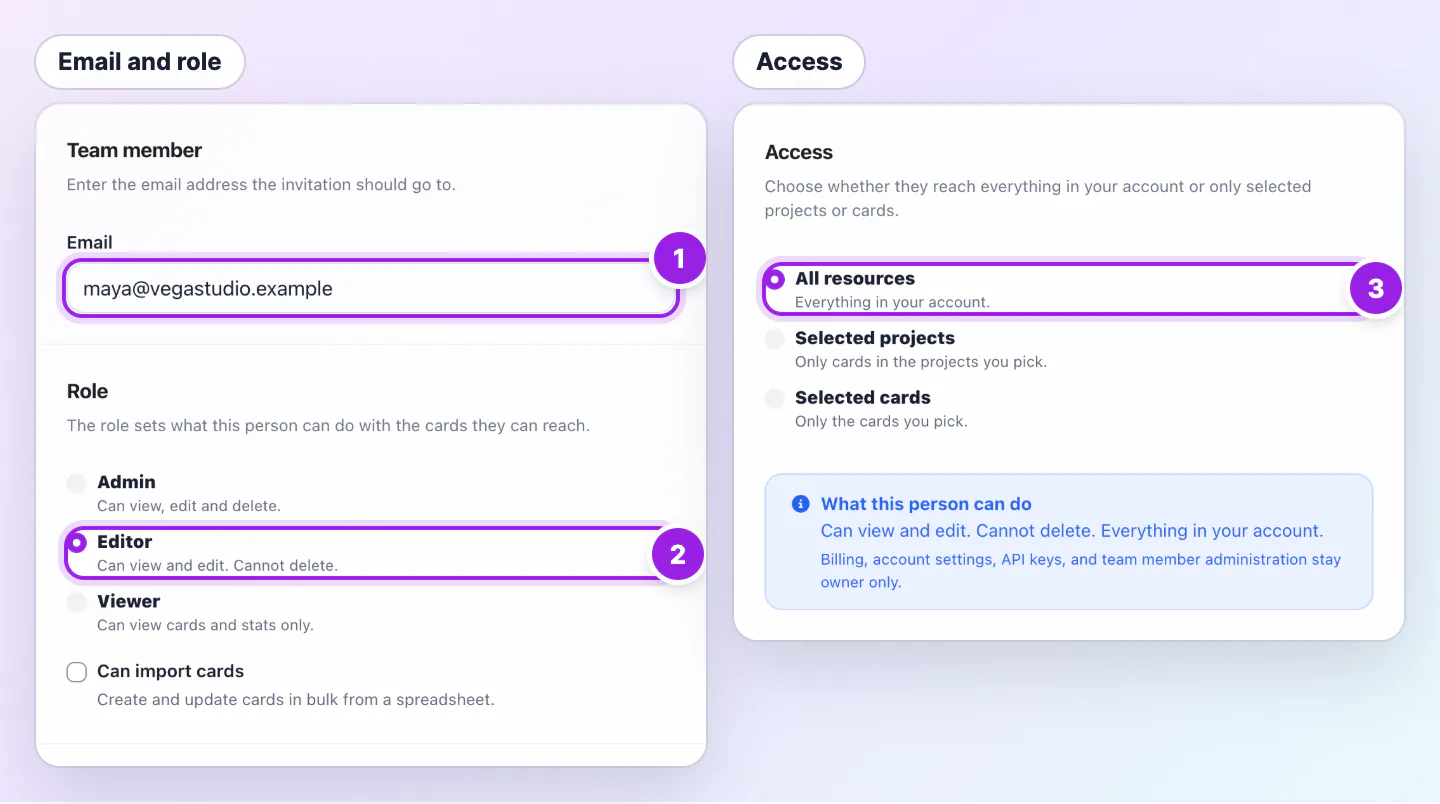
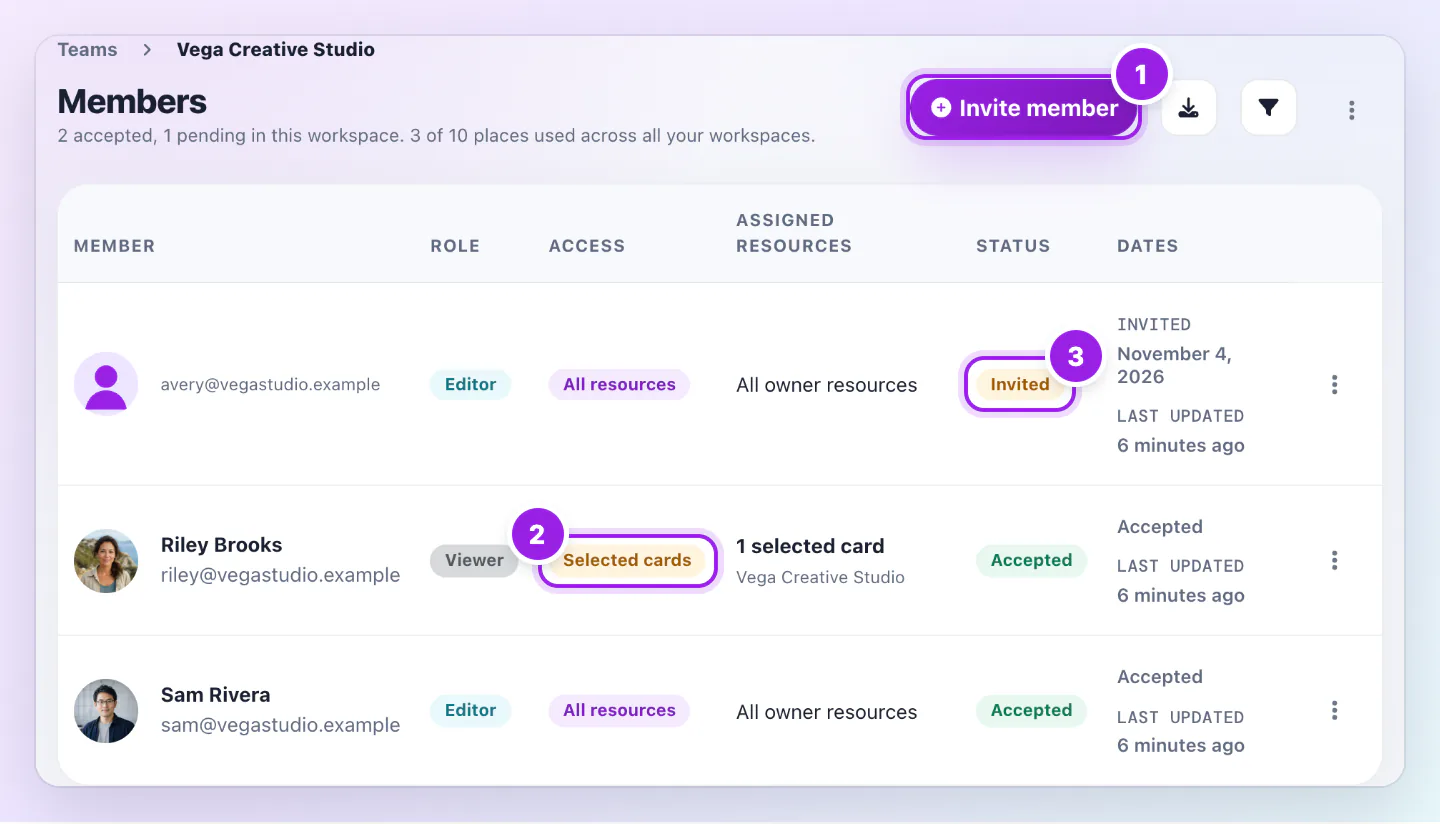
- Select Create team member or Invite.
- Enter the teammate email address.
- Choose a role, Admin, Editor, or Viewer.
- Choose an access scope, All resources, Selected projects, or Selected cards.
- Save the invitation.

Choose the right setup
- Editor plus Selected projects is best when someone manages a group of cards, such as a sales team or location team.
- Viewer plus Selected cards is best when someone only needs to review one card or check analytics.
- Admin plus All resources is best only for a trusted operator who helps manage the whole workspace.
Update a teammate later
Open My teams, choose the team, choose the member, and update their role or access scope. Changes apply the next time the teammate loads the app or enters team access again.
Remove access
If a teammate no longer needs access, remove them from the team member list. This stops future team access for that person.
Troubleshooting
If a teammate cannot find a card, confirm that the card is inside an assigned project or selected directly. If a teammate cannot duplicate cards, use selected project access instead of selected card access.
Related guides
Was this guide helpful?