Do my team members need two factor?
Each person turns it on for their own account. Two factor belongs to the signed in person, not to the workspace.
 Help Center
Turn on two factor, change your password, set an email safety code, and sign out places you do not recognize.
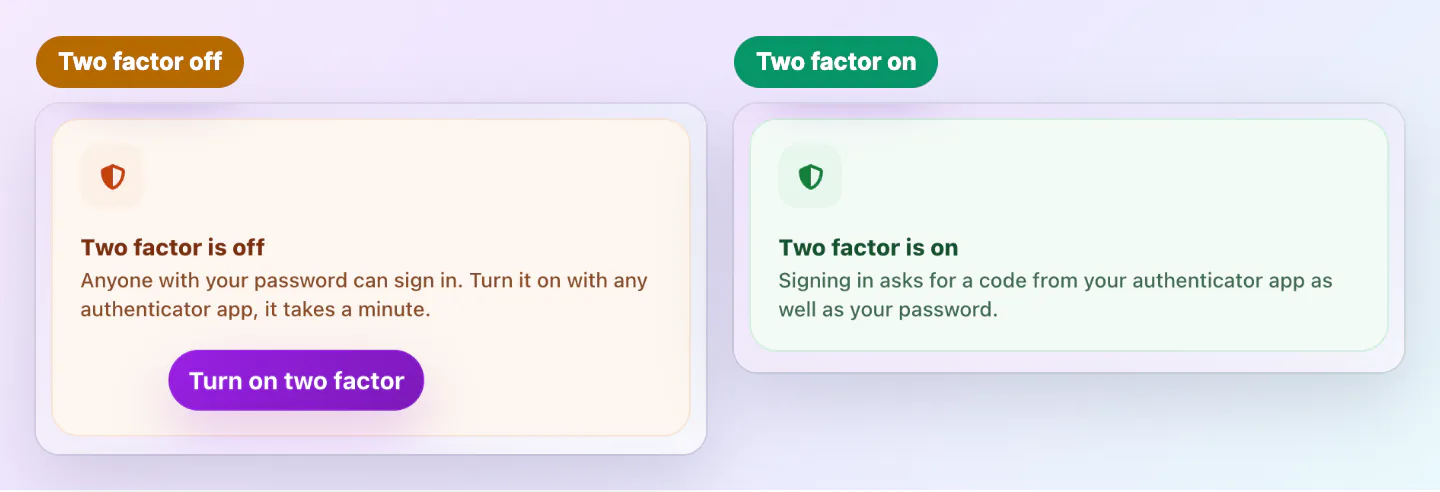
The Security tab in Settings keeps your sign in safe. Two factor is the strongest single step, because a password alone is no longer enough to get in.
you want to turn two factor on or off, change your password, set an email safety code, or check where you are signed in.
There are no backup codes. Keep your authenticator app on a phone you trust. If you lose it, choose Contact support on the code step of sign in and we will help you get back in.
Open the Two factor card, enter your current password and a code from your authenticator app, and choose Turn off two factor. After that, only your password protects your account.
Under Change password, enter your Current password, your New password and Repeat password, then choose Change password. While two factor is on, also enter the Code from your authenticator app. A password has 6 to 64 characters.
Changing your email in Profile asks for the same code while two factor is on.
Changing it signs out your other sessions and turns off your API keys, so you will need to create new keys for your integrations. This device stays signed in. If you do not know your password, sign out and use Lost password on the sign in page.
Pick a word of up to 8 characters and choose Save code. We print it on most account, security, billing and order emails, so you know a message is really from Zapped. It is not on the signup confirmation, the confirmation for a new email address or team invitations. Treat a security or billing email without your code with suspicion.
If you signed up with Google or another provider, a Linked sign ins card lists each one with a Remove button. Removing one asks for your Current password and, while two factor is on, the code from your authenticator app. We email you when a sign in is removed.
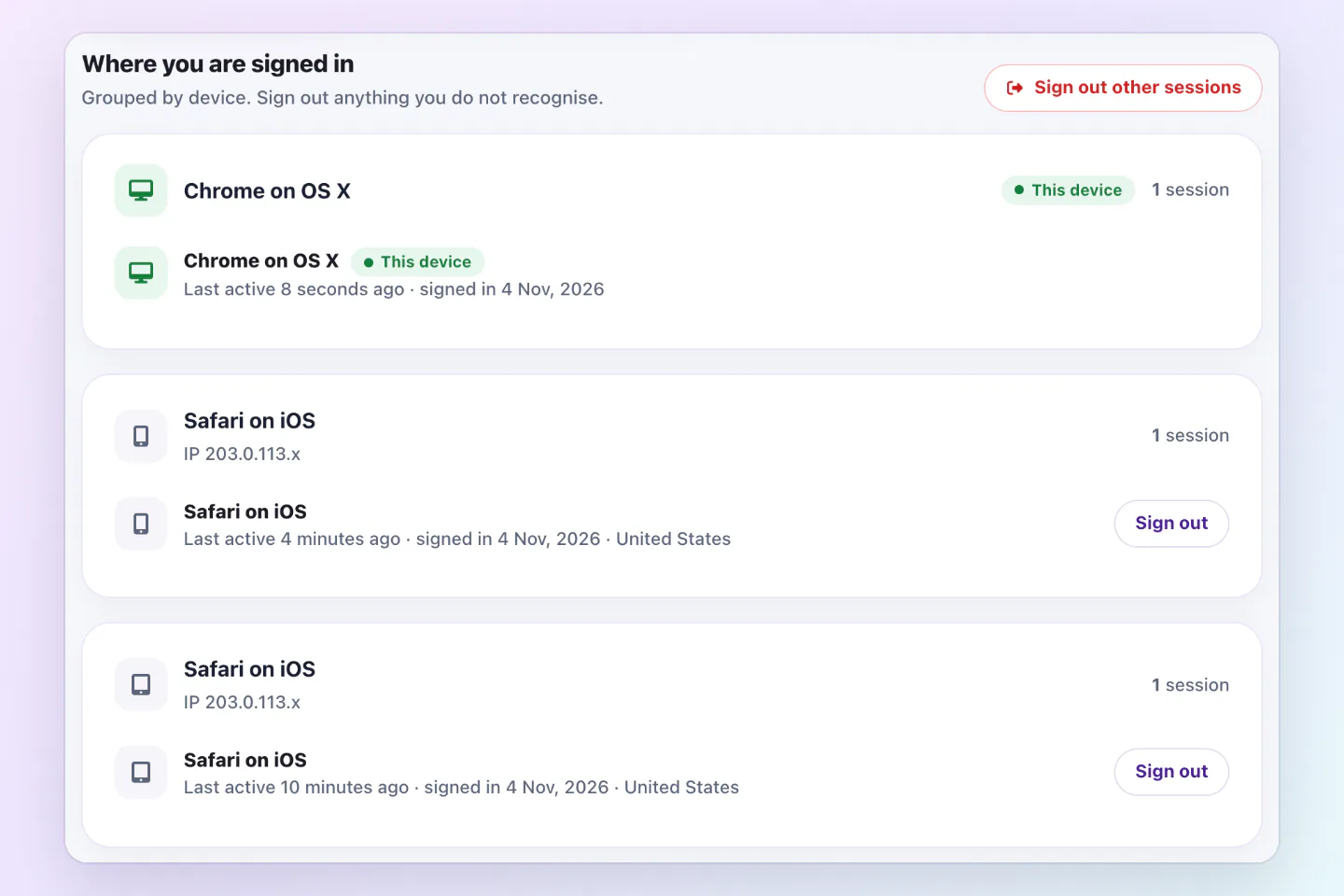
This list groups your sessions by device. It marks This device, and Remembered for browsers that stay signed in. Choose Sign out next to anything you do not recognize.
Sign out other sessions signs out every other browser and device, including remembered logins. This device stays signed in. Your API keys are turned off too, so you will need to create new keys for your integrations.
Each person turns it on for their own account. Two factor belongs to the signed in person, not to the workspace.
Any app that gives you a 6 digit code that changes every few seconds works.
Was this guide helpful?