Help Center

Add a QR code to print or a slide

Put a card's QR code on a business card, poster or slide in a few steps, and pick the right file and size.

A QR code lets people open your card with a phone camera. This short guide covers getting the file and placing it well. For the click by click steps, see Get a card's QR code from the Share menu.

Use this guide when

You are adding a QR code to something you will print or show, such as a business card, a poster, a badge or a presentation slide.

Before you start

  • Publish the card first.
  • Know where the code will appear and how large it can be.

Steps

  1. Open the card's Share menu in Cards, or open QR Codes in the left menu, where every code is listed.
  2. Download the card's Main QR code. Use PNG for slides and documents, and SVG for print shops and anything large.
  3. Place it at least 2 cm (0.8 in) wide and keep the white border around it. Keep it dark on a light background.
  4. Scan it from the final slide or a printed proof with a phone before you share it widely.
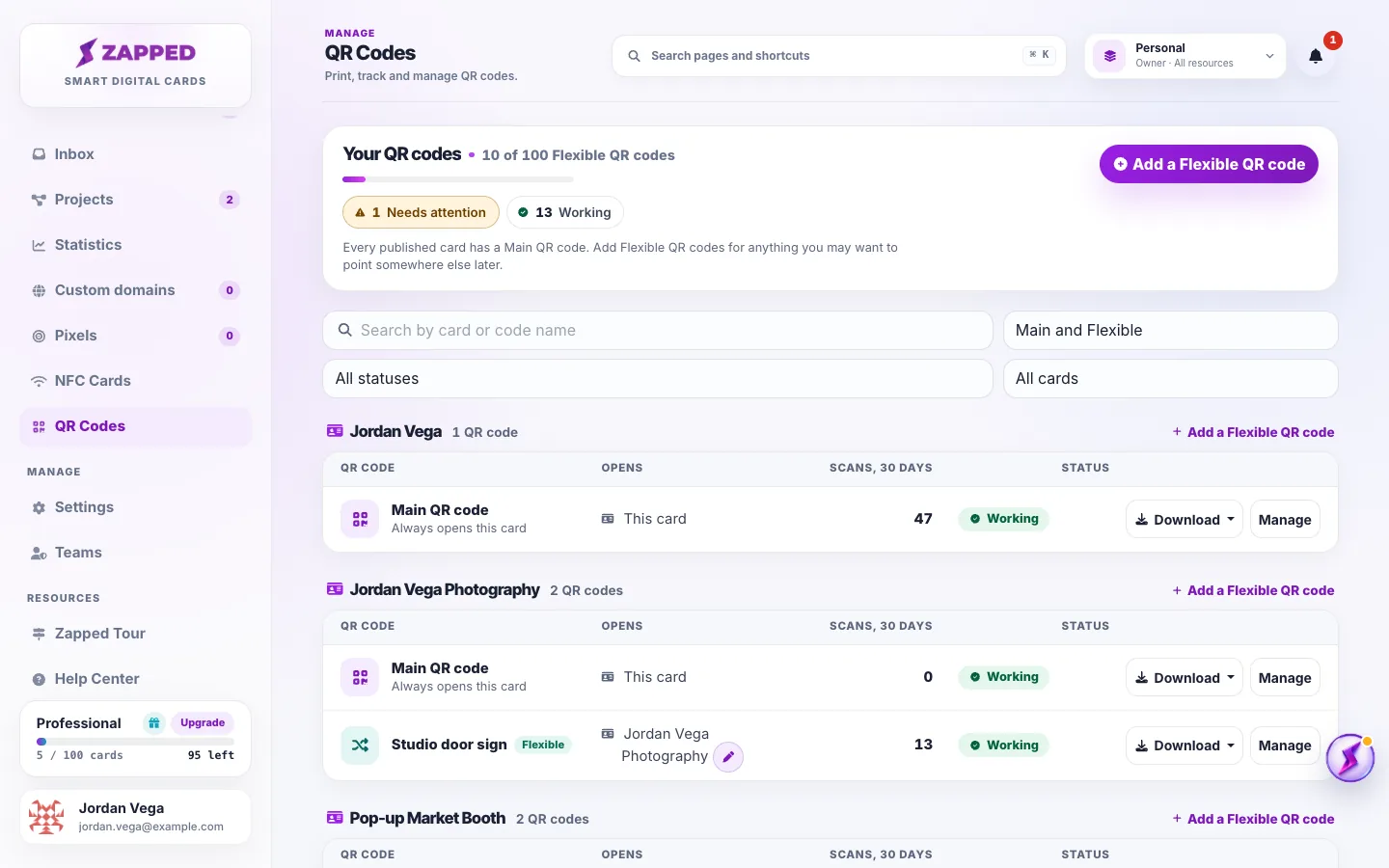
Fictional QR Codes page grouped by card, with each card's Main QR code and the Flexible QR codes that open it, scan counts, status and download buttons.
QR Codes in the left menu lists every code, with downloads on each row.

The code keeps working when you change the card's address, so a code you print today stays good.

Main or Flexible

The Main QR code always opens its card. If you may want the printed code to open something else later, such as another card or a website, print a Flexible QR code instead. Make a Flexible QR code shows how.

Good ways to use this

  • Put a short line next to the code that says what it opens.
  • On slides, leave the code on screen long enough for people to scan it.

Common questions

Which file should I use?

PNG for slides, documents and screens. SVG for print shops and large signs, because it stays sharp at any size.

How small can the code be?

Keep it at least 2 cm (0.8 in) wide, with its white border.

If something looks wrong

  • If the code does not scan from a slide, make it larger or raise the screen brightness.
  • If a printed code does not scan, print it larger and avoid busy backgrounds.

Was this guide helpful?

Still have questions? Contact support and we'll help you out.