Can a visitor download my details instead?
Yes. Save contact downloads your card details. The lead form collects the visitor details. They serve different purposes.
 Help Center
Let visitors share their contact details with you from your card.
A lead form collects visitor details in your Inbox. It is separate from the Save contact action, which gives visitors your contact details.
You want to let visitors share their contact details with you from your card.
Ask only for information you need and explain how you will use it. A lead form is subject to the card owner plan and block limits.
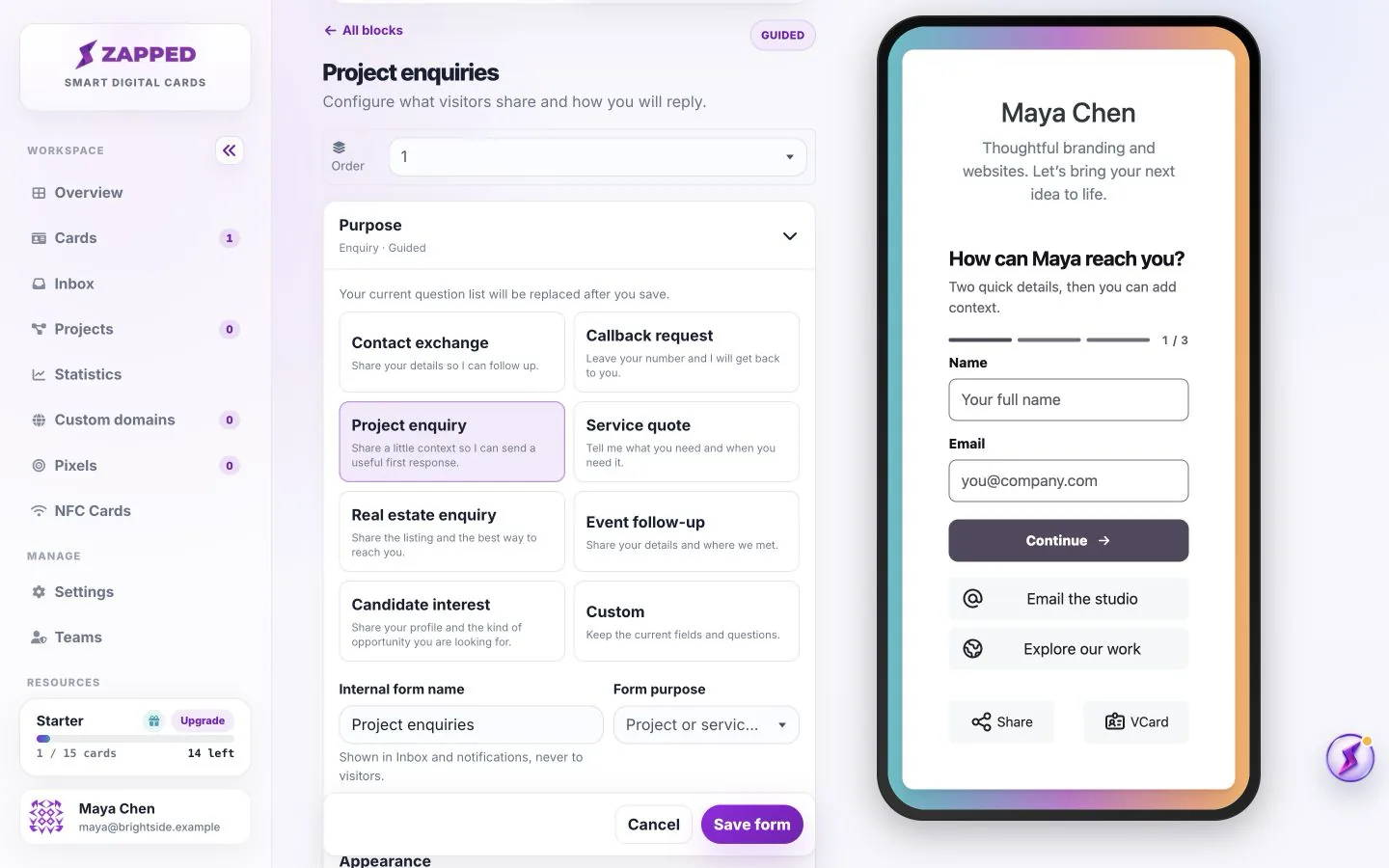
The quick start offers Share contact details, Request a callback, and Ask about a project or service. Choose the goal first, then the Required reply channel. Email, Phone, or Email and Phone determines the contact details visitors must provide.
Choose Add and customize to open the full builder. Give the form a recognizable Internal form name, such as Website enquiries. This name appears in Inbox and notifications, not on the public card.
Save form keeps the form changes in your card draft. Publish makes that draft available to visitors. Test the published link with fictional details, complete all steps, and wait for the success message before checking Inbox.
Use Show this form on the card in After submission to pause new submissions. Save and publish that change. Pausing the form does not delete existing leads. Adaptive cards support one Lead Form; edit the existing form instead of adding competing forms.
Yes. Save contact downloads your card details. The lead form collects the visitor details. They serve different purposes.
The card owner and workspace members with the required permission and card access can view the relevant Inbox leads.
Was this guide helpful?