Help Center

Understand Personal and shared workspaces

Learn how Personal, accepted shared workspaces, and pending invitations relate to your signed-in account.

Zapped uses workspace to show which set of resources you are currently working with. Switching workspaces does not change who you are signed in as.

Understand the workspace states

Personal workspace

Contains cards and projects owned by your signed-in account.

Team you manage

A membership group that grants other people access to your Personal resources. It does not create another copy of your cards or projects.

Pending invitation

Can appear in Teams, notifications, and the switcher before acceptance. Verified accounts can respond in Zapped. Other recipients see Verify email.

Accepted shared workspace

Shows resources owned by the person who invited you, limited by your role and access scope.
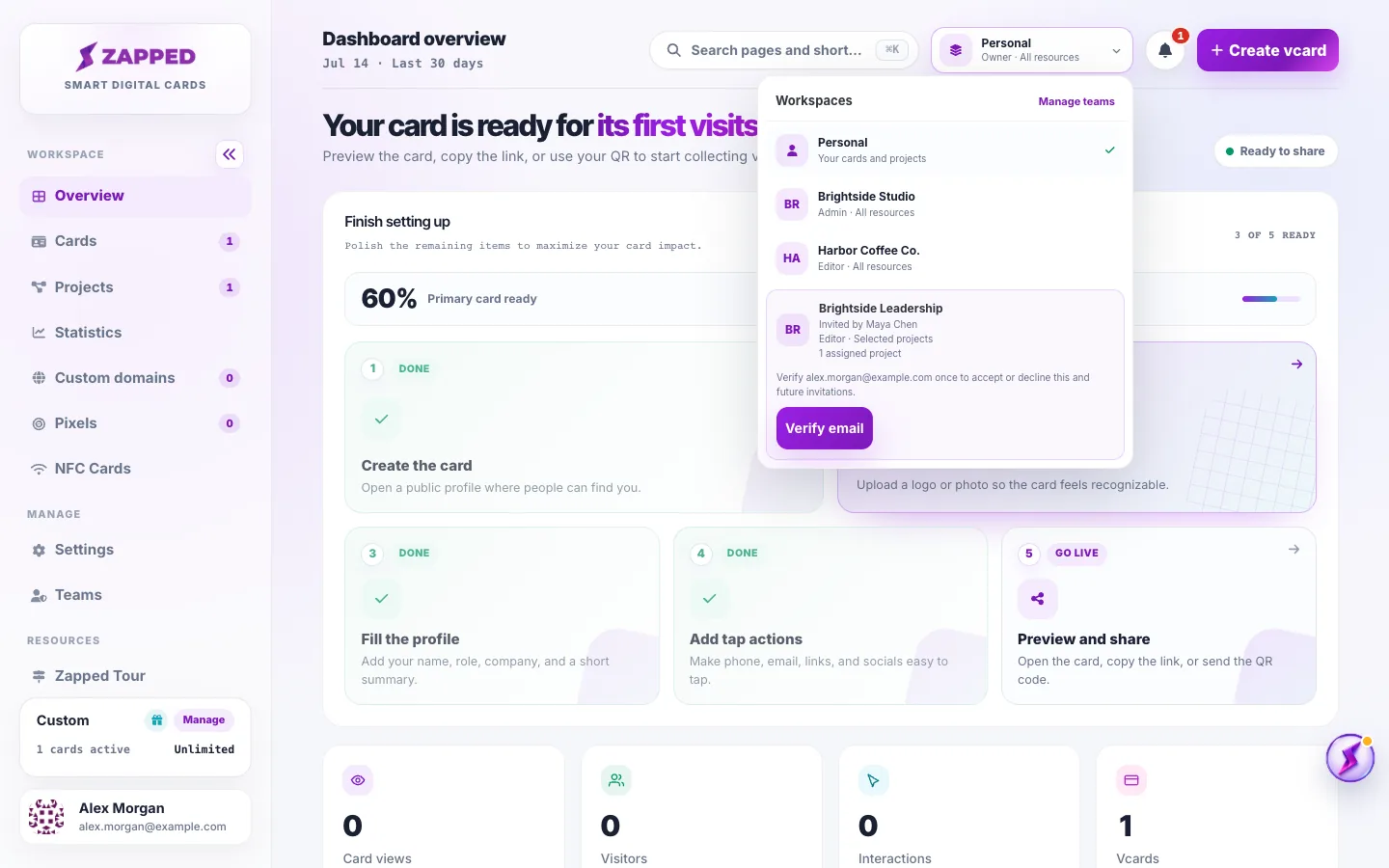
Complete a pending invitation

  1. If Accept and open and Decline appear, review the invitation and respond in Zapped.
  2. If Verify email appears, select it and open the newest secure message.
  3. Select Review secure invitation. After Invitation verified appears, return to Zapped and accept or decline.
  4. Confirm the workspace name, role, and access scope before opening it.
Zapped workspace switcher showing Personal, accepted workspaces, and a Brightside Leadership invitation with a Verify email action
The switcher keeps Personal, accepted workspaces, and pending invitations visible while preserving their different states.

Switch safely

  1. Open the workspace switcher at the top of the app.
  2. Read the workspace name, role, and access scope.
  3. Select Personal or an accepted shared workspace.

What stays private

  • Billing and plan management stay with the owner.
  • Account preferences, API keys, and purchases stay with the owner.
  • Team ownership and member administration stay with the owner.

When something is missing

  • Check that the intended workspace is active in the switcher.
  • For a shared workspace, ask the owner to review your role, scope, and assigned cards or projects.
  • For a pending invitation, use Verify email if direct response actions are not available.

Was this guide helpful?

Still have questions? Contact support and we'll help you out.