Help Center

Update your billing information

Open Plan and use Manage payment method to update the card and billing details on file.

You can update the card and billing details used for your Zapped subscription from the Plan page.

Before you start

  • Sign in as the account owner. Billing controls are not available to team members.
  • Use your Personal workspace. Owner billing pages stay with the owner account.
  • Have the replacement card or updated billing details ready before you open the billing portal.

Update the payment method on file

  1. Open Plan.
  2. Scroll to the Payment and invoices section under Billing.
  3. Choose Manage payment method.
  4. In the secure billing portal, update the card or billing details on file, then save your changes.
  5. Return to Zapped when you are finished. Your next renewal uses the updated payment method.
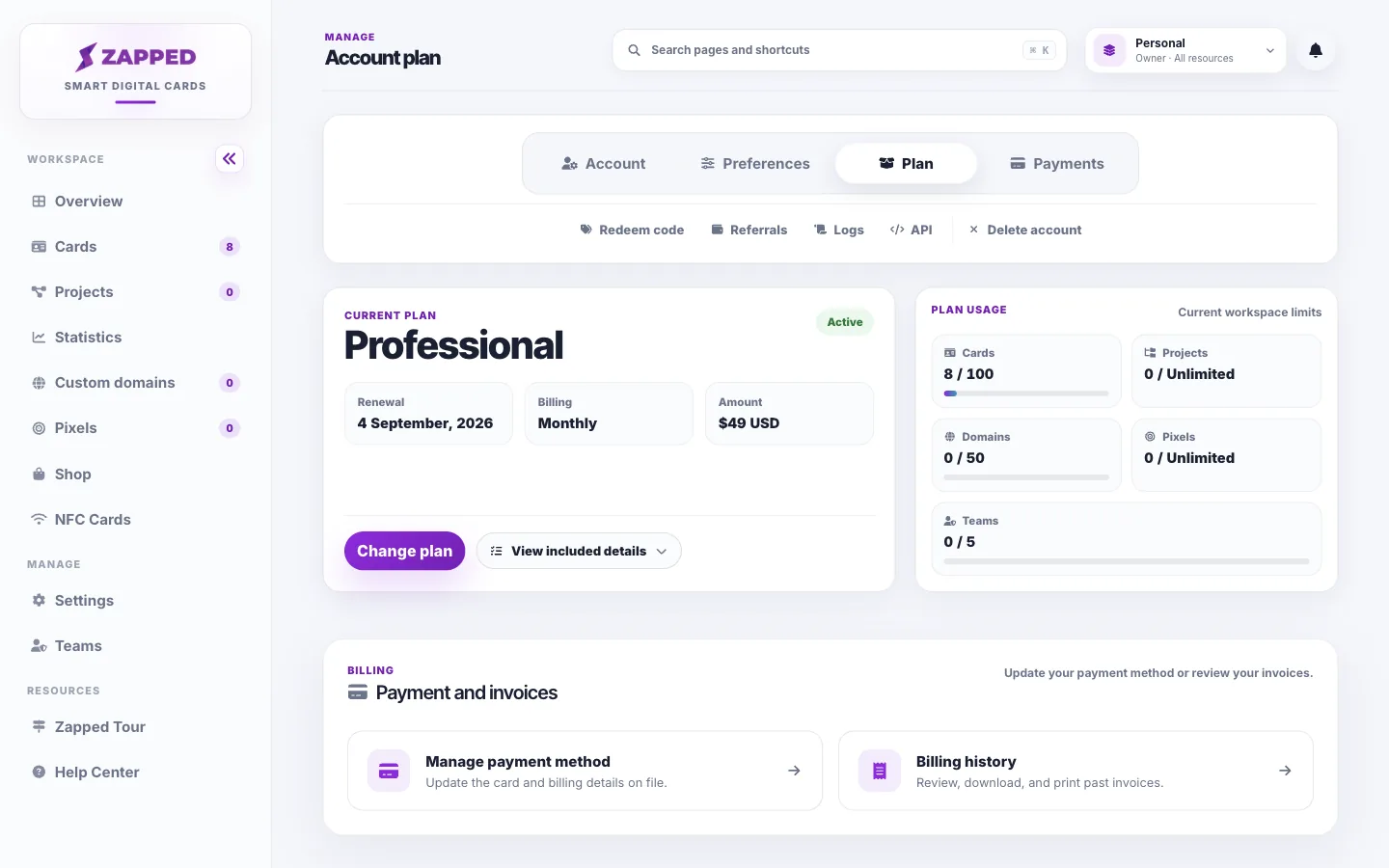
Fictional Zapped Plan page showing Payment and invoices with Manage payment method.
Use Manage payment method on the Plan page to update the card and billing details on file.

Good ways to use this

  • Update your card before the renewal date if the current card is about to expire.
  • Use Billing history when you need a past invoice or receipt instead of changing the payment method.
  • Keep billing management limited to trusted account owners.

Common questions

Where do I change my plan?

Plan changes stay on the Plan page. Use Change plan there. Manage payment method is only for the card and billing details on file.

Can a teammate update billing?

No. Billing, plan management, and payment history remain owner-only, even when teammates can edit shared cards.

If something looks wrong

  • If Manage payment method is missing, confirm you are signed in as the owner, payments are enabled for the account, and you are in Personal rather than a shared workspace.
  • If the billing portal does not open, allow pop-ups for Zapped and try again from a fresh page load.
  • If a renewal still fails after you update the card, open Plan again and follow any payment issue guidance shown there, or contact support with the account email and approximate renewal date.

Was this guide helpful?

Still have questions? Contact support and we'll help you out.