Help Center

Set up an NFC card from your laptop

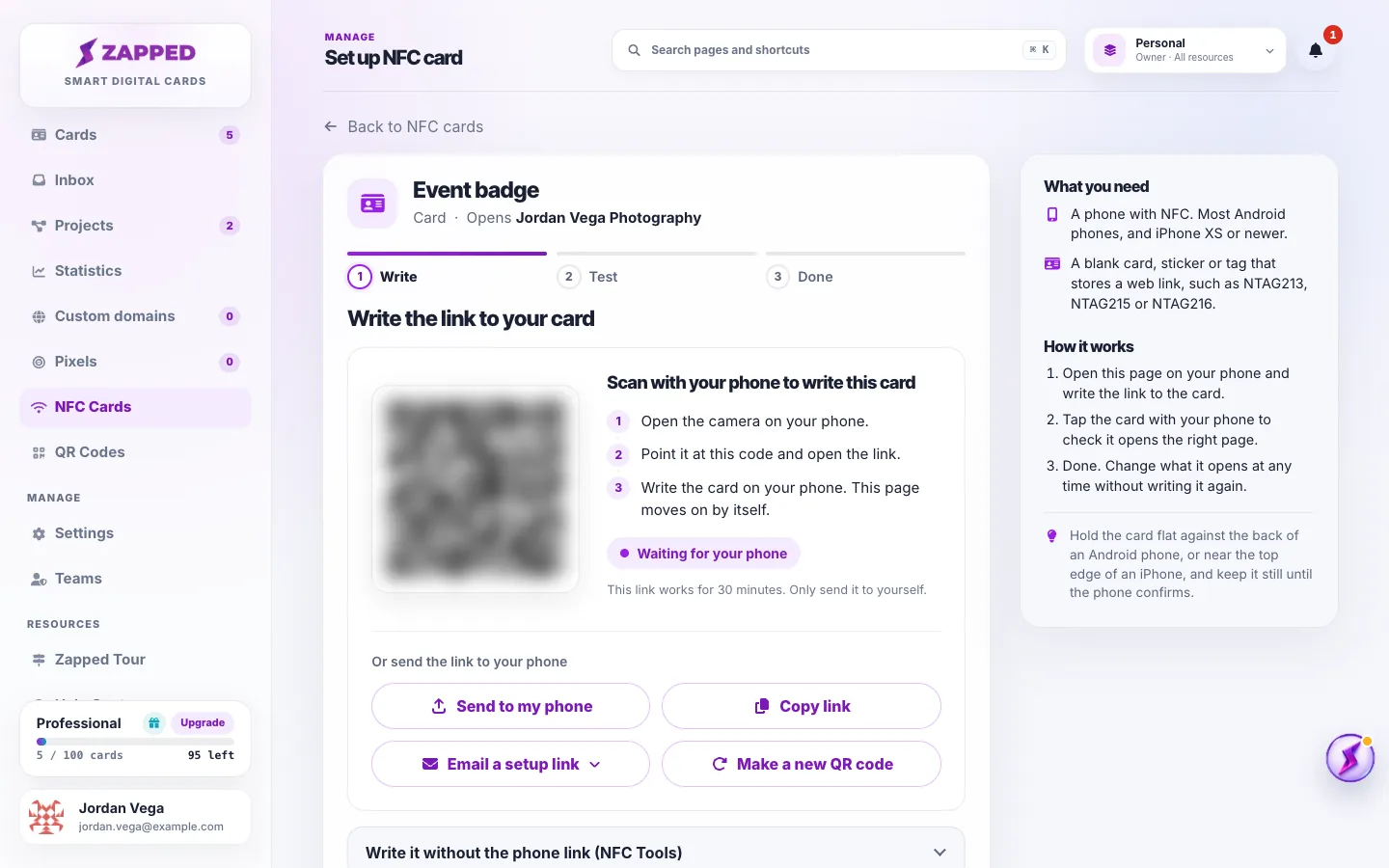
Start on your laptop and let your phone write the card: scan the QR code, send the link to your phone, or email it to the person who will write it.

A laptop cannot write NFC cards, but you can start there. The setup page hands the job to a phone with a private link, and your laptop page follows along by itself while the phone writes and tests the card.

Use this guide when

You added an NFC card on a laptop or desktop and want a phone to write it, or someone else will write the card for you.

Before you start

  • The NFC card added in NFC Cards. After you add it, Zapped opens its setup page.
  • A phone that can write NFC cards: an Android phone with Chrome, or an iPhone with the free NFC Helper app.

Steps

  1. Open the card's setup page on your laptop. From NFC Cards, choose Continue setup on a card that is not written yet.
  2. Scan the QR code on the page with your phone's camera and open the link. It opens a private setup page for this one card on your phone.
  3. No camera handy? Choose Send to my phone to use your computer's share menu, or Copy link and send it to yourself. To send it to someone else, choose Email a setup link.
  4. Write the card on the phone. Your laptop page shows Waiting for your phone and moves on by itself when the card is written.
  5. Test the card with any phone, and confirm on either page that it opened.
Fictional Set up NFC card page on a laptop for an Event badge at the Write step, with a QR code for the phone, Send to my phone, Copy link, Email a setup link and Make a new QR code.
Scan the QR code with your phone, or send the link to it.

A setup link lets whoever opens it write this card, so keep it private. The QR code and copied link work for 30 minutes, and an emailed link for 24 hours.

How long setup links work

The QR code and the copied link work for 30 minutes. If they expire, choose Make a new QR code. A link sent with Email a setup link works for 24 hours.

Each link opens setup for one NFC card only. It does not sign anyone in to your account.

Letting someone else write the card

Choose Email a setup link and enter their address. They open the email on their phone and write the card without an account. Your laptop page, and the card in NFC Cards, show when it is written.

Email a setup link is available to the workspace owner and Admins with access to all resources.

If the phone's browser cannot write

On Android, the link must open in Chrome. If it opens in Samsung Internet or another browser, the page offers Open in Chrome. On an iPhone, use Write with NFC Helper, or Use NFC Tools instead.

Good ways to use this

  • Keep the laptop page open while you write, so you see the card move to Test and Done.
  • Use Email a setup link when a colleague has the card and the phone.
  • Make a new QR code instead of reusing an old screenshot of one.

Common questions

Can I write the card from my laptop?

No. Laptops cannot write NFC cards. Your laptop shows the way, and a phone writes the card.

Does the person writing the card need a Zapped account?

No. The setup link opens setup for that one card without signing in.

What if I close the laptop page?

Nothing is lost. The phone keeps going, and the card shows its progress in NFC Cards.

If something looks wrong

  • If the QR code says it expired, choose Make a new QR code.
  • If Send to my phone is missing, your browser has no share menu. Use Copy link or the QR code.
  • If Email a setup link is missing, your role cannot send setup emails. Use the QR code or ask the workspace owner.
  • If the laptop page does not move on, reload it. The phone's progress is saved.

Was this guide helpful?

Still have questions? Contact support and we'll help you out.