Does a lost card count toward my plan?
No. Lost cards stay in your list but do not count. A found card counts again.
 Help Center
Mark a missing NFC card as lost, bring it back with I found it, or set up a replacement that opens what you choose.
If an NFC card goes missing, mark it as lost so taps stop opening your card. If it turns up again, you can bring it back. If it does not, set up a replacement.
An NFC card is missing, you found one you marked as lost, or you want a new physical card to take over from an old one.
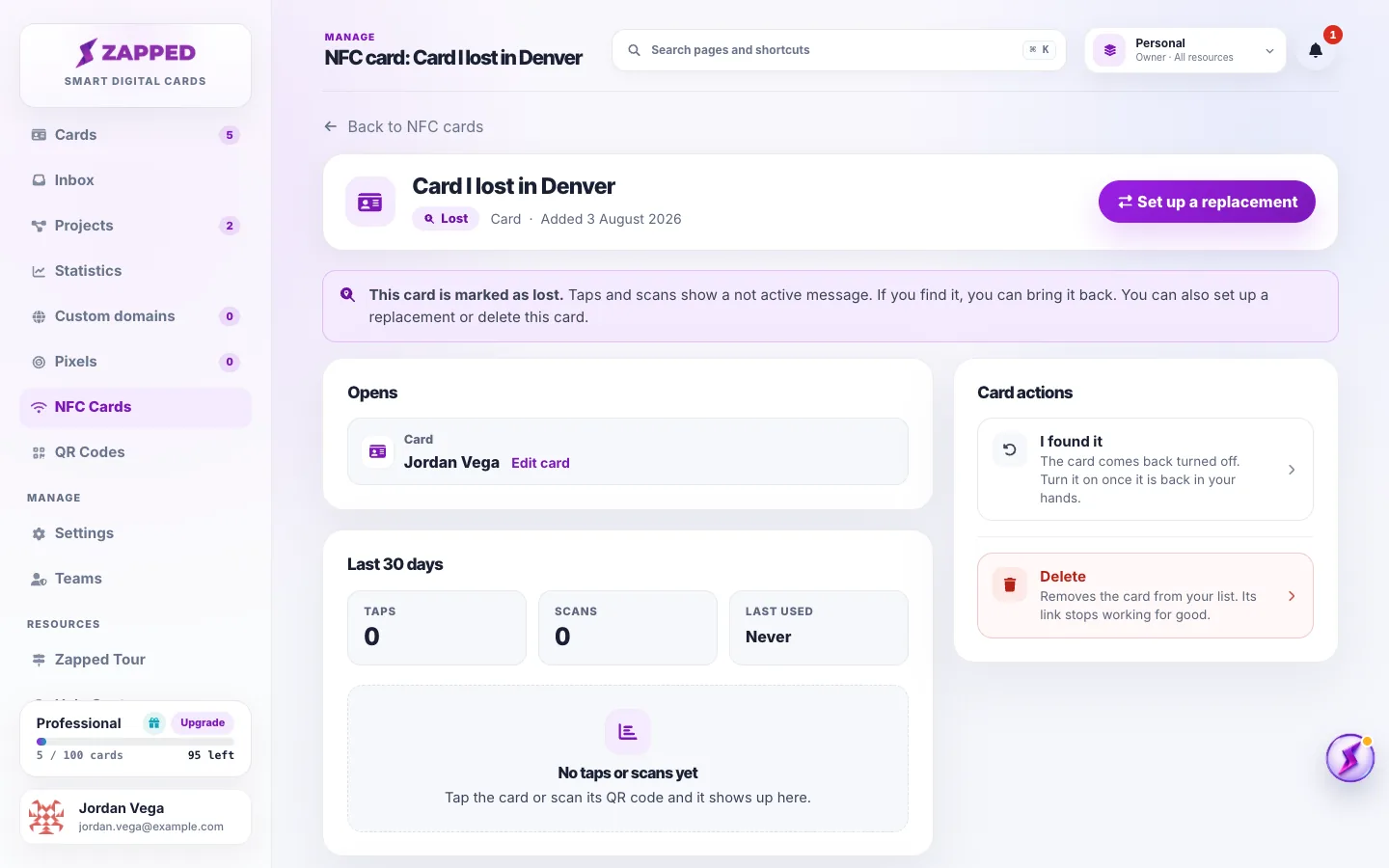
A replacement ends the old card for good. After you set one up, the old card cannot come back with I found it.
Only a card marked as lost can be found. It comes back turned off, and any open setup links for it stop working.
A found card uses a place in your plan again. If you now use more NFC cards than your plan includes, it cannot come back. A replacement keeps your card count the same.
If the card was replaced, it cannot come back. If that replacement was deleted, the lost card can be found or replaced again.
Set up a replacement works from a lost card, or straight from a card you still have, which it marks as lost. The new card gets the same name and its own card link, so you write a new physical card.
A replacement keeps your card count the same, whether you mark the card as lost first or replace it straight away. That also works when your plan now includes fewer NFC cards than you use. If you added a new card after you marked this one as lost, the new card took its place, so the replacement needs a free place in your plan.
You choose what the new card opens: one of your published cards, or on paid plans a website with a backup card. Only the workspace owner, or an Admin with access to all resources, can choose a website. If the old card saved the contact right away and the new one opens the same card, it does too. If it opens a different card, it saves the contact only when the workspace owner, or an Admin with access to all resources, sets up the replacement.
A locked card can never be written again. Mark as lost, Set up a replacement and Delete remind you of that before you confirm.
If you find a locked card, I found it brings it back with its old card link, so it works again without writing it.
To pause a card you still have, choose Turn off. Taps show a not active message until you turn it back on. A turned off card still counts toward your plan.
No. Lost cards stay in your list but do not count. A found card counts again.
Yes. Delete removes it from your list and its link stops working for good.
No. While a card is lost, taps and scans show only a not active message.
Was this guide helpful?