Help Center

Set your account preferences

Choose how your lists open, keep your own visits out of statistics, set email alerts, and decide who gets lead emails.

Preferences holds the small choices that make Zapped work the way you like. It has two pages: General and Lead emails.

Use this guide when

you want to change how lists are sorted, stop counting your own visits, change alert emails, or send a card's leads to someone else.

Steps

  1. Open Settings and choose Preferences. General opens first.
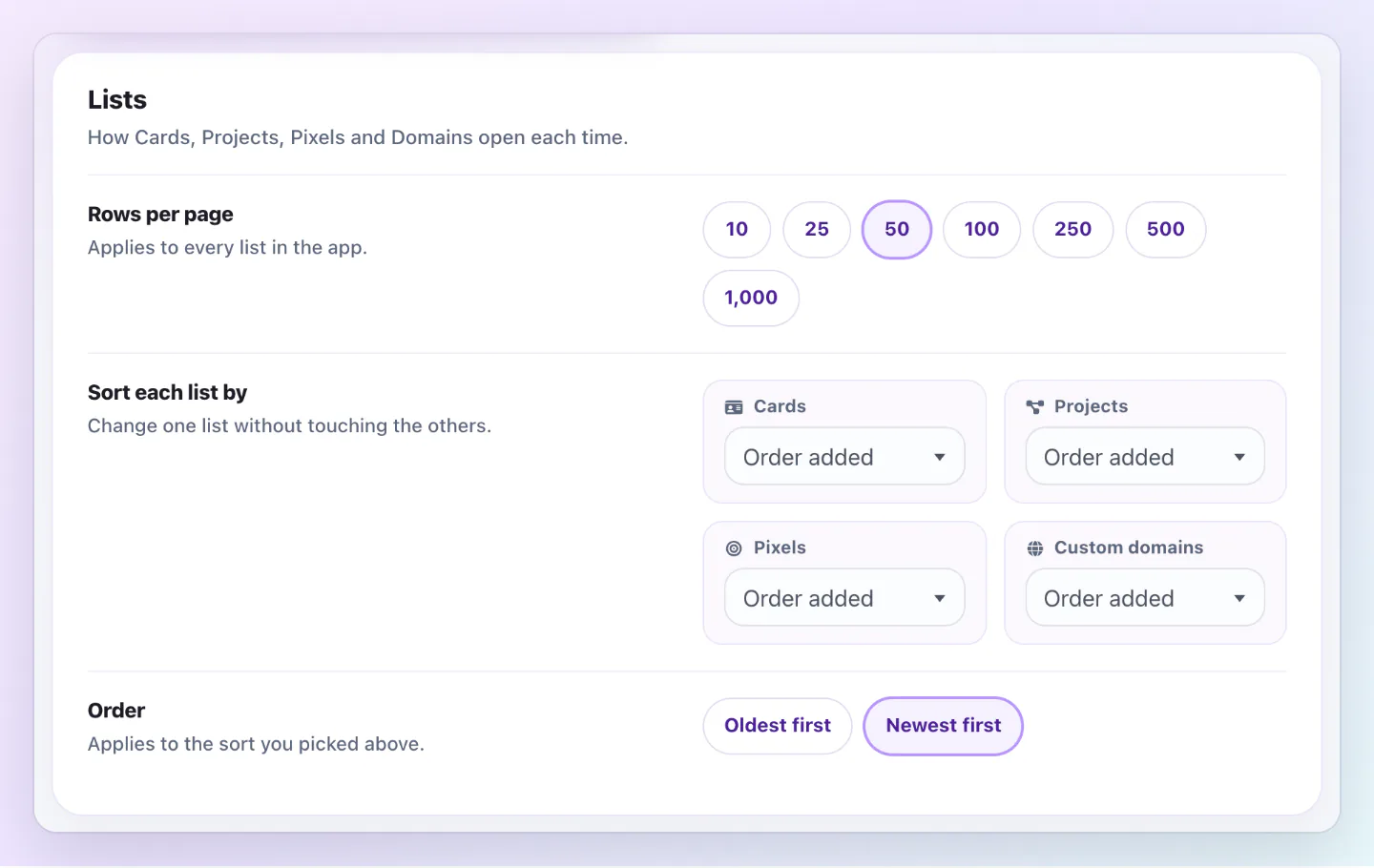
  2. Under Lists, choose Rows per page, then Sort each list by and Order for Cards, Projects, Pixels and Domains.
  3. Under Statistics, add addresses to Ignore these IP addresses, or choose Add my current IP.
  4. Under Email alerts, switch Email me when an NFC card needs attention on or off. This section shows when your account has NFC cards or QR codes.
  5. Choose Save preferences.

Leads always land in your Inbox too, whoever gets the email.

Choose who gets lead emails

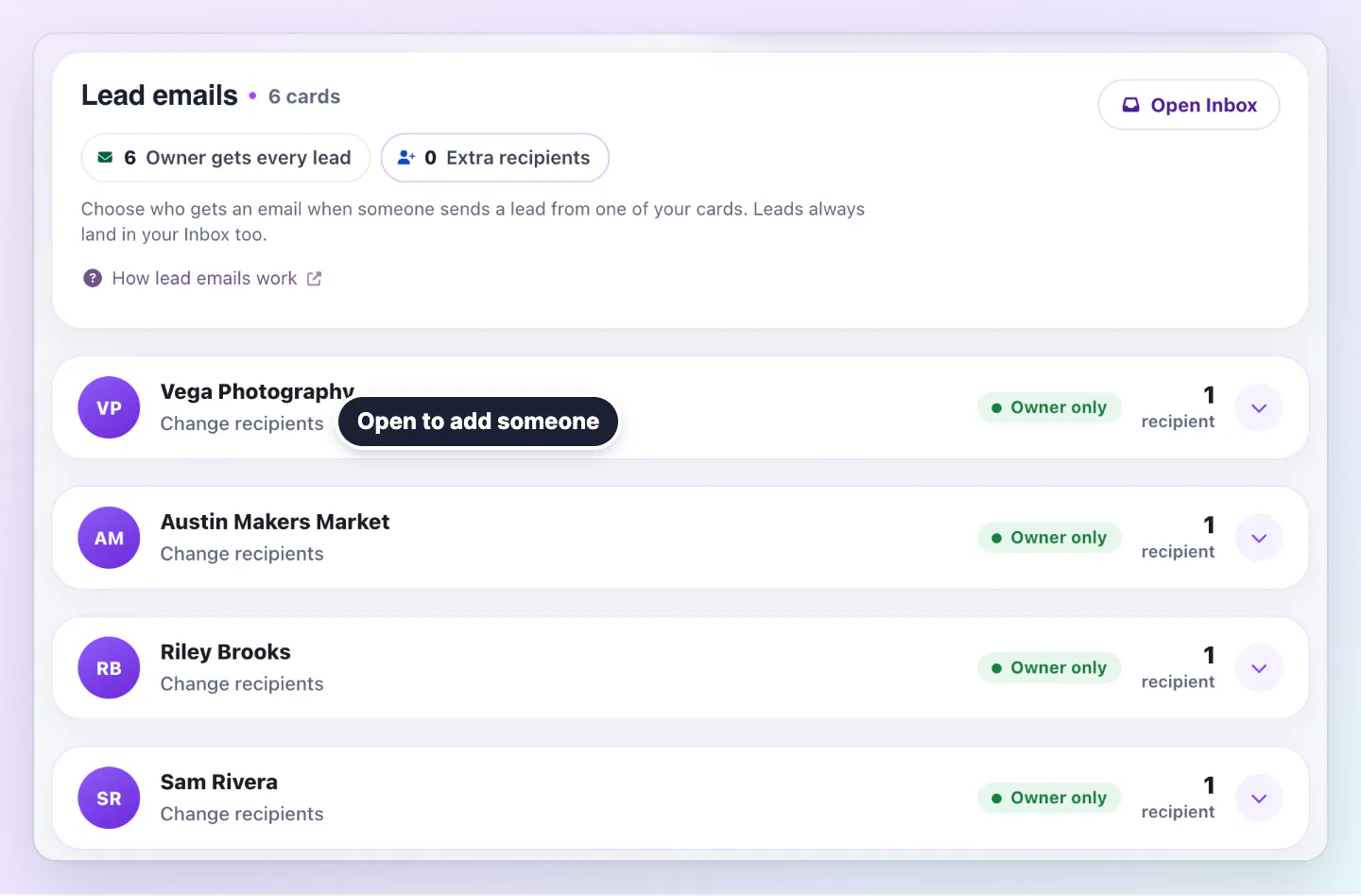
Open Lead emails on the Preferences tab. Each card has its own row, showing who gets its leads. Only the owner, or a team Admin with All resources access, can change this.

  1. Choose Change recipients on a card.
  2. Under Who gets these leads, choose whether You, the owner stays on.
  3. Add addresses under Other addresses. You can have up to three in total, the owner included.
  4. Choose Save recipients. Each new address gets a confirmation email and must confirm within 24 hours.

Recent lead emails shows each email from that card and whether it was sent. Sent means our mail service handed the email on. It cannot tell us whether it reached the inbox.

Lead emails page listing the account's cards with the owner set to receive every lead and a way to add another address.
Lead emails shows who gets an email when each card receives a lead.

White labeling

When white labeling is available, General also has White labeling settings for your title, footer description, logos and favicon. Plans that do not include it show these settings switched off.

How the list choices work

Rows per page applies to every list in the app. Sort each list by changes one list without touching the others, and Order applies to the sort you picked.

Lists section of Preferences with rows per page set to 50, a sort choice for Cards and Projects, and the order set to newest first.
Rows per page applies to every list, and each list keeps its own sort.

Statistics and alerts

Ignoring an IP address keeps your own visits out of your card numbers. Separate several addresses with commas.

NFC alert emails go out only when something needs a fix. You get at most one email a day, and only when an NFC card cannot open its page.

Good ways to use this

  • Add your office IP address before you test cards, so your numbers stay honest.
  • Send leads for a shared card to the person who follows them up.
  • Keep the NFC alert on if you hand out printed or physical cards.

Common questions

Does a new lead email address see my account?

No. Approving gives no access to the card editor or Inbox. It only receives the lead emails.

Why does a new address get no leads yet?

It gets lead emails only after it confirms by email. Until then it shows as pending.

If something looks wrong

  • If Lead emails is missing, switch to your Personal workspace.
  • If a list ignores your choice, check that you saved with Save preferences.
  • If an address stays pending, ask its owner to check spam, then choose Send confirmation email.

Was this guide helpful?

Still have questions? Contact support and we'll help you out.