Help Center

Create more than one team on a Business plan

How to create teams for offices or brands, what each team has, and what they share.

Team plans include one team. Business plans include up to 10, so each office or brand can have its own members and access.

Use this guide when

You run several offices or brands and want separate member lists and permissions.

Before you start

  • Switch to your Personal workspace. Only the owner creates teams.

Steps

  1. Open Teams and choose Create team.
  2. Enter a team name of up to 64 characters.
  3. Choose Manage on the new team and invite members with a role and access.
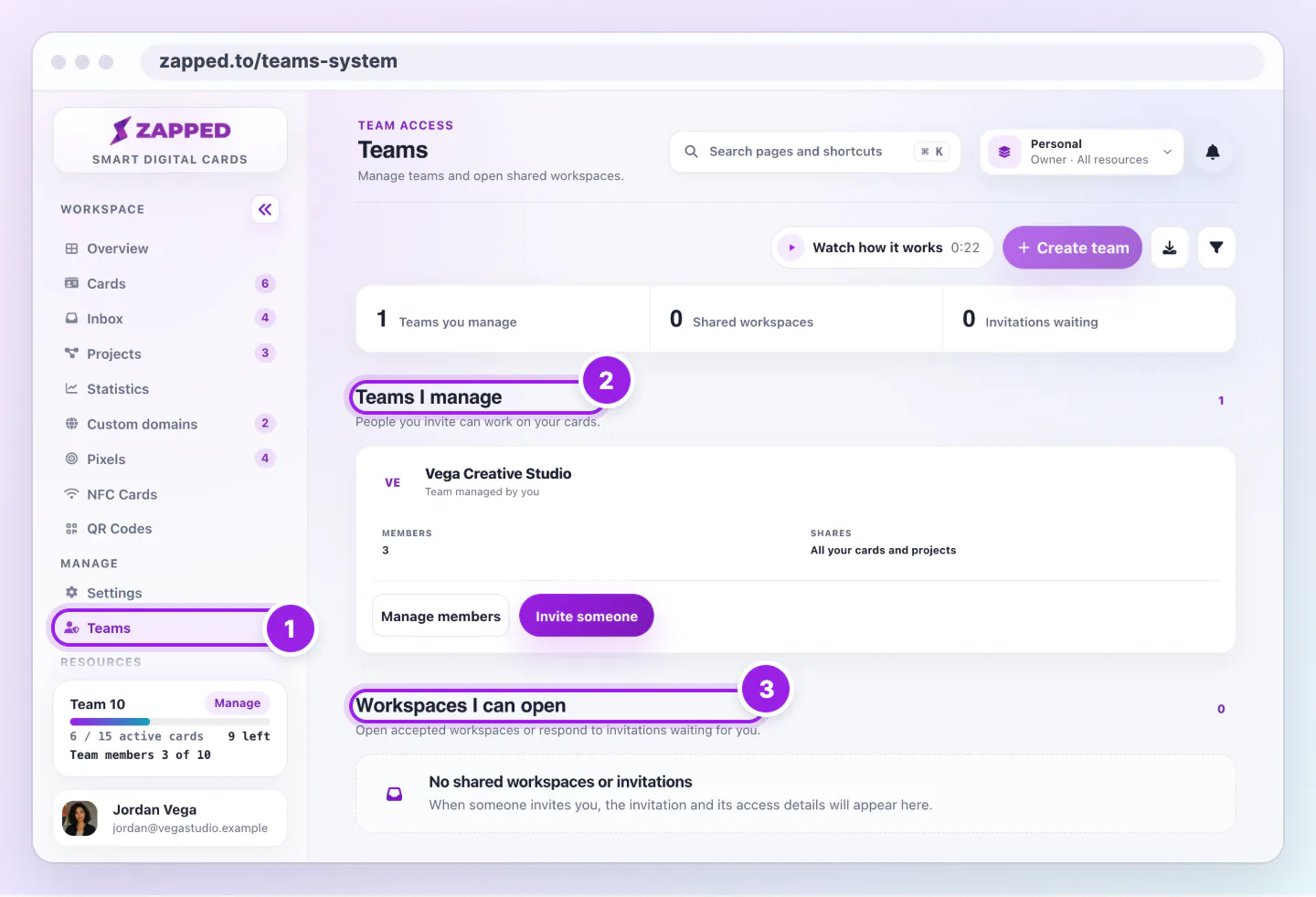
Teams page with the sidebar link, the Teams I manage section and the Workspaces I can open section marked with numbers 1 to 3.
  1. Teams in the sidebar opens this page.
  2. Teams I manage lists the teams you own.
  3. Workspaces I can open lists shared workspaces and invitations.
Teams splits the teams you run from the workspaces other people share with you.

A team does not hold separate cards. It is a group of people with access to your account's cards and projects.

What each team has

Each team has its own member list, roles and access, such as All resources, Selected projects or Selected cards.

What teams share

Card limits, custom domains and member logins belong to your account. A person in two teams uses one login.

Good ways to use this

  • Use one team per office or brand.
  • Use Selected projects for each office's cards.

Common questions

Why does it say my plan includes 1 team?

Team plans include 1 team. Business includes up to 10.

If something looks wrong

  • If you see that your plan includes a number of teams, you are at the limit. Remove a team or change plan.

Was this guide helpful?

Still have questions? Contact support and we'll help you out.