Do I have to write the card again after I change where it opens?
No. The card holds its Zapped card link, and Zapped decides what that link opens. The change works on the next tap.
 Help Center
See how each NFC card is doing, rename it, change where it opens, turn it off or on, and delete it.
Every NFC card you add has its own page in Zapped. It shows whether the card works, what it opens, how often people tap it, and everything that happened to it. You can change all of that without writing the physical card again.
You want to check on an NFC card, change what it opens, pause it, or tidy up your list.
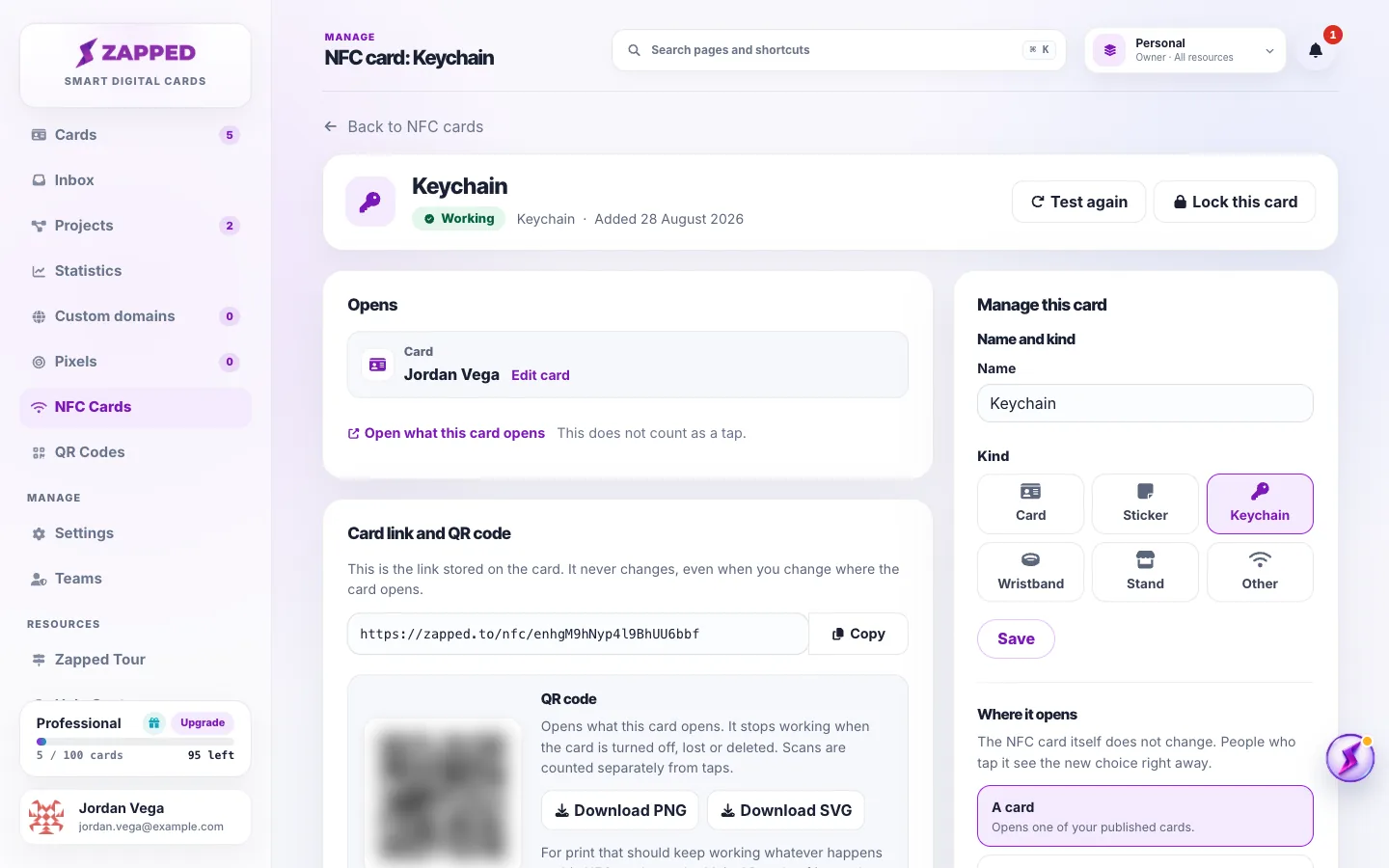
Changing where a card opens never needs the physical card. Write a card again only if you replace it, or if a test shows it does not hold its link.
Working means the card was written and passed its test. Written, not tested means it was written but nobody confirmed that it opens the right page yet. Choose Continue setup to test it. Not written yet means the card was added but its link is not on a physical card yet.
Needs attention means a tap cannot open what the card should open, for example because that card was unpublished or deleted. Open the card and choose something else in Where it opens, or publish the card again.
Turned off means you paused it, and taps show a not active message. Lost means you marked it as lost. Turned off by Zapped means Zapped turned the card off. Contact support if you think that is a mistake.
Taps count people who opened the card by tapping it. Scans count people who scanned its QR code. Last 30 days shows both per day, with devices, operating systems and countries. Link previews and bots are left out.
History lists what happened to the card and who did it, such as when it was added, written, tested, turned off or replaced.
Zapped can email you when one of your NFC cards needs attention, so a broken card does not go unnoticed. Switch it on or off on NFC Cards, or in your account preferences with Email me when an NFC card needs attention.
The workspace owner, and Admins with access to all resources, can do everything on this page. Other Admins and Editors can set up, rename, turn off and mark as lost the NFC cards that open cards in their access, and Viewers can only look. NFC cards and QR codes on a team has the full list.
No. The card holds its Zapped card link, and Zapped decides what that link opens. The change works on the next tap.
Yes. A turned off card still uses a place in your plan. A lost card does not.
No. A deleted card's link stops working for good, so write a new card if you need one again.
Was this guide helpful?