Help Center

How the shared Inbox works for a team

Who sees which leads, who can act on them and who can export or delete.

On Team and Business plans every lead lands in one Inbox that the owner and the team work from, within each person's access.

Use this guide when

You run a team workspace and want to know who can see and do what with leads.

Steps

  1. Open Inbox in the team workspace.
  2. Read the leads you can reach. The owner sees all leads, and everyone else sees leads from the cards in their access.
  3. Use Reply, Call and the status buttons if your role allows it.
  4. Open a lead and read History to see who did what.
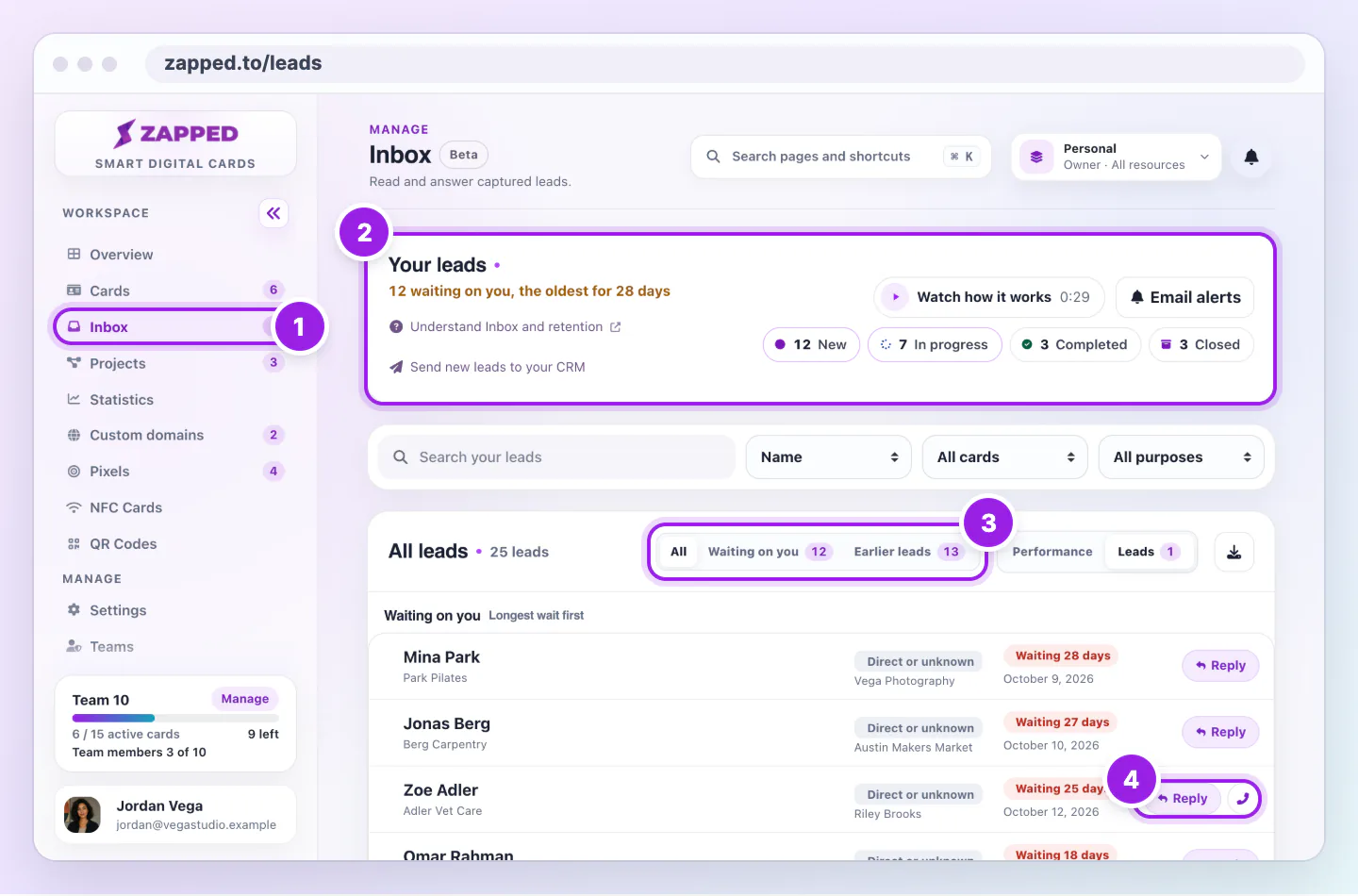
Inbox page with the Inbox link in the sidebar, a summary of leads waiting on you, shortcut chips and rows with waiting times, Reply and Call, marked 1 to 4.
  1. Inbox in the sidebar opens your leads.
  2. The summary says how many leads are waiting on you and for how long.
  3. All, Waiting on you and Earlier leads switch the list.
  4. Reply appears when the lead gave an email address, and Call when they gave a number.
Inbox puts the leads waiting on you first, with Reply when a lead gave an email address and Call when they gave a number.

There is no per lead owner. History is how a team sees who followed up.

Roles

Admins and Editors in scope can set status, write notes and use Reply and Call, and Zapped records their taps. Viewers can read. The owner and Admins can delete leads, export and use Save contact.

Leads from deleted cards

A lead whose card was deleted stays visible to the owner only.

Who is emailed

Lead emails go to the recipients chosen for each card under Settings, Preferences, Lead emails. The owner receives them by default and can turn their own copy off.

Good ways to use this

  • Give teammates Selected projects access so they see their own leads.
  • Answer how it went after every call.

Common questions

Do members see IP or city?

No. History shows names and times, never network details.

If something looks wrong

  • If a lead is missing, check your access includes its card.

Was this guide helpful?

Still have questions? Contact support and we'll help you out.