Help Center

Add an email signature that links to your card

Pick a style, choose what to show, and copy a signature that links to your card into Gmail, Outlook or Apple Mail.

An email signature puts your name, contact details and a link to your Zapped card at the end of every email you send. Zapped builds it from your card, so it matches what people see when they open your link.

Use this guide when

You want a tidy signature with your details and a link to your digital card, and you use Gmail, Outlook or Apple Mail.

Before you start

  • Publish the card first. A draft has no public address yet, so its Share page asks you to publish it.
  • Add the details you want to show, such as a phone number, website or social links, to the card. A signature shows only what the card has.

Steps

  1. Open Cards, open the card's actions menu and choose Email signature. This opens the Email signature tab on the card's Share page. Overview links to it too once your card is live.
  2. Under Style, choose a style. The preview changes right away.
  3. Under Show, switch on the details to include, such as phone, email, website and social icons.
  4. If you like, choose the Link text and an Accent color. Use card color goes back to your card's color.
  5. Check the Preview, then choose Copy signature.
  6. Under Add it to your email, choose your email app and follow its steps. Then send yourself a test email.
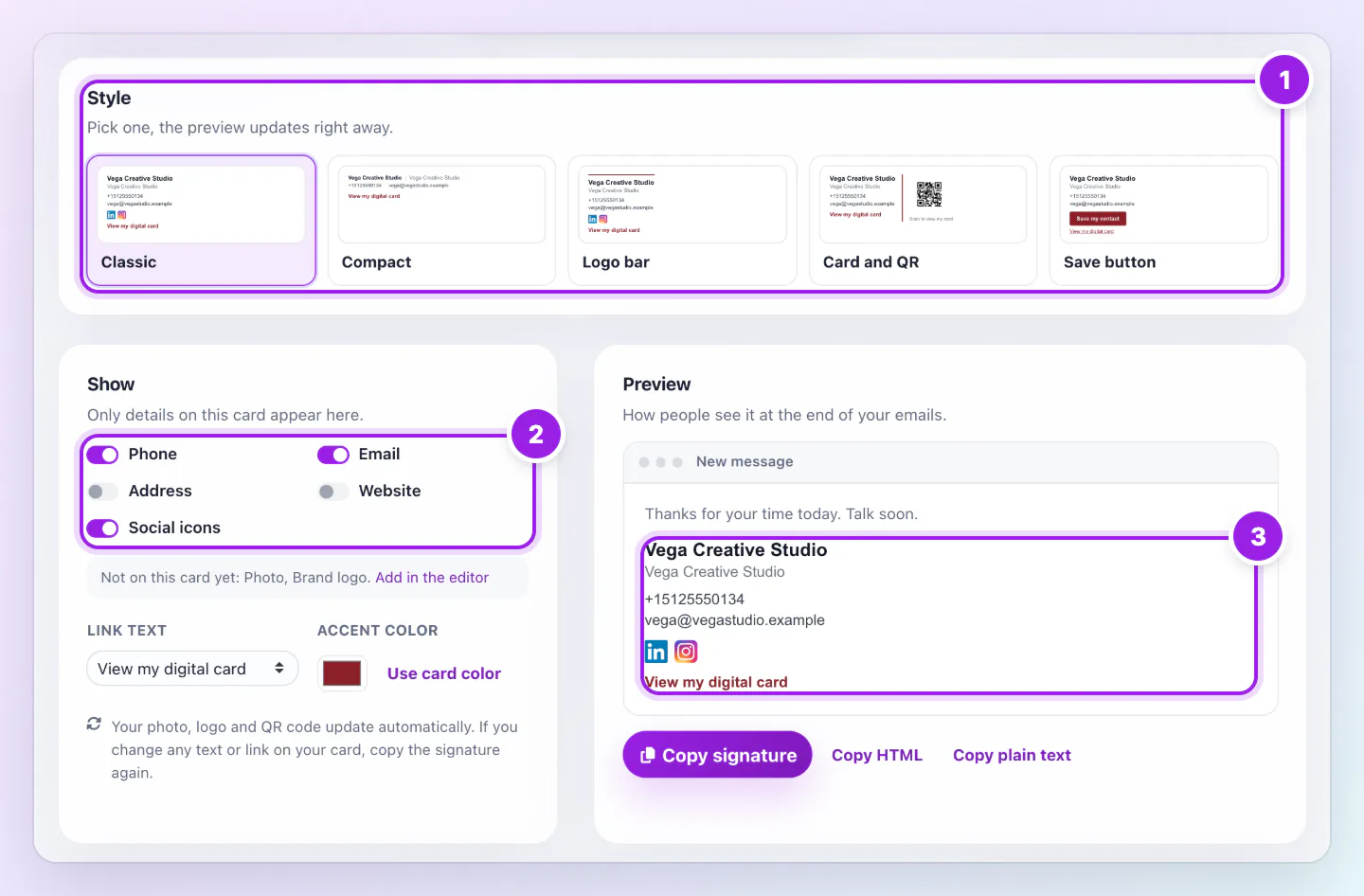
Email signature tab of the Share page for Vega Creative Studio with five signature styles, switches for what to show, and a preview inside an email window.
  1. Choose one of the signature styles.
  2. Choose which card details to show.
  3. The preview changes as you choose, and Copy signature sits under it.
The Email signature tab shows the styles, what to show and a live preview in an email window.

Your photo, logo and QR code update by themselves. If you change any text or link on your card, copy the signature again and paste it over the old one.

The five styles

Every style links to your card. Pick the one that suits the people you write to, and change it whenever you like.

  • Classic: Your photo, your details and a link to your card.
  • Compact: Text only. It works in every email app, so it is a safe first choice.
  • Logo bar: Your brand logo, your details and your social icons.
  • Card and QR: Your details with a QR code that opens your card. It suits people who read email on a computer and can scan with a phone.
  • Save button: A button that saves your contact in one tap.

Choose what it shows

Show lists the details your card has: Photo, Brand logo, Phone, Email, Address, Website and Social icons. A detail your card does not have is listed as not on this card yet, with a link to add it in the editor. A style leaves out the details it does not use, and Show says so.

Link text sets the words on the link to your card: View my digital card, Save my contact or Let's connect. Accent color sets the color of the link and the style's small accents. It must stay readable on white, so very light colors are darkened for you.

Put it in your email app

Copy signature copies the formatted signature, ready to paste into your email settings. Copy HTML is for apps that ask for signature HTML. Copy plain text is for phone apps that only accept text. The page shows the exact steps for your app, and these are the ones to know.

After you paste, set the signature as the default for new messages and replies, then save.

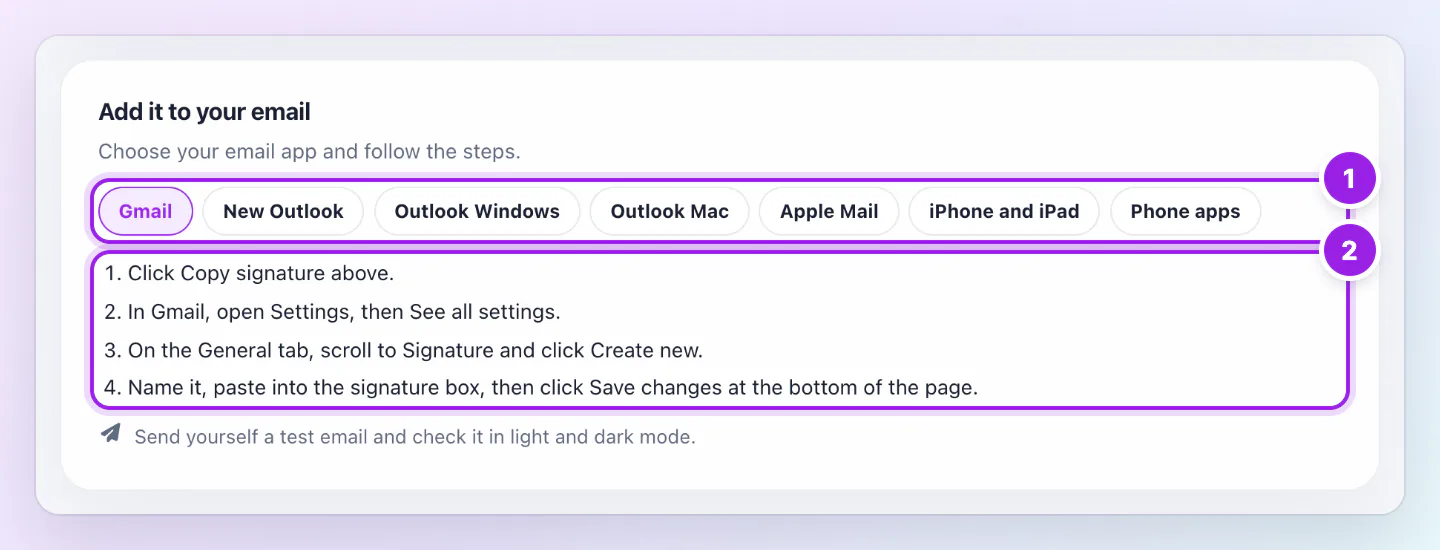
Add it to your email card on the Share page, with a row of email app buttons and the numbered steps for the selected app.
  1. Choose your email app.
  2. Follow the steps for that app.
Pick your email app and follow its four short steps.
  • Gmail: Open Settings, then See all settings. On the General tab, find Signature, choose Create new, paste, and choose Save changes at the bottom.
  • New Outlook and Outlook on the web: Open Settings, then Accounts, then Signatures. Choose New signature and paste.
  • Outlook for Windows and Mac: Open the signature settings, create a new signature and paste. If Outlook for Windows asks, choose Keep Source Formatting.
  • Apple Mail on Mac: Open Settings, then Signatures, and select your account. Untick Always match my default message font, then paste.
  • iPhone and iPad Mail: Open this page on your phone, tap Copy signature, then paste it under Settings, Mail, Signature. If the layout changes, shake your device and tap Undo.
  • Gmail and Outlook phone apps: These apps only support plain text signatures. Use Copy plain text.

See who comes from your signature

The link in your signature is tagged, so your card statistics list visits from your signature as their own source, apart from visits that came by QR code, NFC or other links. The Share page also has a Tagged links list, where you can copy the same signature link for other places.

Good ways to use this

  • Start with Compact if you are not sure what your contacts use. It shows the same in every email app.
  • Send yourself a test email and look at it on a phone and in dark mode before you roll it out.
  • Give each person their own card and signature, so every link opens the right person.

Common questions

Does the signature change when I edit my card?

Your photo, logo and QR code update by themselves, because the signature loads them from Zapped. Text and links are copied into your email app, so copy the signature again after you change them.

Does the signature carry a Zapped link?

On plans where the Zapped badge cannot be removed, the signature includes a small Made with Zapped link. Plans that can remove branding leave it out.

Can everyone on my team use it?

Yes. Each card has its own Email signature tab. A team member whose role can only view a card can still look, but their choices are not saved for others.

Do I need to publish my card first?

Yes. A draft has no public address, so the Share page asks you to publish it. Turn the card on as well, so the photo, logo and QR code can load.

If something looks wrong

  • If the photo, logo, QR code or icons are missing, check that the card is published, switched on and reachable. A password protected card leaves them out, and so does a card whose custom domain is turned off. The Email signature tab says which applies.
  • If the layout changes in Apple Mail, untick Always match my default message font and paste again.
  • If a phone app flattens the signature, use Copy plain text. Gmail and Outlook phone apps only keep plain text.
  • If the preview does not update, choose a style again or reload the page.

Was this guide helpful?

Still have questions? Contact support and we'll help you out.