Help Center

Connect an AI assistant with MCP

Give an AI assistant safe, scoped access to prepare profile drafts and imports for your review.

MCP is a standard way for AI assistants to use a product's tools. Connect your assistant to Zapped with an API key and it can prepare profile drafts and imports. Nothing is published until you approve it on the review page.

Use this guide when

You use an AI assistant such as Claude Code, Codex, Cursor, VS Code or OpenCode and want it to prepare profiles for you.

Before you start

  • Your plan must include MCP access and the required managed-profile features. Give the key Create and edit cards (saved as drafts you approve), plus Import cards from CSV for imports and Publish cards you approved if the assistant should publish after your review. Imports also require the CSV import feature.
  • Keep the key at hand. The assistant sends it as an Authorization: Bearer header with every request.

Steps

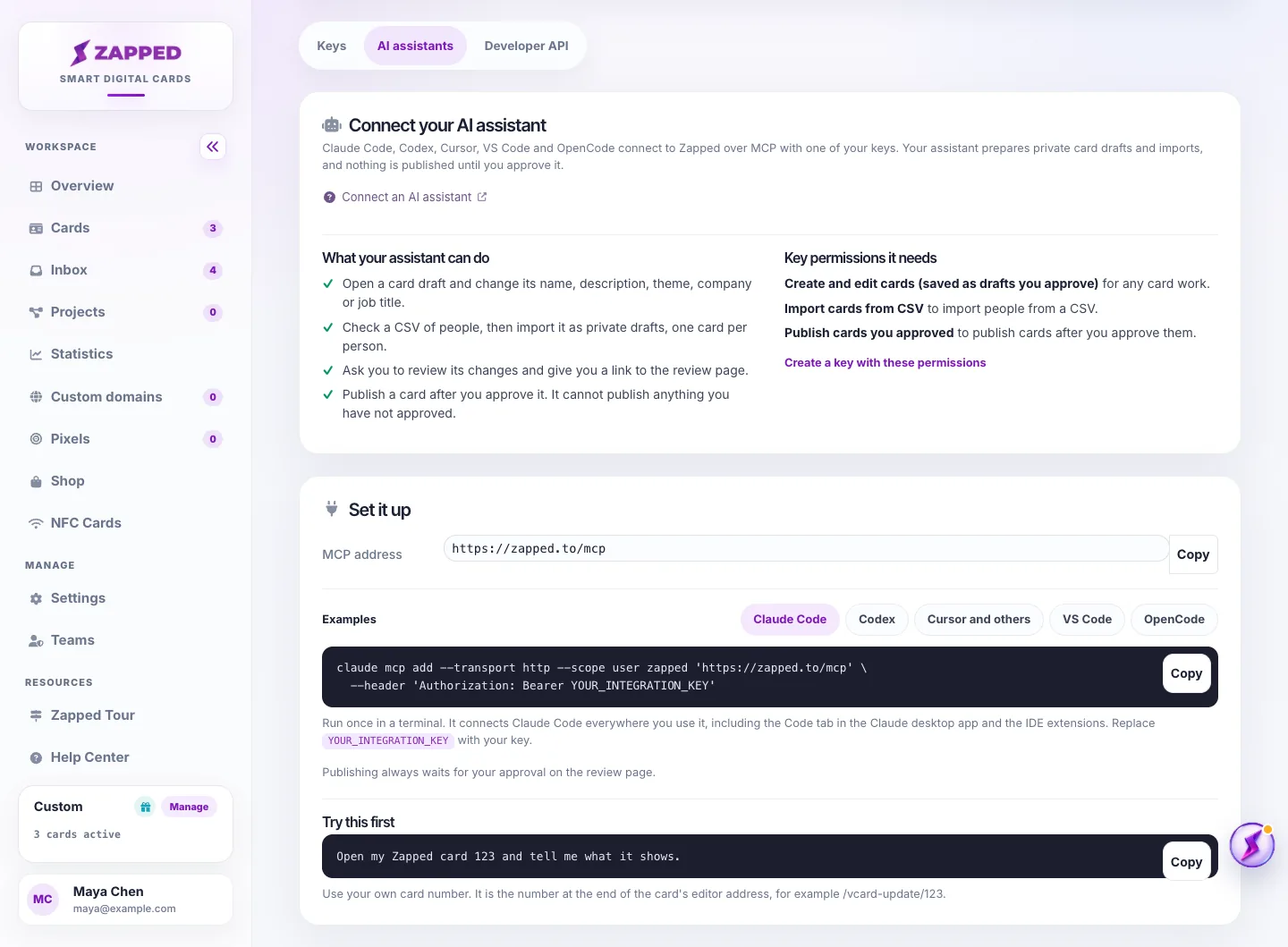
  1. Open Account, then API keys, and choose the AI assistants tab. It lists what your assistant can do and the key permissions it needs, and its Set it up card shows the MCP address, currently https://zapped.to/mcp.
  2. In the Examples area of Set it up, choose your assistant: Claude Code, Codex, Cursor and others, VS Code or OpenCode. Each example already contains the address and a YOUR_INTEGRATION_KEY placeholder.
  3. Claude Code: run the example command in the Claude Code environment where you want to use Zapped, replacing YOUR_INTEGRATION_KEY with your key. Confirm Zapped appears in that environment before assigning work; separate app or remote environments may need their own setup.
  4. Codex: run the example in the environment that runs Codex. It reads the key from ZAPPED_KEY, so make that variable available to the process when it starts. A desktop app may not inherit variables from your terminal; confirm the connection in the client you intend to use.
  5. Cursor: add the example to ~/.cursor/mcp.json, then replace the placeholder with your key. Most other tools that take a server address with headers use the same shape.
  6. VS Code: add the example to .vscode/mcp.json. VS Code asks for the key when it connects, so the file itself stays free of secrets.
  7. OpenCode: add the example to ~/.config/opencode/opencode.json, or to opencode.json in one project. OpenCode reads the key from the ZAPPED_KEY environment variable, so set that variable in your shell profile.
  8. Check the connection with the prompt under Try this first: ask the assistant to open one of your cards by its number, for example Open my Zapped card 123 and tell me what it shows. The number is at the end of the card's editor address, such as /vcard-update/123. Then send it a first small task.
AI assistants tab with the Claude Code example selected and a YOUR_INTEGRATION_KEY placeholder
The examples under Set it up already contain the MCP address. Only the key placeholder needs replacing.

Give the assistant its own key and never paste the key into a chat, a ticket or a screenshot. If it may have leaked, revoke the key and create a new one.

What the assistant can do

With a suitable key, the assistant can use these Zapped tools:

  • Open a profile draft: read the current state of one of your cards as a draft.
  • Check import rows: validate rows against a column mapping without saving anything.
  • Change a draft: set the name, description, theme, company or job title of a private draft.
  • Submit an import: send rows of people, one row per person, as a durable import job that creates or updates private drafts.
  • Read import progress: check an import job's status and each row's outcome.
  • Request a review: ask you to review exact draft revisions and hand you the review link.
  • Read the review decision: see whether you approved, rejected or left each profile waiting.
  • Publish what you approved: publish a profile only when its exact current revisions carry your approval.

What the assistant cannot do

Through the Zapped MCP tools, the assistant cannot add custom code, change card addresses or domains, attach tracking pixels, remove Zapped branding, or approve on your behalf. This describes the MCP tools, not any broader account API permissions you give the same key.

New cards are created through imports, which may contain just one person. There is no standalone create-card or visual-preview MCP tool. Use the owner review page to inspect the rendered draft. Block editing and direct media uploads are available through the managed-profile REST API, not separate MCP tools.

The approval rule

When the assistant finishes preparing drafts, it requests a review and gives you the review link. Nothing is published until you approve it on that page, and a draft that changes after your approval needs a new review.

Not supported yet

These instructions cover clients that accept a Streamable HTTP server with an Authorization bearer header. Zapped does not provide an OAuth sign-in or connector-discovery flow. A client that requires either cannot connect using these instructions. Check your exact client and environment before relying on an app-wide connection.

Plans and availability

Professional includes the developer API, managed-profile API and MCP connections for AI assistants. Starter includes CSV profile import in the dashboard, but not API or MCP access. Custom plans keep their agreed permissions. If access is temporarily paused, the API keys page shows a pause notice; upgrading does not remove a site-wide pause.

Good ways to use this

  • Create one key per assistant and name it after the assistant, so reviews and revocations stay unambiguous.
  • Grant only the permissions the assistant needs for the work you actually give it.
  • Revoke the key when you stop using the assistant.

Common questions

Does the assistant publish changes by itself?

No. It can request a review and read your decision, but the exact versions you approved are the only ones it can publish.

Does the assistant know how to use Zapped?

Yes. When it connects, Zapped sends it short instructions: which tools to use in which order to edit a card or import people, that nothing publishes without your approval, and what to do when its key lacks a permission. You only need to describe the task.

Which key should the assistant use?

Give it its own API key with only the permissions it needs. A scoped key expires and can be revoked without touching anything else.

If something looks wrong

  • If the assistant cannot connect, check the MCP address, the Authorization header format and that the key is still Active on the API keys page.
  • If a tool call reports a missing permission, create a replacement key with that permission and update the client. Existing key permissions cannot be edited. Also check that your plan includes MCP and any import feature the task needs.
  • If publishing fails, the approval may have expired or the draft may have changed since you approved it. Ask the assistant to request a new review.

Was this guide helpful?

Still have questions? Contact support and we'll help you out.