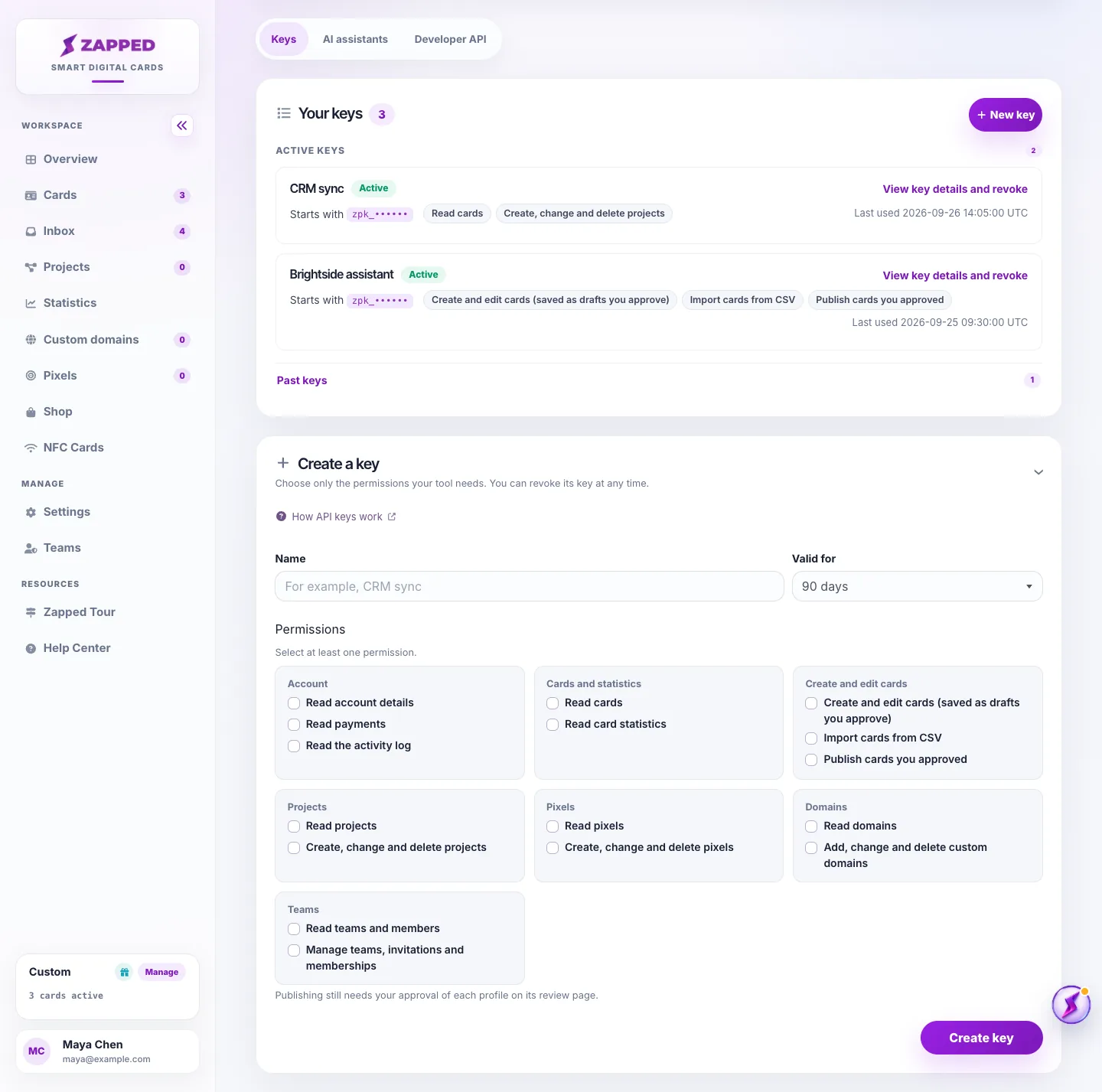
Create a scoped key for one integration or AI assistant, see where it is used and revoke it when it is no longer needed.
API keys let an outside tool work on your account within the permissions you choose. One key system serves the account API, managed-profile API and MCP. Keys expire and can be revoked individually. Managed-profile publication requires your approval; other permitted account API changes can take effect immediately.
Use this guide when
You want to connect an integration or an AI assistant to Zapped, or you need to check, replace or revoke a key you already created.
Before you start
Sign in as the account owner in the Personal workspace. Team workspaces and admin impersonation cannot manage API keys.
Check which permissions your plan includes. The API keys page shows every permission, and any that your plan does not include are shown switched off with an Upgrade link.
Steps
Open Account, then choose API keys. The page lists Your keys first. Choose New key to open the Create a key form below the list. The form is already open when you have no keys yet.
In Name, give the key a name that says what it is for, for example Brightside assistant or CRM sync. The name can be up to 64 characters.
Under Valid for, choose 30, 90, 180 or 365 days. 90 days is the default.
Under Permissions, choose only what the tool needs. Permissions are grouped by area. Account, Cards and statistics, Projects, Pixels, Domains and Teams cover the account API, and each has a read permission and, where changes are possible, a separate permission to change. Create and edit cards, right after Cards and statistics, covers Create and edit cards (saved as drafts you approve), Import cards from CSV and Publish cards you approved. Every area is always shown. A permission your plan does not include is marked Not in your plan and cannot be ticked, and its area has an Upgrade link to the plans page. Import cards from CSV also needs the CSV import feature on your plan. Publishing still needs your approval of each card on its review page.
Choose Create key. The key starts with zpk_ and is shown once. Copy it into the tool now, because it cannot be shown again.
Use the Where to use it block under the new key, or the tabs on the same page, to give the tool the addresses it needs together with the key. Developer API has the account API address, the profile API address and the version header. AI assistants has the MCP address and a setup example for each assistant.
The keys in this guide are masked and fictional. The AI assistants and Developer API tabs on the same page hold the addresses and examples your tool needs.
A key acts on your account within its permissions. Never paste a key into a chat, a support ticket or a screenshot. If a key may have leaked, revoke it and give the tool a new one.
Which permission do I need
The Create a key form groups permissions by area, in the order used below. Tick the exact label a tool needs, and nothing more. One key can carry labels from more than one area, so a tool that reads cards and prepares drafts needs both.
Account covers your account details, payments and the activity log. Cards and statistics covers reading your cards and their statistics. Create and edit cards covers preparing card drafts, importing cards from a CSV file and publishing the cards you approved. Projects, Pixels, Domains and Teams cover those areas, and each of them has a read label plus a separate label for changes.
Managed-profile approval protects profile publication. Permissions to change projects, pixels, domains or teams authorize those account API operations directly, without a profile review. Give a tool those permissions only when it needs them.
Read your account details: tick Read account details.
Read your payments: tick Read payments.
Read the activity log: tick Read the activity log.
Read your cards and their content: tick Read cards.
Read card statistics: tick Read card statistics. Your plan must also include analytics.
Create cards and change their drafts: tick Create and edit cards (saved as drafts you approve).
Send rows of people as an import: tick Import cards from CSV.
Publish a card you approved: tick Publish cards you approved.
Read projects: tick Read projects. To create, change or delete projects, also tick Create, change and delete projects.
Read pixels: tick Read pixels. To create, change or delete pixels, also tick Create, change and delete pixels.
Read your custom domains: tick Read domains. To add, change or delete custom domains, also tick Add, change and delete custom domains.
Read teams and their members: tick Read teams and members. To manage teams, invitations and memberships, also tick Manage teams, invitations and memberships.
Reading the key list
Active keys are listed first and past keys are folded under Past keys. Each key shows the characters it starts with, its permissions and when it was last used, or Never used. Last used updates at most once a minute, so a busy tool does not change the time you see on every request.
Open View key details and revoke on a key to see its Created and Expires dates and to reach the revoke action.
Revoking a key
Open View key details and revoke, tick the confirmation that tools using the key will stop working, then choose Revoke key. Requests using the key fail immediately, so update the tool with a new key as soon as you can.
Revocation immediately prevents new requests and stops unfinished import rows and pending imported photos from being applied. Background cleanup records their cancellation in batches, so an import may take time to show Cancelled. Completed rows, saved drafts and published cards remain, and you can still act on an existing review. An operation already committed before revocation is not undone.
Expiry prevents new requests, but previously accepted imports and their photos can continue and still occupy import capacity. Revoke the key if you need to stop that unfinished work. Imports you submitted yourself in the dashboard are unaffected by a tool key being revoked.
Plans and availability
Professional includes the developer API, managed-profile API and MCP connections for AI assistants. Starter includes CSV profile import in the dashboard, but not API or MCP access. Custom plans keep their agreed permissions. If access is temporarily paused, the API keys page shows a pause notice; upgrading does not remove a site-wide pause.
Good ways to use this
Create one key per tool and name it after the tool, so the review page and the key list always show you which tool did what.
Give the smallest set of permissions that works, and choose the shortest validity that fits how the tool is used.
Revoke keys you no longer use instead of waiting for them to expire.
Common questions
Does the old account API key still work?
The old account key is retired by default. A temporary compatibility setting may keep an existing integration working during a transition, but the account page no longer shows or regenerates that key. Move the tool to a scoped API key with the permissions it needs.
What can a key do on its own?
It can perform the operations its permissions and your plan allow. Managed-profile tools prepare drafts and can publish only exact versions you approved. Account API permissions can authorize direct changes to projects, pixels, domains or teams without a profile review.
What happens when a tool sends too many requests?
Default limits are 60 requests per key per minute, 15 per key in 10 seconds, and 120 per account per minute across its keys, with at most 2 requests in progress per account. Server capacity limits also apply. A 429 response tells the tool how long to wait in Retry-After; follow that value rather than retrying immediately.
Can I create keys while machine access is paused?
You can create managed-profile keys while machine access is paused if your plan includes the required permissions. Account API permissions follow a separate site setting and show Not available right now while that API is off. An upgrade does not override a site-wide pause. While profile API and MCP access is paused, the API keys page says so in a short note beside Create and edit cards and on the AI assistants and Developer API tabs.
If something looks wrong
If Account does not show API keys, switch to your Personal workspace and sign in as the account owner. The page appears on every plan, and permissions outside your plan are shown with an Upgrade link.
For a 403 response, read the error code. An insufficient_scope error names a missing permission; create a replacement key with that permission. Other refusals can mean your plan lacks a feature or the requested resource is not accessible. Permissions on an existing key cannot be edited.
If a tool reports that its key no longer works, open Your keys and check that the key is still Active and has not expired. Create a new key and store it in the tool if it expired.
If a key was revoked by mistake, create a new key and store it in the tool again. A revoked key cannot be turned back on.