Picture a Monday when a small landscaping company decides every crew lead should have a card. Someone has to collect the photos and phone numbers, pick a look, build each card, put QR codes on the trucks, and work out who sees the leads. It is a lot of small jobs, and that is how a rollout stalls.
This release is built for that Monday. Zapped now sells plans sized to your team, and it can build the cards for you. The Inbox, the card editor, Overview and Account also got a clearer layout. If you already have a Zapped plan, your price stays the same.
Plans sized to your team
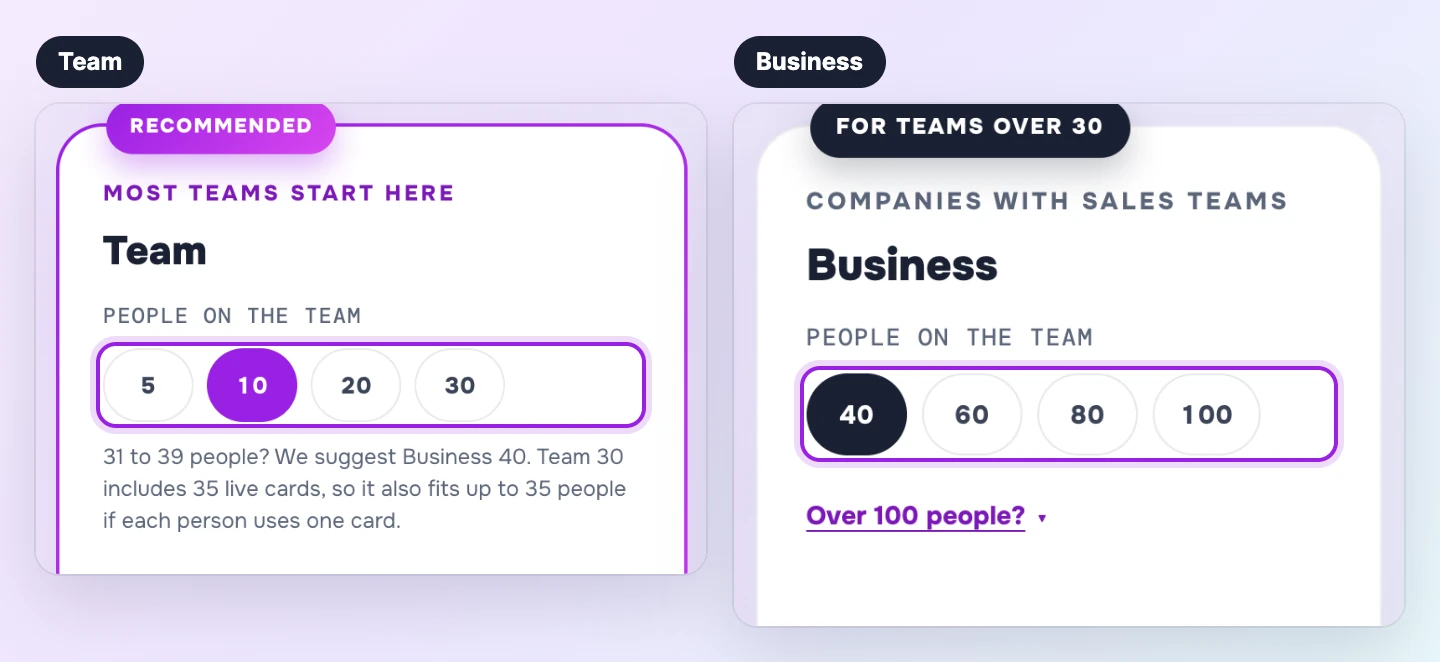
Plans are now priced by the number of people. Each person gets one live card, and the team shares a few spares for events or a front desk. Turned off cards and unpublished drafts do not use your live card allowance, so extra cards can wait until you need them. A separate limit applies to all stored cards.
On Team plans, every lead lands in one shared Inbox that you can export, everyone gets an email signature, QR and NFC work on every card, and you can connect your own domain and send leads to your CRM with Zapier or webhooks. Business is for bigger teams and adds separate workspaces for offices or brands, more custom domains, loading and updating your team from your own tools or an AI assistant, custom CSS and JavaScript, tracking pixels, the option to remove Zapped branding, and a longer history for stats and leads. Business keeps growing past one hundred people in packs of 25, up to 200, and larger organizations get a quote by email.
Yearly billing costs less per month and starts right away. Monthly billing starts with a free trial, card required. Every plan comes with 30 day money back on the plan. The pricing page has the current prices, and the team pricing guide explains how people, live cards and spares fit together.
Source: Zapped Help demo, captured November 2026. Fictional demo data.
If you already have a Zapped plan, nothing changes. Your plan, your price and your cards stay exactly as they are, and your price never goes up while you keep your plan. You can renew an older yearly plan. If you switch, you choose from the current plans, and the new plan is at that day's prices. That includes moving to Team or Business, or changing your plan size or billing period. The Plan page tells you that before you confirm, and the plan change guide walks through it.
Done for you setup
If building every card yourself is the part you dread, ask us to do it. Team Launch is for Team plans and Business Launch is for bigger rosters. You send your details through a short form, and we build.
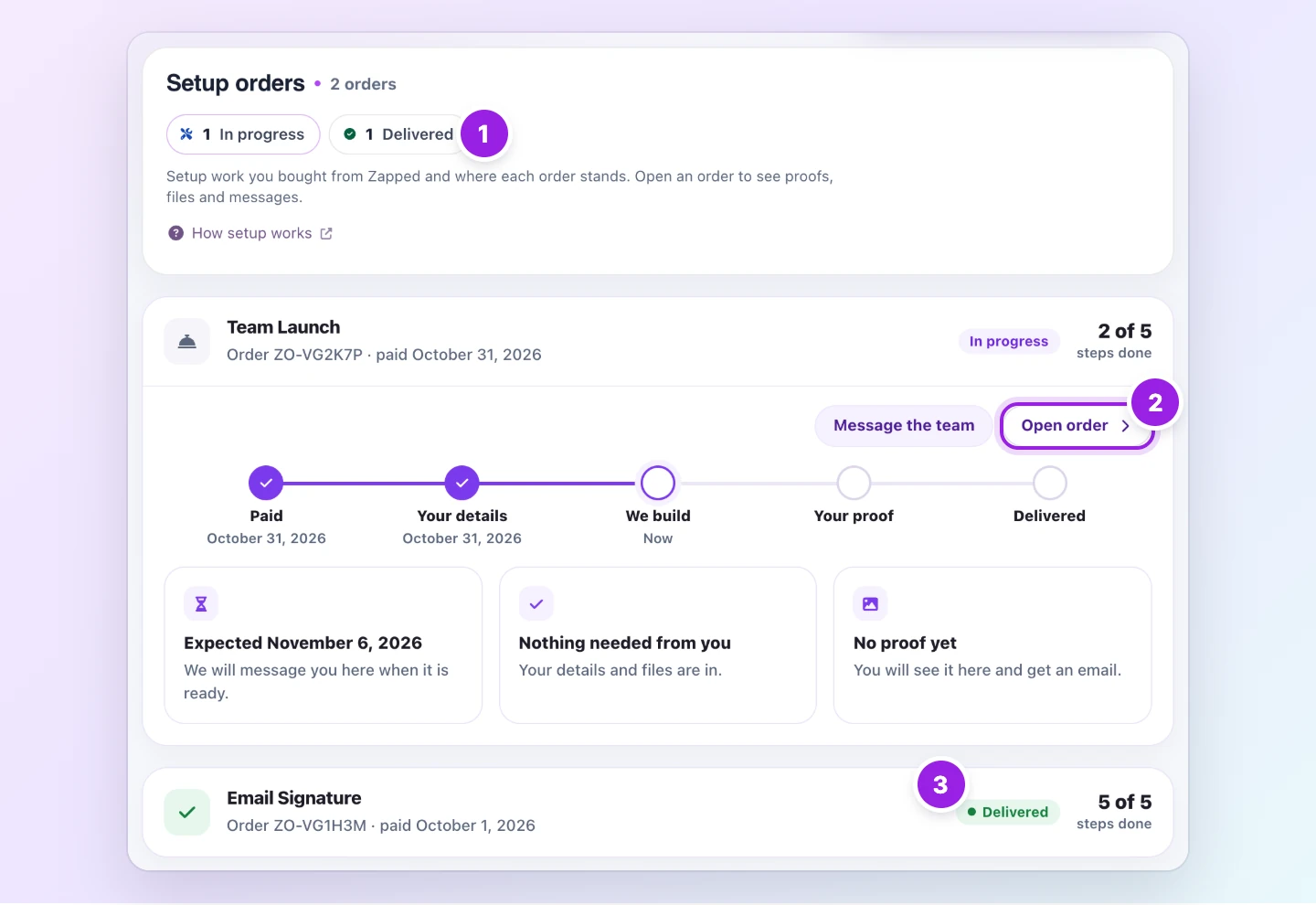
For a Team plan, we choose a theme from the gallery to suit your brand, load your whole team from a spreadsheet, set up your domain and email signatures, and send QR files ready to print. Business Launch covers bigger rosters, with every office and every person loaded. Both include two rounds of changes, then 30 days of small fixes. Solo Launch and Email Signature cover one person.
We usually start building within one business day of getting your details, and the first draft follows within five business days of the start. You can edit your details until we start building. You review the draft, ask for changes, and then we go live. It all runs by form and email, with no calls. Setup is half off when bought with a yearly plan, or added within the first 30 days of paid yearly billing, and renewals do not restart that window. Setup is refundable for 30 days, or until we start building. The setup guide has the details.
Source: Zapped Help demo, captured November 2026. Fictional demo data.
You can follow each order under Settings, then Plan and billing, then Setup orders, and message the team from the order page.
A clearer Inbox, with contact history
The Inbox now puts the leads waiting on you first, longest wait on top, with a badge showing how long each one has waited. Shortcuts at the top switch between all leads, leads waiting on you, and earlier leads. Rows show Reply when the lead gave an email address, and Call when they gave a phone number.
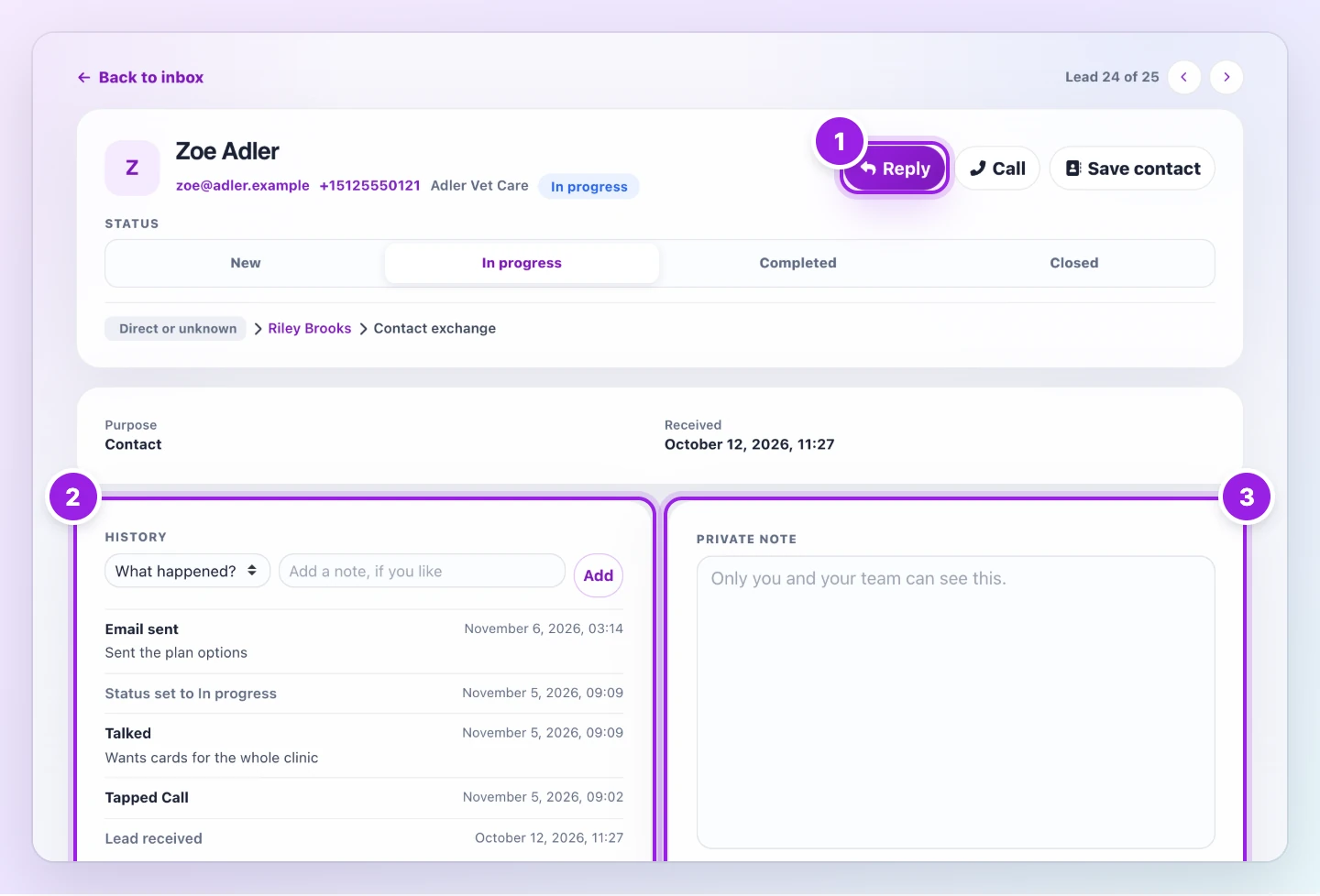
Tap Reply or Call and Zapped asks how it went: you talked, left a message, sent an email, or got no answer. Anything except no answer moves a new lead to In progress. Until you answer, Zapped records only the tap.
Open a lead and you see its History: the tap, what you said happened, an optional note, and every status change. You can add things you did outside Zapped, and keep a private note for you and your team. When teammates work on the same lead, History shows who did what. The Inbox guide covers Reply, Call, the outcome prompt and History.
Source: Zapped Help demo, captured November 2026. Fictional demo data.
QR codes and NFC cards, in the card editor
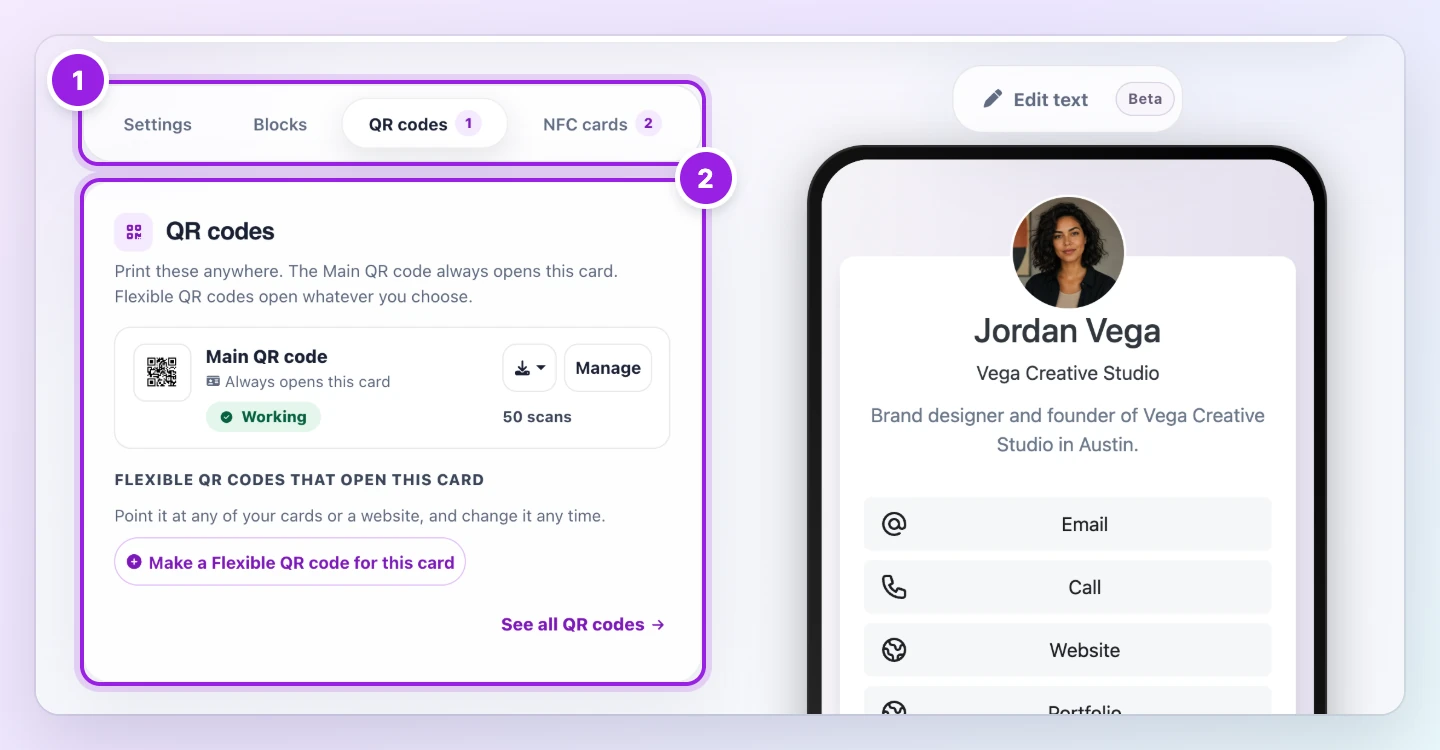
Each card's editor now has QR codes and NFC cards tabs beside Settings and Blocks. The tabs show counts once they hold codes or cards. The QR tab shows the card's Main QR code and how often it was scanned. With an eligible plan and permission, you can make Flexible QR codes there and later change which card or supported website they open. The NFC tab lists the cards and stickers linked to this card, including ones that use it as a backup for a website. The QR Codes and NFC Cards pages still hold the full list. The QR code guide covers the editor tab, and the NFC card guide covers the NFC Cards page.
Source: Zapped Help demo, captured November 2026. Fictional demo data.
New Overview and Account pages
Overview now changes with where your card is. While you set up, it shows one next step. Once the card is ready, it helps you share it. Once people open it, Overview counts the first views, then opens the full page with views, leads, NFC taps, QR scans, a Needs attention list and your recent leads. Established accounts keep their numbers and see a setup progress strip while an order is open. New buyers get a dedicated setup view. Team members see their role and only the cards they can reach. The Overview guide shows each stage.
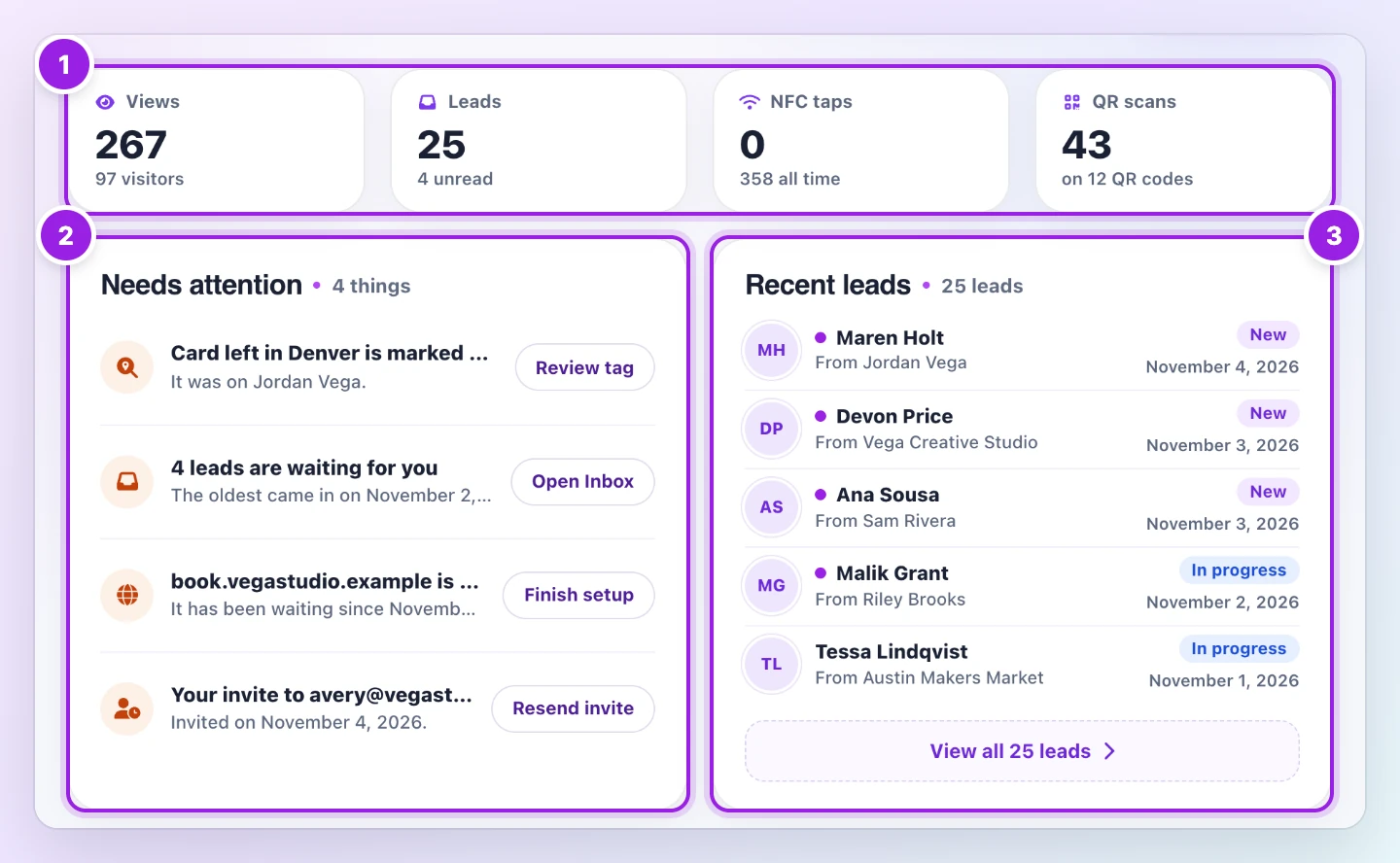
Source: Zapped Help demo, captured November 2026. Fictional demo data.
In your Personal workspace, Account has up to five tabs: Profile, Security, Preferences, Plan and billing, and Developers. Security shows where you are signed in. Plan and billing has a plan summary, a payments timeline and your setup orders, and the Activity log is grouped by day. The page for deleting an account shows what would stop. Start with the account settings guide.
Email signatures for every card
Each card's Share page now has an Email signature tab. Pick a style, choose which card details to show, and watch the preview update. Copy it into Gmail, Outlook or Apple Mail, with steps for each. The email signature guide walks through it. Styles include a compact text only version, a logo bar, a version with a QR code, and a Save contact button. The link in your signature is tagged, so your card statistics list visits from your signature as their own source.
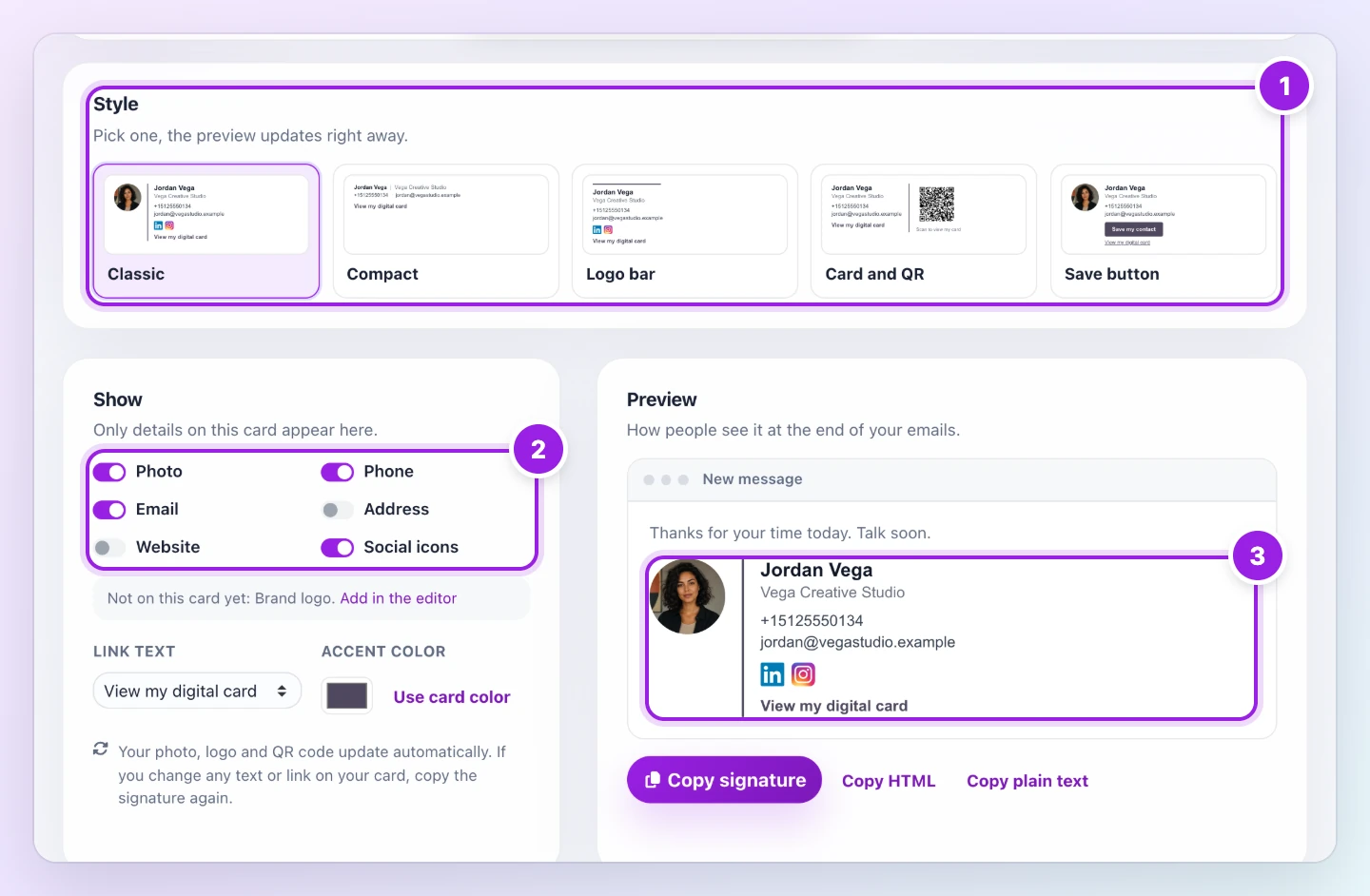
Source: Zapped Help demo, captured November 2026. Fictional demo data.
Account and order emails that explain themselves
We rewrote the emails around accounts, plans and setup orders so each one says why it arrived and what the button opens. Subjects name the thing and the date, such as the day a payment card expires. Setup emails name the package and the order number, and they explain what a proof is. The logo and the main button now sit in the center.
Where to start
If you run a team, count who needs a card and look at the plans, or order a setup. If you are already here, open your Inbox, make an email signature, and try the new editor tabs. Last month's release is in the October post.