Zapped's September release connects the card editor to the work that follows a lead. You can choose a look, refine wording in a private draft, ask for useful context, and move the response through Inbox without losing the thread.
The features are easier to understand as one workflow than as a list. Start with the visual change you want, keep the risky edit private, then make the next conversation easier to handle.
Give the card a better starting point
The theme gallery is now a place to compare a design with your own card content. Open a theme, use Your card to see how the layout handles your name and images, and switch between Phone and Desktop before choosing Use this theme. The choice returns you to the editor as a draft, so browsing the gallery does not quietly change the live card.
Image framing belongs in the same decision. Profile photo, Brand logo, and Cover image do different jobs, and a theme may display only some of them. Where framing controls are available, position the useful part of the image, then check both preview sizes again. An image marked Saved for later is retained even when the current theme does not display that slot.
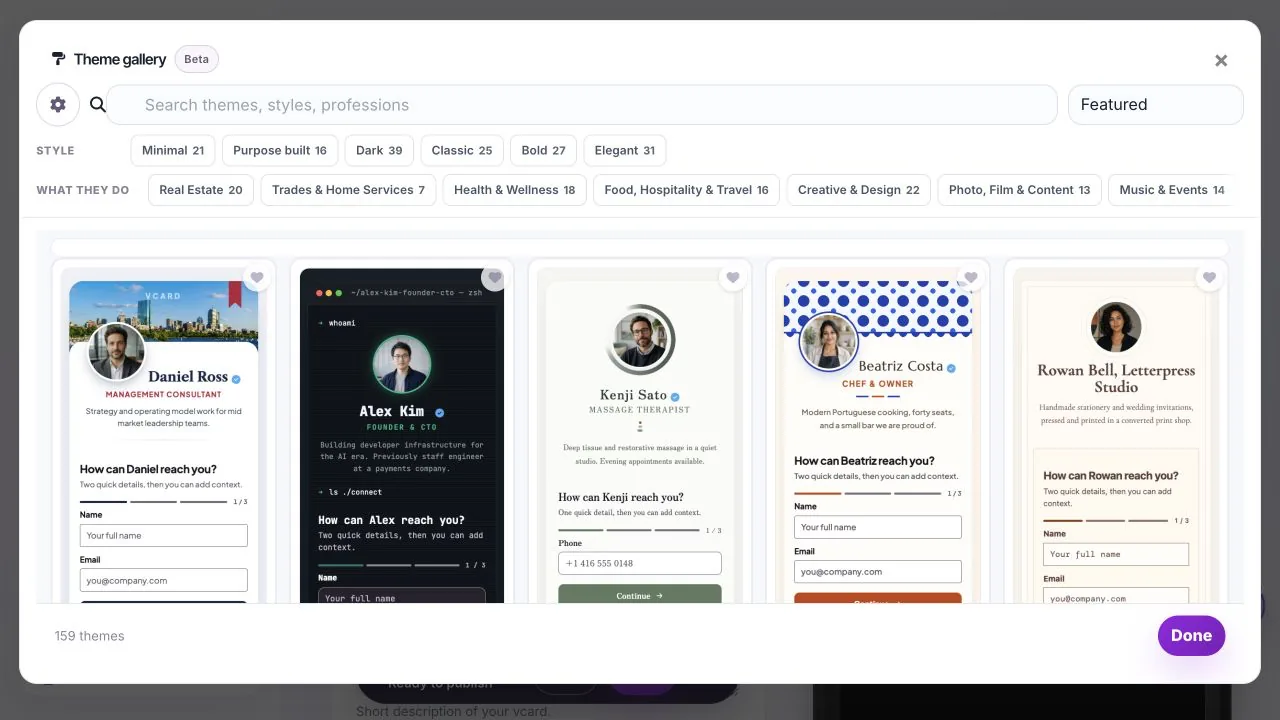
Source: Zapped theme gallery, September 2026. Compare Phone and Desktop previews before choosing a theme.
The theme and image framing guide has the complete path. The useful habit is simple: compare the design with the card you are actually about to publish, not with the gallery's sample content.
Refine your card before publishing
The editor now gives each change a clear checkpoint. Typing updates the preview, and a successful draft save keeps the change private. Review gathers the pending changes, Preview draft lets you inspect them, and Publish is the action that updates the public card.
That separation matters when a small wording change has a large effect. Edit supported text directly from the preview, choose Done when the text is ready, and fix validation errors before moving to another field. Cancel applies to the unfinished edit on screen. It does not erase earlier changes that already saved to the draft.
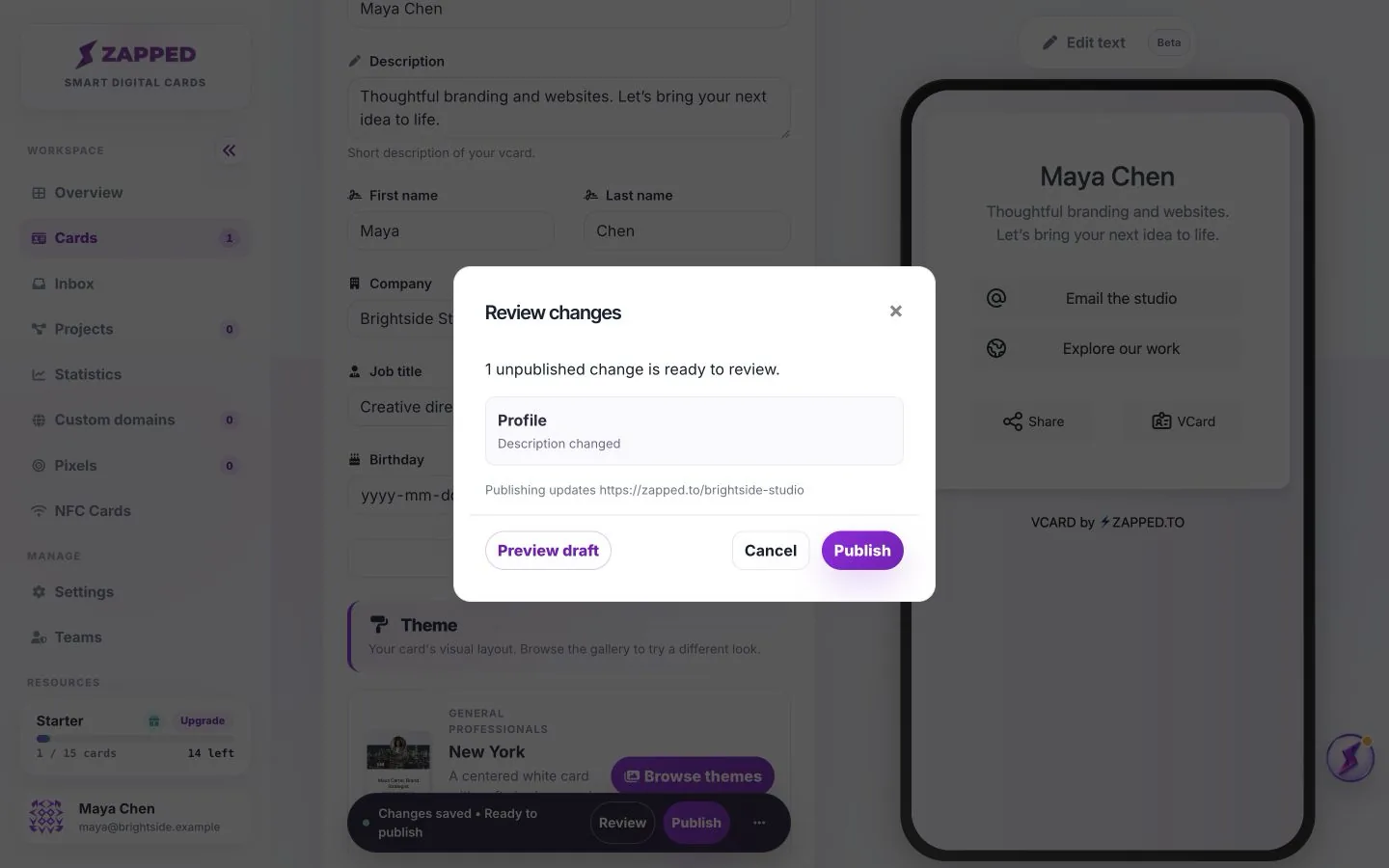
Source: Zapped card editor, September 2026. Fictional Brightside Studio details illustrate the Review and Preview draft checkpoints.
The draft editing and publishing guide explains the difference between previewing, saving, and publishing. If another tab changes the same draft, load the latest version before reapplying your text. A recovered unfinished edit is useful after an interruption, but a saved draft is the durable checkpoint.
Ask for the next useful detail
Lead forms now have a clearer shape because the first question is about the conversation you want to start. Choose a visitor goal, such as sharing contact details, requesting a callback, or asking about a project. Then choose the required reply channel. Email, Phone, or Email and Phone determines how a visitor can answer you.
After that, keep the form small. Enable only the contact fields you need, then add questions when the answer will change your next action. Short answer works for a brief context note. Long answer gives a project description room to breathe. Single choice and Multiple choice make a decision easy to scan. Date and Link handle the cases where a calendar day or a web address is the useful answer. You can add up to five questions, and choice questions need two to eight options.
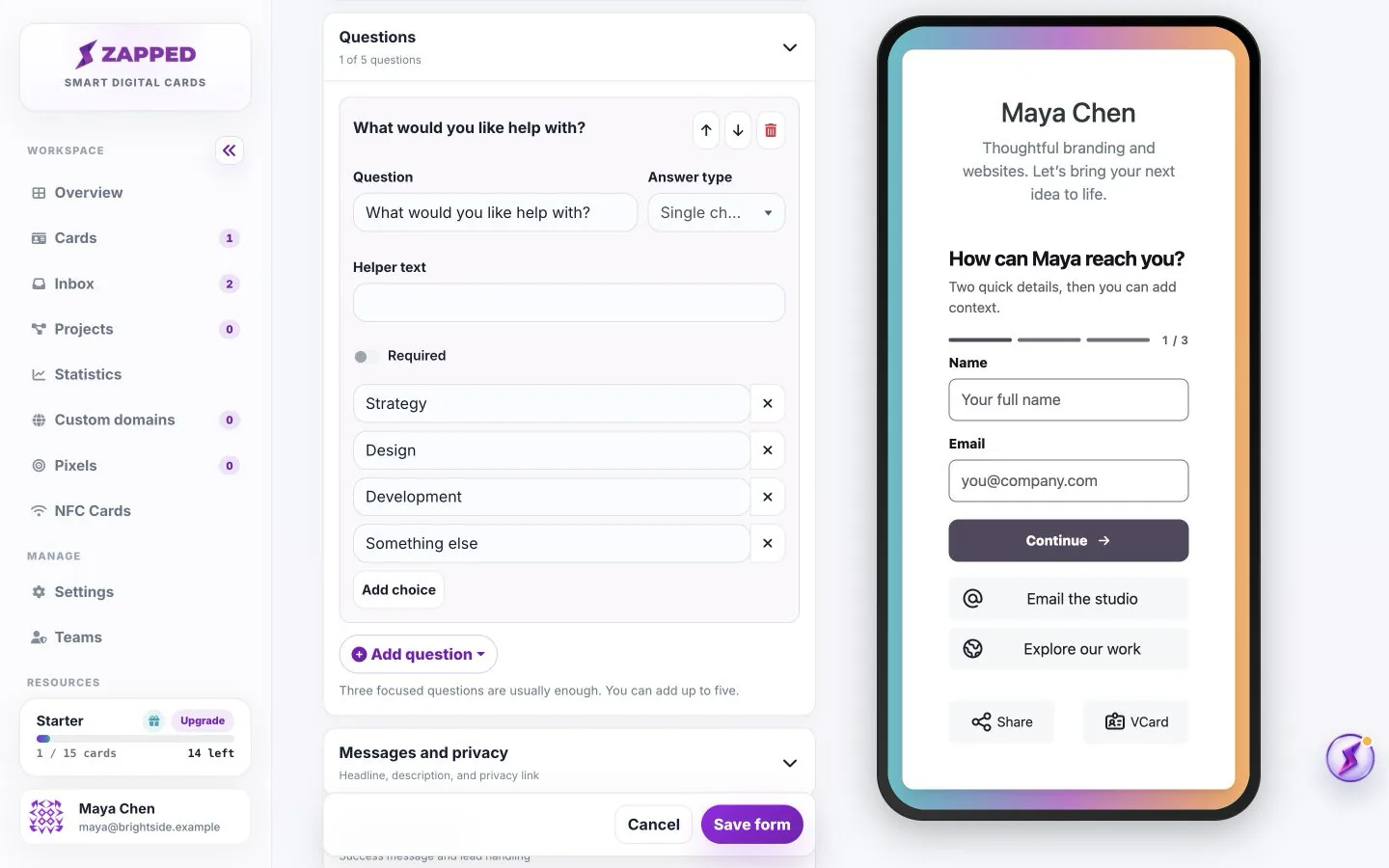
Source: Zapped lead form builder, September 2026. Fictional Brightside Studio details show a required reply channel and one useful question.
The lead form question guide covers the fields, answer types, required state, and question order. It also explains the useful distinction between Enabled and Required. A visible field is not automatically a field a visitor must complete, and Name, company, or message does not replace the need for a required email or phone reply channel.
Choose how the form arrives
Appearance controls the presentation, not the information you collect. Open form shows the fields immediately. Compact card starts with a headline and button, which suits a card that already has several other actions. For a Guided form, Guided steps shows progress while Chat thread presents the same questions as chat bubbles with a transcript of the answers.
Chat thread is a presentation choice for a Guided form. It does not connect a visitor to a person or a chatbot, and it does not change the answers that reach Inbox. Match my theme follows the card design, while Custom accent changes the emphasis used for buttons, progress, and focus. Surface style changes the treatment around the fields.
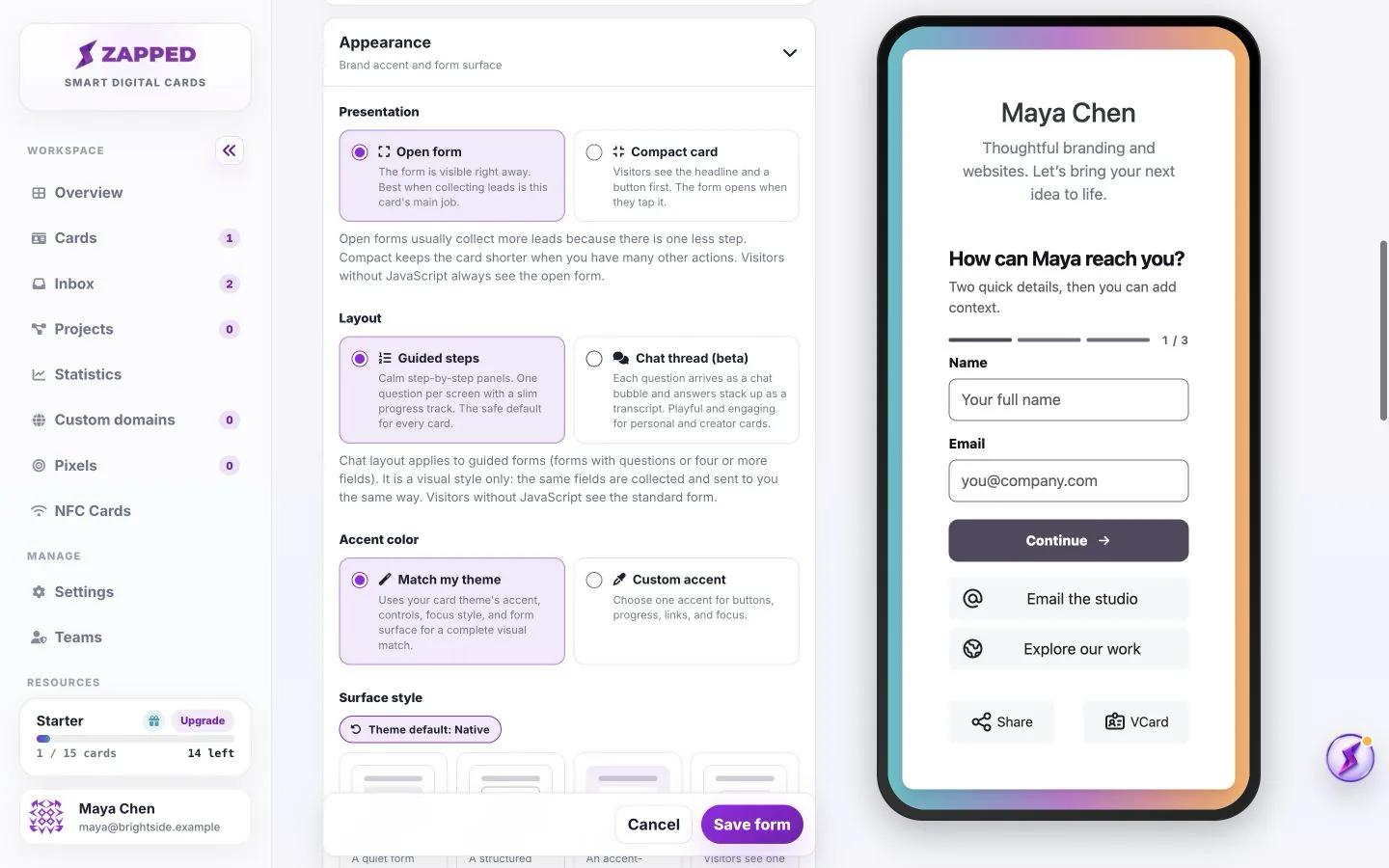
Source: Zapped lead form builder, September 2026. Fictional Brightside Studio details show how presentation and appearance can change.
Use the form appearance guide when you are deciding between a form that opens immediately and one that keeps the card compact. Save the form, publish the card, and check the phone preview. The appearance choice is only real for visitors after the latest draft is published.
Turn replies into work
Once a visitor submits the form, Inbox is where the handoff becomes useful. Search and filters help you find the right card or enquiry. Open a lead to see its submitted details, form name, and qualification answers. Opening it marks it read, which is separate from the work status you choose next.
Use New for a fresh enquiry, In progress while someone is following up, Completed when the work is finished, and Closed when you do not plan to continue. Private notes hold the next action without changing the visitor's submitted answers. Reply opens your email app when an email address is present. It does not send a reply automatically or create a conversation inside Zapped.
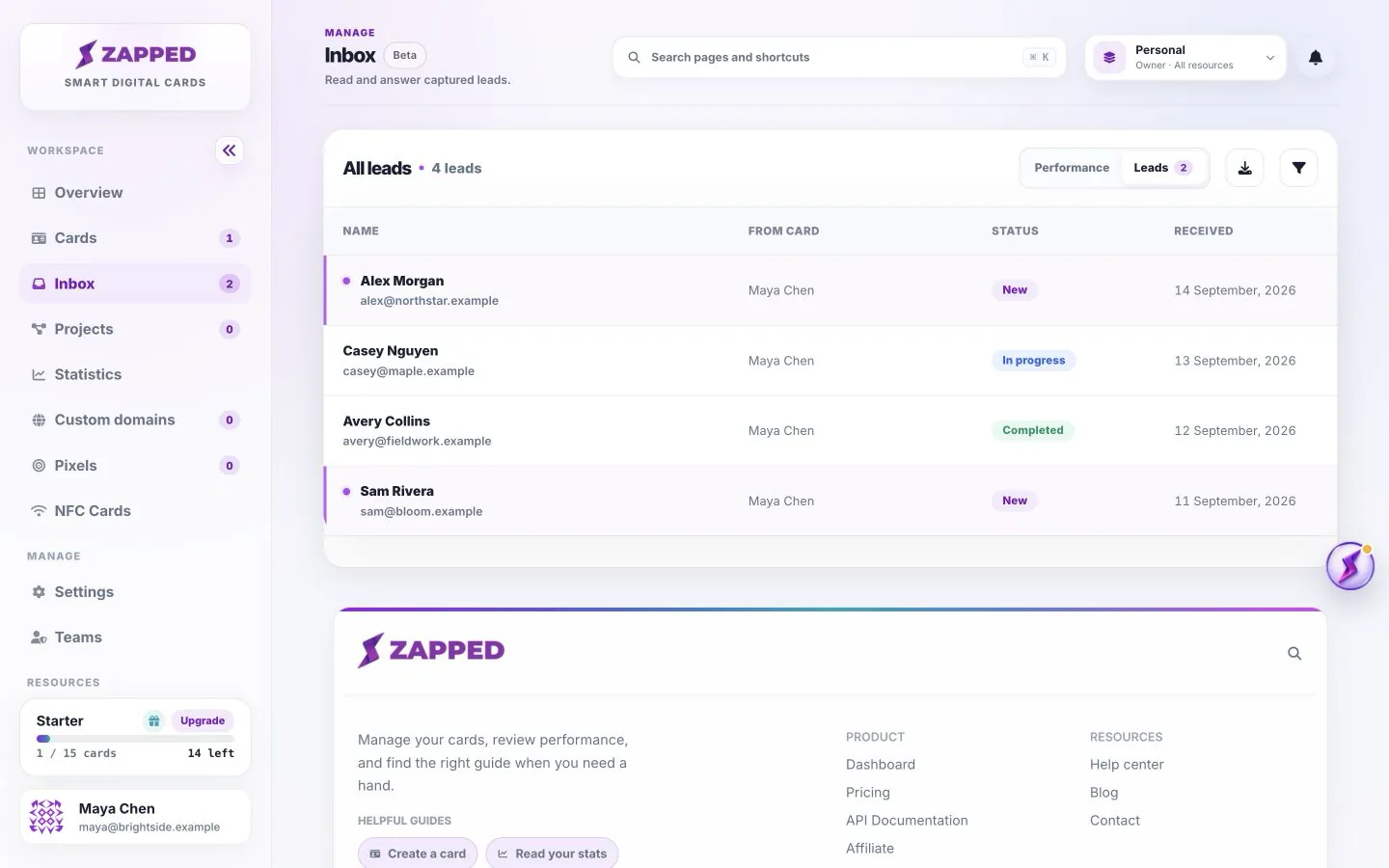
Source: Zapped Inbox, September 2026. Fictional Brightside Studio enquiries show different follow up stages.
The Inbox and retention guide covers statuses, notes, access, and expiry. The lead export guide covers CSV export for the leads allowed by your current access and selected export options. Export records you need before they expire, and store downloaded contact details securely.
Check the allowance before you change the habit
The release keeps the editing and lead workflow available across plans within existing limits and permissions. The allowance that matters depends on the job: card count, block count, team access, and lead retention are separate questions. A shared workspace can also change which cards and leads you can see.
Free keeps new leads for 30 days, Starter keeps them for 180 days, and Professional has unlimited lead retention. Lite and custom accounts should use the allowance shown on their own Plan page. The plan in effect when a lead arrives determines that lead's retention period, so changing plans does not rewrite the expiry of older submissions.
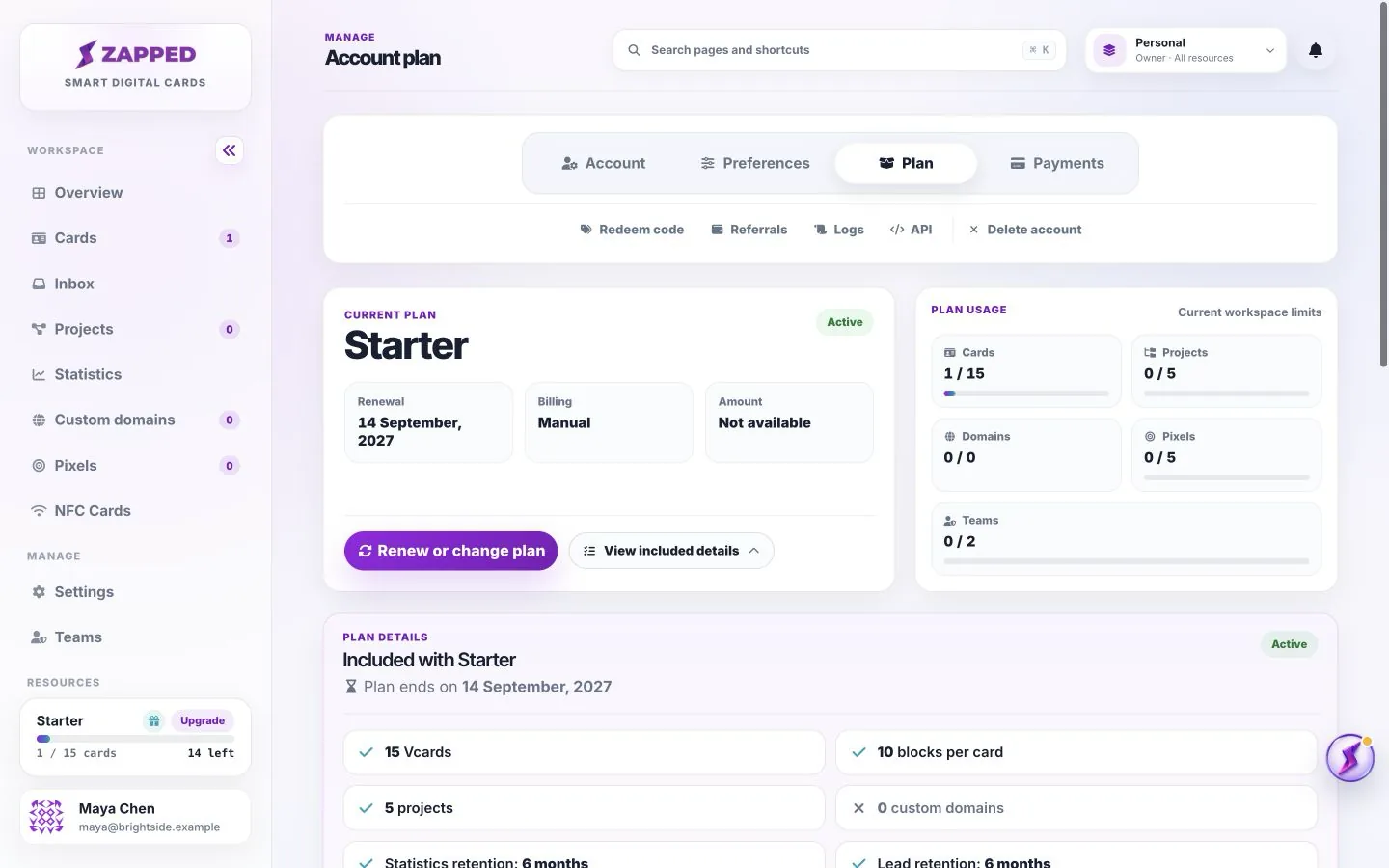
Source: Zapped Plan page, September 2026. A fictional Starter account shows where allowances and retention appear.
Open Plan details in your Personal workspace when you need the account owner's allowances. Themes, draft editing, publishing, image framing, lead forms, Inbox, and lead CSV export are shared capabilities, while limits and permissions still apply. Check the displayed allowance instead of assuming that every account has the same card or retention capacity.
Your next five minutes
Pick one small test that matches the work in front of you:
- Open the gallery and compare one theme with your own card content. Frame the important part of an image, then check Phone and Desktop.
- Edit one supported line of text, wait for the saved status, and use Review and Preview draft before Publish.
- Add a lead form with one clear goal and one required reply channel. Add a question only when its answer will change your follow up.
- Submit fictional details you control, then open Inbox and move the test through its first status change.
- Check Plan when card, block, team, or retention allowances affect the next decision.
The release notice points to the same task guides from the dashboard. If a control is missing, check the active workspace, your role, card access, and the latest saved draft before assuming the feature is unavailable. The theme guide, draft guide, lead form guide, and Inbox guide are the best places to continue.