The booth is packed away, and your contacts live in a badge scanner export, a form, three message threads and somebody's notes app. Two people asked for a quote. A dozen stopped by for the free pen. Nobody can say, at a glance, who is supposed to write to whom.
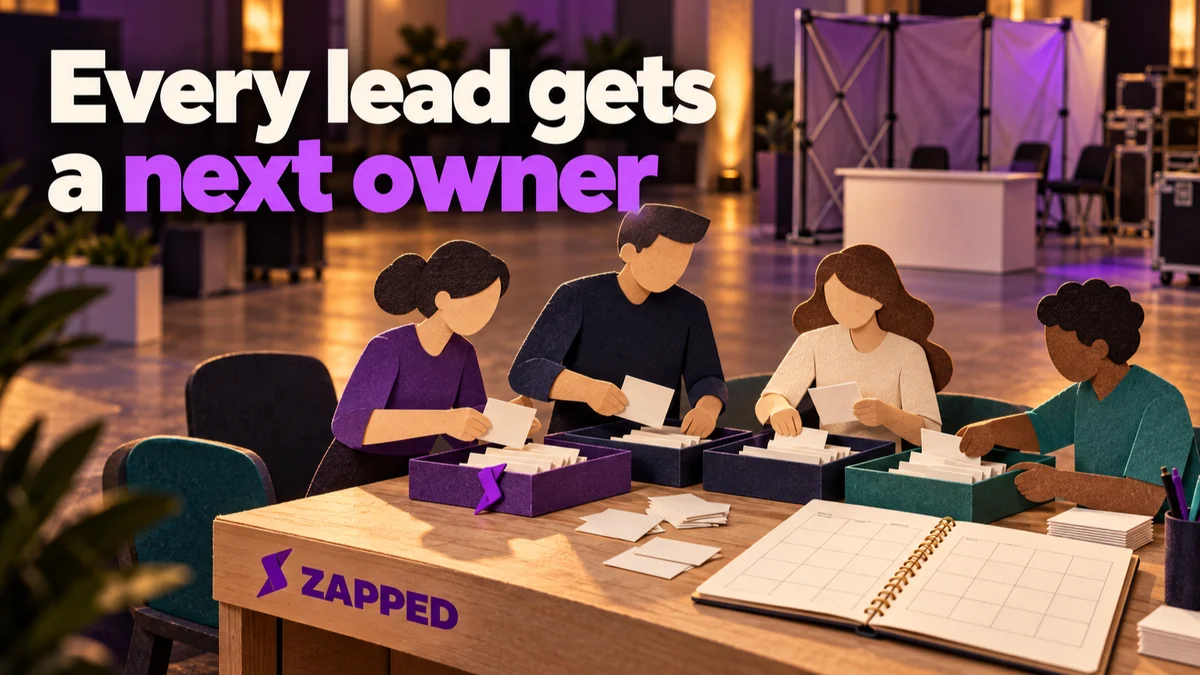
Don't add more automated messages yet. Give every lead a small status, one owner, one next action and a due time first. A prompt thank-you email can go out in seconds and still leave your hottest lead untouched, because nobody owns the task that comes after it. Speed is one step. The rules behind the workflow are the system.
To check what the scanner captured, start with checking and releasing a captured record. The wider picture, from booth to return on the event, is in the event lead capture workflow.
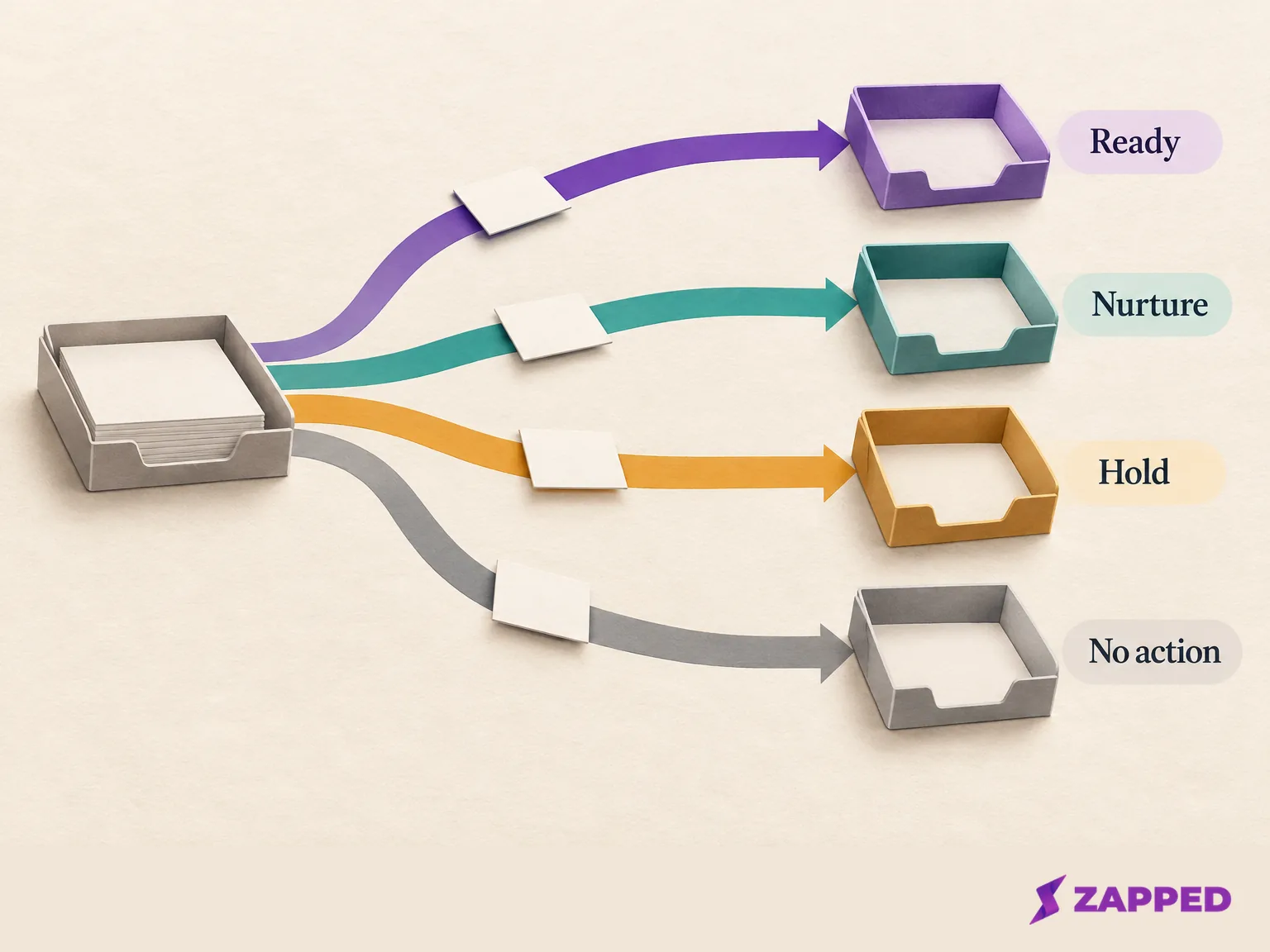
Four states are enough to sort a messy list
Group leads by what happens next, not by how warm they felt at the booth. PointWake's trade show follow-up guide uses groups such as a ready conversation, a later timeline, a requested resource and a record that needs review. We'd compress that into four states.
Ready for a person. The lead asked for a quote, a demo or a meeting. Give it a named owner and a next-action date. This is assigned work, not a message to schedule.
Nurture. They described a real need but not a date. They get relevant material and a recorded reconnect date, nothing more. The sender owns it, and the reconnect date is the next action.
Hold. The record lacks context, or you can't tell what they agreed to receive. A named reviewer resolves that by a set check date, before anything is enrolled.
No action. A passing contact, or a request already closed. Mark it closed to follow-up.
The line most teams blur is between a requested resource and a marketing opt-in. Someone who asked for the spec sheet is owed the spec sheet, from a named sender by a set date. That isn't permission to put them on your newsletter, so keep the two as separate fields.
Every state needs an owner and a deadline
A state with no owner is just a label. Write down who acts, by when, and what happens if they don't.
There's no universal response time worth copying, and we haven't found an independent study that sets one. What we can show is one company's worked example. EventIQ's trade show lead guide suggests 24 hours for a lead with an agreed next step, 48 hours for another real conversation, and 7 days for a badge-only scan. Treat those as a draft to argue with, then fit them to your team's capacity.
The same guide's routing example is more useful than its numbers:
| Lead | Owner | Deadline |
|---|---|---|
| Existing customer or open opportunity | The account owner in the CRM | 24 hours |
| New company, agreed next step | The territory or segment rep | 24 hours |
| New company, no next step | A sales development rep | 48 hours |
| Badge scan, no conversation, permission recorded | Marketing, through a post-show email sequence | 7 days |
A scan alone isn't permission. If the record doesn't show it for that channel, the contact goes to Hold for a person to settle before any marketing enrollment. Add one more column in your own copy: the next action's date. When two people each assume the other will reply, a single dated task fixes it. A missed deadline should stay on a visible list and land on a named person's plate.
What the machine sends and what a person writes
Automate the parts that are factual and repeatable: an acknowledgement of a request the lead actually made, delivery of the material they asked for, task creation, reminders and an alert when a lead stalls. Everything that needs judgment stays human, which means ambiguous qualification, real questions and unusual or high-value cases. Eckman Design makes the same point in its lead response guide: qualify before routing, and keep ambiguous or valuable leads open for review. Workbase's follow-up automation guide adds stop conditions and escalation to the list.
Never send copy that says a conversation happened unless the lead record supports it. "Great chatting with you at the booth" sent to a badge scan is worse than silence.
The networking event follow-up email guide covers the wording, and following up after a conference covers channel and timing.
Start on an event, then check status after a delay
The trigger and the no-reply check are where most first workflows go wrong. HubSpot documents event, filter, schedule, webhook or manual enrollment, and webhook enrollment needs Data Hub Professional or Enterprise. A form submission is an event, so it can start a workflow, but HubSpot's help says an event trigger can't establish that something did not happen. To find out whether a reply arrived, add an if/then branch that looks at the record's current state.
So the shape is: a record is created or its status changes, the workflow waits, then it checks the record's status or reply field and branches. If the lead is still open, create a task and alert the owner. If the status moved on, do nothing. HubSpot's workflow action reference lists the delay, the branch and the create task action you need for that.
Building it in HubSpot, and testing before it goes live
The steps below follow HubSpot's documentation. Workflows are listed on Professional or Enterprise subscriptions, with some exceptions by workflow type, so check your plan first.
- Open More, then Automation, then Workflows. If More doesn't appear, go to Automation, then Workflows directly.
- Choose Create workflow, then From scratch, per HubSpot's workflow creation steps.
- Select the record type and set the enrollment trigger, such as a form submission or a status change.
- Set re-enrollment and unenrollment. HubSpot's enrollment settings let contact workflows remove a contact who no longer meets the criteria, reaches the goal, or joins a suppression segment.
- Add a Delay, then an If/then branch on the record's current status or reply field.
- Add the task, owner assignment or permitted message action on each branch.
- Click Review and publish. HubSpot asks whether to enroll existing records that already match the trigger or only records that match after you turn it on. That choice decides whether old contacts get messaged, so read it twice.
Before turning it on, use HubSpot's Test and preview on a sample record. It shows the predicted path and branch, and no real actions run. PointWake suggests sending test contacts through the whole path, including a duplicate import and a reply that lands before the next scheduled message.
After launch, open a record's enrollment history and choose View logs. HubSpot's workflow history highlights successful paths in green and failed actions in red, so you can see which branch a real lead took.
Permission and opt-outs belong inside the path
Treat consent as its own field, per channel, and make objections stop the sequence. The rules differ by place, so state the reach of each one.
For commercial email in the US, the FTC's CAN-SPAM guide requires a working opt-out and says to honor requests within 10 business days. For covered autodialed texts and calls, the FCC's consent revocation order lets people revoke by any reasonable means, including replying STOP, with a 10-business-day processing limit. A separate rule that would apply one revocation across all future robocalls and robotexts from the caller has been pushed back to January 31, 2027. In the UK, the ICO says consent from an individual subscriber must be specific to email or text unless an exception applies. Check which applies to your contacts, and ask counsel if unsure.
Then wire in the exits, each with its own outcome. A substantive reply or a booking goes to a named person. A decline ends the general sequence. An opt-out is recorded as suppression, not turned into another sales task. HubSpot's sequences can unenroll a contact when they reply, a switch under Sales, Sequences, Manage, then the sequence's Automate tab. A lead who asked a real question shouldn't also get nurture copy.
Where a Zapped card fits: the intake step only
Zapped is a capture source, not the automation platform: a Lead Form on a card sends visitor details into Inbox. Inbox has its own four follow-up statuses, New, In progress, Completed and Closed, plus a private note for the next action. Those track work in Inbox, not the four decision states above, so map them yourself. Before moving anyone into a marketing workflow, check the marketing consent field in the CSV export. Professional lists lead webhooks for pushing new leads to your own receiver.
Lead retention differs by plan at Zapped: one month on Free, six months on Starter and unlimited on Professional; see our plan page. Compare that with your review dates.
The NFC card CRM integration guide covers the technical handoff.
Pull the stalled leads back into view
The event list looks finished until you notice one lead with no owner and no recent activity. EventIQ's fix: build one filtered CRM view of the show's A and B leads with no logged activity, grouped by owner, and go through it in the weekly sales meeting at day 7. It also suggests a day 30 review. A thread in r/CRMSoftware describes a lighter version, one shared inbox checked each morning. Both are working habits people describe, not performance findings.
Filter for three gaps: no owner, no next action, or no recent activity. Assign or escalate whatever turns up. If a lead sits in the queue past its deadline, it goes to the owner's manager or back to the review meeting, never back into the pile.

Over a few events, the queue shows which service levels were fantasy. If the 24 hour target keeps slipping, change the target or the staffing. Your own queue is better evidence than any borrowed number.
If your CRM can't branch on a reply
If your system can't safely delay and then check a reply field, don't force it. Keep one manual queue with a status, a named owner, a next action and a due time, and review it on a fixed schedule until the automation can represent the same states. Unclear permission stays on hold until a person settles it, whatever the tool.
You're done when every open lead has an owner, a next action and a due time, and the queue that shows the ones missing any of those is empty.