The export is in, the scan total looks great, and then a rep asks the question that ruins the mood: who owns this list? If nobody can answer, you don't have a lead list yet. You have a spreadsheet of names.
A list can be full of names and emails and still be hard to act on. Before it goes out as one generic follow-up batch, hunt for eight kinds of gaps. This is a check for a finished export, not a capture tutorial and not an ROI score. Each gap below tells you what to filter, what a blank really means, and which guide owns the full repair.
| What to look for | Where to filter | What it tells you |
|---|---|---|
| Blank owner | Owner or Assigned To | Nobody is on the hook |
| Scan-only total | Qualification, next step, reply | Activity, not outcome |
| Repeated person | Normalized email or name | Split context, or two real conversations |
| Unclear permission | Opt-in or suppression field | Unknown, not a pass |
| Missing note | Notes | The next person can't pick up the thread |
| Missing event source | Event, campaign, source | Outcomes can't be tied back |
| Late or short handoff | Timestamps, row counts | Rows went missing or went stale |
| Never scanned | Cards, manual contacts | The scanner wasn't the only conversation |
Start with the rows nobody owns
Filter the Owner or Assigned To column for blanks, and treat every hit as a handoff exception. BoothCatch lists ownerless leads among the patterns that sink event follow-up, and ScanBusinessCard warns that unassigned lists risk not being worked at all.
You can fix a pile of blanks in one pass if the list is already in HubSpot. From a records table, select the rows, click Assign, pick an owner, and click Update, as HubSpot documents it. For the next import, include an owner column and map it to the owner property, so the problem never reappears.
If the export has no owner field at all, don't guess from the rep who attended. Park those rows in a small review queue and ask whoever ran the booth who should have them. Our lead retrieval guide covers routing from there.
A big scan count isn't a quality score
A scan means a badge was read. It doesn't mean anyone wanted a call. ScanBusinessCard says scan volume is an activity metric, and that a scan with no qualification information doesn't count as an outcome. SocialPoint's advice runs the same way: qualify and prioritize the leads before anyone starts working them.
So look beside the scan count for whatever outcome fields your export has: a qualification rating, a next step, an opportunity, a reply. Count how many rows have none of them. Even dashboards keep the two ideas apart; Webex Events shows total scans and average lead quality as separate numbers.
Report both numbers side by side, and take the full question of qualified outcomes to our guide on measuring event ROI.
Repeated names need a look before they get merged
Sort by email, or by name if emails are missing, and watch for the same person appearing twice. ScanBusinessCard describes one person showing up through registration, a badge scan, and a card exchange, and warns that the duplicates can split follow-up context.
Don't delete on sight. Two rows might be one person, or two real conversations with two different reps. Open both and compare the event, the notes, and the owner. If they really are one person, HubSpot lets you compare the pair and choose which values to keep, but merged records can't be reverted. That warning is the reason to review first.
One more trap for import day. Salesforce's Data Import Wizard doesn't merge duplicate rows that are already inside your file, so clean the sheet before you load it. Our guide to capturing leads at events covers import cleanup.
A blank permission field means unknown
Look for a permission, opt-in, or suppression column, and compare it with what the visitor was actually told at capture. A blank there is not a clean pass, and it isn't proof of anything else either. Nothing in a blank cell shows that a universal prior-consent rule applies, or that it doesn't. It shows that you can't tell, so keep the row in the review queue and check the original promise.
If any of these contacts will get commercial email in the US, the FTC's CAN-SPAM guide says messages need accurate routing information, honest subject lines, a clear ad label, a valid physical postal address, and an opt-out method that you honor within ten business days. Carry any existing suppression state along with the row.
Some tools record the choice separately. In Zapped, an enabled marketing opt-in is recorded with the lead as its own choice, and submitting a form doesn't subscribe anyone to an outside mailing tool. For how scanner permissions work in practice, our guide to badge scanning goes through the details.
Rows the next person can't use cold
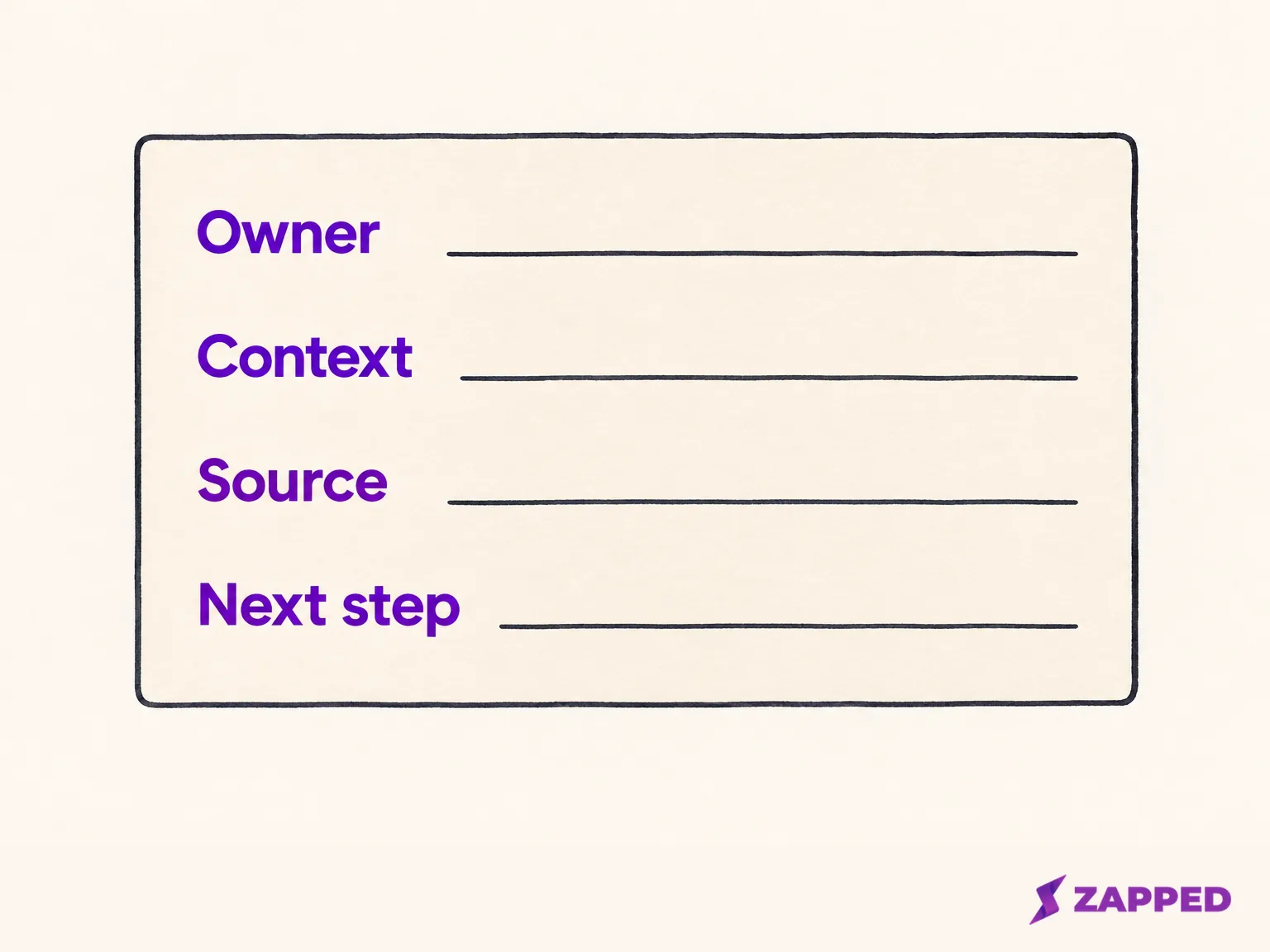
Filter for notes that are blank or generic, like "interested" or "follow up." What you want is a specific topic or a promised next step. BoothCatch flags delayed notes as a failure pattern, and Rozie Synopsis points at relying on memory for what was said.
Then check for the event source. ScanBusinessCard says event or source information has to sit on the lead record so a later win can be credited to the right show. Vendelux's clean-export checklist goes further and asks for the event name, rating, note, and capture date on each row, with one row per person.
Missing notes and missing sources are capture habits more than export bugs. Fix them at capture next time. For this list, ask the rep who met the person to add a line while they still remember.
Did the whole list arrive, and in time?
Where your export carries timestamps, compare capture, export, and CRM arrival. Webex Events' scan export includes Scan Date and Scan Time, which makes this possible. SocialPoint recommends getting data to sales and marketing promptly, and BoothCatch calls out a late CSV handoff as a failure pattern.
Then count rows. BoothCatch's check is that exported records should equal imported successes plus visible failures plus approved duplicate exclusions, a simple completion test. Write the three numbers on the sheet and investigate any gap. If the numbers don't add up, some exported rows remain unreconciled. Before a full import, it also suggests trying ten representative rows in a test import.
There's no universal cutoff for "late," so use the one your sales team actually works to. If the export has no timestamp at all, go back to the capture system or the CRM view and reconcile there. For the export, import, and sync repair, use the lead retrieval guide above.
Who never got scanned?
Last, ask who is missing. If the badge scanner was your only route, people you met when it failed, or away from the booth, aren't in the file. ScanBusinessCard separates booth badge scans from contacts collected away from the booth, so compare the scanner export with any cards or manual notes you already have. That finds known off-scanner contacts only. An unrecorded conversation can't show up in a scanner export.
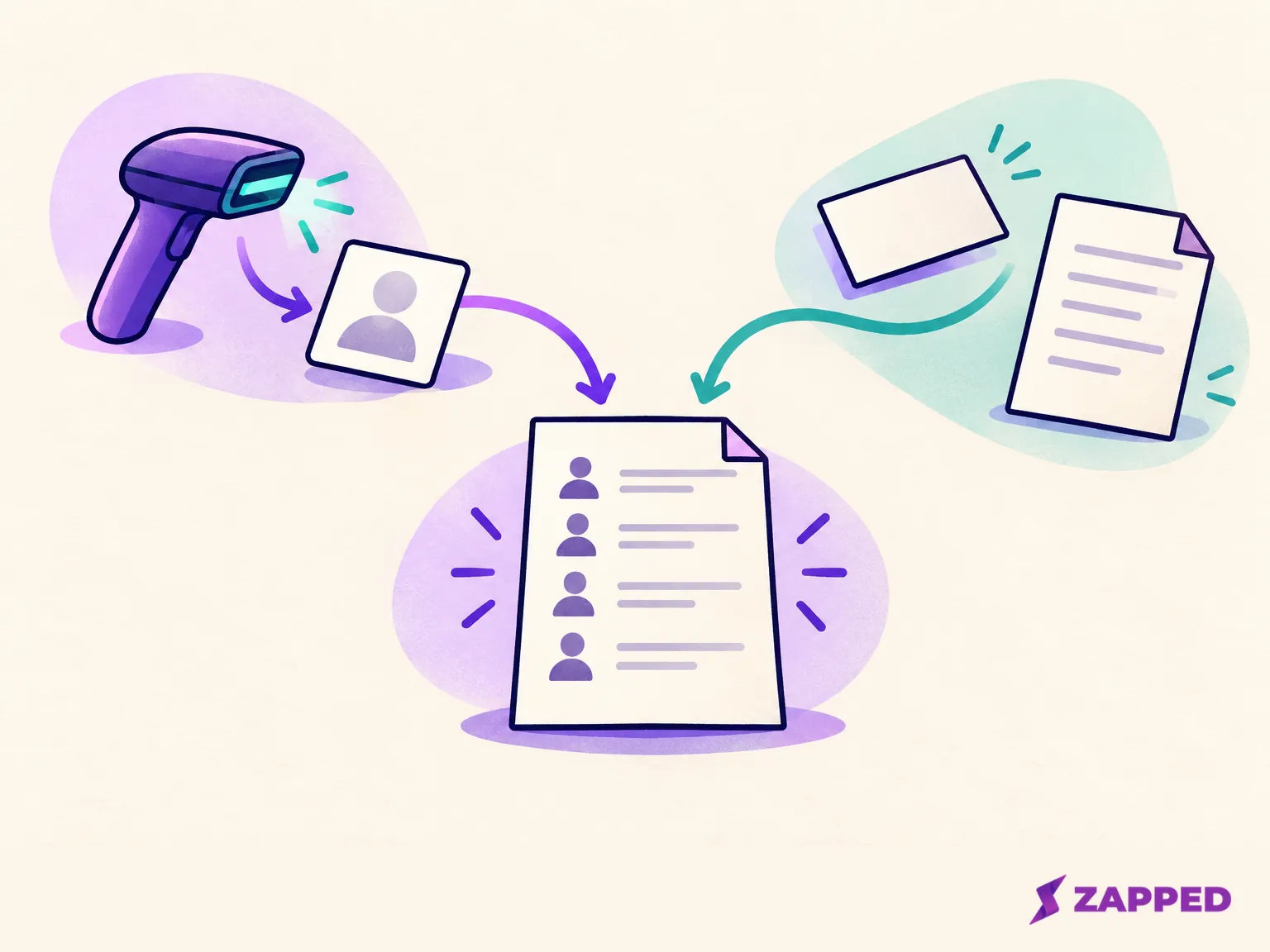
If a scanner dies mid-conversation, one narrow fallback is a Zapped card shared by link, QR code, or NFC. Visitors who fill in its lead form land in Inbox, and the event follow-up template can ask where the two of you met. That is a person to person exchange only. It isn't badge scanning, it doesn't pull organizer data, and it does nothing for owners, imports, or follow-up on the rows you already have.
For the next show, build the second route in before the doors open. Our guide to event lead capture shows how the pieces fit together.
What moves, and what waits
Rows with an owner, a note, a source, and a known permission state can move. Everything else goes into the review queue with a name beside it, or a plain note on why it's still unresolved. A list isn't ready until every exception has one or the other.