Your booth is paid for, someone on the team says "we'll just scan badges with an app," and nobody can say whether a phone camera will turn a badge into a name, an email and a job title. It might. It might also hand you a string of characters and nothing else. So don't buy on the word "scanner." Buy only after you've watched one sample badge travel from scan to contact to export, and after the event has told you in writing what it costs and who owns the result.
If you're still deciding whether to rent the organizer's system or run your own across several shows, our trade show lead capture guide covers that call. This piece assumes you're picking an app for one specific event.
A scan is not a contact until something resolves it
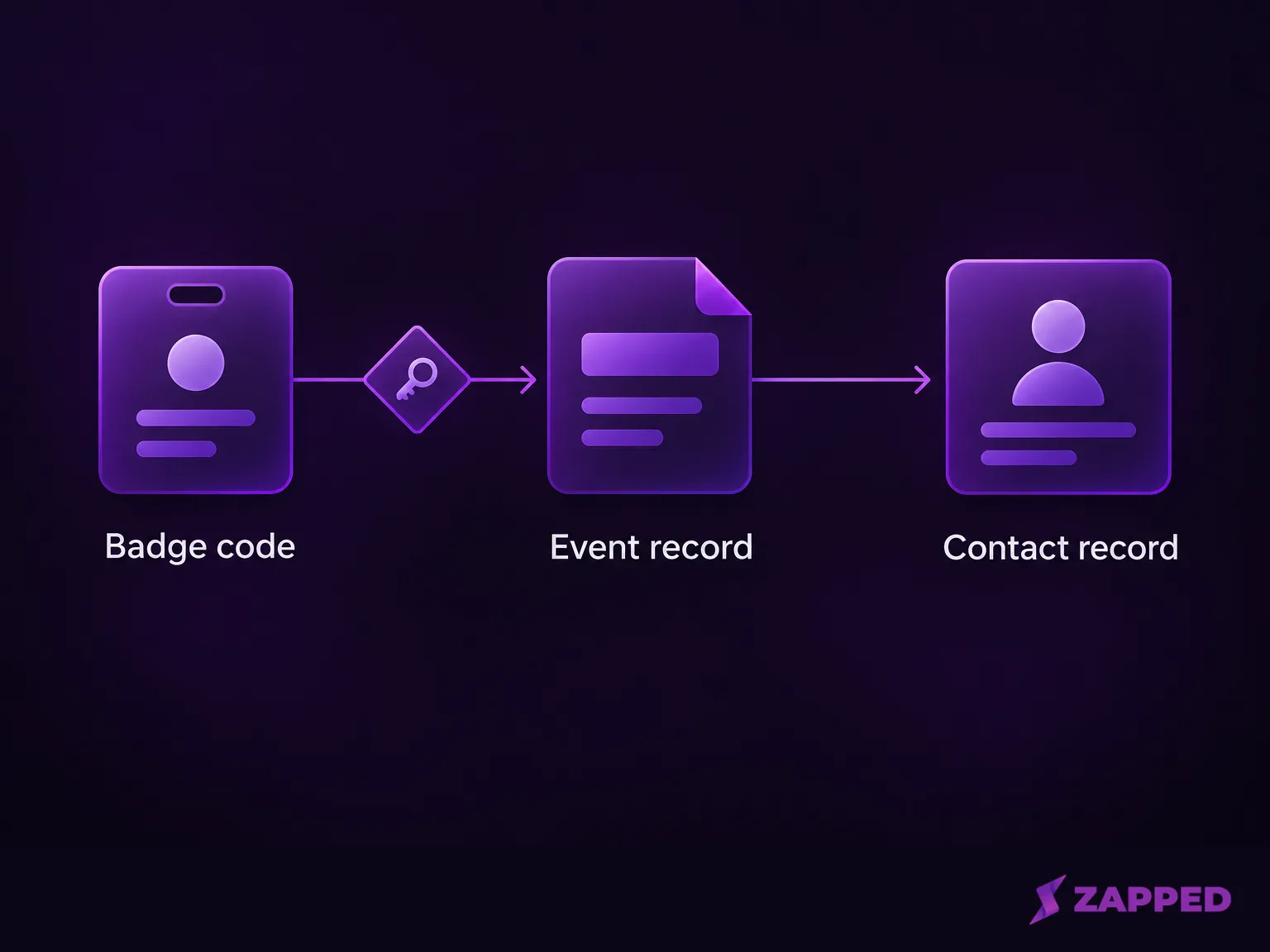
Three different things get called badge scanning. The phone can read printed text. It can read a QR code and show you what's inside. Or it can pass a badge code to the event's registration system and get a contact back. A decoded code may contain contact details, or it may be an identifier that the event system must resolve before you have a usable contact.
Swapcard's flow shows the difference. In its standard QR scan flow, staff tap the Scan icon in the event app, scan the badge, and the attendee's contact details come back. Staff can then score the lead and add notes. That works because the badge belongs to a Swapcard event. Cvent splits the job in two: it describes LeadCapture for events run on Cvent, and iCapture for third-party shows, which it advertises as working with more than 130 badge providers. Neither description proves your show is supported. That depends on which registration or badge provider your organizer uses, and whether your exhibitor account is switched on for it.
Prove the badge path with a sample before you pay
Send the organizer one email before you buy anything. Ask which registration or badge provider the show uses, whether your exact event is enabled for the app you're considering, and whether they can give you a sanctioned test badge or a test event. Then run this:
- Scan the sample badge with the app on a phone your staff will actually carry.
- Look at what comes back. A name and email is a contact. A bare code is not.
- Check which fields arrived: company, title, phone, anything the registration form collected.
- Find out where that record lives before export, and who on your team can open it.
Showcare's JDIQ 2026 order form is a good example of how this can look. Its Event API option comes with API instructions and a test badge so an exhibitor's IT team can reach the registration database and set up real-time transfer. That is one show's arrangement, not a rule, but it's the right kind of thing to ask for.
Permissions can also stop a scan cold. In Swapcard, organizers enable Lead Capture per group under Event Builder → Groups & Permissions, and a permission set on the exhibitor itself overrides the group's. Scanning is disabled if the event lacks the physical Lead Capture add-on, if the staff member isn't assigned to a group, if the target profile has no account, or if the event ended more than three months ago. Organizers also choose whether details are shared both ways or only with the person scanning. In the scanner-only setting, the attendee isn't notified, and later profile edits don't reach you. If your staff arrive and the scan button does nothing, any one of those can prevent scanning.
When a badge isn't recognized, Swapcard's guide suggests photographing the badge to scan later, or searching the attendee list and sending a connection request. Ask your vendor what its version of that fallback is.
Test offline capture and sync before show day
Convention halls are famous for bad connections, so test the offline state on purpose. Put the phone in airplane mode, scan the sample, and look at what's stored.
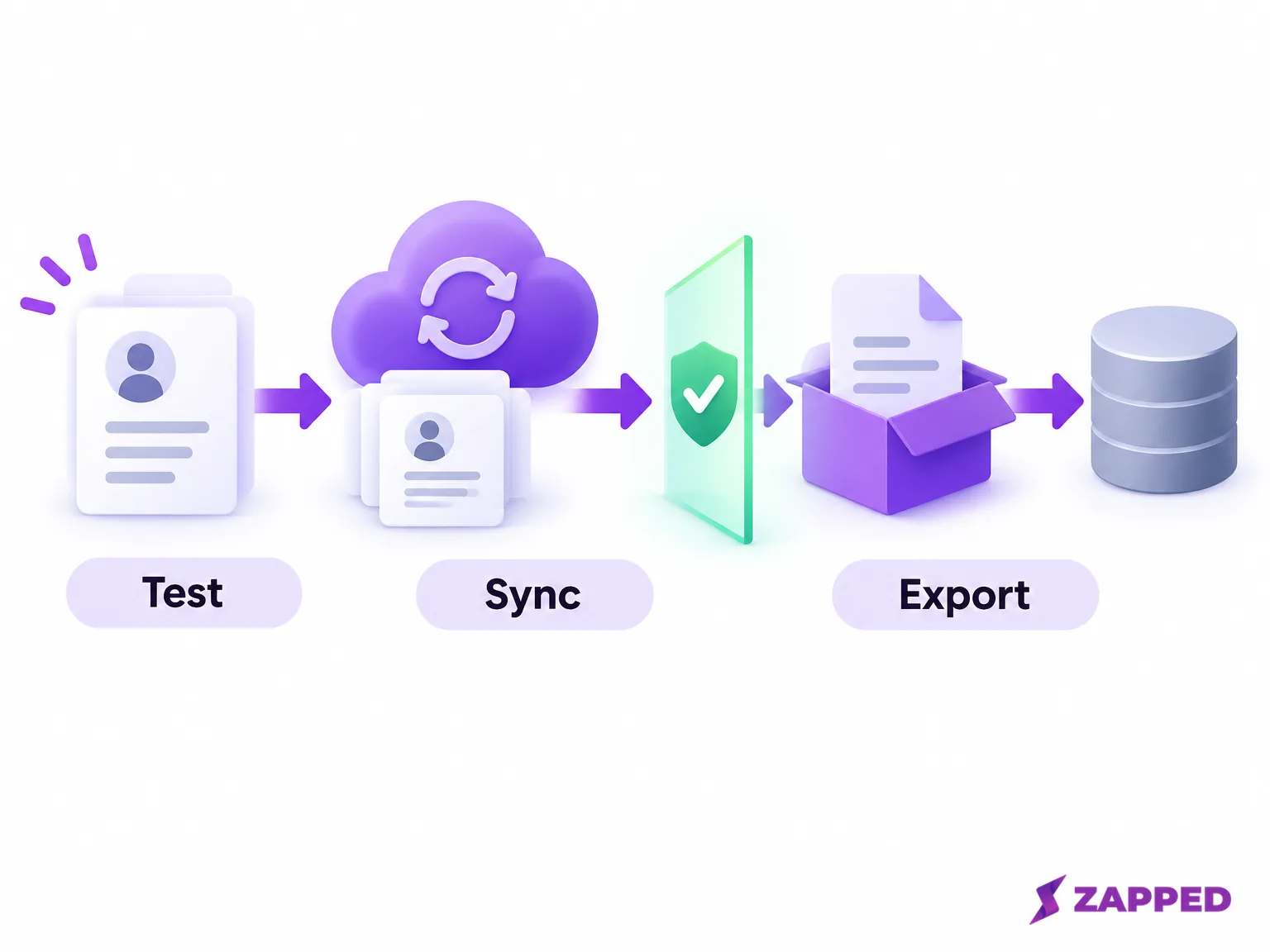
Swapcard is blunt about this. In Offline Mode it stores badge QR symbols on the device and shows no name, job or other contact detail, only the decoded code, because it can't validate anything without a connection. Notes can be saved locally. Recognition happens after the connection returns, and if someone deletes the app before the scans sync, those scans are deleted with no way to restore them. Once back online, staff open My Profile → My Contacts, tap the crossed Wi-Fi icon to force a sync, and look for anything left behind with an error sign. Swapcard says only invalid codes stay in the list, and to check in with the organizer or onsite lead capture support for those.
That is how one app behaves, so don't assume your candidate does the same. Run the same test and write down four answers: what was stored offline, what stayed pending, what error appeared after reconnecting, and what happens if a staff member signs out, swaps phones or removes the app mid-show. Showcare's JDIQ form makes a similar point in plainer words: devices with no signal still capture everything, but need connectivity to sync.
Scan the same badge twice, then export to a test CRM
A demo hides the messy parts. So make your team do their real job on the sample: scan, rate the lead, type a note, answer your qualification questions. Then scan the same badge a second time and see whether you get one record, two, or an overwritten note. Neither answer is wrong. Not knowing is the problem, because a booth at 3 p.m. on day two will rescan people constantly.
Then export. Send a sample to a staging CRM or open the CSV and check that it carries the contact, the event name, the source, the owner, the rating, your notes and any custom fields. Swapcard's external badge capture guide recommends this: test in a staging event, align the field mappings, and brief booth staff before the show. Cvent advertises on-demand exports and direct CRM import for LeadCapture, and Swapcard's lead API example exposes rating, note, event association and custom fields. If the vendor can't say what happens on a repeat scan, ask in writing, and treat a blank answer as a no.
Ask for the whole bill, not the license price
The app's listed price may not be the event's full cost. You may be paying per staff license, plus a bundle, plus a badge kit, plus an access fee, plus tax, all for a set term. The organizer's platform plan may sit behind all of that. Swapcard, for example, says its platform plans are annual subscriptions with no per-event platform price, and lists an exhibitor lead capture add-on without publishing a separate exhibitor price.
For a sense of how an event bill is built, the SREcon26 Americas order form for March 24 to 26, 2026 listed Cvent LeadCapture at $249 for one license, $499 for a three-pack and $149 for each additional license, plus a $995 badge kit for exhibitors bringing their own retrieval solution. That is one named event, not a market average. Ask your organizer for this event's current quote, itemized, with the term stated.
Read the event terms before anyone follows up
Confirm who controls the data in your event agreement, because an app's marketing page may not say. Look for who owns captured records, what notice or consent the show requires you to give, what follow-up is permitted, how long you can retrieve leads, and how to export before access closes.
The JDIQ terms show why this matters. Showcare says the data acquired through its units remains the property of the show's management, with exhibitors controlling their own use of it, and instructs exhibitors to get consent before scanning. Cvent's public LeadCapture page doesn't state how long exhibitors can retrieve leads or who owns exported records, so that answer has to come from your event contract.
Keep email law separate from those permissions. The FTC says CAN-SPAM covers business-to-business email too, doesn't require prior opt-in, and does require a clear way to opt out, with requests honored within ten business days. The organizer's scan permission and your unsubscribe obligations are two different checks.
When the badge can't be read, let visitors hand you their details
If the show's badge can't be read by your chosen app, a generic phone camera may decode a badge code or open a link, but that does not prove it can retrieve the attendee profile. Ask the organizer for its official retrieval option, or talk to people and capture the details with a clear explanation of what you'll do with them. For wider tradeoffs between those routes, see our event lead capture overview.
One option is a QR code on your booth that opens a form people fill in themselves. Our Zapped Lead Form works that way: visitors choose to submit, and the entries land in your Inbox. It allows up to five questions, and a submission doesn't automatically subscribe anyone to an outside mailing tool. It collects only what visitors choose to submit and never queries the organizer's badge database. Inbox keeps leads for 30 days on Free, 180 on Starter and unlimited on Professional (retention rules), with CSV export on every plan, so export before your plan's window closes.