You held your iPhone against a colleague's card, a banner slid down, and now you're staring at a web page wondering whether Maya from accounts is in your phone yet. Probably not. A tap reads the card, and saving is a separate step you still have to take.
What the tap actually opened
On an iPhone XS or later, the phone can read an NFC tag while you're using it, with no app open. When it finds a web address on the tag, it shows a notification. Tap that notification and iOS hands the tag data to the matching app, or opens a universal link in Safari when no associated app is installed. Apple documents this behavior for background tag reading, and it explains why a tag with a web link can open a page rather than save a contact.
So the first question is simple: did the tap open a link, or did it put a contact in front of you with an Add button? A banner and an open profile prove only that the card was read. Nothing has been saved until you finish an add action somewhere.
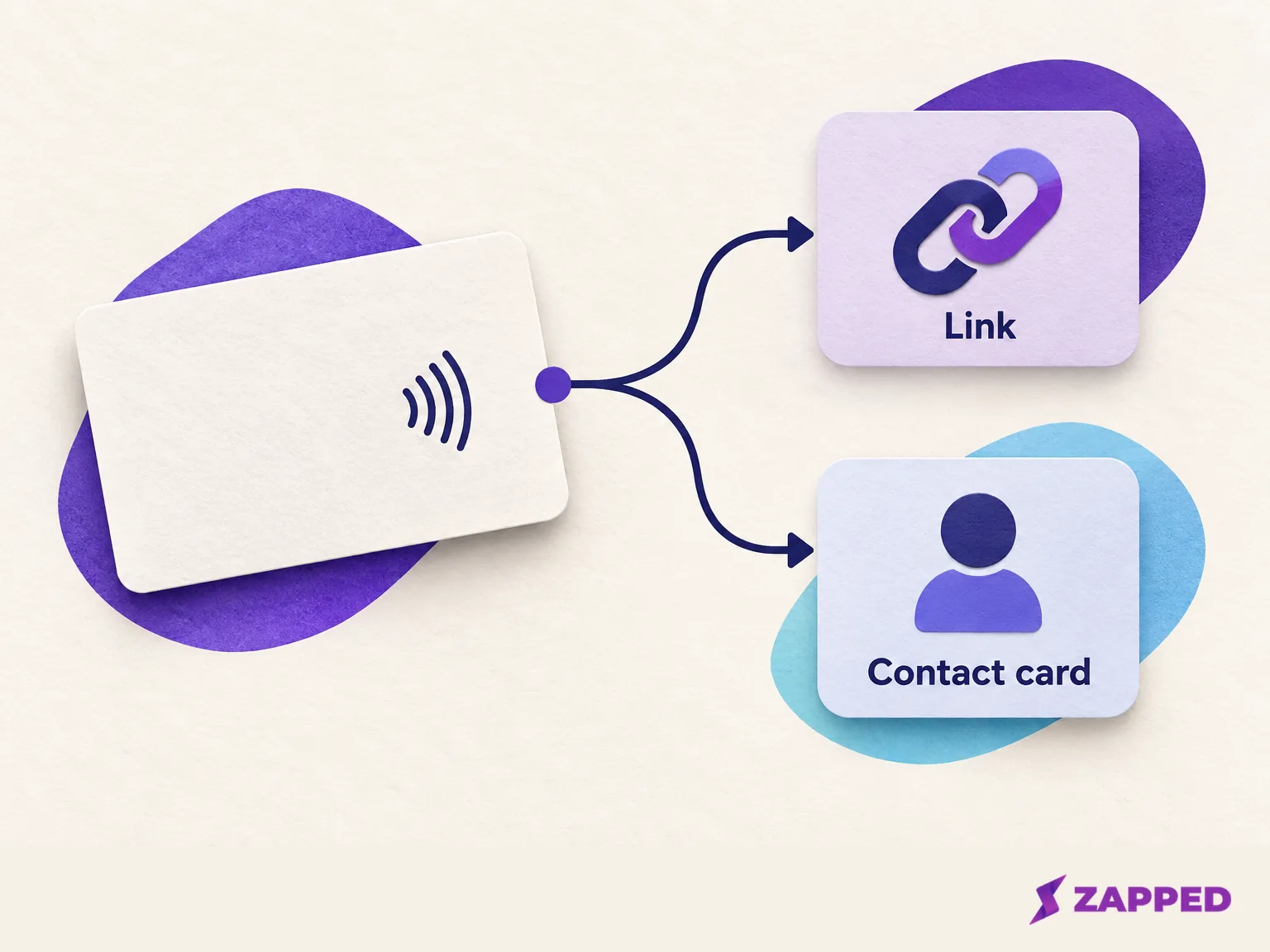
There's a third, narrower case tied to one product. The App Store listing for NFC Taggy Tools says that app can write contact data to a tag and offers an App Clip for viewing or saving contact information without installing the full app. That is the listing's own description, not general iPhone behavior, so if you meet it, follow the buttons it shows.
Check where new contacts will land
If your Contacts app holds more than one account, such as iCloud and a work account, a new contact goes to your default. Before you add anyone you care about, open Settings, tap Apps, tap Contacts, tap Default Account, and choose the one you want, as Apple lays out here. With only one account, skip this.
Save with the route the card gives you
What you do next depends on what opened:
- A profile page. Look for a Save Contact button and tap it. Not every profile shows the same buttons, and the page is only offering the contact until you finish the add.
- A sender-configured Zapped card. With Zapped, a sender can set an NFC card to save the contact right away. On an iPhone, Safari then shows a contact card, and you add it to Contacts yourself. The setting only works when the card it opens shows its Save contact button and has no password. Otherwise you get the normal card page, which is why two Zapped cards can behave differently in your hand. If you own the tag and want to control this, here's how to program an NFC tag with an iPhone.
- A
.vcffile sent by email or message. Apple's instruction is short: tap the .vcf attachment in the email or message. That's the route Apple documents for Mail and Messages. Don't assume a.vcfdownloaded through a browser behaves the same way. If one gives you trouble, this walkthrough on how to import a vCard file to iPhone covers it.
Check the person before you tap Done
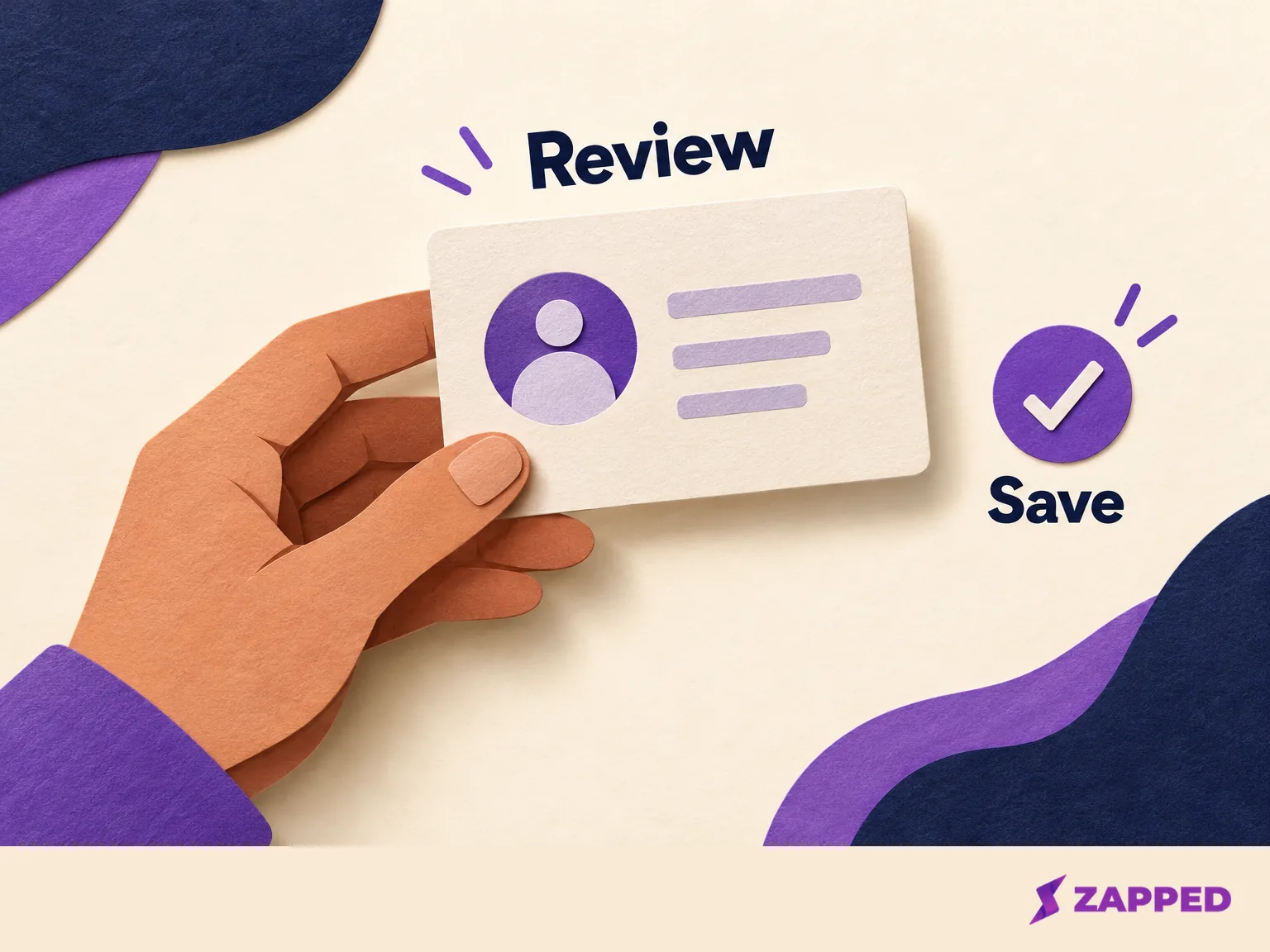
Before you confirm, read the card like you'd read a name tag. Does the name match the person you met? Are the company, phone number and email what you expect to keep?
If something's wrong or missing, you have two options. Ask the card's owner to correct it at the source, or finish the save and fix it yourself afterward. Apple's steps for the second option are to open the contact, tap Edit, update the details, and tap Done.
Search Contacts to see that it saved
Don't trust the banner or the success screen. Open Contacts, tap the search field at the bottom of the list, and type the person's name or phone number. Apple's guide says the field searches names, addresses, phone numbers and other contact details.
If the entry shows up, open it and glance at the fields once more. If it doesn't, you may be looking at the wrong account. In Contacts, tap the account you want to review and search again. Only if the contact is missing there should you go back to the profile or contact card and repeat the add. Creating an entry by hand also works: in Contacts, tap Add, enter the details, and tap Done.
If you now have the same person twice
It happens, especially when someone sends a card and then a file. In Contacts, tap View Duplicates below My Card and review each match before merging, as Apple describes. Merge only when you can tell the two entries are the same person.
When the same person exists in two accounts, linking is gentler. Tap one of the contacts, tap Edit, then tap Link Contacts. Linked cards show up as a single entry, but they aren't merged, so each underlying card keeps its own details.
If no notification appears
Check whether the iPhone is in one of the states where Apple says background tag reading is unavailable. Wake and unlock the iPhone and hold it near the card again. Apple says background reading doesn't work if the phone hasn't been unlocked since it started up, or while Camera or Wallet and Apple Pay are in use, or in Airplane Mode. A locked phone asks you to unlock before it passes the tag data along, and phones older than the XS don't read tags this way at all. If the tap itself is the problem, this guide to scanning an NFC card on iPhone goes deeper.
If the tag reads but offers no save action
Sometimes the tag reads fine and still offers no save button. That's a card or profile issue you can't fix from your side. Ask the sender for their public profile link or QR code, or have them send a .vcf by email or message and tap the attachment. It's a practical workaround rather than an iPhone rule, but it gets the contact into your phone.