You're holding a stack of cards from a conference lobby, and one app promises to turn them into contacts in a minute. Before you point a camera at them, trace the route. The image gets read somewhere, the saved contact lands in the app, your phone's Contacts, a cloud account or a CRM, and each copy has its own end date. Here is how to check each stop before you scan.
Ask whether you need the card image at all
Under UK GDPR, the ICO treats a named contact's details at another business as personal information that needs a lawful basis. It also gives a seminar example: using details from cards people handed over for networking may fit legitimate interests, once you've assessed purpose, necessity and balance, told people how you use their details, and given them a right to object. That's a narrow example, not blanket permission for every later use. This is general information, not legal advice.
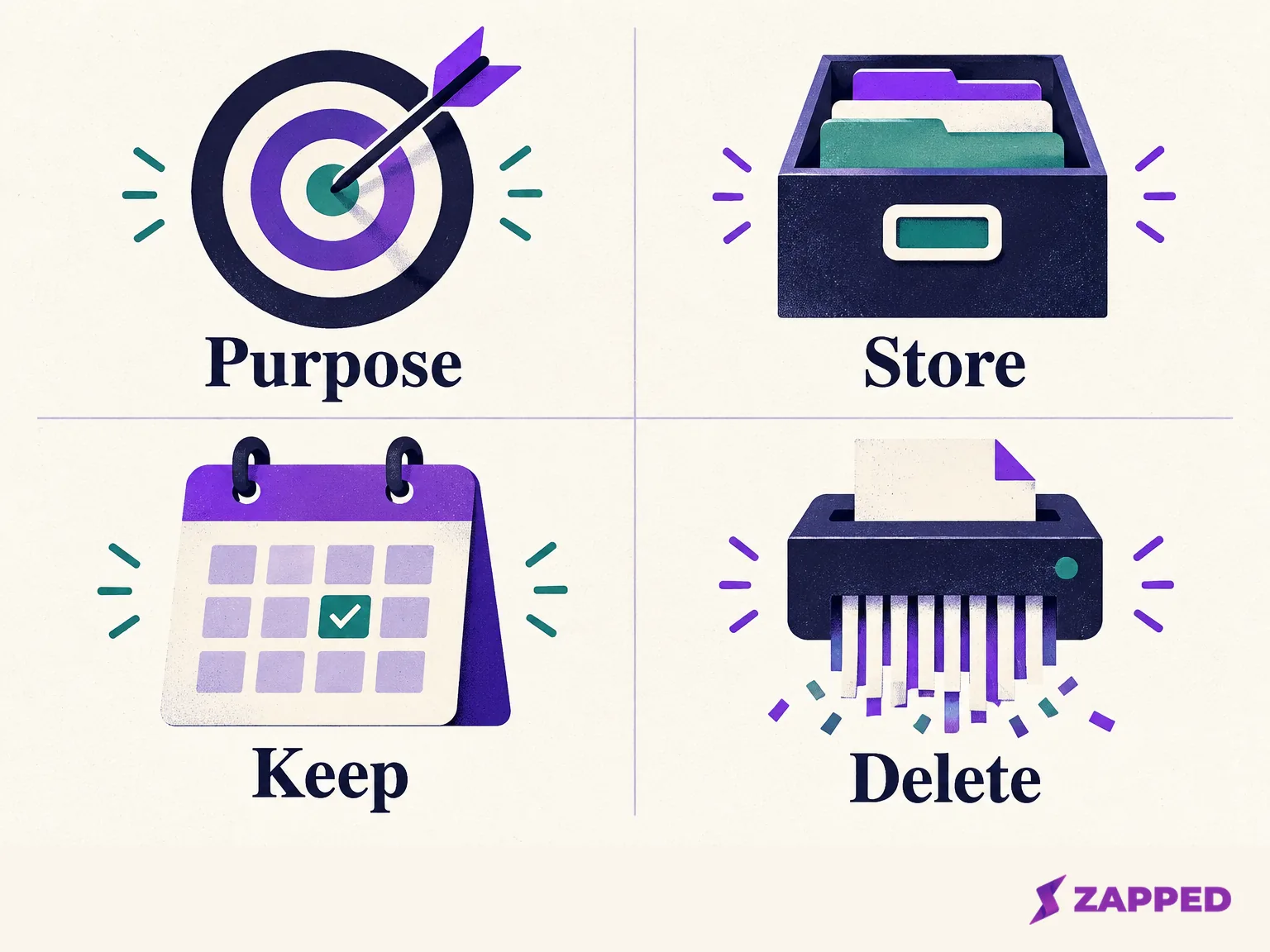
The practical version is short. Decide why you want this person's details, then keep only the fields that support that follow-up. For most cards that's a name, a company, an email address and a note about where you met. The photo usually isn't needed once those fields are typed or extracted, and the FTC's business guidance points the same way: keep personal information only while you have a business need, and define how it gets disposed of. If you can't say why you'd keep a card, don't build a permanent contact record by default.
On-device reading only answers the first stop
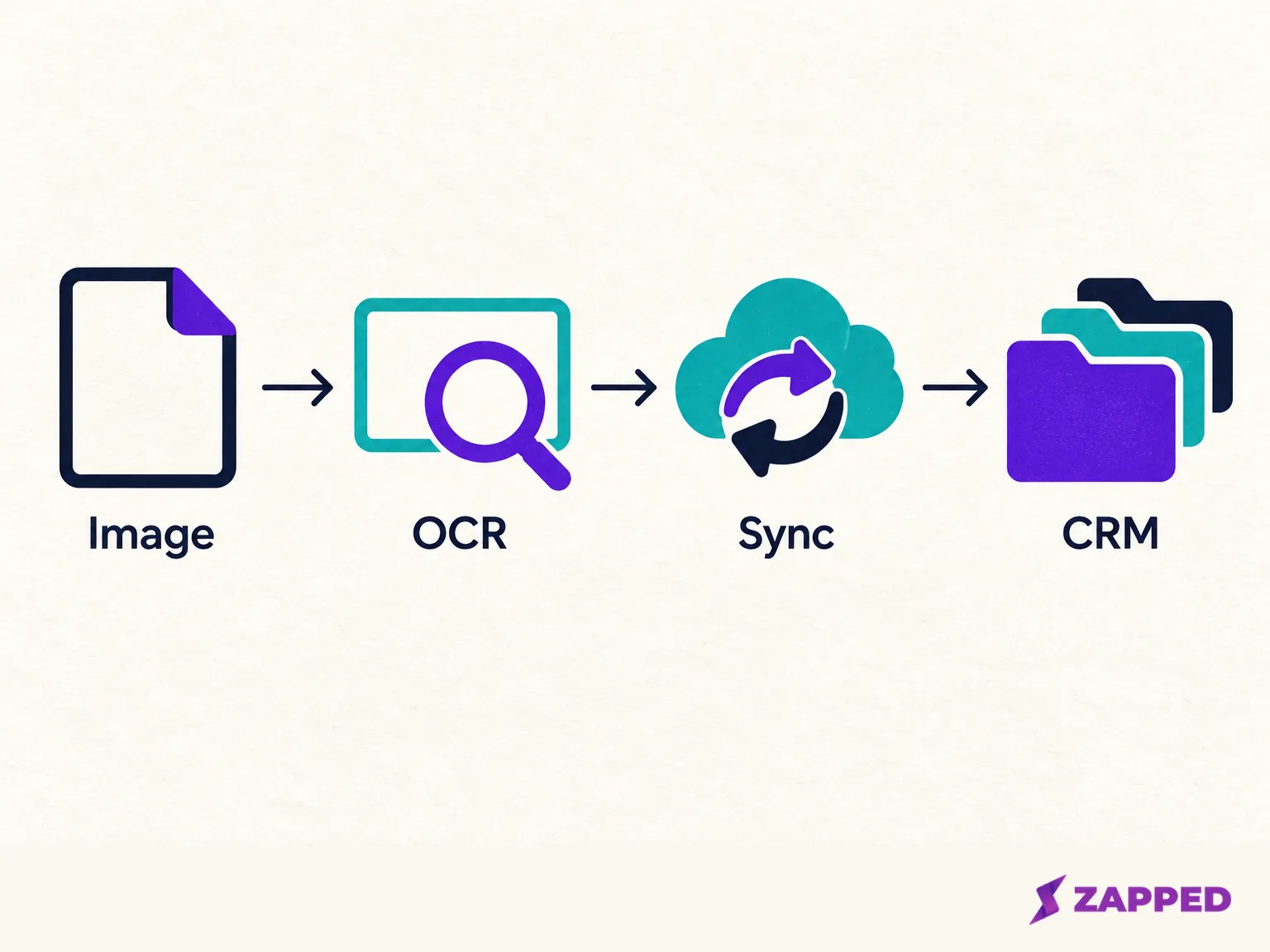
The first handoff is OCR, the step that turns the photo into text. Apple says text recognition with its Vision framework happens on the device. Google says ML Kit processes input on device and doesn't send input data or results to Google servers, though the APIs may contact Google for updates and send performance metrics. Those statements are about the toolkit, and they settle one step.
Apps differ in what they build around that step. CardHaus's own policy says its iOS scanner reads cards with VisionKit on the device, keeps card contents locally, has no server backend, and sends card data only when you ask for an export. Business Card Scanner takes the other route. Its policy says uploaded images are processed server-side and sent to Gemini through Google Cloud, with the extracted contact fields stored in the service. Same card, two very different trips.
So when a listing says "on-device," read it as one answer to one question. It doesn't tell you what happens when you turn on sync, tap export or sign into an account. If an app's policy can't tell you which OCR path it uses, pause before uploading anything.
One saved contact can become several copies
After OCR, the record may land in more than one place: the scanner's own library, your phone's Contacts, a cloud account behind Contacts, and a CRM. Each may have a different owner and separate deletion controls.
The device Contacts step is the one people miss. CardHaus's policy notes that native Contacts may sync through your iCloud or Exchange settings, so the scanner's promise ends where your account settings begin. On iPhone, you can pick which account takes new contacts under Settings > Apps > Contacts > Default Account, and Apple warns that deleting a contact from an email account removes it from every device signed into that account. On Android, Google Contacts sync can save device contacts into your Google Account, and turning that backup off later doesn't remove contacts already saved there.
Business apps add another layer. CamCard Business's policy says device sync replicates data, possibly across several countries or regions, and lists other people's card images and contact details as data the enterprise customer controls. Its administrator manual describes the CRM step: an admin picks Salesforce or SugarCRM under CRM Settings, and a user then chooses Toolbox > Export to CRM. The manual says nothing exports until someone clicks it. Other products and connectors will differ, so check the setup you actually have.
Before you scan, choose where the record is allowed to live. If it only needs to sit in one contacts list, set that list as the default account first. If a bigger pile is already forming, how to organize business cards digitally covers cleaning it up once you've picked an intake route.
Treat the store label as a clue
App store labels are a good first look and a poor final answer. Apple says the product page shows some data types an app may collect and whether they're used to track you or linked to your identity. On the CamCard listing, Apple adds that those details are supplied by the developer, unverified. The label places Usage Data under data that may be used to track you across other companies' apps and websites. That is a developer's category declaration, and it doesn't show that scanned card images or contact contents are used for tracking. Google's side works similarly: developers are responsible for Data Safety disclosures, including third-party SDKs, and Google says its review isn't designed to verify that they're complete or accurate.
That's why a free scanner's ad and analytics disclosures deserve their own read. CardHaus says its ad network may receive ad-request metadata but not scanned card contents, which is useful precisely because it's specific. Price doesn't answer where a card image goes, so we're not ranking apps here.
Here's a five-minute check to run before you scan a single card:
- Open the store listing. On iPhone, read the privacy section. On Google Play, find Data safety and tap See details. Note any contacts, photos, usage or location categories.
- Open the vendor's own privacy policy and look for the OCR provider, whether images are stored, and what sync does. If the label and policy don't describe the same route, ask the vendor.
- On iPhone, open Settings > Privacy & Security > Contacts, pick the app, and choose Limited Access if you'd rather it only see selected contacts. On Android, go to Settings > Apps > the app > Permissions and review contacts, camera and photos.
- Before a test scan of your own card, turn on App Privacy Report on iPhone, which only gathers data after you enable it. Scan, then look at the domains the app contacted in the past seven days. On supported Android versions, Privacy dashboard shows which apps accessed a permission recently.
Neither tool reads the app's mind. They show permissions and network domains within the recent window, not what an app intends or exactly what it sent.
Give the image and the contact separate end dates
Keep two clocks in mind: one for the photo, and one for the extracted contact. They rarely expire together.
Take two vendor policies as attributed examples, not a rule. Business Card Scanner says source images may be stored temporarily but doesn't state how long, and says associated data, including uploaded images, is removed within 30 days after account deletion. The checked CamCard Business policy gives a broad necessity standard and lists information that may remain for legal or reasonable business purposes, but no fixed period for card images after an account closes. In both cases, don't assume a delete button removes every copy immediately. Ask the vendor how long temporary images last and what survives account closure.
On Google Play, apps that let you create an account must offer an account deletion path in the app and a web link for requesting deletion. You can also read the privacy policy or contact the developer. And remember the earlier copies. Deleting from the scanner doesn't touch what already synced to your Contacts account or your CRM, so those need their own removal and their own date.
Pick the dates before you scan. Delete the card photo once you've confirmed the fields, and set a review date for the contact itself, such as the end of the follow-up you had in mind. If you need to move contacts out of Google first, Contacts has an export to a VCF file under Fix & manage > Export to file.
A follow-up email is not a newsletter signup
Adding someone to a marketing list is a different use from "nice to meet you." The ICO says a person's objection to direct marketing overrides reliance on legitimate interests for that use. If the plan shifts to a recurring campaign, run the question again, and check the rules for the channel and country you're in.
On-device scanning doesn't exempt anyone from anything. It can keep the image local during OCR. It says nothing about why you hold the record or how long.
When the policy goes quiet, change the route
If a policy doesn't say where images go, which provider reads them, or how deletion works, pause the upload. You have three decent options. Ask the person to send a digital contact file. Type only the details you need into a contacts system or CRM you already manage, with a stated purpose and an end date. Or ask the vendor your question and wait for a straight answer.
A digital card removes the paper-image step but leaves your later storage choices intact. Zapped is one narrow example, and not a scanner. In Zapped, Save contact shares the card owner's details, while a Lead Form collects the visitor's details. A Zapped NFC card or Flexible QR code can send a vCard straight to contacts, while a Main QR code opens the card page. Zapped doesn't scan paper cards, and it doesn't decide your lawful basis, your retention or your CRM handling. If you're on the other end of that tap, NFC business card privacy covers what the owner's card discloses.
When you can say what leaves the phone, who receives it, why you're keeping it, and when it goes, scan away.