Someone just pressed a card into your hand, and you'd like their name in your phone before the conversation fades. The honest answer is that "scan" means three different things on Android. Your phone might pull out text, offer to save one phone number, or create a real contact. Which one you get depends on the phone and the route, and none of them tells you where the contact ends up.
So treat it as two jobs. First capture the card, then decide where the record lives. The first job is a few taps. The second is the one people skip, and it's the one that decides whether you still have the contact after a phone upgrade.
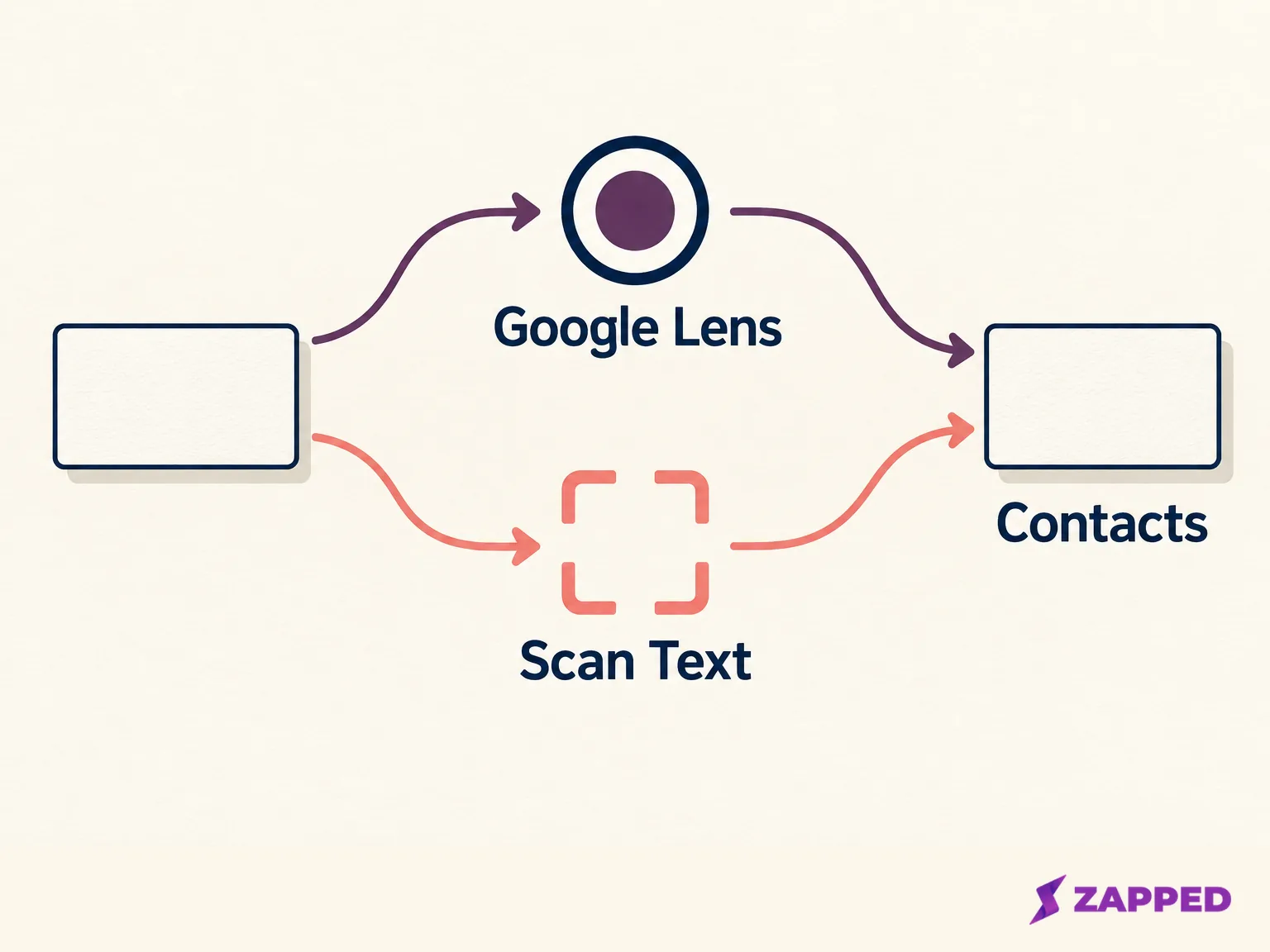
Take a plain photo, then open it in Google Lens
If you haven't photographed the card yet, take a normal picture with your Camera app. Flat on a table, good light, the whole card in frame. You're not doing anything special yet, you're just making sure the card exists as a photo you can come back to.
Then open Google Photos and follow Google's route:
- Open the Google Photos app and select the card photo.
- Tap More at the top.
- Tap Google Lens.
- Look at what Lens offers for the photo.
Google says that for a business card, Lens can save the phone number or address to a contact. Read that carefully. It names a phone number or an address, not a finished contact with a name, company, title and email. If the action appears, tap it, then fill in whatever Lens left out before you save.
Photos is the dependable door. Google lists Lens in Google Photos, in the Assistant on most Android phones, and in the Camera app on only some phones, Pixel among them. If a friend tells you to "just point your camera at it" and your Camera app shows nothing, you haven't done anything wrong. Your phone simply doesn't expose Lens there, so use the Photos route.
When Lens shows text but no contact button
Sometimes Lens reads the card and offers nothing you can save. That's a normal outcome, not a failed scan. In the same Lens view, tap and drag across the words you want and copy them, as Google's own steps describe. Then open Contacts and paste.
Or skip the clipboard and type it. In Google's Contacts app, tap Add, enter a name and a phone number or email, and use Add fields for everything else, such as a street address or notes, then tap Save. Google's Contacts steps cover exactly that sequence.
Typing it yourself is also a decent quality check. Lens may hand you a suggestion that looks complete and isn't. In one small test on a Galaxy A31, a reviewer photographed six printed cards and reported that Lens filled none of the tested contact fields correctly, opening an editor with only one email. That's one person and six cards, so don't read it as a verdict on Lens. Read it as a reason to compare every field with the paper before you tap Save.
On a Galaxy, Scan Text is not Save Contact
Samsung phones add a wrinkle. Samsung's guide for the Australian Galaxy S26 turns on text scanning in the Camera app: open Camera, tap Menu, then Settings, then Scanning, and switch on Scan Text. The same screen has switches for Document scan and Scan QR Codes. Samsung describes scanned text and documents, not a saved contact.
On the Australian-variant Galaxy S26 covered by Samsung's guide, enable Scan Text, point the Camera at the card, copy the text, and create or complete the contact in Contacts. It's a text route. The contact is a separate step.
You may also see advice about a business-card scan button inside the Contacts new-contact form. That control is real, but it comes from Samsung's Galaxy S9 Plus manual, which is an old phone. Nothing there says a current Galaxy has it. If your Contacts form shows a business-card scan option, use it. If it doesn't, don't hunt for it. The Samsung guide above also covers one regional variant, so menus on your model may differ.
Decide where the contact lives before you save
This is the part that turns a saved card into a lost one. The same name can land in three different homes, and they behave differently.
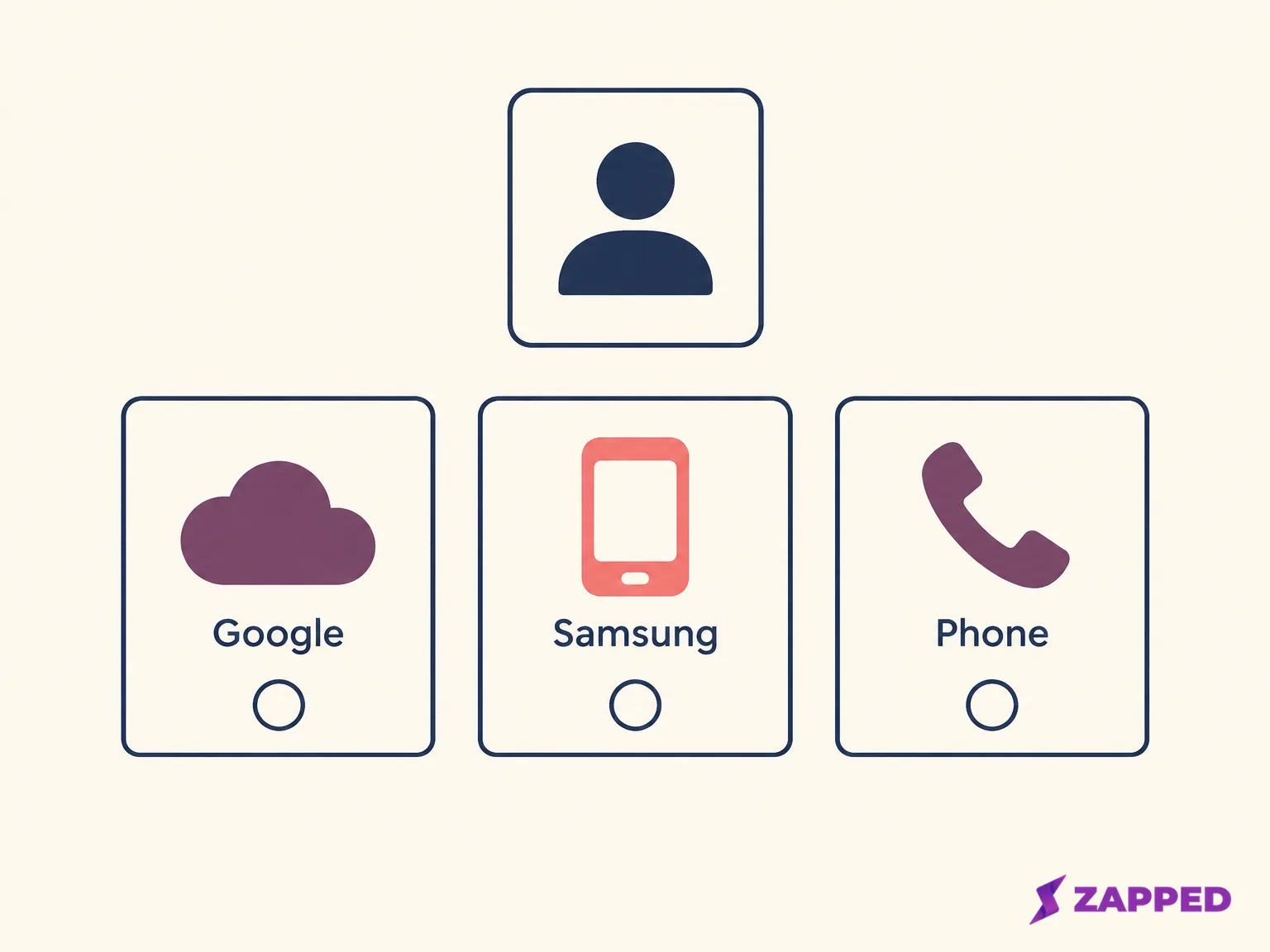
A contact saved to a Google Account syncs with Google Contacts and your Android devices. That's the home most people want, because it follows them to a new phone.
A Samsung Account is different. Samsung Cloud syncs Samsung Account contacts; it does not synchronize Google Account contacts.
Then there's the phone itself. Google warns that contacts saved only in device storage can only be managed on that device. They don't sync across Google services or to other signed-in devices, and they may be lost if the phone is lost or damaged. Backup of device and SIM contacts depends on your phone's make and model.
On a Galaxy you pick the home while you add the contact. Open Contacts, tap Add (the plus sign), then use the drop-down in the upper left to choose where it's saved, such as Phone or Google, as Samsung's Contacts guide shows. Do that before you fill in the fields, not after. Samsung notes that screens vary by carrier, software version and model, so yours may look a little different.
On other Android phones there's no single menu that works everywhere. Look for an account label at the top of the new-contact screen, and check your Contacts app's default-account setting if you can find one. If the label says a Google address, you're in good shape.
Check the record against the card, then find it again
Before saving, compare each field with the paper: name, company, title, phone, email and address. Lens and any scanner can misread a digit or merge a title into a company name. A phone number that's one digit off is worse than no number, because you'll trust it.
After saving, prove it landed. Search for the person in Contacts. If you use more than one Google Account, switch accounts from your profile picture, or look under the all-accounts view from the account menu at the top left. Seeing the name under the account you meant to use confirms it appears there. Seeing it somewhere in Contacts doesn't.
If you're sorting a whole pile of cards, decide on one canonical place for them first. How to keep that tidy is a separate job, and organizing business cards digitally covers it. If your scan produces a vCard file or a stack of fields to import instead of a single contact, the Google Contacts import walkthrough picks up from there.
Adobe Scan for a stack of cards
Lens is fine for one card. If you came home from an event with a handful, a dedicated scanner earns its place. Adobe says Adobe Scan for Android can scan business cards into contacts and can capture several cards in one multipage scan, letting you choose which to import.
Adobe's beginner guide lays out the sequence:
- Take a photo of the card inside Adobe Scan.
- Adjust the corners so the card sits inside the bounding box.
- Tap Save PDF at the upper right, then tap Save Contact.
- Edit or add details, then tap Save once more.
Two cautions. First, by default Adobe saves your scans to Adobe cloud storage as PDFs. If you'd also like the original images on the phone, Adobe points to Profile, then Preferences, then Save original images to Gallery. If a card's owner wouldn't expect their details in a third-party cloud, or your company has storage rules, type that one in by hand instead.
Second, Adobe's pages don't show which Contacts account receives the record from Save Contact, and they don't show an account picker. So don't assume. Scan one card first, then look it up in Contacts and check the account before you process the whole stack.
If the contact landed in the wrong account
It happens, usually because the phone's default account wasn't the one you wanted. You can move the contact instead of retyping it.
In Google's Contacts app, open the contact, tap Contact settings, then Move to another account, and choose the Google Account. Be aware that the move deletes the entry from its original account, so check the destination before you confirm. On a Galaxy, Samsung's route is Contacts, Menu, Manage contacts, Move contacts, then pick the contact and the new location and tap Move, per Samsung's Contacts guide.
If the scanner route doesn't fit your storage rules at all, manual entry is the clean fallback. You choose the account yourself and nothing leaves the phone you didn't send.
When they offer a digital card instead
Some people skip paper. If the other person has a Zapped NFC card or a Flexible QR code set to save the contact right away, you don't scan anything. Android downloads a vCard, and you open it from the download notification to add it to Contacts. If nothing seems to happen, open the Downloads app, as the Zapped help page explains.
Keep the limit in mind. Zapped shares its owner's own digital card. It doesn't scan someone else's paper card, so for the card in your hand, the routes above are still the ones to use.