The cleanest way to organize business cards digitally is to choose one canonical contact store, capture each person once, add the context you will forget, and review duplicates before they spread. A scanner can help with the first step, but it cannot decide which email is current or why you wanted to follow up.
Quick answer
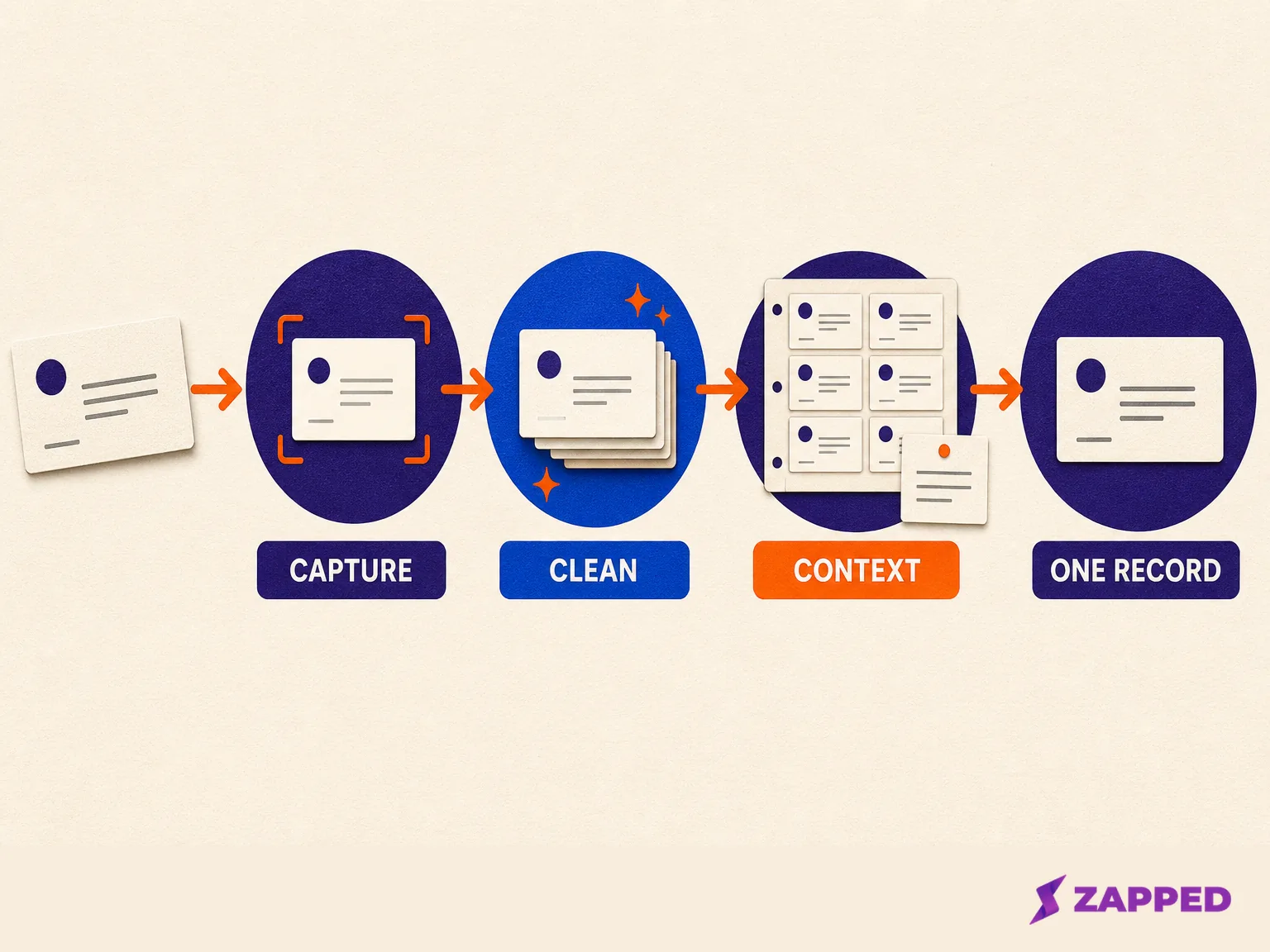
Use this five stage loop:
- Capture the card, vCard, QR destination, or shared profile.
- Put the record in one trusted contact system.
- Normalize the name, company, role, phone, and email fields.
- Add a short note with where you met and what happens next.
- Deduplicate, sync, or export before you delete the paper original.
That system works with Apple Contacts, Google Contacts, or a CRM. The important choice is ownership. If a team needs shared history, use a team system. If you are keeping your own network, a well maintained contact account is usually enough.
Choose the home for your contacts
Apple says the Contacts app can create, find, share, and delete contacts. It also supports iCloud sync across devices when Contacts is enabled. Apple's contact guide is the right reference for a personal iPhone address book, while Apple's sync guide explains the cloud setting.
Google Contacts is a good home when your work already lives in Google. Google supports importing CSV and vCard files, including notes, labels, websites, custom fields, and organization details. That makes it easier to move an existing spreadsheet into a searchable contact list without forcing every detail into the phone's default fields.
The mistake is keeping three half authoritative lists. A phone address book, a spreadsheet, and a folder of card photos may all be useful during migration, but only one should be the record you trust after cleanup. The others are intake or backup copies.
If you are building a team process, start with digital business cards for teams and decide who owns the record before choosing the scanner. Ownership prevents the most expensive kind of duplicate: two people following up with the same contact from two different notes.
Capture before you sort
Give every new contact a ten minute capture window. Save the contact while the conversation is still in your head, then add one sentence explaining the meeting. Sorting a week later feels efficient until every card says only a name and a company.
For a paper card, scan or type the details into the canonical store, then compare the result against the card. OCR is an intake shortcut, not a final check. Watch especially for zero versus the letter O, missing country codes, and a company name that has been mistaken for a person's surname.
For a vCard, open the file and inspect the fields before saving. For a QR code, save the profile link and decide whether you need a contact record, a bookmark, or both.
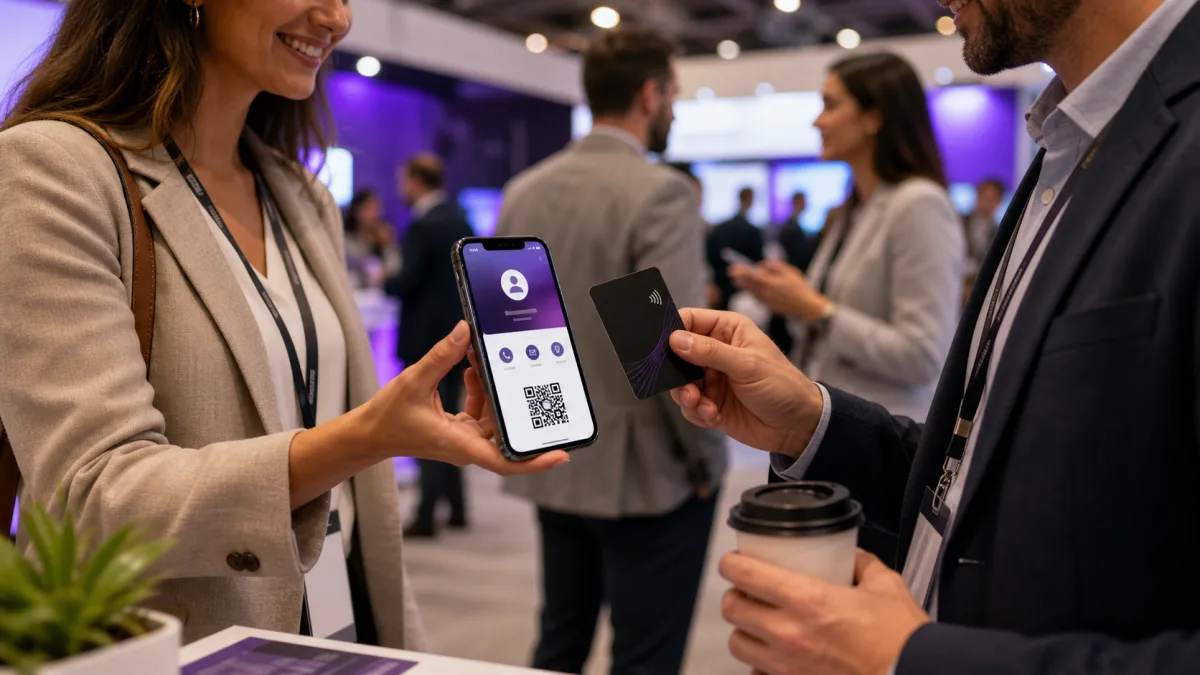
For an NFC tap, open the destination and save the contact from the page if it is useful. Apple lets you share a contact with selected fields, so you do not have to keep every field a sender included.
Add the context note at the same time. Use a plain pattern such as “Met at event, topic discussed, next action, date.” The note should help future you answer one question: why should I recognize this person when their name appears in my inbox?
Use a small field map
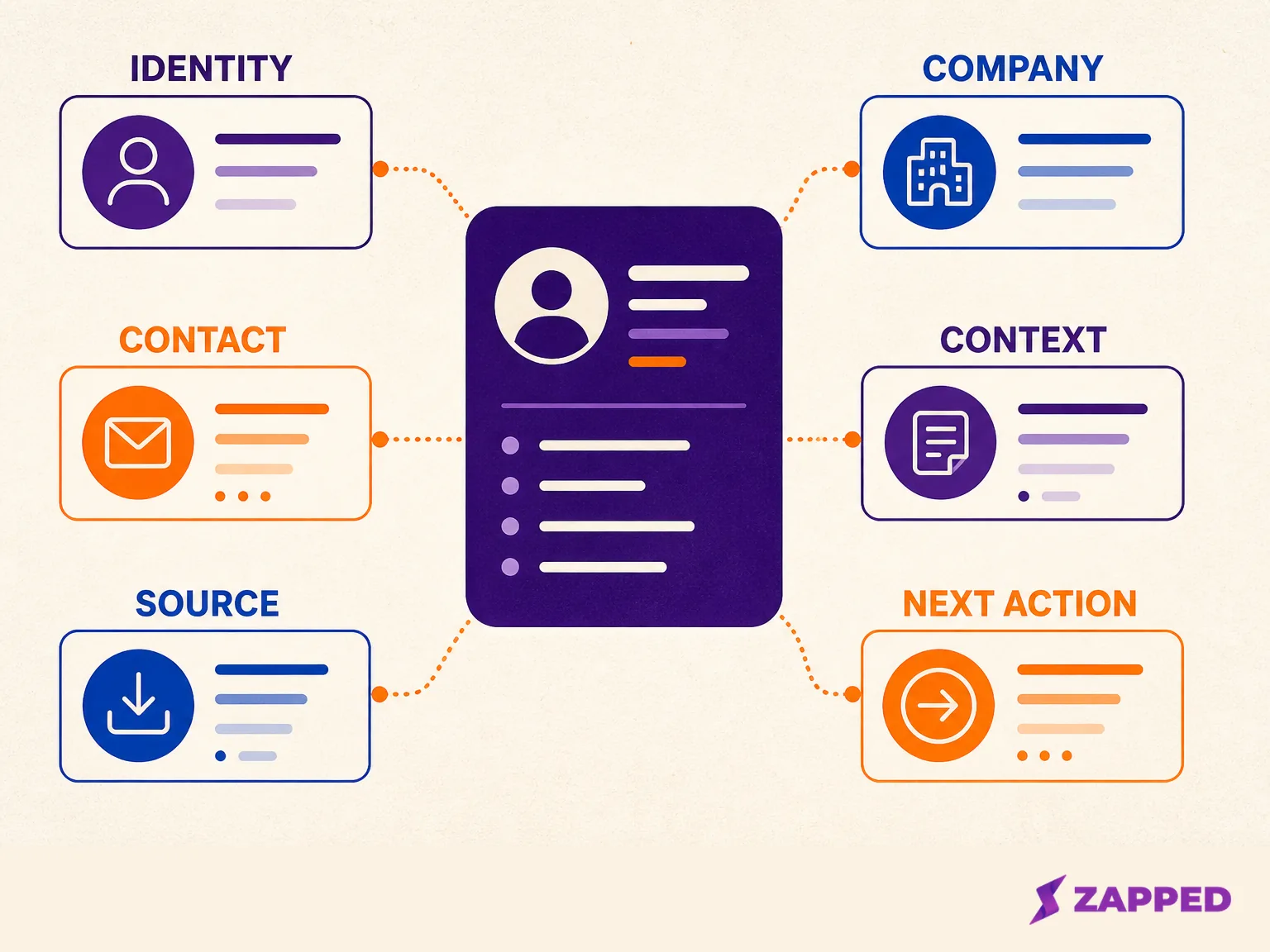
Do not copy every visible detail into a contact record. Keep the fields that make the person findable and the next action obvious.
| Field | What to keep | Why it matters |
|---|---|---|
| Name | The spelling the person uses | Search and recognition |
| Company | Current organization | Separates similar names |
| Role | Plain job title or function | Gives the conversation meaning |
| Contact route | Work email, mobile, or both | Makes the next action obvious |
| Website | Profile or company site | Recovers context later |
| Source | Event, referral, customer, or introduction | Helps filter the network |
| Note | What you discussed and the next step | Prevents the mystery contact problem |
Google's import template includes organization fields, websites, custom fields, notes, and labels. Use those fields deliberately instead of putting everything into Notes. A useful note is context. A phone number hidden in a note is a future data cleanup task.
Clean the record while the meeting is still fresh
Use one primary email and one primary phone number unless the person clearly gave you separate work and personal routes. Keep labels accurate. “Work” and “Mobile” are more useful than three unlabeled numbers that look identical in a hurry.
Write the company the way you will search for it. If a brand has a formal legal name and a public trading name, use the name you heard in the conversation and put the other in the organization or notes field. The goal is retrieval, not legal filing.
Add a next action that can be completed. “Follow up” is not a next action. “Send the pricing comparison after Tuesday” is. If there is no next step, record the useful context and leave the person alone until there is a reason to write.
Deduplicate before the list gets expensive
Deduplicate after each import batch, not once a year. Start with exact email matches, then compare phone numbers, company names, and recent notes. Do not merge two people merely because they share a name.
Google Contacts includes Merge and fix for duplicate listings, but it cannot merge contacts saved in different Google Accounts. That limitation is a useful warning: consolidate accounts or decide which account owns the record before you import a large list.
On iPhone, inspect the record before deleting the paper card or photo. If the contact came from an important introduction, keep the source note. The cleanup is successful when the record is shorter than the original card but more useful.
Back up the system you trust
iCloud Contacts keeps changes available across devices signed in to the same Apple Account. Apple explains the setup, and its iCloud guide explains that contacts can also be reached from iCloud.com and a Windows device.
For Google Contacts, export a small sample before a large import and confirm the names, phone numbers, and notes are where you expect. Google warns that large imports may need to be split, and that CSV or vCard formatting affects what lands in each field. A backup is useful only if you can open it and recognize the data.
Where Zapped fits
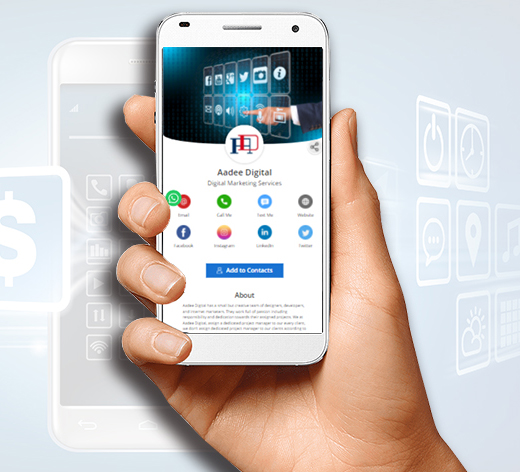
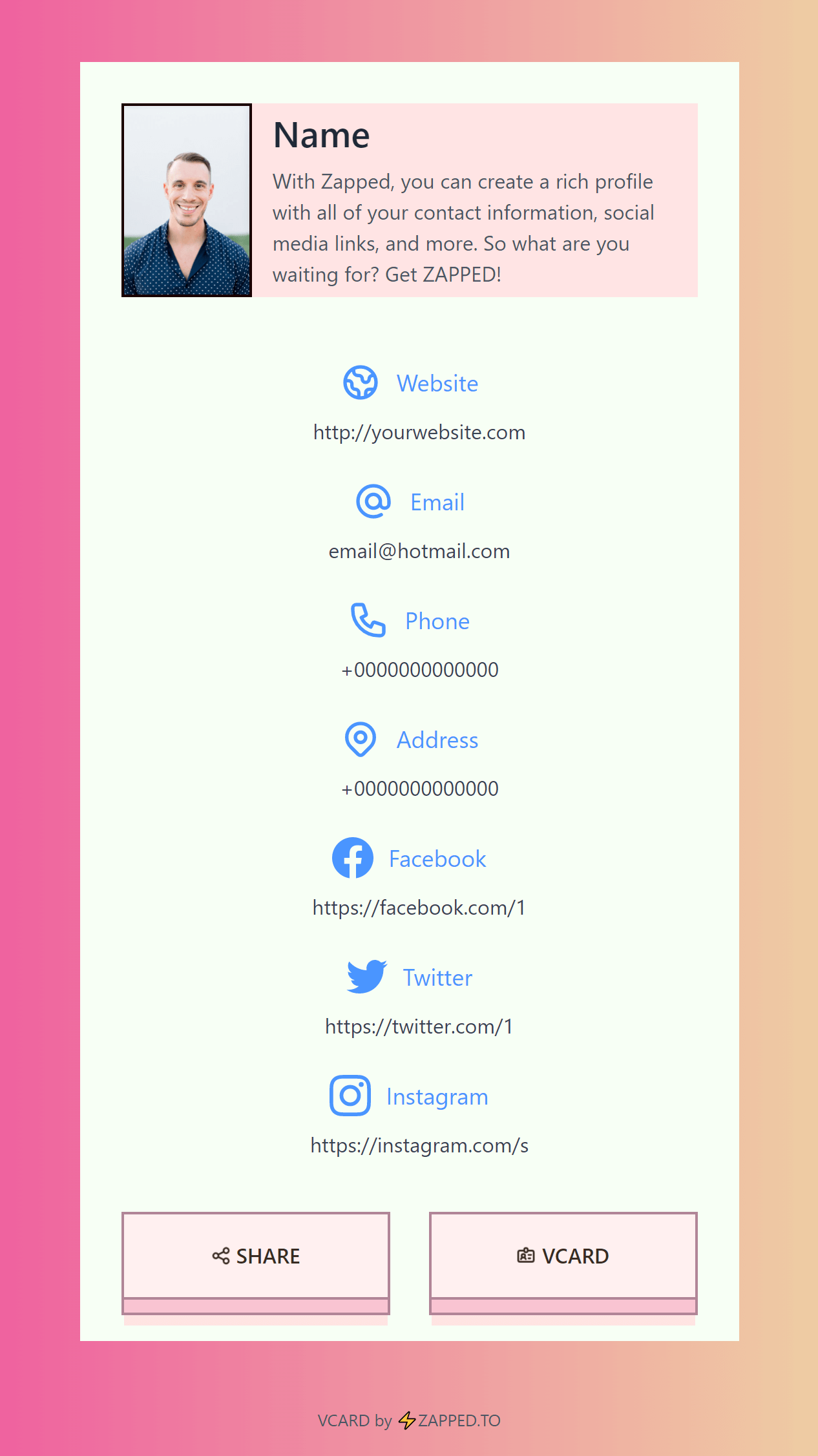
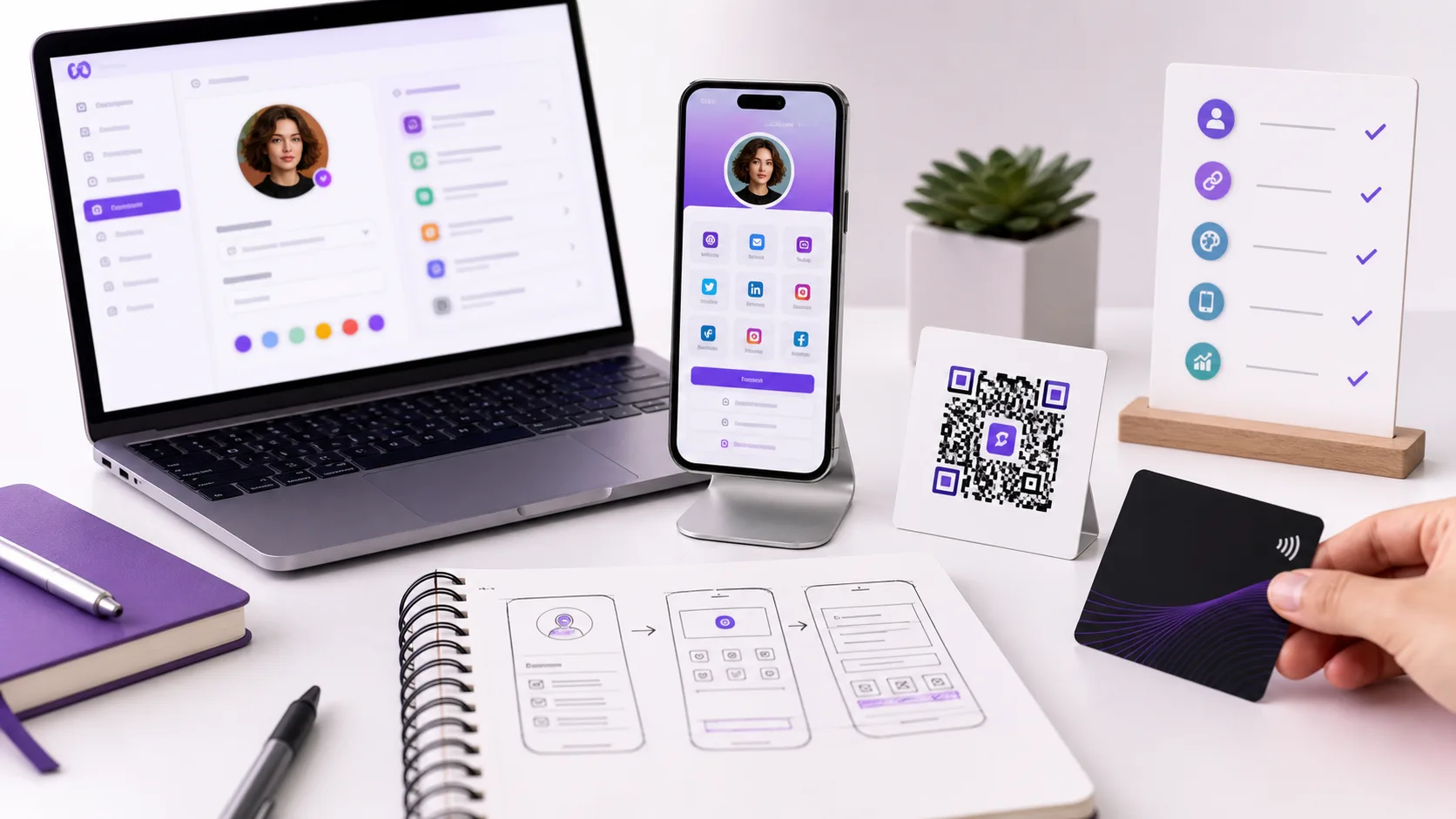
Contact organization starts after a conversation. The sharing step before that conversation can still be cleaner. Zapped creates a digital vCard that you can share by link, QR code, or NFC tap, and the public card can be updated without changing its URL. That means your own details do not need to be retyped every time your role, links, or next action changes.
For a team, Zapped can keep representative profiles consistent and show which cards, links, or sharing sources are getting attention. Zapped is a sharing layer, not a replacement for the contact system where your team stores relationship history. Use it to make the handoff easier to save, then keep the canonical relationship record in the tool your team actually maintains.
A weekly ten minute review
Once a week, search for contacts with no note, no primary email, or no clear source. Merge obvious duplicates. Add one next action to the few people worth following up with. Export or sync if you recently changed the account structure.
That small review beats a quarterly rescue project because the context is still recoverable. The goal is not a perfect archive of every card you have touched. It is a contact list you can trust when the next conversation starts.
Frequently asked questions
Is a business card scanner enough?
No. A scanner can reduce typing, but you still need to verify the fields, choose the canonical store, and add context. Treat the scan as a draft record.
Should I save business card photos?
Keep them temporarily when the source matters or the OCR is uncertain. Delete them after the contact record is correct and backed up. A photo folder is an inbox, not an organized contact system.
Is a spreadsheet a good contact database?
It can be a migration tool or a simple short list. It becomes fragile when several people edit it, duplicates accumulate, or you need phone actions and history. Move to a contact system or CRM when ownership and follow up need to be shared.