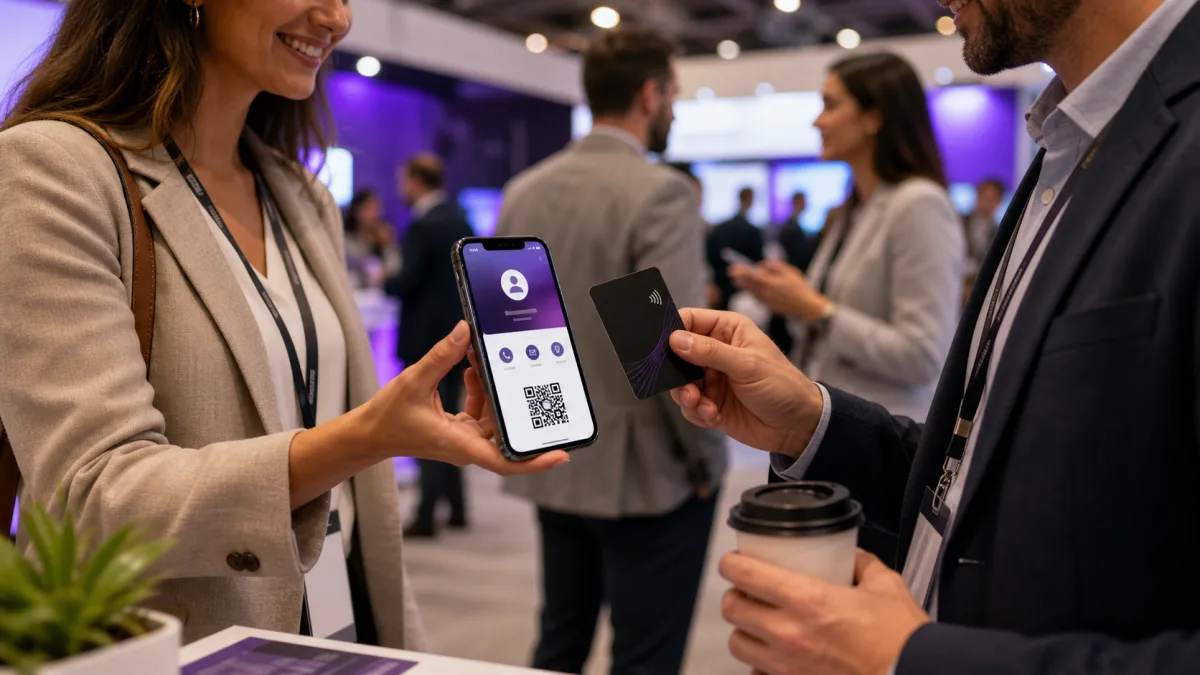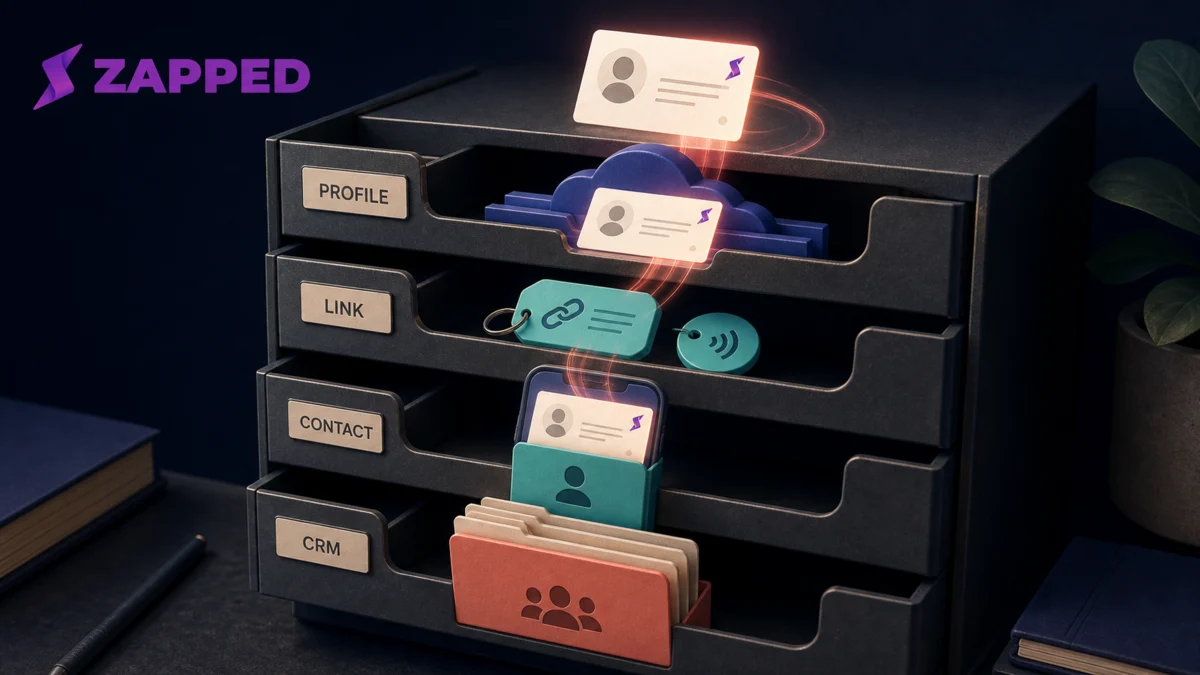
People often ask where a digital business card is stored as if it has one obvious home. In practice, the profile you edit, the link someone opens, the contact they save, and the record your team keeps can be four different copies.
The safest answer is to map the whole handoff. Start with the provider account that owns the profile, follow the URL or NFC destination, identify what the recipient saves, and then check whether a CRM, spreadsheet, email tool, or notes app receives another copy. How to share a digital business card explains the handoff methods. This guide explains what can remain after the handoff.
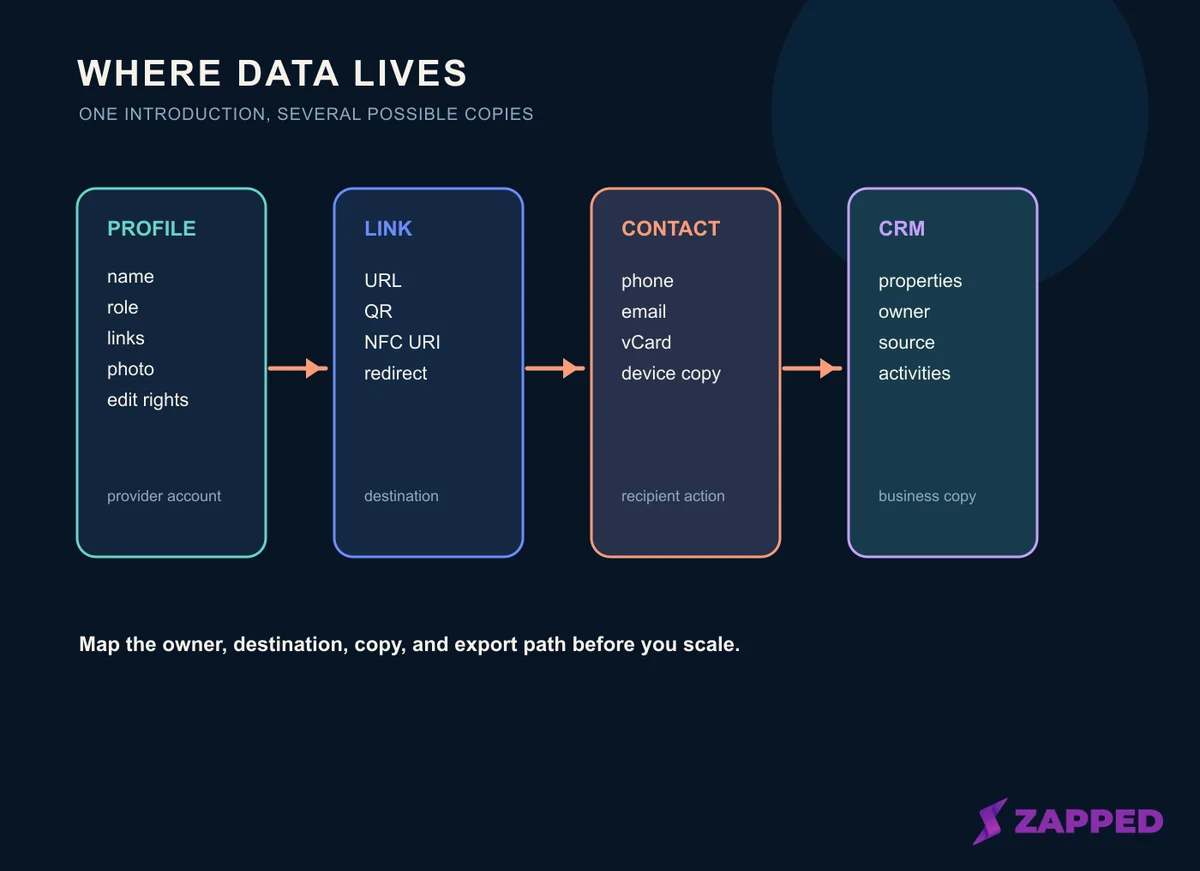
Conceptual storage map. A real workflow may contain fewer or more layers, depending on the provider and the recipient's action.
Quick answer
A digital business card can live in a hosted profile account, be represented by a URL or NFC tag, and be copied into a recipient's contacts or a CRM. The QR code or tag usually points to a destination. It is not automatically the profile database itself.
Before you buy or migrate, ask who owns the profile, where submissions are kept, what can be exported, how long data remains after cancellation, and whether deletion reaches copies outside the provider. A recipient may save a vCard, create a contact manually, bookmark the page, or do nothing beyond viewing it.
The four layers to map
1. The hosted profile
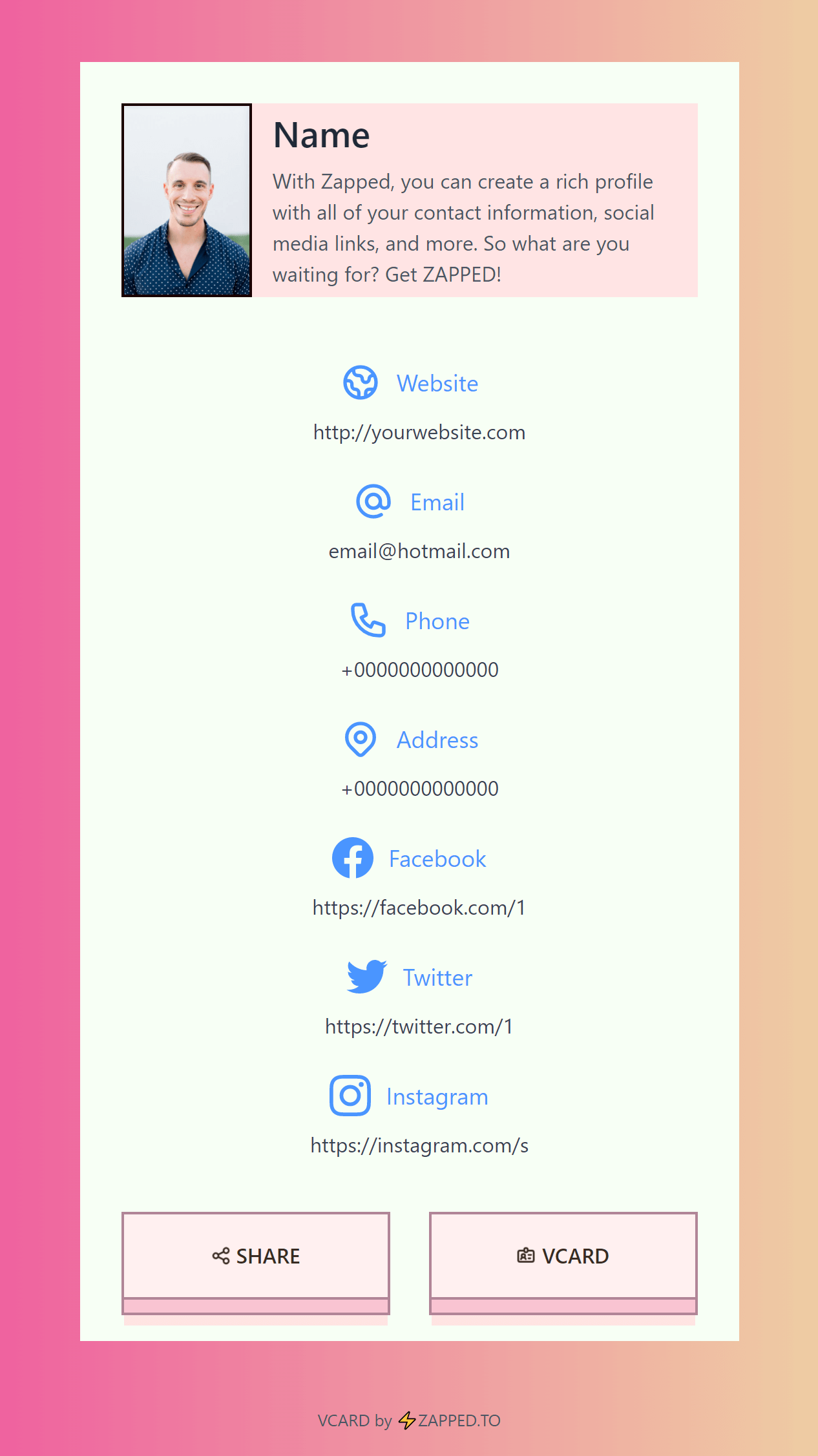
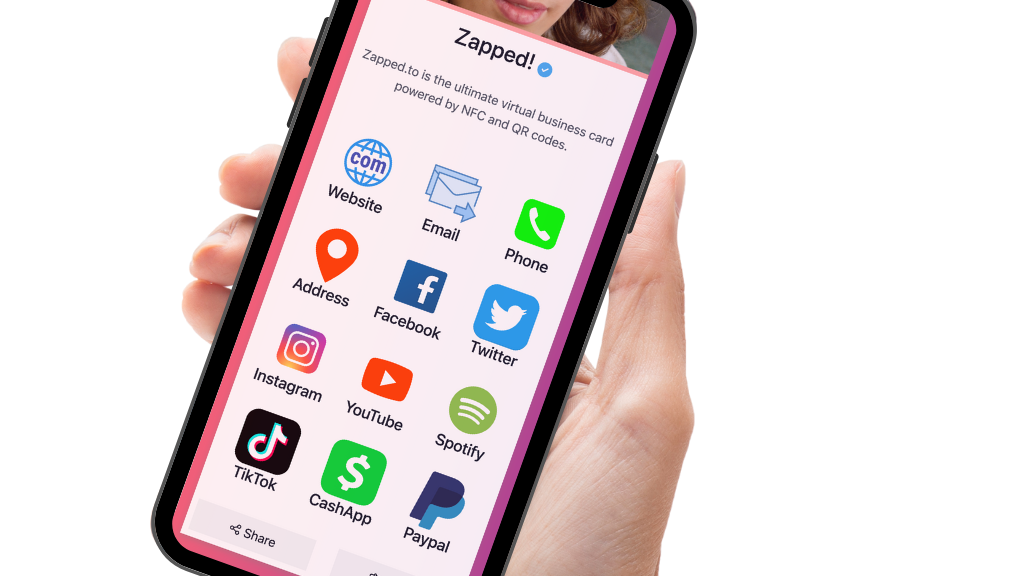
The hosted profile is the page you edit. It may contain your name, role, company, phone number, email address, photo, links, biography, booking route, and a contact download. Use the provider account as the place to check edit rights, profile URL ownership, media, analytics, team permissions, and lead forms. Treat each item as a question to verify rather than a universal provider feature.
Treat this as the first system of record only when the provider's terms and export tools support that assumption. A profile can be hosted by a vendor while your domain, CRM, email system, and recipient contacts remain outside it. Ask whether the account belongs to an individual, a workspace, or a company administrator.
2. The destination link
The destination is the address reached by a direct link, QR code, or NFC tag. It can be a profile URL, a redirect, a contact file, a booking page, or another action. If a tag points to a provider controlled redirect, the destination may be changed without reprinting the tag. Confirm that behavior before relying on it, because saved copies do not automatically change.
The NFC tag may contain a short URI, while the profile content lives on a server. Android documents NDEF URI handling for tags, which explains how a tag can carry a link.
Apple documents reading and writing NDEF tags through Core NFC on supported devices. These platform references explain tag behavior, but they do not tell you where a particular vendor stores its profile or analytics.
3. The recipient contact
The recipient's phone may keep the person as an account contact, a device only contact, a SIM contact, or a contact synchronized from another service. On iPhone, Apple documents multiple contact accounts, including iCloud, Exchange, Google, and Yahoo. That means the Contacts app is a view across possible sources, not proof that every contact belongs to iCloud.
Google makes a similar distinction on Android. Its documentation says some contacts can remain in device storage and may not sync across Google services or other devices where the user is signed in.
Google contacts can sync to the account and appear on a new device after signing in, according to Google's contact guidance. Before troubleshooting a missing card, check the account label and storage location instead of assuming the phone lost the record.
4. The business copy
A team may copy a new contact into a CRM, sales inbox, spreadsheet, email platform, calendar, help desk, or notes system. For example, HubSpot's contact model includes records created through imports, forms, conversations, and other tools. A different CRM may use different objects, properties, history, associations, and activities.
HubSpot describes contacts as records with properties and documents imports that map file columns to those properties. It also lists multiple creation paths, including imports, forms, conversations, and other tools. Use that as an example of CRM behavior, not as a universal rule for every platform.
If your card's lead form sends a submission to a CRM, ask whether the provider keeps its own copy, whether the CRM receives a source URL, whether consent text is retained, and which system controls correction or deletion. A connection can create two records even when the user sees one workflow.
What is actually stored in each layer?
The same introduction can become different fields as it moves through the workflow. A hosted profile may store a display name and a profile photo. A vCard may carry a formatted name, organization, title, phone, email, URL, and image. A CRM import may map those values into separate properties and add owner, lifecycle, source, and activity fields.
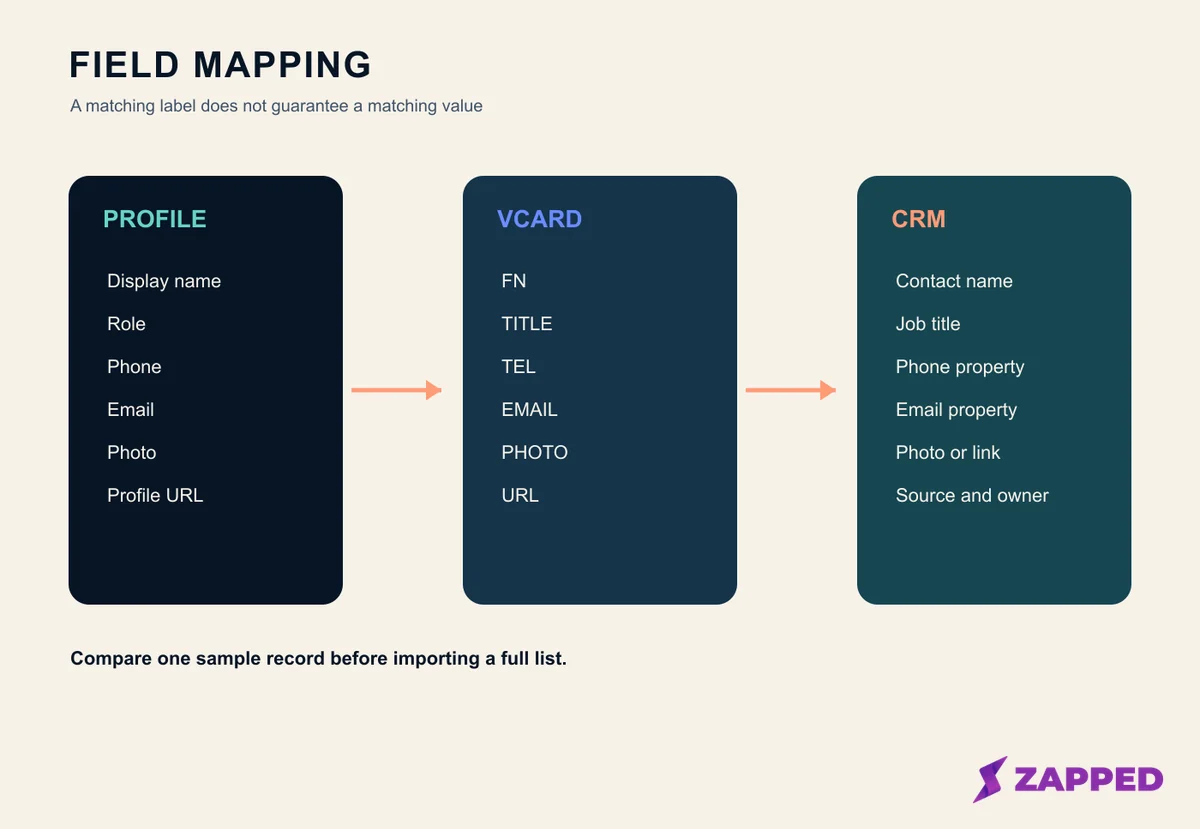
Generic field mapping. A matching label does not guarantee that the destination system preserves the same value, format, history, or permissions.
Use a small sample record to test the journey. Pick one phone number, one email address, one link, one photo, and one note. Write down how each appears in the profile, the downloaded contact file, the phone contact, and the CRM. If a field matters, do not rely on a successful import message alone.
Name and role
Names can be split into first, last, middle, prefix, suffix, and formatted display fields. A job title can land in a title field, a note, or a generic text property. Decide which value your team will search and which value should appear on a recipient's phone.
Phone and email
Phone numbers may be normalized, labeled as work or mobile, or stored as plain text. Email addresses can become a unique identifier in one CRM and a secondary value in another. Confirm the country format and the deduplication rule before importing a large list.
URL and profile photo
A URL can remain a live profile destination or become a static link copied into a contact. A photo may be embedded in a vCard, referenced by a URL, omitted by the exporter, or blocked by an import rule. Never assume that an image displayed on the profile will also appear in the saved contact.
Notes and source context
The most useful operational context is often not part of the card itself. It might be the event, meeting date, consent status, owner, campaign, or next action. Decide where that context belongs before a lead form or import starts creating records. Otherwise, the contact may be technically stored but operationally unsearchable.
Apple, Google, and CRM storage are not interchangeable
Apple says that when iCloud Contacts is enabled, contacts are stored in iCloud and changes are kept up to date across devices using the same Apple Account.
Apple also lets users import and export vCards from iCloud.com, including a backup of all contacts. Those are specific iCloud workflows, not proof that every contact visible in the iPhone Contacts app is in iCloud.
Google's documentation says Google contacts remain in the Google Account and can sync to a new device after signing in. It also warns that device or SIM contacts can have a different path. Google supports CSV and vCard export, but exporting is a separate action from deleting the account copy.
HubSpot's export documentation shows why a CRM needs its own audit. A contact export can include current and historical properties, custom properties, activities, and associations when the user selects them and has permission. A simple CSV of name and email is not automatically a complete CRM migration.
What happens when the profile changes?
When you edit a hosted profile, a person who opens the live URL again may see the current profile while a saved vCard remains a separate contact copy. A CRM record may have imported the original values and then enriched them with internal notes. Check the live link and each downstream record separately when details change.
This is why an editable profile is useful but not magical. It keeps one destination current. It does not guarantee that every recipient contact, printed record, exported file, or CRM property updates itself. If the profile's phone number changes, decide whether the team needs a contact refresh campaign or a CRM update as well.
Storage, ownership, and deletion questions
Ask these questions before choosing a provider or approving a team rollout:
- Who owns the profile account and the profile URL?
- Can an administrator access or transfer a departing person's profile?
- Does the provider export profile fields, contacts, leads, photos, analytics, and history separately?
- What file formats are available, and which fields are included?
- Does a lead form send data to a CRM, and does the provider keep a copy?
- What is the retention policy after a paid plan ends or an account is closed?
- How can a person request correction or deletion?
- Which copies remain in the recipient's phone, a CRM, email, or backup?
Export formats have limits. RFC 6350 defines the vCard format, while HubSpot's import guidance shows that destination mapping and identifiers still matter. Treat a vCard or CSV as a field transfer to check, not a promise that photos, custom history, associations, or activities will survive an import.
For a security focused review of these questions, see the most secure digital business card checklist. For a team rollout, digital business cards for teams covers administration and offboarding concerns. Digital business cards for companies adds the broader rollout context.
Failure cases that reveal the real storage location
The contact appears on one phone but not another
Check the account label first. Apple says a contact can belong to a different account, while Google distinguishes device, SIM, Google, and other cloud service contacts. Export a small sample, identify the source, and confirm the destination account is signed in and syncing.
The profile is current but the saved contact is stale
That is usually a copy problem, not proof that the profile failed. Compare the live URL with the contact record's saved phone, email, and link. Decide whether the recipient should refresh manually or whether your team should update its CRM.
A CRM has duplicates
Check the import identifier and mapping rules. HubSpot documents unique identifiers, property mapping, blank cell behavior, and association requirements. Other CRMs use different rules. Keep the source URL and meeting context in a controlled field so a duplicate can be investigated instead of merged blindly.
A profile was deleted but the contact remains
Deleting a hosted profile cannot be assumed to delete a recipient's saved contact or a CRM copy. The recipient device, cloud account, CRM, email history, and backup may have their own retention paths. Review each system's policy and access controls.
The link opens a blank or unavailable page
The URL or NFC tag may still be present while the hosted destination has changed, expired, or been disabled. Keep a QR or short URL fallback under a domain your organization controls when the workflow is important. The best digital business card guide can help compare control and portability questions.
A practical storage audit
Use this sequence for one sample card before a migration or team launch:
- Copy the profile URL and record who can edit it.
- Scan the QR code or tap the card, then write down the exact destination.
- Save the contact on a test phone and note the account or storage label.
- Export the contact as vCard or CSV and compare the fields with the profile.
- Import a copy into the target CRM and review mapping, duplicates, photo, notes, source, and owner.
- Find the provider's export, retention, correction, and deletion policy.
- Delete only the test record and confirm which systems changed and which did not.
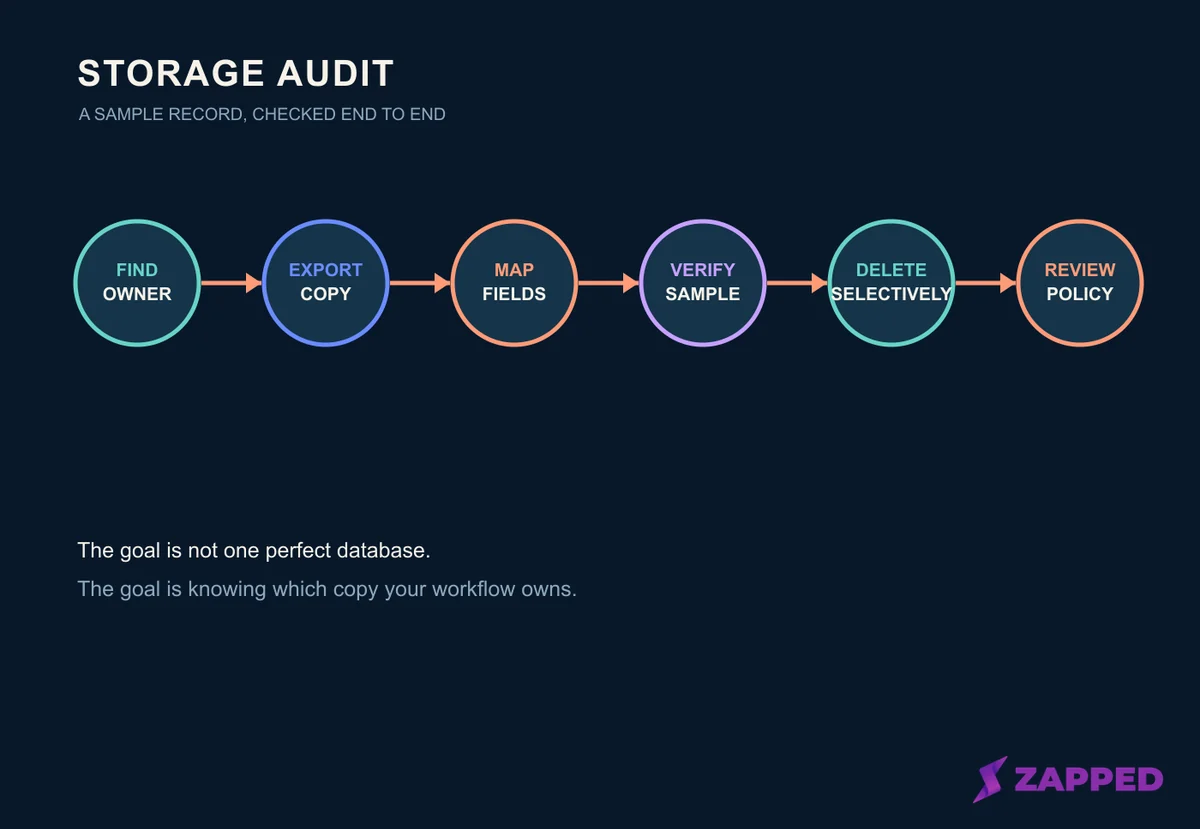
Audit path for a sample record. It is a process checklist, not a claim that any provider performs these steps automatically.
Final answer
Digital business cards are best understood as a chain of possible copies, not a single file in a single place. The hosted profile is one layer. The link or tag is another. A recipient contact and a business CRM can each become independent records.
Map the ownership, destination, recipient account, CRM property, export format, and deletion path before you scale the workflow. That small audit tells you where the useful data lives, which copy is authoritative, and what will need attention when a person changes roles, a profile is canceled, or a vendor is replaced.
Sources
- Apple: How iCloud keeps information up to date
- Apple: Add or remove accounts in Contacts
- Apple: Import and export contacts on iCloud.com
- Google: Back up and sync device and SIM contacts
- Google: Export, back up, or restore contacts
- Android: NFC basics
- Apple: Core NFC
- HubSpot: Create contacts
- HubSpot: Understand the import tool
- HubSpot: Format import files
- HubSpot: Export contact data
- RFC 6350 vCard format specification