Two situations get you here: a business card just opened on your phone after a tap or a scan, or you photographed a paper card and now have a picture instead of a saved contact. Either way, the move that always works is the same: open Google Contacts, use its own Import option, and point it at whatever file or fields you end up with.
Quick answer
If a card opened after a tap, look for a download or Add to Contacts button on the page itself. Most digital cards, including ours at Zapped, build that button around a standard contact file Google Contacts already knows how to read.
If you photographed a paper card instead, Google Lens can pull the name, phone number, and email off the image for you to save. When neither route saves cleanly, Google Contacts' Import option is the fallback that works regardless of how you got here.
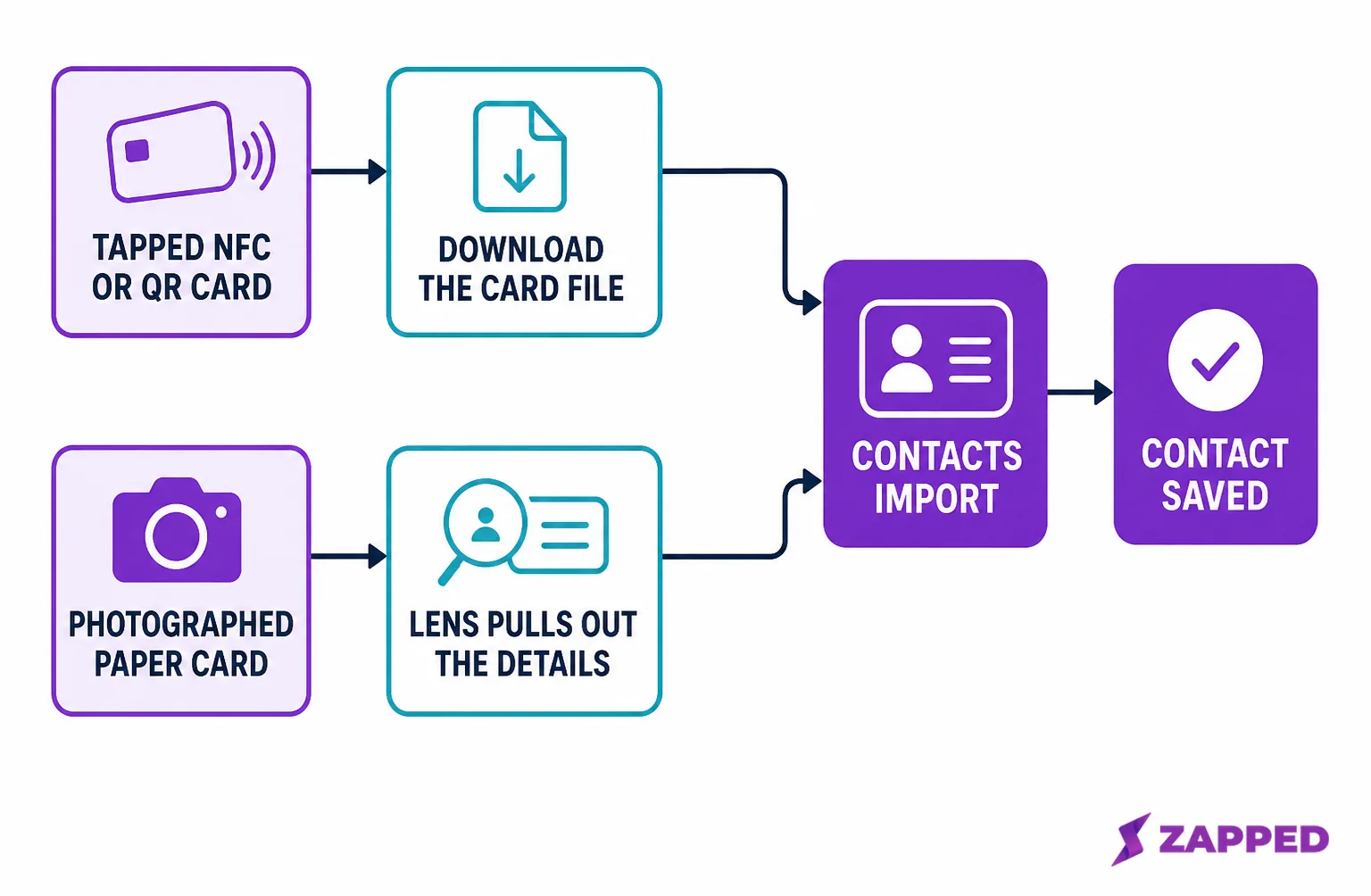
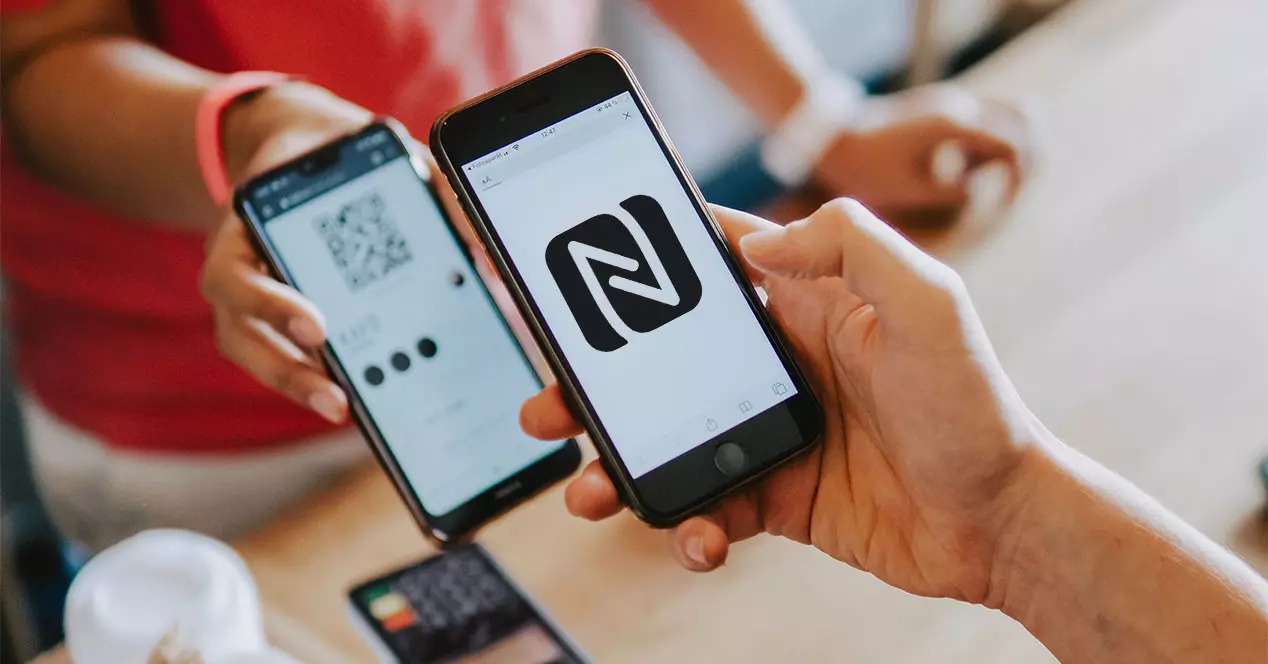
If you tapped an NFC or QR card
A tap should open the card's own page in your browser automatically. If nothing opened at all, that's a scanning problem, not a saving problem, and scanning on Android covers the phone settings and Android version behavior that get in the way before this step even starts.
Landing here from an iPhone instead means the mechanics are close but not identical; see scanning on iPhone.
Once the page is open, look for a button labeled something like Download, Add to Contacts, or VCard. That button usually builds a vCard file, the standard format defined by IETF RFC 6350 that both Android and Google Contacts already read without any extra app.
Tap it, and your phone either saves the contact right away or hands you a file to open next. Either way, the Google Contacts import step further down covers what to do with that file if it doesn't save on its own.
If you're not sure what kind of card you're even holding, see how NFC business cards work before assuming the tap itself did something wrong.
If you photographed a paper card
Open the photo in Google Photos, tap the Lens icon, and Google's own help page states you can save the phone number or address Lens finds straight to a contact.
An independent report from Android Police, dated March 30, 2025, describes something narrower. It found Lens highlighting the name, phone number, and email on the card image so you can tap or copy each one into your contacts app, rather than importing the entire card as a new contact in one action.
Other Google Photos users have separately reported the same shift: a save option that once added the whole card in one action no longer appears for them.
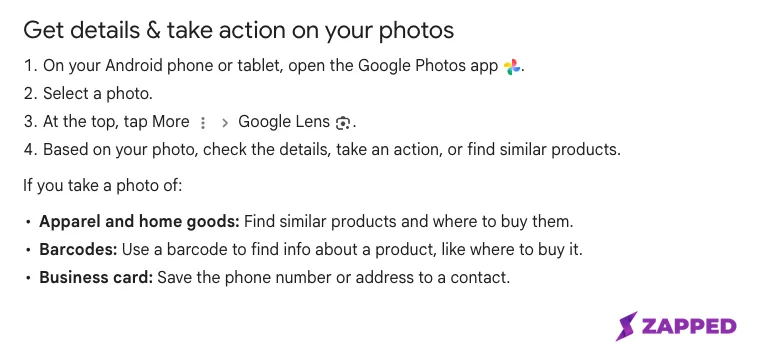 Source: Google Photos Help, "Get info about your photos and surroundings," captured 2026-08-08.
Those two accounts don't agree, and we're not going to pretend they do. Treat the safer expectation as Lens handing you individual details, a name here, a phone number there, rather than one tap finishing the whole contact for you. If your phone does add the entire card in one action, that's a bonus, not something to plan around.
The fallback that always works: Google Contacts import
Whatever you end up with, a vCard downloaded from a tapped card, a file exported another way, or a set of fields you copied out of Lens, Google Contacts can take it from here on any device, including an iPhone, through a normal browser.
Go to Google Contacts, click Import in the left menu, choose Select file, pick your vCard or CSV file, and click Import. Google opens the imported contact automatically once it finishes.
On an Android phone, the Contacts app method. Open Contacts, tap Organize (called Fix and Manage on some versions), tap Import from file, choose an account if you have more than one, and select the file.
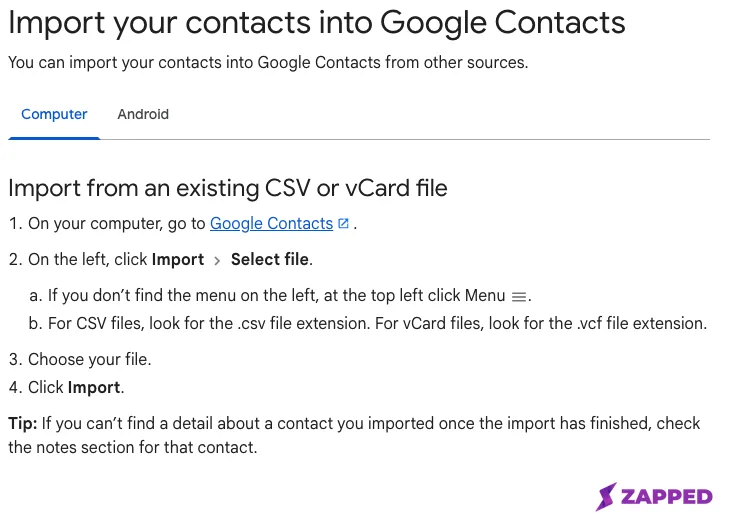 Source: Google Contacts Help, "Import your contacts into Google Contacts," captured 2026-08-08.
One limit worth knowing if you're clearing out more than a single card: Google's import limits. That matters after an event with a stack of cards, not for one card at a time.
If the card is a Zapped card
A Zapped card carries its own answer to this, worth knowing if the card that just opened is one. Every public Zapped card can show a button labeled VCard. Tapping it builds a contact file on the spot, pulling in that card's name, company, job title, phone, email, address, and any link blocks the owner added, then downloads it in the same format Google Contacts already imports.
That button is turned on by default when a card is created, though the owner can turn it off in the card's settings. So most cards you tap should have it, and it works the same way on every Zapped plan, including the free plan; NFC and QR sharing are not a paid upgrade.
If the card you tapped had no button like that at all, or the tool behind it only exports a name and phone number and calls it done, the problem is the card, not your phone.
If you're the one who handed that card out, pointing it at a Zapped card instead closes the gap. The VCard button ships turned on, works on every plan including free, and keeps updating what it downloads whenever the card's details change, without touching the tag again. If the tag itself is what needs setting up, see the Zapped help center guide to writing a link to NFC.
When it still will not save
Two different problems get lumped together as "it isn't working," and they need different fixes.
If nothing opens at all when you tap or scan, the tag or code itself is the problem, not the saving step. NFC business card troubleshooting covers locked tags, chip memory limits, and range issues that stop a card from opening in the first place.
If the card opened, or the photo scanned fine, but the save options on your phone don't match what we describe here, that's most likely the Lens behavior shifting under you rather than something broken on your end. Reach for the Google Contacts import instead of hunting for a button that may not be there anymore.
Once a contact is safely saved, the next question is usually getting it onto a second phone or a replacement device. copying a saved card covers that step.
Sources
- Google Photos Help, Get info about your photos, for the Lens business card to contact behavior, captured 2026-08-08.
- Android Police, Google Lens: to make life easier, March 30, 2025, for the reported removal of one tap whole card import.
- Google Photos Community, the missing add-to-contacts thread, for corroborating user reports.
- Google Contacts Help, Import your contacts into Google Contacts, for the Import steps, the Android Contacts app steps, and the 3,000 and 25,000 contact limits, captured 2026-08-08.
- IETF, RFC 6350, vCard Format Specification, for the vCard 4.0 standard that Android and Google Contacts read.