Unlock your phone, confirm NFC is turned on, and hold it near the card. On most Android phones the card's page opens right away. On a phone running the newest Android version, a notification appears first, and you have to tap it before anything opens.
That second case is not a failure. It is Android's newest tag scanning behavior working exactly as designed, and it explains a lot of the "I tapped it and nothing happened" reports showing up this year.
Quick answer
Wake the screen, unlock the phone, and check that NFC is on. The setting sits in a different Settings menu depending on the phone's brand. Hold the back of the phone near the card and wait a second without moving it away.
On Android 15 and earlier, and on most Android 16 phones, the destination opens directly. On a phone updated to Android 17, an "open link" notification appears instead, and tapping it is what actually opens the page.
Confirm the card is actually NFC
Not every card that looks metallic or has a chip inside is NFC. Some use a different radio technology that a phone cannot read the same way. If you are not sure what is in your hand, check whether the card is RFID or NFC before assuming your phone is doing something wrong.
Key takeaways
- The NFC toggle lives in a different Settings menu on Samsung phones than on Pixel and most other Android phones.
- The screen has to be unlocked, not just on, before Android will read a tag.
- On Android 15 and earlier, tapping a card with a web link opens the page directly.
- Android 16 changed how that same tap is handled behind the scenes, though the page still opens the same way.
- Android 17 adds a required tap on a notification before the page opens at all.
- Android never shows a list of apps to choose from when you scan a tag. It hands the tag straight to the one app built to handle it.
Turn on NFC: where the toggle actually lives
Android phones do not all put the NFC toggle in the same place, and that is a common reason people give up before they even get to tap the card.
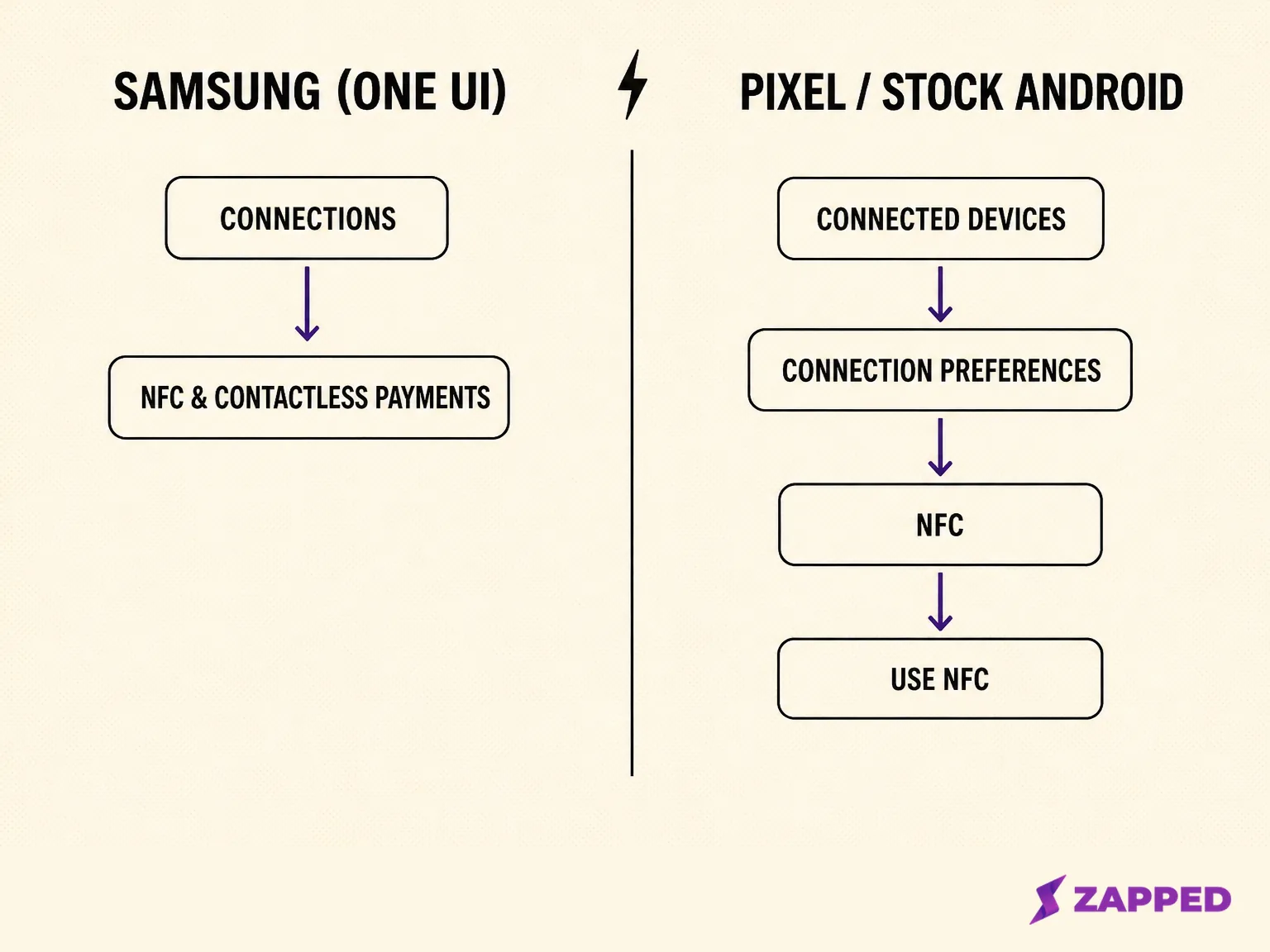
On a Samsung Galaxy phone, open Settings, then Connections, then NFC and contactless payments. That same screen also shows Samsung's own diagram for where to hold the phone against the card, and it names two things that block a read: certain magnetic covers and cases sold to hold credit cards or IDs, and lit LED covers. Remove either before trying again; Samsung's NFC troubleshooting page documents both causes.
On a Pixel phone, or most other Android phones running close to stock Android, open Settings, then Connected devices, then Connection preferences, then NFC, and turn on the Use NFC switch; Google's Pixel help describes the same path.
Get this step wrong and nothing else here will work. Follow instructions built around the wrong brand and you will hunt through menus that do not exist on your phone, then conclude it has no NFC setting at all.
How to scan an NFC business card on Android
-
Wake the phone and unlock the screen. A locked or dark screen will not scan, which stock Android's behaviour on a locked phone explains.
-
Confirm NFC is on, using the path for your phone's brand from the section above.
-
Hold the back of the phone near the card, roughly where the antenna sits on your model, generally somewhere near the top or center of the back.
-
Wait a moment without moving the phone away.
-
If the page opens directly, you are done. If a notification appears instead, tap it to continue.
-
Check that the page is the right one before treating the tap as finished.
There is no menu asking which app should handle the tap. Android's scanning system is built to hand the tag straight to the one app that fits, because the read range is so short that pausing to choose an app would mean moving the phone away from the card and breaking the connection.
What actually happens depends on your Android version
This is the part most guides miss, and it is the actual answer to "why did nothing happen when I tapped it." Android's tag handling changed twice in the past year, and which behavior you get depends entirely on which version your phone is running.
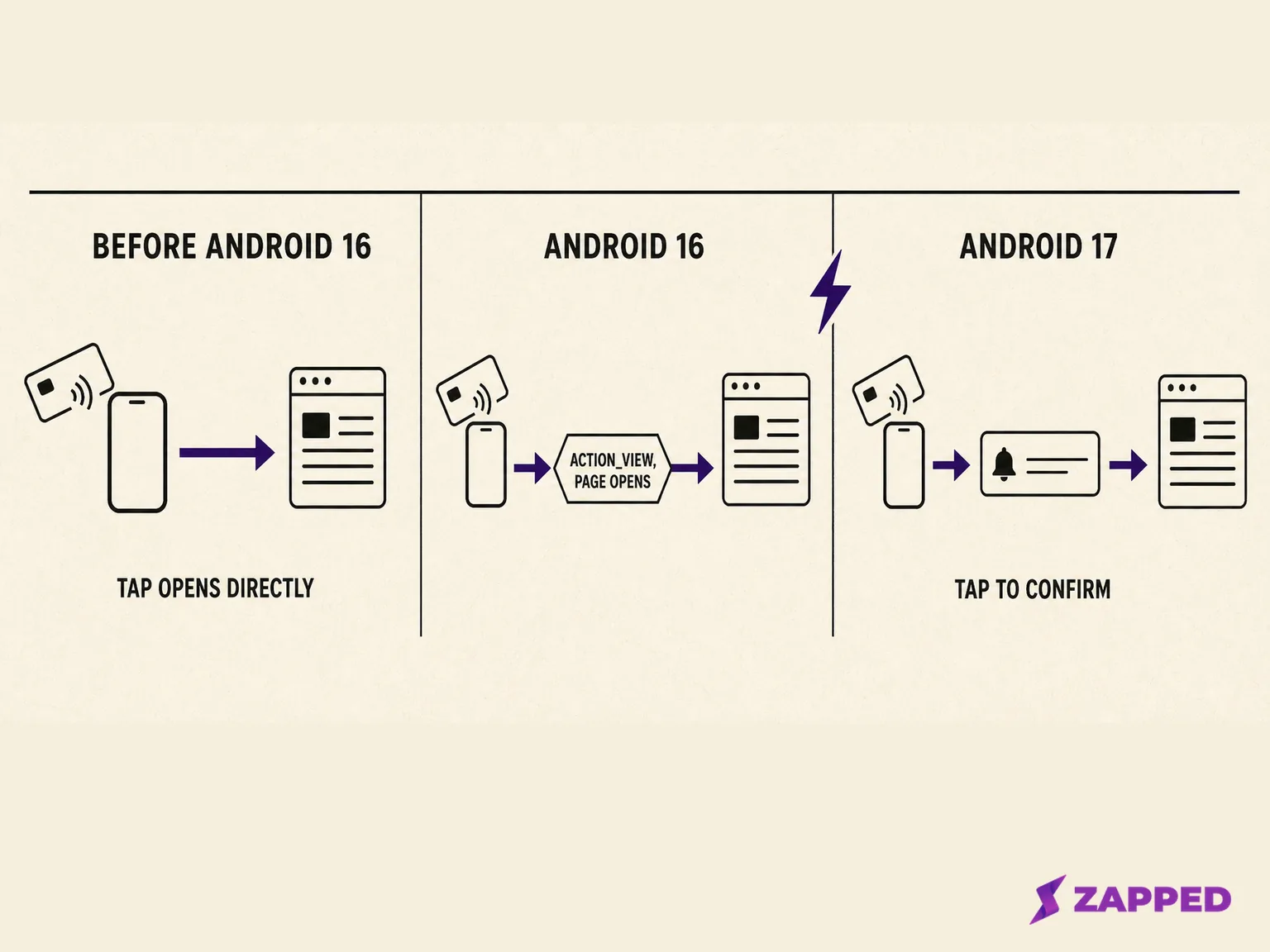
On Android 15 and earlier, tapping a card whose chip stores a web link opens that page immediately. No extra step, which is the behavior most people still expect from an NFC tap.
Android 16 changed how that tap gets handled behind the scenes. A web link tag now triggers what Android calls the ACTION_VIEW intent, replacing the older ACTION_NDEF_DISCOVERED intent it used before. From where you are standing, the page still opens the same way, but this change is what sets up what comes next.
Android 17 is where the difference becomes visible. Scanning a card with a web link now surfaces an explicit "open link" notification, and Android's release post confirms the page does not open until you tap it.
Android reached version 17 on June 16, 2026, arriving on supported Pixel phones first, with other Android brands adding it later on their own schedules. Plenty of phones in use right now have not updated yet, so you will only see this extra tap once your own phone has.
A Home Assistant Android app user reported exactly this kind of confirmation tap appearing in late June 2026, on a Xiaomi phone that had not needed one before. The thread does not settle whether that specific case traces to the platform change above or to something the app itself changed.
Either way, it shows the confirmation tap is already something real people are running into, not a future possibility. A similar confirmation dialog was reported on a different phone back in 2020, so the idea is not entirely new. What changed with Android 17 is Google formally documenting it as standard behavior.
Why a notification, not an instant open
The notification is not an error, and it does not mean the card or the phone is broken. It is Android 17 doing exactly what Google says it should, asking you to confirm before opening a link from a tag.
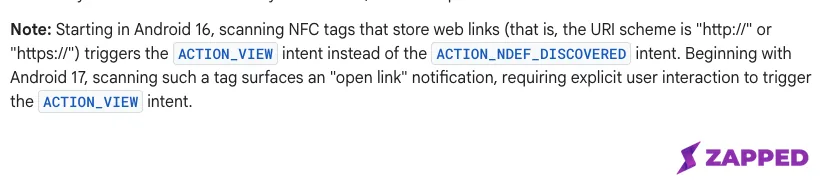 Source: Android Developers, NFC basics, captured 2026-08-06.
A related Android setting also lets you block a specific app from handling future tag scans if you want to. That is worth knowing exists, but it is not something you need to touch just to read one card.
This is not Android Beam
If someone tells you NFC business cards stopped working because Android killed Beam, that is a different feature and an old rumor. Beam let two phones share files by holding them back to back, and Google retired it in Android 10.
Reading a tag, which is what happens when you tap a business card, was explicitly unaffected and kept working the same way it always had. If you want the fuller picture of what an NFC business card actually is, see how NFC business cards work.
If nothing happens, check these in order
-
Is the screen actually unlocked, not just lit up.
-
Is NFC turned on, at the path for your phone's brand.
-
Is a case, magnetic wallet insert, or lit LED cover sitting over the antenna.
-
Did a notification already appear that you have not tapped yet.
These four cover what you can check on your own phone in under a minute.
If the card still will not read after all four, the problem is more likely the tag itself, its stored destination, or the distance and hardware involved. That deeper troubleshooting belongs in a separate guide: NFC business card troubleshooting covers locked tags, chip memory limits, and range problems in full.
Reading is different from programming
Everything above covers reading a card someone else made. If this is your own card and you need to change what it opens, that is a separate task called programming or writing the tag, using a different app and a different set of steps. See how to program an NFC tag with Android for that workflow.
If you picked up this guide on an iPhone by mistake, the process looks similar but is not identical. See how to scan an NFC business card on iPhone instead.
If it is your card, check the destination first
When a notification appears but opens the wrong page, an old page, or nothing useful, check what the tag actually points to before assuming the chip is damaged. A tag that reads successfully every time can still send people to a dead link.
Once you know what the card opens, you can also look at whether that data can be copied to another phone if that is your next question.
Where Zapped fits
A card that reads cleanly but opens a dead page or an old offer has a destination problem, not a phone problem. Point it at a Zapped profile instead and the page opens in any browser with nothing to install, so you can fix what it shows without touching the tag again.
NFC sharing works the same way on every Zapped plan, including Free, so swapping a dead destination for a live one is not a paid upgrade. To program the card with the new link, see the Zapped guide to programming an NFC card.
FAQs
Do I need an app to scan an NFC business card on Android?
No, not for a standard card with a web link. Android hands the tag straight to your browser or the registered app. One exception: an app already open and watching for a tag can intercept the scan, per Android's own advanced NFC documentation.
Will every Android phone show the "open link" notification?
No. Only phones that have actually updated to Android 17 show it. Plenty of phones are still running Android 15 or 16 and will keep opening the page directly until they update.
Can I scan a card with the phone locked or the screen off?
No, not on a standard, unmodified Android phone. That is a deliberate security choice, not a bug, so a locked phone cannot be used to trigger something like a payment without you unlocking it first.
Does scanning save the contact automatically?
Not by default. Scanning only opens whatever the tag points to. Saving a contact is a separate action the page itself has to offer.
Sources
- Android Developers, NFC basics, for the tag scanning system, the screen unlock requirement, the Android 16 and 17 behavior changes, and the reasoning against showing an app choice dialog.
- Android Developers, Advanced NFC, for how an already open app can intercept a tag scan differently.
- Android Developers, Behavior changes: all apps, Android 10, for the Android Beam deprecation and confirmation that tag reading was unaffected.
- Android Developers Blog, Android 17 is here, for the stable release date and rollout order, independently reconfirmed against the live post.
- Samsung, Troubleshoot NFC issues on Galaxy devices, for the Samsung toggle path and documented interference causes.
- Google, Pixel Phone Help, NFC and contactless payments, for the Pixel toggle path.
- XDA Developers, NFCScreenOff mod enables scanning NFC tags when your Android phone is locked, for why stock Android blocks scanning while locked.
- Home Assistant Android, GitHub issue 7095, for a dated report of the confirmation tap appearing on a real device.
- Home Assistant Android, GitHub issue 876, for an earlier, similar confirmation dialog report from 2020.