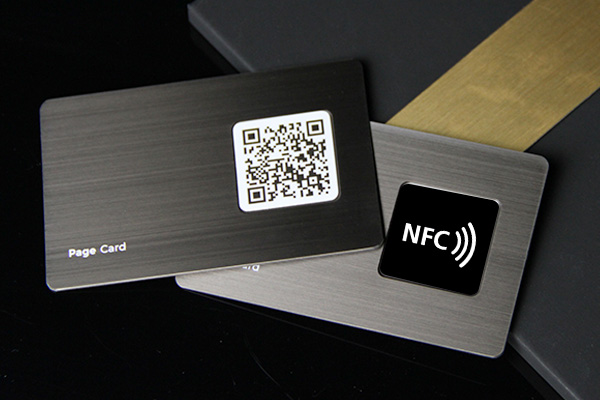
Android phones are usually flexible NFC tools. If your Android phone has NFC and you have a writable NFC tag, you can write a website link, text record, app action, or digital business card URL to the tag with an NFC writing app.
Quick answer
To program an NFC tag with Android, turn on NFC, open an NFC writing app, choose a URL record, paste your digital business card link, tap write, and hold the tag near the phone's NFC area until the app confirms the write. Test the tag on Android and iPhone before using it publicly.
Key takeaways
- Android supports reading and writing NDEF data on compatible NFC tags.
- The most reliable business-card payload is a URL to an editable profile.
- Writing a URL to a writable tag is the normal business-card use case.
- The best Android workflow is to write a profile URL, then test the tap on both Android and iPhone.
- If you need repeatable team cards, a managed digital profile is easier than rewriting tags manually.
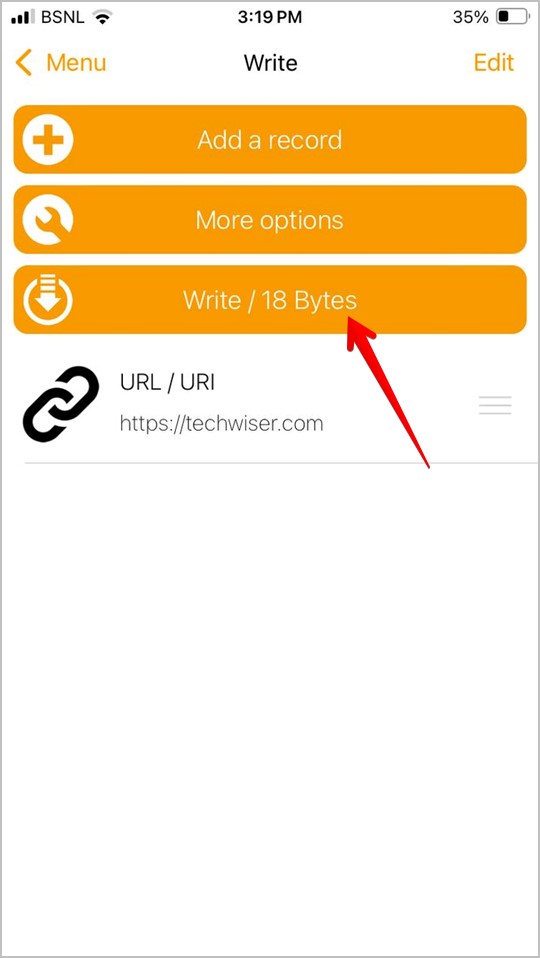
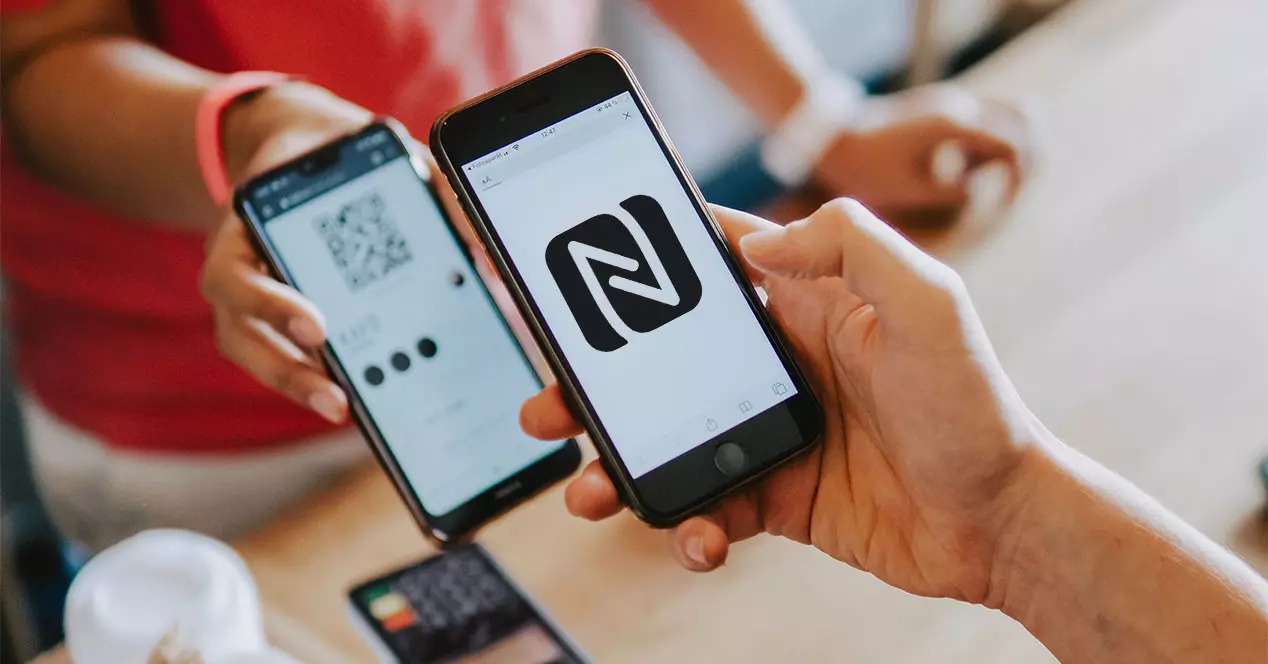
Visual reference: NFC Tools Android screenshot from TechWiser's NFC tag programming guide.
What Android NFC can do
Android's NFC framework supports common NFC tasks such as reading and writing NDEF messages. For everyday users, that means an Android phone can write simple records to compatible tags when an NFC writing app handles the technical details.
Useful NFC tag actions include:
- Opening a website.
- Opening a digital business card.
- Sharing a contact link.
- Launching an app or app deep link.
- Connecting to some device workflows.
- Triggering a personal automation.
What you need
To write a tag with Android, you need:
- An Android phone with NFC.
- NFC turned on in settings.
- A writable NFC tag or card.
- An NFC writing app, such as NFC Tools on Google Play.
- A short destination URL or record.
For business cards, use a Zapped profile URL or another editable digital card link. That keeps the tag simple and lets you update your online details later.
Which NFC tag works best with Android?
For a simple business-card link, choose a writable tag that supports standard NDEF URL records. Android is flexible, but the tag still needs to be compatible and large enough for the data you write.
| Tag or card | Best for | Notes |
|---|---|---|
| NTAG213-style tag | Short website or profile URLs | Usually enough for a digital card link |
| Larger memory tag | Longer URLs or extra records | Helpful when the payload is bigger |
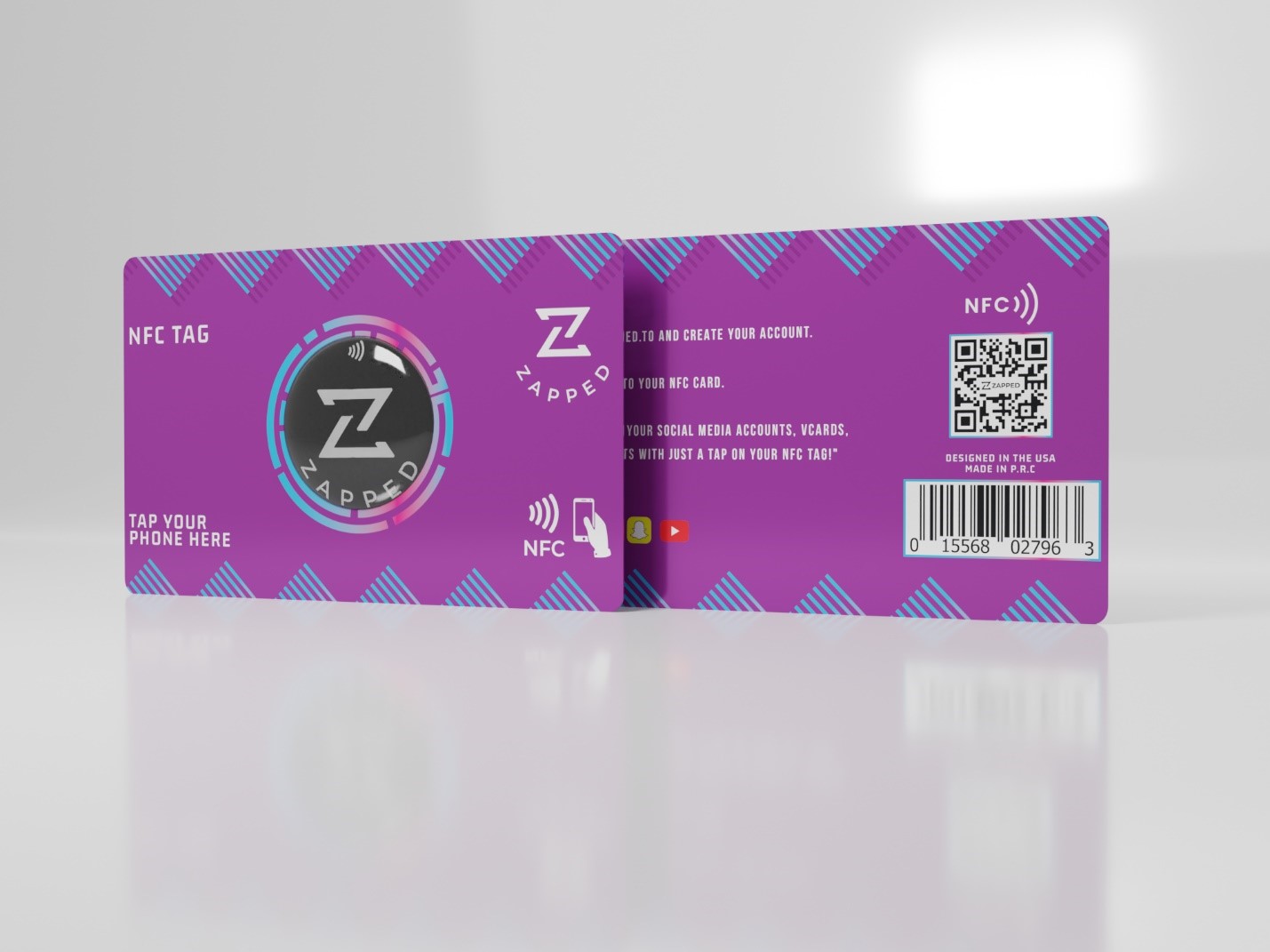
| NFC business card | Professional in person sharing | Test before printing or ordering in bulk |
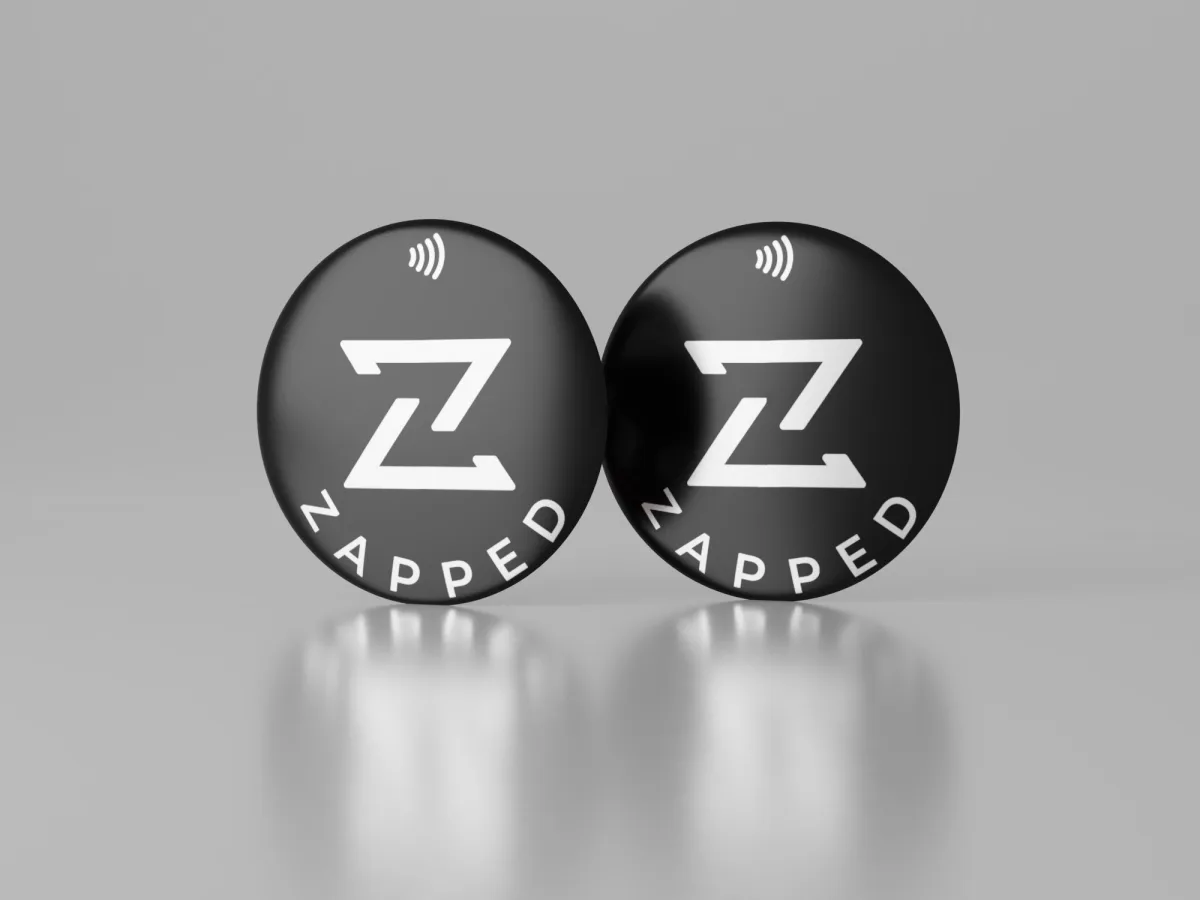
| NFC sticker | Packaging, displays, laptops, and signage | Flexible and inexpensive |
| Locked tag | Permanent destination | Use only after testing the final URL |
If you are writing a Zapped profile URL, the tag only needs to hold the link. The editable profile holds the richer details.
How to program an NFC tag with Android
- Turn on NFC in Android settings.
- Open your NFC writing app.
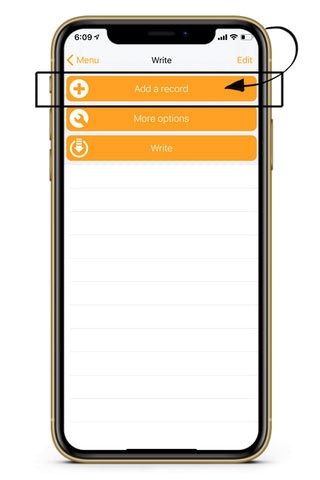
- Choose the write section.
- Add a new record.
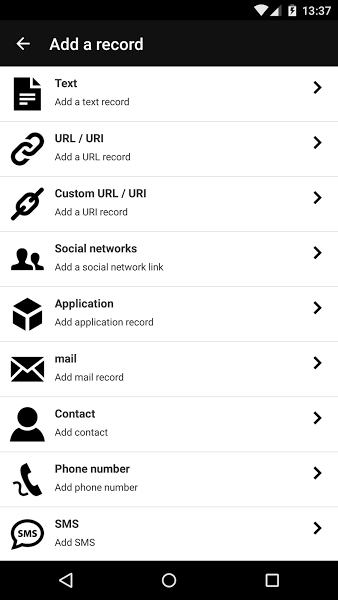
- Choose
URLorCustom URL. - Paste the digital card or website URL.
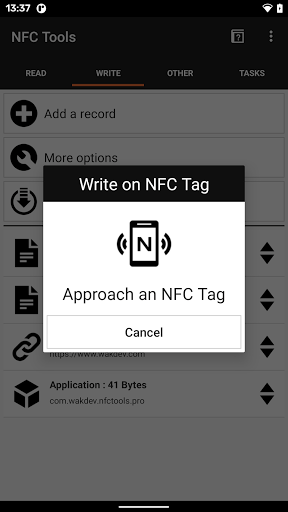
- Tap the write option in the app.
- Hold the NFC tag against the phone's NFC antenna area.
- Wait for the app to confirm the tag was written.
- Scan the tag with another phone to verify the destination.
The exact URL workflow
For a business card, choose a URL or URI record rather than trying to store every contact detail directly on the tag. Paste the live profile URL, write it to the tag, then test the tap from the lock screen and from an unlocked phone.
If the tap opens the wrong page, rewrite the tag if it is still writable. If the app says the tag is locked or read only, use a new tag. Do not lock a tag until the final URL, profile, redirect, and QR backup have all been tested.
The first screen to look for is the app's record picker. This is where you tell the writing app what kind of data the NFC tag should store.
For a digital business card, choose a URL record. A URL keeps the NFC tag lightweight and lets the destination profile change later without rewriting the chip.
When the record is ready, tap the write option and hold the tag against the phone's NFC antenna area until the app confirms the write.
How to test the tag after writing
After the app says the tag was written, test the real sharing experience.
- Scan the tag with the same Android phone.
- Scan it with a second Android phone if available.
- Scan it with an iPhone.
- Try with the phone case on and off.
- Confirm the profile opens in the browser.
- Confirm the save contact, booking, or lead action works.
- If it is a printed card, test the final printed card before using it at an event.
Testing on both Android and iPhone matters because NFC antenna placement and background behavior differ by device.
What should you write to an NFC business card?
Write a short URL that opens a live profile. Avoid writing every contact detail directly to the tag unless you are sure it will not change.
| Option | Best for | Why |
|---|---|---|
| Zapped profile URL | Networking, sales, teams, events | Update the profile without rewriting the tag |
| Website URL | Company pages and portfolios | Simple and widely compatible |
| vCard download URL | Save contact workflows | Better than embedding a large contact record |
| Plain phone or email text | Small one purpose tags | Less polished and harder to track |
Troubleshooting Android NFC writing
If the tag will not write, try these fixes:
- Confirm NFC is turned on.
- Move the tag slowly around the back of the phone to find the antenna area.
- Remove thick or metal phone cases.
- Try a smaller payload, such as a short URL.
- Test a different writable NFC tag.
- Make sure the tag is not locked or read only.
- Try the tag with another phone if possible.
Here is the same troubleshooting in decision form:
| Symptom | Likely cause | Fix |
|---|---|---|
| Phone does not detect tag | NFC is off, antenna missed the tag, or case interference | Enable NFC, remove case, move tag slowly |
| App detects tag but write fails | Tag is locked, incompatible, or too small | Try a known writable tag or shorter URL |
| Tag opens old destination | Tag was not erased or rewritten correctly | Erase and rewrite if the tag allows it |
| Works on Android but not iPhone | Payload may not be a standard URL record | Rewrite as a normal URL record |
| Works only sometimes | Antenna placement or phone case issue | Add a QR code backup for reliability |
Android vs iPhone for NFC tags
Android often gives users more NFC writing flexibility, while iPhone behavior depends more on supported tag types, iOS behavior, and the app being used. For business-card sharing, the best cross device approach is still simple: write a web profile URL to the tag.
If you also need iPhone steps, see how to program an NFC tag with iPhone. Once the tag is written, see how to scan an NFC business card on Android for what the person receiving the tap actually experiences.
Use Zapped as the NFC destination
When you program an NFC tag for networking, the safest useful payload is usually a live profile URL. Zapped gives that URL a real job: it opens a profile with your contact details, save contact action, links, booking path, and company information instead of locking everything into the chip.
That makes the Android writing step simpler. Write the Zapped profile link to the tag, test the tap, and update the profile later when your role, phone number, offer, or booking link changes. The tag stays the same while the destination keeps improving.
FAQs
Can all Android phones write NFC tags?
No. The phone needs NFC hardware, NFC must be enabled, and the tag must be compatible and writable. Most recent midrange and flagship Android phones include NFC, but not every device does.
Where is NFC on an Android phone?
The NFC antenna is usually on the back of the phone, often near the center or upper area. The exact location depends on the phone model.
Can I use Android to clone an access card?
Usually no. Access cards are normally tied to a managed access system, while this guide covers writing URLs and other simple records to writable NFC tags. Ask the access provider if they offer an official mobile credential.
What is the best NFC tag for a business card?
Use a compatible NFC card or tag with enough memory for a short URL. A dynamic profile URL is usually better than storing static contact details directly on the tag.
Can I rewrite an NFC tag with Android?
Yes, if the tag is writable and not locked. If the tag has been made read only, use a new tag or card for the new destination.
Does someone need an app to scan my Android-written NFC tag?
Usually no. If you write a standard URL record, the recipient's phone should open the link without installing your writing app. The app is for programming the tag, not for every scan.
Sources
This guide uses Android's current NFC documentation and NFC standards context.
- Android NFC basics: Used for Android NDEF reading and writing context.
- Android NFC overview: Used for Android NFC capabilities and card emulation context.
- NFC Tools on Google Play: Used as an example Android NFC writing app for the walkthrough.
- NFC Forum, NFC technology: Used for NFC Forum tag and NDEF context.